Installation procedure for MechworksPDM Addin in AutoCAD
Following procedure will be suitable for AutoCAD 2018-2023
Prerequisites
•Mechworks Standalone Client is required
•When AutoCad is already installed on the system, selecting the new standalone sub-feature “Autocad” will automatically install and configure all required components, allowing the MWPDM for AutoCad integration to start automatically. After selecting the Autocad feature, you have to specify the type of Autocad product (Standard, Mechanical, Electrical) that needs to be installed.
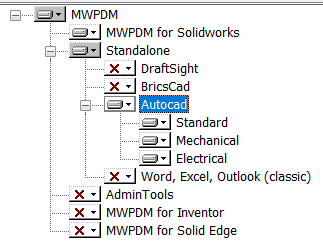
The supported AutoCad (Standard, Mechanical, Electrical) versions currently are 2026, 2025, 2024 (see details MWPDM Compatibility Matrix)
The supported AutoCad installation languages are: English, German, Italian, French, Spanish.