File loading algorithm
Starting from R20 release, the message files, the resource files and other PDM handled files are loaded from installation path rather than from the global parameter path (GPP).
All the sub application related to the MechworksPDM core have been modified to be compliant with this behavior.
This enhancement improves the performance and fixes some updating issues shown up in the previous releases.
The loading policy affects also the custom files (for example DBWFields_Custom.msg), that must be placed into the installation language specific folder.
Example
Environment Installation language: English
File to load: DBWFields_Custom.msg
Algorithm:
1.The file is searched in the folder <InstallationPath>\Lang\English\
2.If the file is not found, it is searched in the folder <GPP>\Lang\English\
3.If the file is not found, the system assumes the file does not exist
Bypass the algorithm - DBWUserDefinedPaths.txt file
It is possible to bypass the algorith by defining for each file where to load it from.
By declaring the file name and the new path (optionally a different filename too) in the <GPP>\SCHEMA\DBWUserDefinedPaths.txt file, the PDM loads overrides the algorithm paths with the provided path.
Syntax:
FileName = FilePath
Example
suppose you want to define a different image for the icon file U1, that's -for the algorithm- <GPP>\SCHEMA\IMG\DBW_BUTTON_BROWSER_CU1.ico
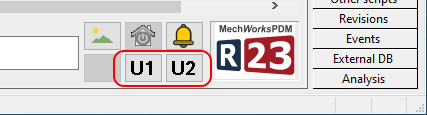
suppose your image is located in Z:\FILES\ICONS\celltower_48.ico so the DBWUserDefinedPaths.txt file is defined as follows:
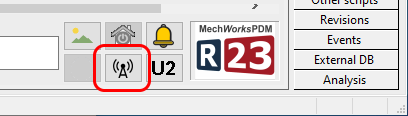
DBW_BUTTON_BROWSER_CU1.ico = Z:\FILES\ICONS\celltower_48.ico
After a browser restart the button is now showing the new icon:
Please note this functionality is very useful when implementing custom images/parameters that are supposed to be system (so overwritten at installation time).
By specifying the file in a different path or name, you can keep it separated from the installation path and avoid the override performed on system files at every application update.