Multi language mapping using unicode secondary language support
Following is the procedure for creating a multi-language mapping using the "Unicode Secondary Language" support of Mechworks PDM.
Please note that many of the strings that are used as example, as well as some encoding of the strings, can be automated using the scripting support of the PDM.
The example assumes that we will create a secondary language named UNICODE and that we'll create for each supported language a STRING key and a STRING value for mapping the Primary Language String value into the Secondary one.
1.Define the Primary Language String KEYs and the Secondary Language String VALUES – enter such strings in the DBW_UNICODE_MAPPING_TABLE – this procedure can be automated by importing existing tables / spreadsheets into this DBWorks table
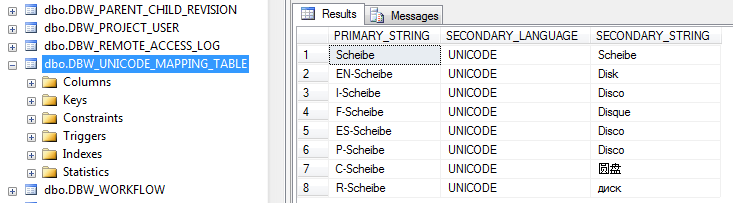
2.Extend the DOCUMENT table and create, for each supported language, a new COLUMN – the size of the COLUMN must be sufficient for hosting the max length string KEY in the Primary Language
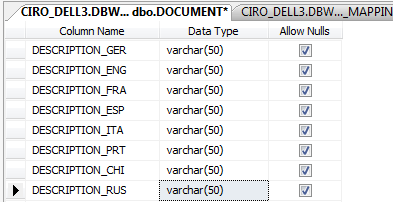
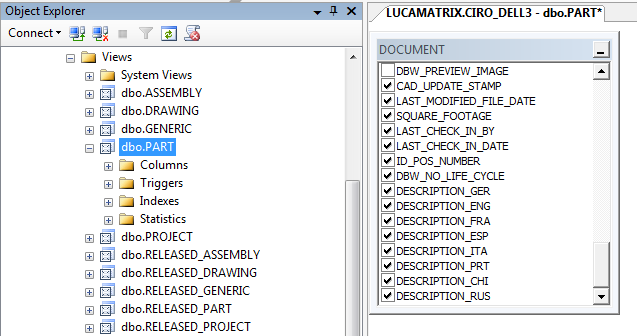
3.Remember to update the database VIEWS, exposing all the new COLUMNS to each view interested in the multi-language support
4.Edit the SCHEMA\Dataentr2.txt and add a section for hosting the International support, with all the new COLUMNS defined for such support
...
SM_MASS
SM_THICKNESS
International
DESCRIPTION_GER
DESCRIPTION_ENG
DESCRIPTION_FRA
DESCRIPTION_ESP
DESCRIPTION_ITA
DESCRIPTION_PRT
DESCRIPTION_CHI
DESCRIPTION_RUS
...
5.Edit the SCHEMA\BomTitle.txt and add the entries that will create the mapped File Properties for each supported language
;===================================================================
;
; DBWorks (C)MechWorks BOM titles file
;
; Language: ENGLISH
;
;===================================================================
;
;
ID "Id."
;
DESCRIPTION_GER "UnicodeSecondaryLanguage@DescGerman"
DESCRIPTION_ENG "UnicodeSecondaryLanguage@DescEnglish"
DESCRIPTION_FRA "UnicodeSecondaryLanguage@DescFrench"
DESCRIPTION_ESP "UnicodeSecondaryLanguage@DescSpanish"
DESCRIPTION_ITA "UnicodeSecondaryLanguage@DescItalian"
DESCRIPTION_PRT "UnicodeSecondaryLanguage@DescPortuguese"
DESCRIPTION_CHI "UnicodeSecondaryLanguage@DescChinese"
DESCRIPTION_RUS "UnicodeSecondaryLanguage@DescRussian"
6.Create TWO dummy files, one named UNICODE.UMSG and the other UNICODE.UDBWUI, coded in UTF-8 format – the files are necessary for allowing to set the General-> ... option
The files must be created under the shared directory LANG\UNICODE\..., that must be created before creating the two files
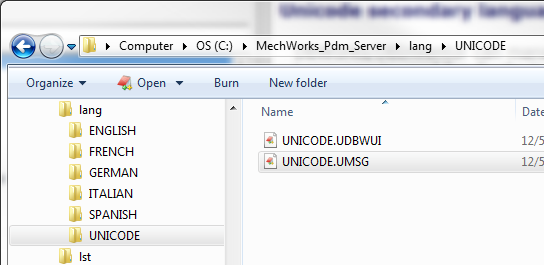
UNICODE.UMSG
;
; Dummy file
;
MSG_INFO "Dummy_info"
UNICODE.UDBWUI
UI_DUMMY "Dummy"
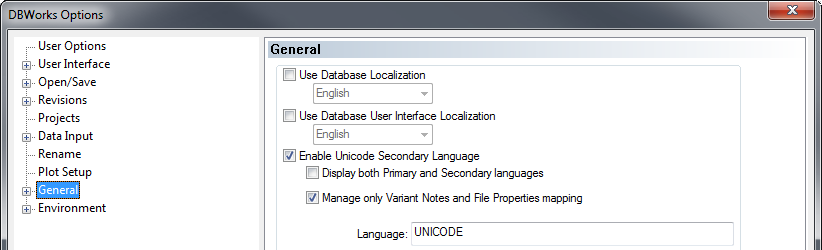
7.Set now the necessary option in the General tab – name the language UNICODE
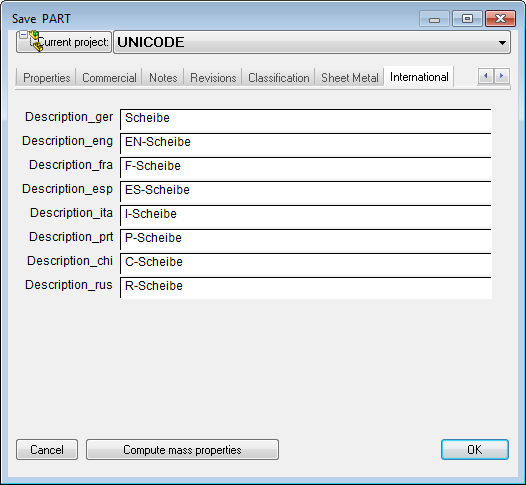
8.Let's create now a new part – at save time, by hand, or by using a properly written script, fill the new columns with the KEYS that you have choosen for the translation – such KEYS must match ONE-TO-ONE the keys inserted in the DBW_UNICODE_MAPPING_TABLE, as displayed at the point 1) of this guide
9.Save now the Part and verify the Custom Properties that have been written ( for better clarity, in this example I have also used the Data Input->[X] Write only Properties defined in SCHEMA/BOMTITLE.TXT)
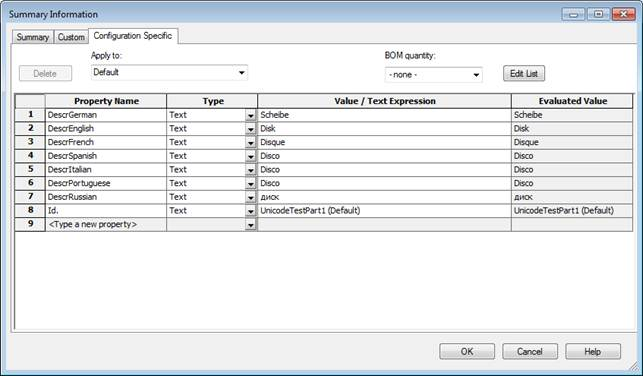
As you can see, for each mapping defined in the BOMTITLE.TXT, a new custom property has been written – such properties can now be exposed/used in a SolidWorks Drawing, or where you like