Category Browser 2004
The new Category Browser has been made available for installation by default only on new 2004 installations, so as to allow the users to pass to this new interface with a precise choice and only after testing.
Installation
The Category Browser is running as the default Open/Save Wizard only in new 2004 installations. The role of the I/O is very important inside a company the adopts it and we wanted to make sure that passing to the new interface is a decision that could possibly go through testing and gathering feedback from the users.
In order to use the new wizard on old installations, you need to modify the scripts (normally lst/dataentr.LST and onOpen.LST) substituting
createObject("IOSIG.
with
createObject("IOSIG2004.
The new interface
The interface of Category Browser, Open and Save Wizard has been entirely redesigned to improve usability and make it more appealing.
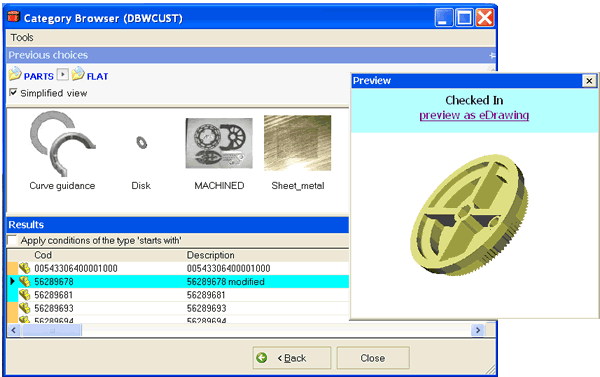
The principles that rule the category system and the browsing mechanisms have been left unmodified, so the section here below explains only the interface changes and the improvements, where available.
Floating windows
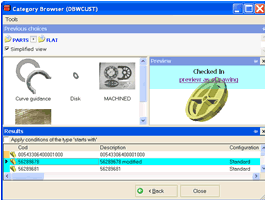
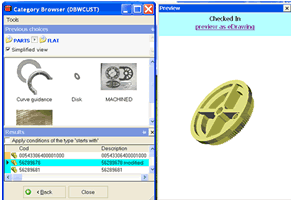
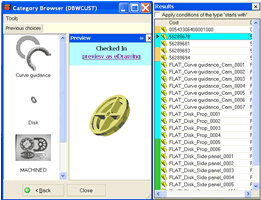
the results panel and the preview panel have been made floating using dragging. The advantages are:
•you can rearrange the windows position as you like inside the frame (i.e. preview docked on the left)
•you can extract the results window to display a long list of records
•you can extract the preview window for large previews, very handy for drawings where a small preview is simply not clear enough
•when the main window doesn't have the focus all the floating windows disappear from screen, allowing you to have a smaller footprint for the application when you are not using it
The windows layout is 'remembered' and remains consistent across sessions on the same workstation.
Here are some example of layouts you could easily obtain:
|
|---|
|
|
Previous choices as you browse the categories
This panel displays the list of choices that led you at your current selection of categories/codes. Basically this panel lets you know where you are and allows you to browse several steps backward with a click.

The panel is read from left to right and displays the categories selected in blue and the codes selected or associated to the category in black.
The second row displays:
for a category, the associated field of the database if any
for a code, the associated code value that could be used to determine the ID of a document being saved
Simplified view
This view as is in the image above is complete but not readable at a glance for most users as it reports information that breaks the obvious flow of decisions. Clicking the check box for simplified view hides both the codes, either implicit or explicitly selected and the associations in the second row. The result is certainly more readable:

Hiding the panel
This panel can be handy as a mean to orient yourself and as a browsing tool, but could be considered redundant for a basic use and can be hidden anytime.
On the top-right angle there's a pin  that if clicked allows you to hide the panel:
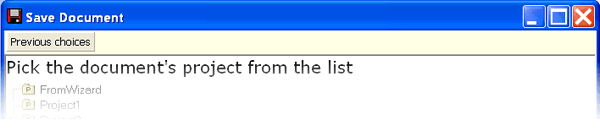
Clicking the button Previous Choices and the pin again restores the panel visibility.
Identify your choices with icons
Every category or code can be associated to an image (96x96 pixels) to help you to quickly identify the items during a selection.
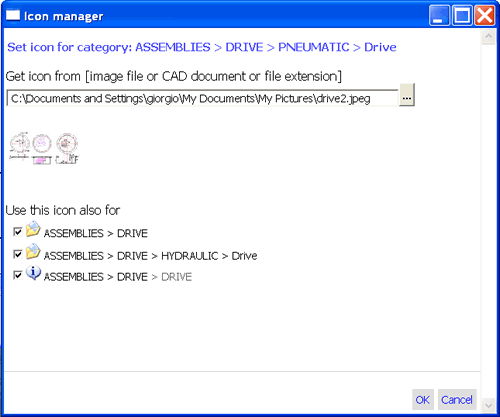
Icons can be selected using a new dialog added to Category Maker:
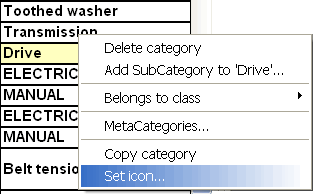
where you can set the icon extracting it from:
a jpg/gif/ image file (the result is automatically resized to fit keeping the original aspect ratio)
a file type (such as pdf or .pdf to identify categories of generic documents)
a 3D CAD document (a preview is extracted and resized to fit)
To save your time in repetitive tasks, you can decide each time if you want to set the icon also for codes or categories with the same name. The complete path helps you to quickly identify them.
The browsing procedure for choices remains the same: to go forward click an item, to go back either:
click an item in the previous choices panel
right click the panel in an empty area
click the button back below
The Project Tree
At the end of a save process, the project that used to be a list is now correctly displayed as a tree, and the current project is made visible no matter the level.
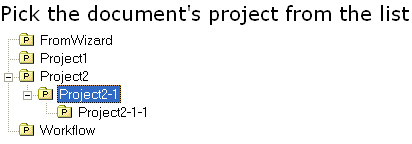
A double click on a project selects it.
The results window
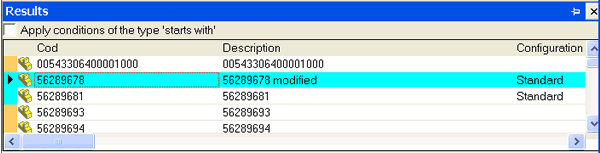
The window is more consistent with the MechworksPDM look and displays the state using a color and the file type with an icon also for all the non cad documents, using the current icon as defined on the workstation.
Quick preview
If you need to find a part among many, the ID may not be self explanatory enough. In Category Browser 2004 you can browse the previews without having to click each record. Press the CTRL key on the left side of the keyboard and move the mouse over the records. Where available, a quick preview appears near the mouse in a non obtrusive way and following your mouse movements:
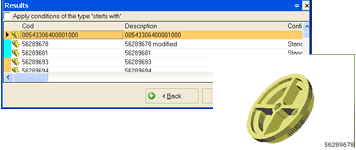
The Quick Preview display also the ID of the document in the right bottom corner.
The preview panel/window
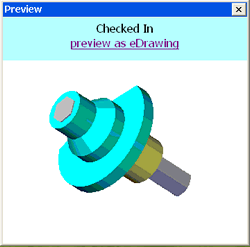
The preview panel displays a preview of the current document as selected in the results panel.
The enhancements introduced in this preview panel are:
•high quality, always respecting the original ratio images
•transparent info band, doesn't occupy space that should be used to display the image
•info displayed: state, configuration displayed if not the same as the record (could happen with SW2003 file or older)
•ability to load an eDrawing inside the same window, with one click and only on demand. With SW2004 the eDrawing is created on the fly with a waiting time of approximately less than two seconds, depending on the hardware and the location and size of the files.
•ability to load pdf files and other ole2 compliant file types on demand
•ability to quickly preview dwg/dxf
•ability to preview Microsoft Office documents if they have been saved with a preview inside