Checking the product version
Check the CAD version
In CAD application
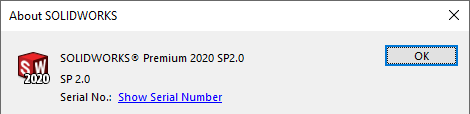
•Help, About SOLIDWORKS...
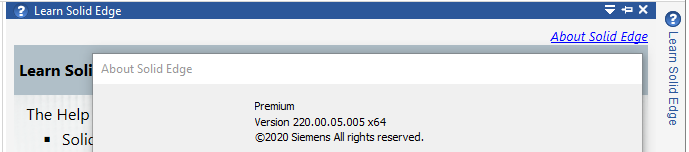
•Help, About Solid Edge
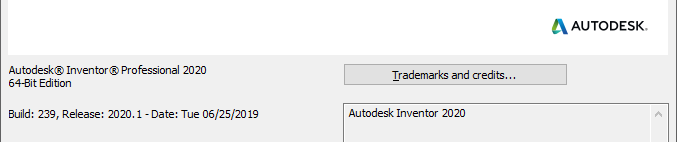
•Help, About Autodesk Inventor
Check MechworksPDM product version
A specific button in the ribbon bar  allows you to open the About dialog; more, the logo in the bottom right part of the browser takes you to the same dialog
then the dialog appears:
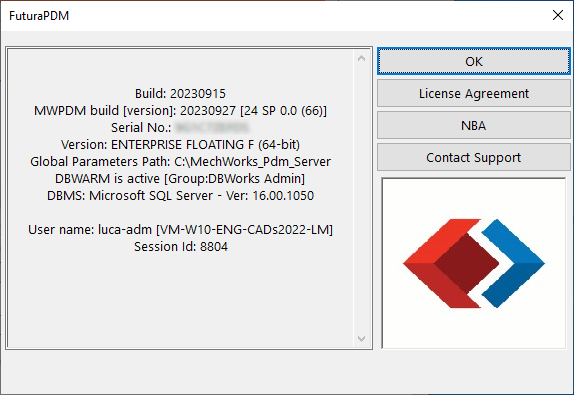
Information in the dialog
•The build, the dll (core library) build and the service pack
•Serial No: the same serial you can use (together with the customer code) to login on the website
•The version:it could be nodelocked or floating; the possible values are: ENTERPRISE, FLOATING, DEMO; in case of borrowed license it's specified the ending date of the borrowing
•The Global Parameters Path is the path where parameters and script are expected.
•DBWARM state; reports if the access right management is active; more it reports also the group of the current user
•DBMS version: The version of SQLServer of the connected ODBC
•the Logging state: if enabled, such info is shown in the dialog
•the user name: accordingly with DBWARM settings and windows credentials.
.
•Extra custom info can be added to this dialog through the script OnAbout.lst
Buttons in the dialog
• closes the dialog
• shows the EULA
• opens the default web browser and navigate on the custom website
• opens the default mail client and create a new email message to the custom support mail address