ODBC configuration
ManageMechWorksDSN tool
For setting up the ODBC connections, the ManageMechworksDSN tool is automatically started as soon as the installation has been completed (or on demand, from the start menu).
If the ODBC are already present on the workstation, the tool will not be run at the end of the setup.
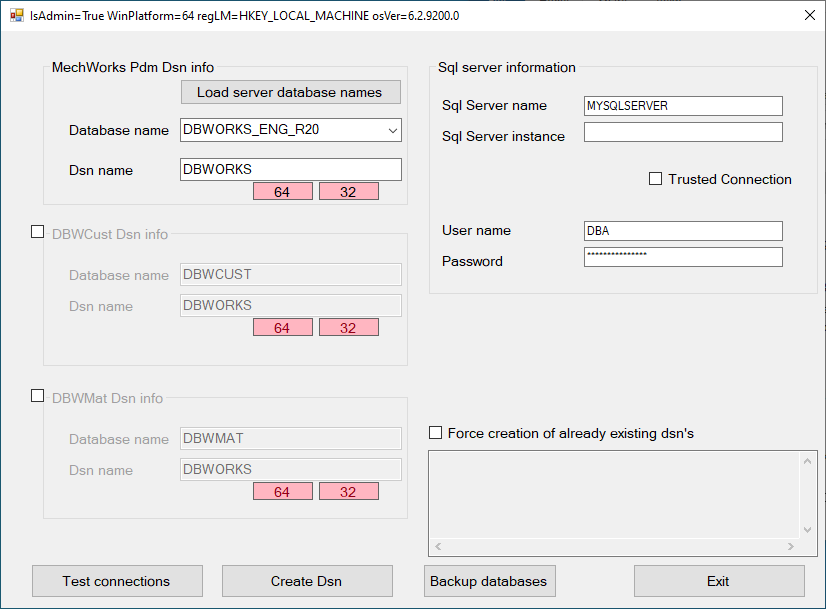
Fields of the tool
•The title of the tool contains system info such as current user admin state, platform bits, registry location and Windows version
•Mechworks PDM DSN info
othe button to load the databases available on the server
othe dropdown list (containing the loaded database) to select the database name from
othe DSN name to be provided to the selected database
•DBWCust DSN info: (obsolete) in legacy installations database data was splitted into 3: this was the categories database
•DBWMat DSN info: (obsolete) in legacy installations database data was splitted into 3: this was the materials database
•SQL Server information
Credentials to login on the specified SQLServer instance
oSQL Server name
oSQL Server instance name (if needed)
oTrusted connection: WindowsNT authentication using the network login ID (if enabled, no login da ta has to be provided)
oSQL Server user name
oSQL Server user password
•Force creation of the already existing dsn's
when DSNs are already been declared, this checkbox allows to overwrite currently set values.
Usage of the tool
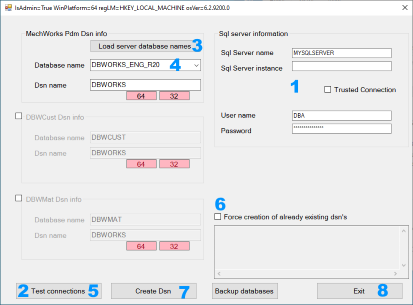
A tipical run of the tool:
1.fill the field for the connection
2.click the button
3.click the button
4.select a value from the dropdown list database name
5.click again the button to validate the choice
6.if necessary select the checkbox for overwriting currently set DSN
7.finally
Understanding Mechworks PDM data sources
•DBWORKS
This is the main data source pointing to the database that contains all the basic information about CAD documents. In a shared network environment all DBWORKS data sources must point to the same file.
•DBWMAT
This data source contains all the information concerning materials. In a network environment this data source must be shared.
•DBWCUST
This data source is related to a database with information used by the SaveWizard and by the customized Excel BOM. If you're working in a network environment the database should be shared, which is all the data source should point to one file.
•DBWBOM
This data source is an Excel sheet used to generate a MechworksPDM hierarchical BOM at a level defined by you at run time.
•DBWEXCEL
This data source is related to the creation of the general MechworksPDM BOM that can be customized to have access to other data sources across the network and fill the sheet with any sort of information that makes sense to you. The data source is locked and must remain local as it is mainly an output data source.
Support for ODBC DSN file
Mechworks PDM supports FILEDSN, i.e. file-based DSN; you can create a file dsn opening ODBC manager, File DSN, and following the steps for the Add... command. The files are normally saved in C:\Program Files\Common Files\ODBC\Data Sources depending on your programs directory.
The .DSN file (supposedly named DBWORKS.DSN) is normally be copied in a safe place and made it read-only and hidden: normal users don't have on their workstations the ability to browse for HIDDEN files and will not be able to read the connection settings.
The DBWCONN.PAR connection parameter file supports the assignment of a full path name for the DSN parameter:
;
; DBWCONN.PAR
; Data source/System parameters file
;
DBWORKS_DSN \\MyServer\Z\DBWorksProtectedFolder\DBWORKS.DSN
...
...
No User DSN or System DSN is now required in the ODBC control panel: the users can never *link* any table to Access databases.
The path for the location of the file dsn and the name of the file dsn must not have spaces in it.
If a .DSN file is specified as DBWORKS_DSN, parameters regarding ODBC connection (such as DBWORKS_UID and DBWORKS_PWD) are not read from DBWCONN.PAR because it is assumed they're specified in the .DSN file.
For this reason the .DSN file must be manually added with the password through the parameter PWD. Here below an example of the DBWORKS.DSN file:
[ODBC]
DRIVER=SQL Server
UID=DBA
PWD=SQL
DATABASE=DBW_SQL_ENG
WSID=WIN-PK2USTJABGF
APP=Microsoft® Windows® Operating System
SERVER=LUCAMATRIX
Encrypted FILEDSN
MechworksPDM can manage files of type .DSN encrypted by using the BIN\DBWEncryptScript.exe executable, that's an utility used for encrypting any .VBS script processed by MechworksPDM ( see here further details on how to encrypt files).
In such way, it is possible to hide any database access detail at the user level, so to allow the access exclusively to the MechworksPDM application.
The FILEDSN must be declared in the DBWCONN.PAR as usual. An example is the following:
;
;
; DBWCONN.PAR - DBWORKS (C)MechWorks connection data file
;
;
DBWORKS_DSN \\MyServer\MyShare\MyFileDSN###.DSN
...
DSN file and Released Database Mode
The Released Database may not be starting if a FILEDSN is assigned in the DBWCONN.PAR. In order to support the Released Database with a FILEDSN, you must create a .DSN file named as the primary database DSN file, with the _RELEASED suffix following the file name.
Example: suppose you have already created a file DSN named \\MyServer\MyShare\DBWORKS.DSN, then you must create a file named \\MyServer\MyShare\DBWORKS_RELEASED.DSN and edit its DATABASE line in order to point to the correct Released Database data source.