First run with the Save Wizard
This topic contains a simple example of saving a new part with the Save Wizard and shows how the system of categories previously set up with the Category Maker affects this process.
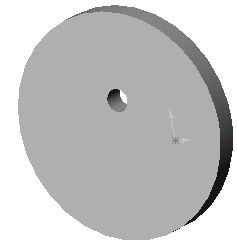
As a first step, you need to create a new document in SolidWorks. In the following example, we created a new part, a very simple one. Please note that the process wouldn't be different for a complex assembly or a drawing. |
|
To save this new part, click  in the DBWorks section of the SolidWorks toolbar.
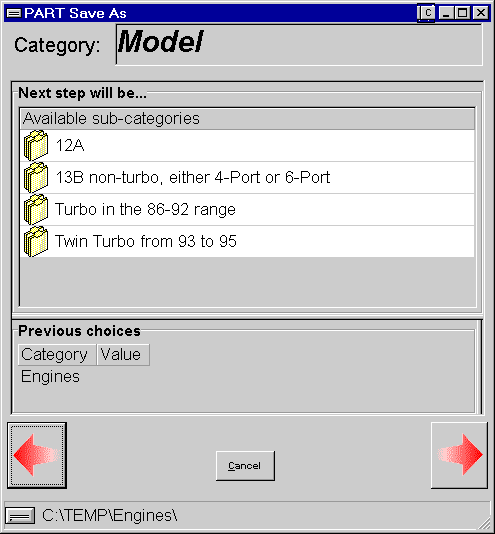
The following window appears:
Here you are implicitly asked to indicate to what category in the list your part belongs: you can click entry to select it. To each category you can associate attributes like a list of admitted values or a subdirectory that will include all the documents belonging to it. If you have created a list of two or more acceptable values, as a next step you are asked to pick one from the list; if no value or only a single value is admitted for the given category, then the wizard proceeds as no interaction is needed for the selection. |
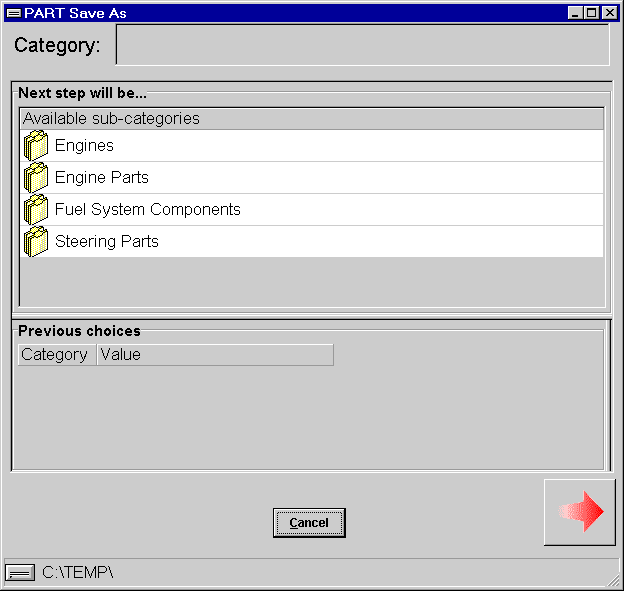
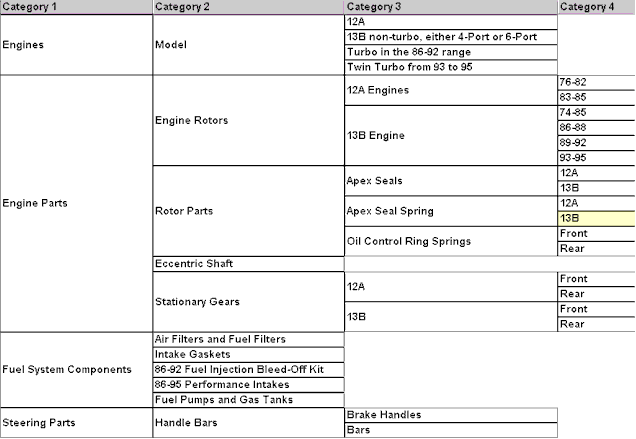
Note how the categories in the list correspond to the first level of categories as they have been defined with the Category Maker. As a matter of fact the system of categories is a tree and what the Wizard does is to cover a certain path from the document's root to a leaf according to the choices that you are asked to make along the way. The wizard lets you choose among many entries only if a choice needs to be made. If, for instance, you select the category Engines and no further selection is necessary among its values, you are not asked to select to which sub-category you move as 'Model' is the only one available. |
After clicking Engines, you pass through Model and are asked to what sub-category to move next. Before picking one let's see how the interface has changed and how the dialog exposes information on where you've been, where you are and were you can go next. The window Previous choices displays the categories through which you went so far. In this case you passed through engines and since no value was available for that category you haven't been asked to pick one and beside Engines in the column value you can see that there is no information. The header above labeled as Category shows you that you are currently in the category 'Model'. The list of available sub-categories, in the middle ask you to select to which sub-category your part belongs. Another important information you can read in the interface is the current path so far. The path, displayed in the status bar below, is composed of a common root, in this case c:\temp and of subroutines that are related to the categories through which you pass along the way to the leaf. in this case a subdirectory named Engines had been related to the category 'Engines', so your part will be saved in c:\temp\engines or in one of its subdirectories. The path is only temporary because before you arrive to the leaf you may meet further subdirectory specifications. If you changed your mind you can go back to your previous step clicking Now let's continue on our way towards the leaf clicking 12A. |
 .
.
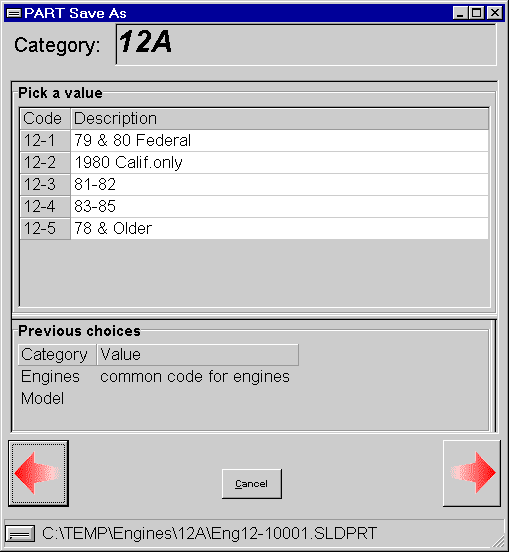
Now, since the category 12A has more than one value associated with it, you are asked to pick one from the list. Before you do it, let's go a little deeper into the meaning of values: why associate values to a category and how do values affect the file name and location. As we've seen before, categories affect the location of the file: you can associate to each category the name of a subdirectory and at the end of your journey in the tree you obtain the directory location putting together all the subdirectories gathered along the way. Similarly, the values picked along the way will form the final filename used to identify your new document. The values can be united by means of graphical characters like '-' or '_' or simply joined and at the end of the string a serial number identify one by one the documents of the same type. In this case, if you click 12-1 you get a file name Eng12-1001.SLDPRT which comes from The short code is used as a component of the resulting file name while the description is used to identify the code and eventually to retrieve it for opening. If you save another part of the same kind, you'll get a final filename like Eng12-1002.SLDPRT where the only change is the increasing value of the serial counter. It is possible to have parts and assemblies reciprocally increase the serial number, so that after saving a part as Eng12-1002.SLDPRT, if you save a new assembly you get the filename Eng12-1003.SLDASM and vice versa. |
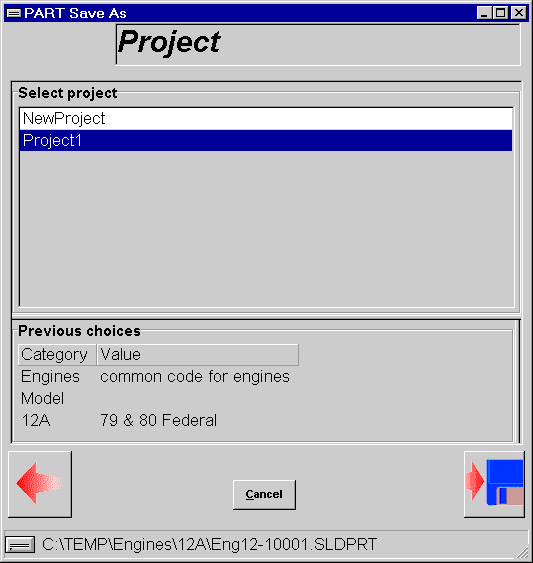
Finally, after arriving to a leaf you are asked you select the project to which your new document will belong to. To finish click the button |
 .
.
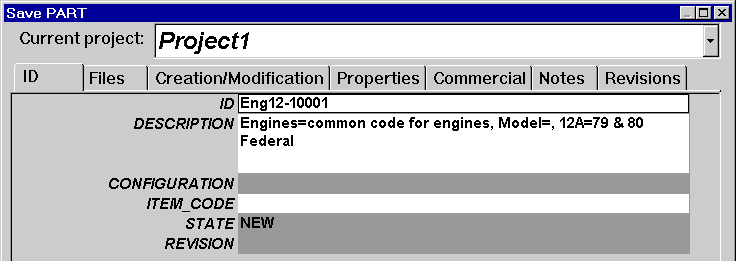
The results of the wizard are well evident once the control is returned to DBWorks: the field ID contains the filename, the field description contains information about the choices selected on the way and the project is the one selected. You can modify the scripting DataEntr.LST so that the information gathered is re-distributed in different ways across the fields. |