DBWServer Installation: operations to be performed on each client
Here you'll find a step by step procedure that explains how to correctly install DBWServer on a client machine.
See also
System requirements for installing DBWServer
Step by step client installation
1.first, take a look to Options → Environment → DBWServer
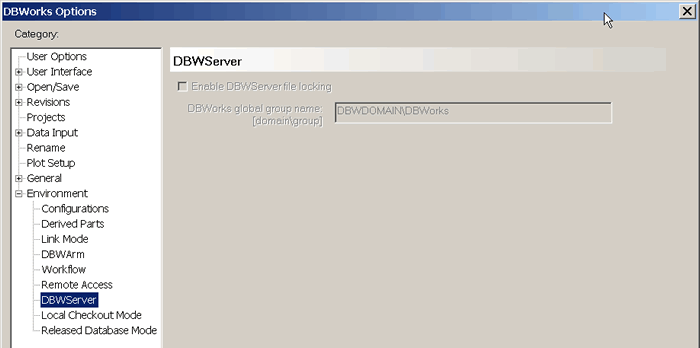
Please note that the option is grey (inactive) because DBWServer it's disabled.
2.execute the .bat file in the <InstallationPath>:
for example
C:\Program Files\DBWORKS\BIN\register_dbwserver.bat
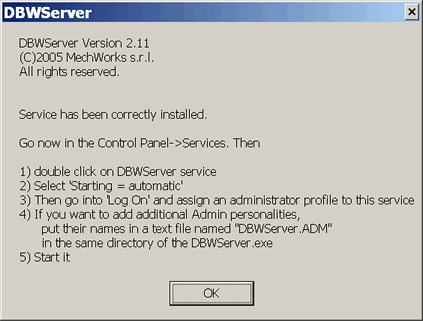
A message box confirms the installation of the service and explains how to configure it.
3.open the Services Window from the Control Panel
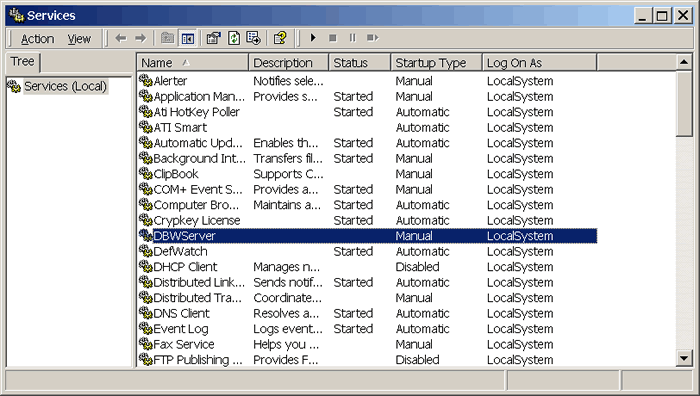
A service named DBWServer has been added;
take a look to its details:
•Status: not started
•Startup Type: Manual
•Log on as: LocalSystem
4.double click on the service name to enter the service settings
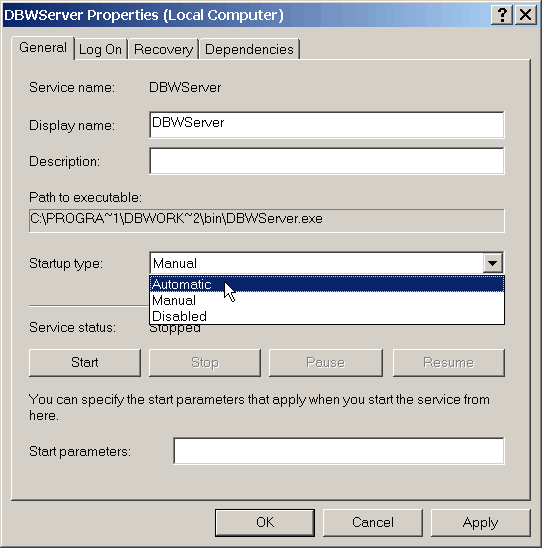
In the General tab, set the Startup Type as Automatic
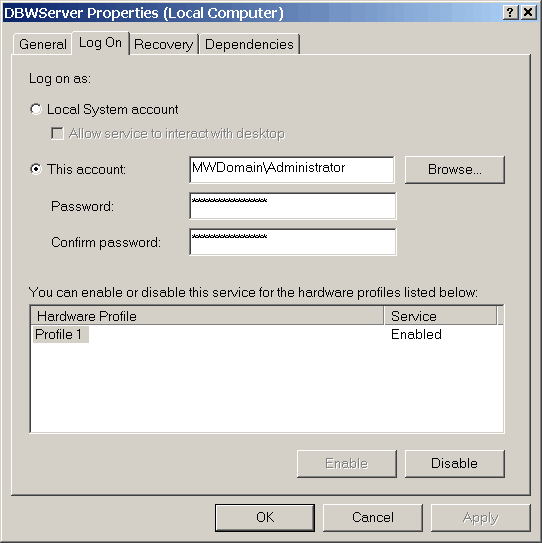
in the Log On tab, enter a global account to log on and relative passwords.
This account must not be specified as user@domain but it must have the format domain\user and domain Administrator rights
More, this account doesn't need to belong to DBWorksGlobalGroup (to which all other DBWorks users have to)
click to close the dialog
5.close and open the Services dialog again to verify that changes have taken place.
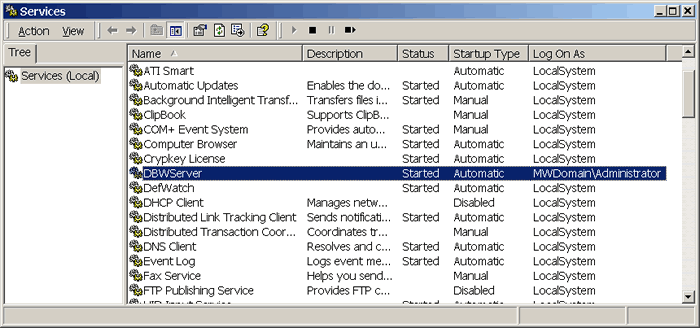
As you can see, the service settings have changed
take a look to its details again:
•Status: started
•Startup Type: Automatic
•Log on as: MWdomain\Administrator
If it is the first time you are running DBWServer, start the service with START; otherwise the service will be started automatically during the next computer reboot.
6.now go back to Options → Environment → DBWServer
and enter the domain\group name.
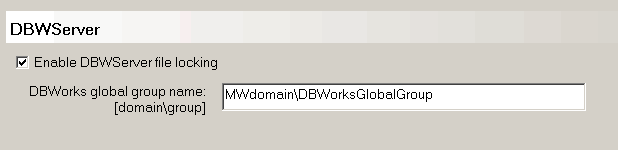
The option is now activable and the text field is editable.
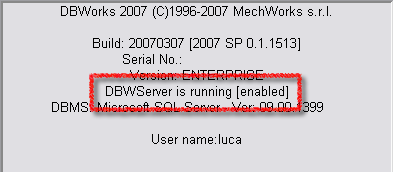
7.finally verify that MechworksPDM is connected with DBWServer by openining MechworksPDM menu → About MechworksPDM...