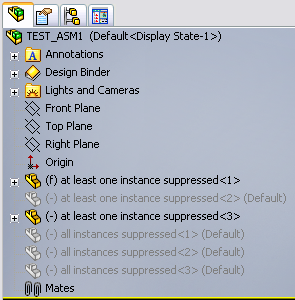
The MechworksPDM Feature Manager
MechworksPDM creates it's own window in the CAD Feature manager.
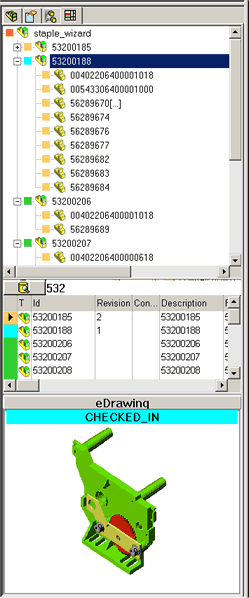
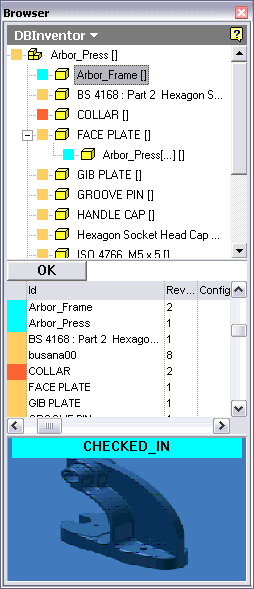
DBWorks and DBInventor feature managers.
The hierarchical tree
This tree displays the children for assemblies and the parents for parts.
For performance reasons the parents tree for parts is limited to the second nesting level.
The window contains a tree structure of the model, a quick search and a preview. Search results can be dragged and dropped into the current assembly or drawing.
For assemblies and drawings, MechworksPDM builds the child tree; for parts it automatically builds the parent tree. The tree represents the structure of the component as it is stored in the database; for new components, the tree is empty until the component is saved in the database.
The MechworksPDM Feature Manager window has a splitter in the middle so as to adjust the size of the preview window.
Changing the active configuration from the SolidWorks feature manager configuration tab rebuilds the parent/child tree in the MechworksPDM feature manager tab.
All the functionalities available in the Tree Page of the MechworksPDM Browser are available with the RMB popup menu.
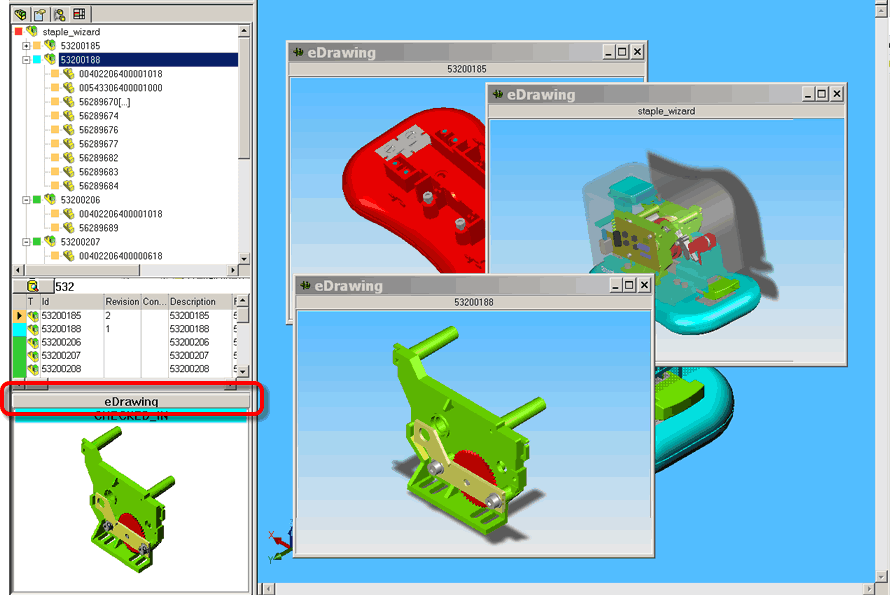
eDrawing button
Clicking this button, located on the top of the preview pane, a new window containing an eDrawing of the current component is displayed.
It is possible to open as many eDrawings preview as you need; when the main document is closed, the eDrawings preview windows are automatically closed.
Visual cues
In the feature manager is possible to see visual cues that help in understanding the components status:
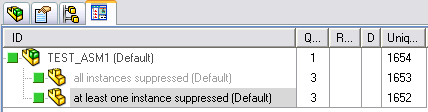
•Components that have several instances and at least one of them is suppressed are displayed with a grey background
•Components that have several instances and all of them are suppressed are displayed with a grey font
this is the original representation in SW Feature Manager: