A step-by-step example with the Default Workflow Model
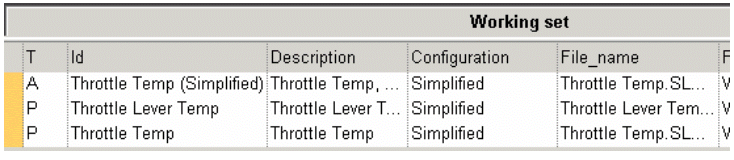
Suppose we want to submit to the Workflow Module a little assembly, made of two parts:
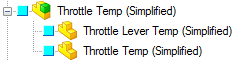
The best place where to operate is a Working Set, so we will multiple-select all the components and create a Working Set:
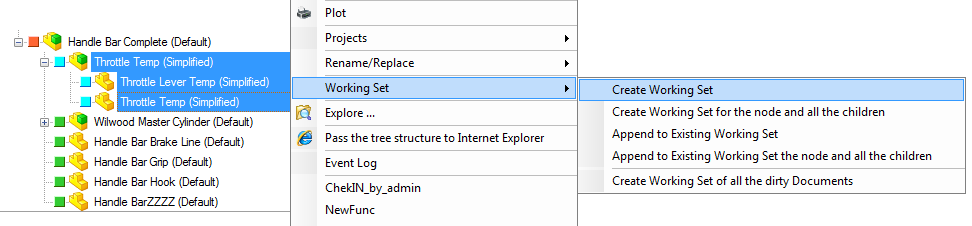
Now, when in the Working set tab of the TreePage, select all the records and a using the Working Set specific command, send the documents to the Workflow Module:
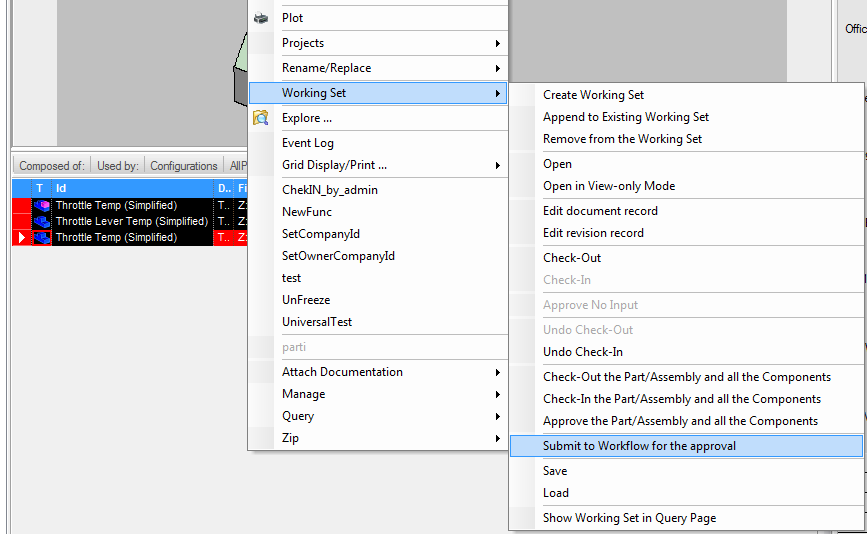
The ECA() routine of the script LST\SYSTEM\Workflow.vbs will now execute, showing the entry dialog:
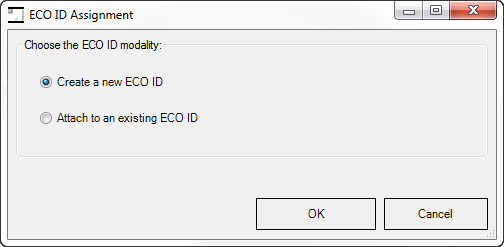
Suppose to choose to create a new ECO ID;
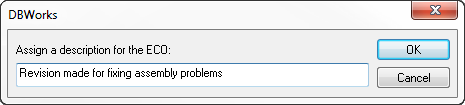
Assign now a little description (any action could be taken at this point to add information to the ECO ID):
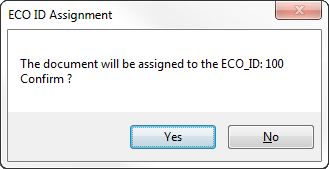
Answer YES to the confirmation dialog:
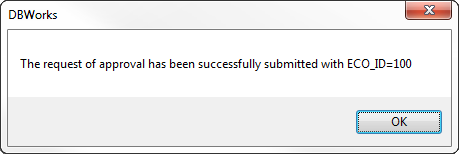
At this point all the eDrawings will be created for the documents in the working set. When finished to create the eDrawing, a aknowledgment dialog will be displayed; press OK to proceed:
The control is now back to the PDM browser: refresh the displayed data: the little yellow square will now show that all the documents are now submitted to the Workflow Integrated Module:

At this moment no revision action can be taken on the documents; you can verify this by opening the RMB Checkout/Checkin menu and seeing that all the entries are disabled:
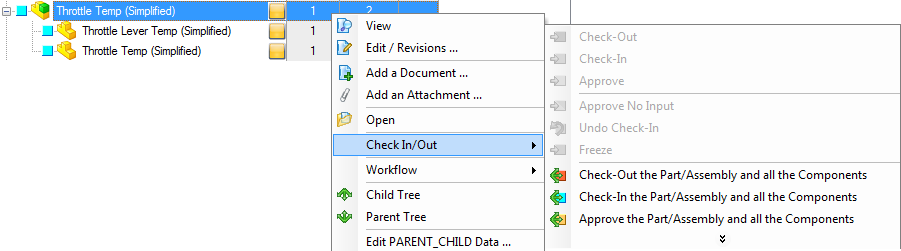
Lets now promote the Workflow State of all the three documents to the final state, so to approve them; RMB on each one and execute the following sequence:
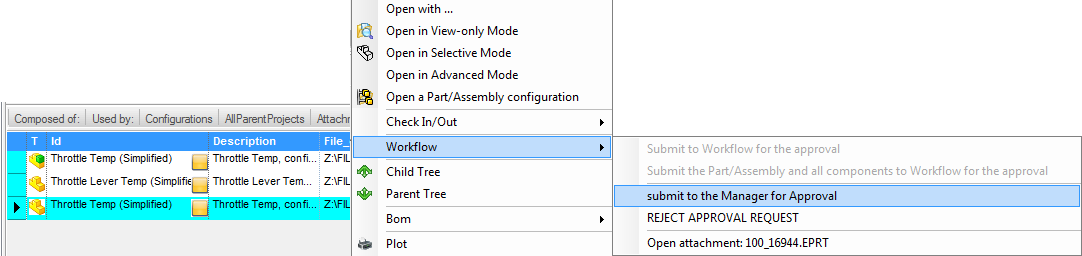
I) Send Forward to the FINAL_APPROVAL state; please note how the message has been changed in the Workflow Definition File, so to be more user-friendly; note also on the right of the popup menu, grayed, the list of the states of the process, with, checked, the current workflow state.
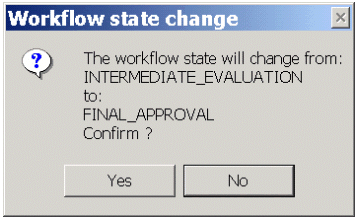
The Workflow Module will ask you a confirmation:
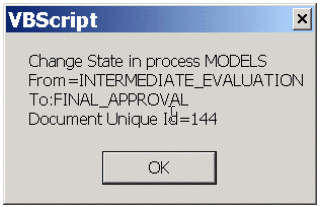
Answer YES and proceed; the OnChangeState event script will be called; the script has in input all the parameters that can be useful for actions and extra notifications:
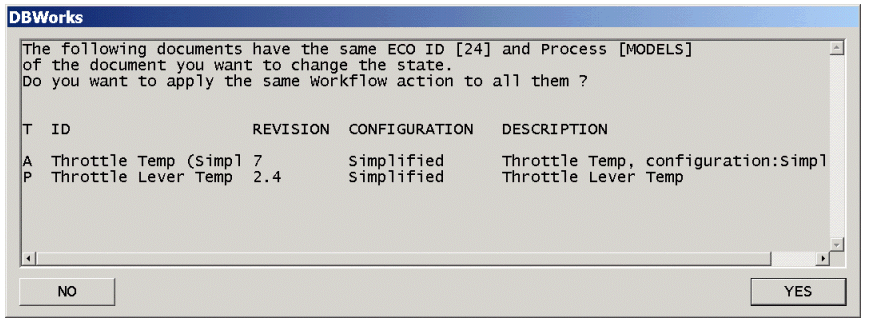
Since the other two documents were belonging to the same ECO and are actually in the same process/state, the Workflow will ask for an automatic enhancement of their state:
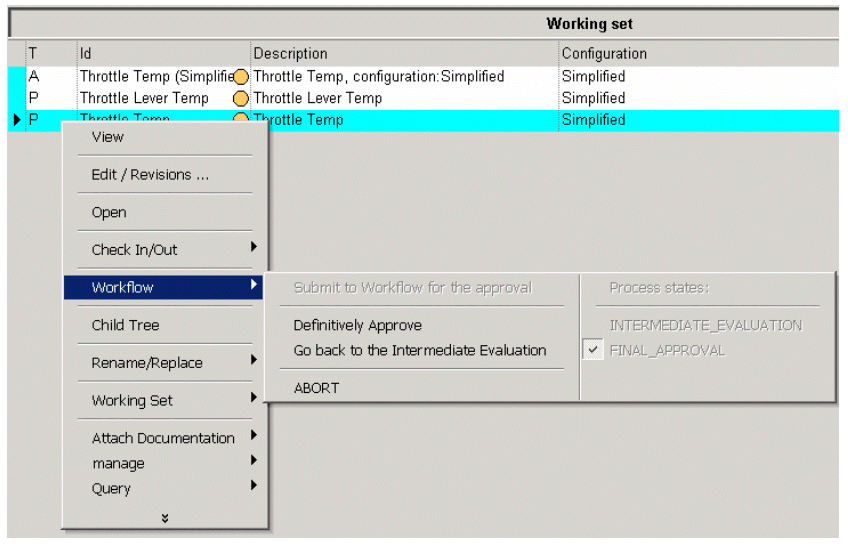
II ) Since the FINAL_APPROVAL is the last state of the process, when RMB again on the workflow sub-menu, the APPROVE entry will be proposed; please note that an additional entry ABORT is displayed in the popup menu; this because a state JUMP has been defined in the Workflow Definition File for this process.
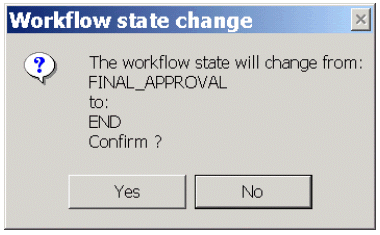
The Workflow Module will ask you a confirmation:
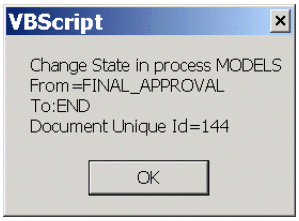
Answer YES and proceed; the OnChangeState event script will be called; the script has in input all the parameters that can be useful for actions and extra notifications:
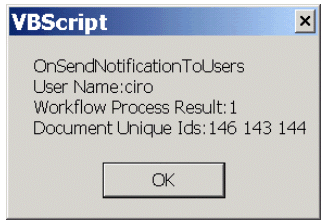
When the LAST document will have it's final state ( FINAL_APPROVAL ) promoted forward ( i.e. approved ), and since all the other documents already are in the approved ( END ) state, the notification script OnSendNotificationToUsers will also be executed; the script has in input all the parameters that can be useful for actions and extra notifications:
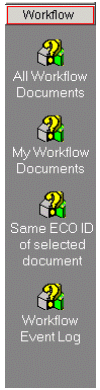
To check the IN WORKFLOW state of the documents, press not the button All Workflow Documents in the short-cut bar:
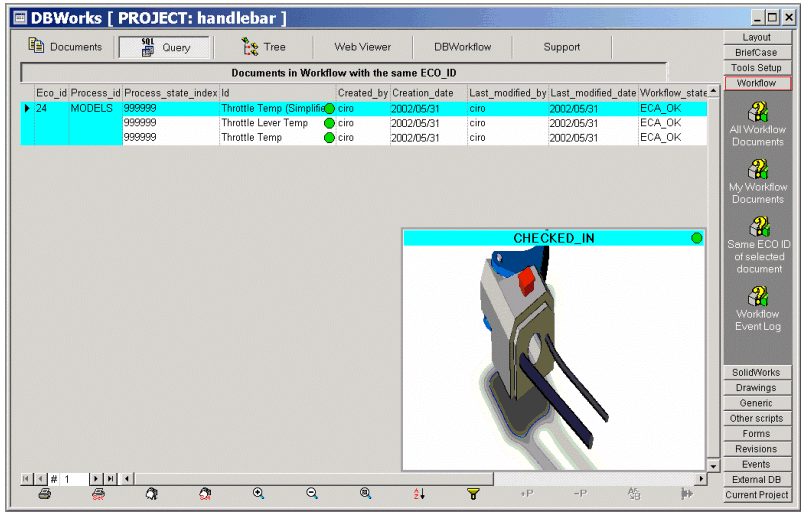
The join of the fields of the DOCUMENT table and of the DBW_WORKFLOW table will be displayed in the Query Page; the little circles are now green because the documents are ready for the phisical approval in the DBWorks Browser:
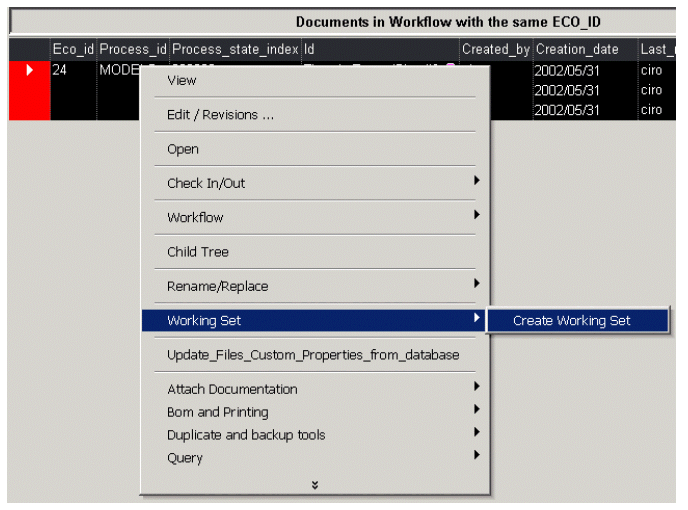
To rebuild the working set, you can now select all the table and choose Create Working Set:
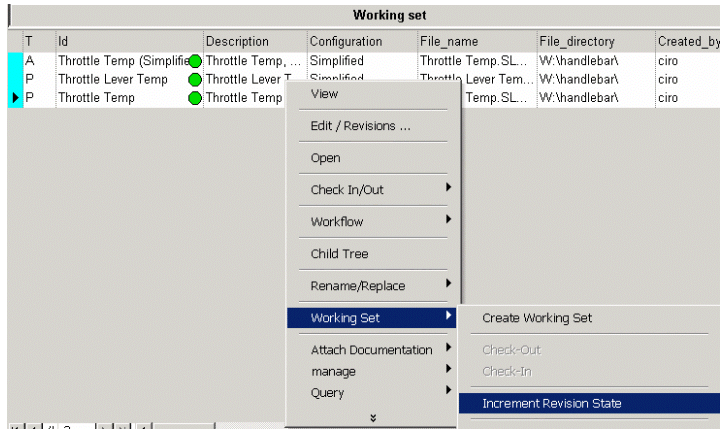
With the Working Set re-created, you can now use the Working Set Increment Revision State to approve all the three documents:
The three document will so be phisically approved in DBWorks, showing the RELEASED color: