Commands for BOM on drawings
Introduction
The drawing BOM specific commands are:
 Insert Drawing BOM
 Refresh Drawing BOM
 Delete Drawing BOM
Their purpose is to integrate at CAD level the ExcelBOM data available in MechworksPDM, managing accordingly all defined/related balloons to have a more integrated environment.
The BOM Insert command allows adding in the drawing document the ExcelBOM information as a general table (BOM Table). By definition, there could be only one BOM Table per sheet.
The BOM Refresh command allows updating the existing BOM Table and defined Balloons referencing BOM Table items, in the current sheet or for each sheets containing BOM Tables in the drawing document.
The list of fields in BOM template for Drawing BOM and Balloons management must include:
•ID (localized)
•BOM_TYPE
•FILTER
•BOM_POSITION/ITEM_NO
•QTY/TOTAL_QTY
Solidworks integration
Insert Drawing BOM
Using a registered drawing document, with at least one drawing view and related balloons (Insert→Annotations→Auto Balloons...-no need to insert explicit SW PartsList), the BOM insert command opens a new PropertyManager Page to manage all required input data:
1.Drawing view: to identify the related model/configuration
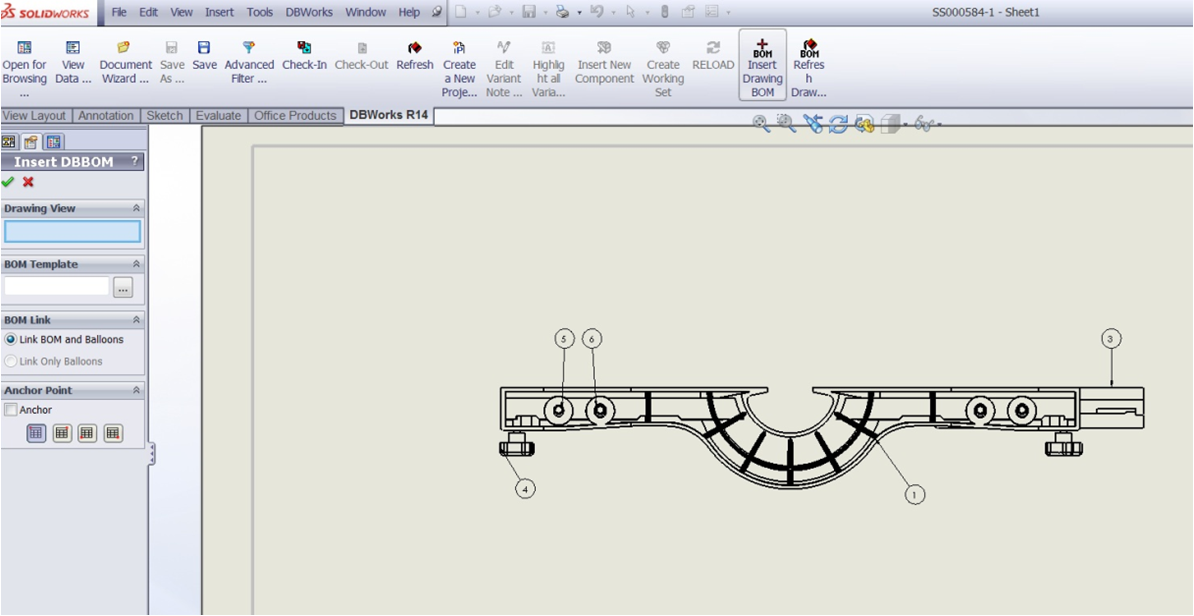
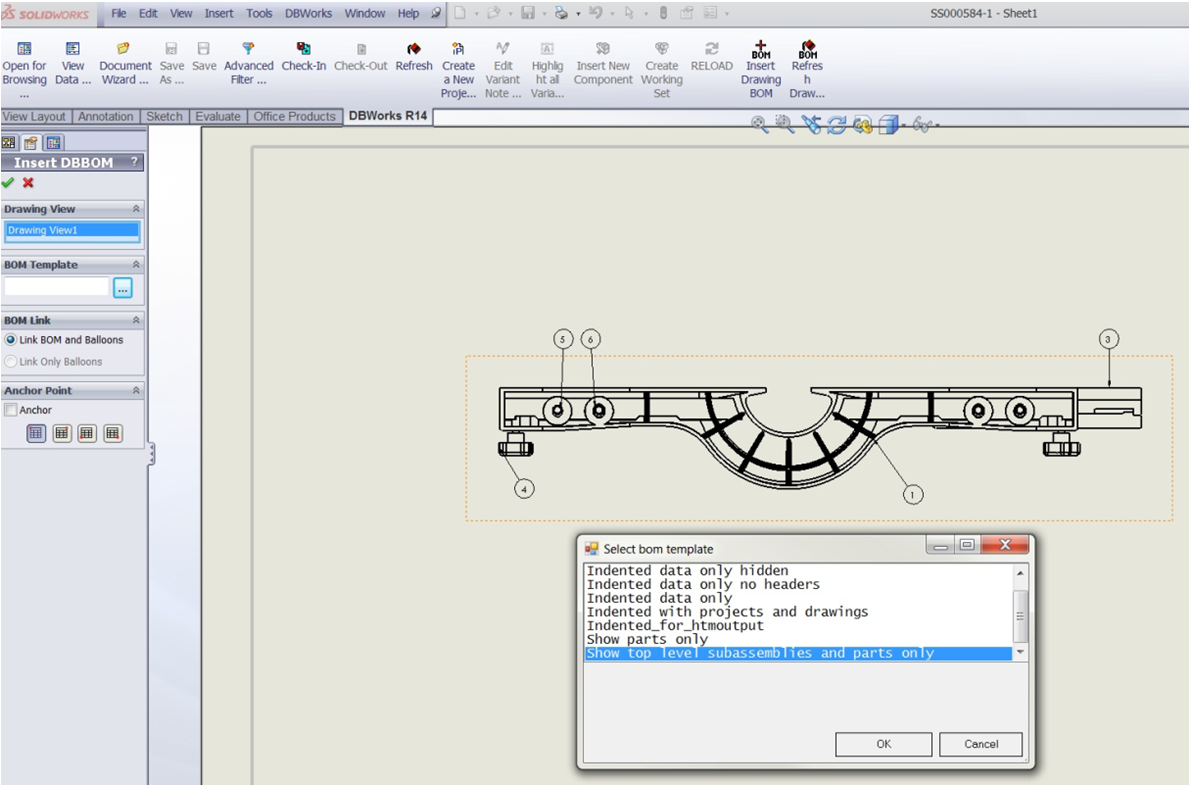
2.Bom template: to choose the template name to use in BOM construction
3.Bom Link: at the moment only Link BOM and Balloons mode is available to place BOM table and to update defined balloons accordingly. Further extension could be the Link Only Balloons, to update defined balloons without placing the BOM Table (just computed, not placed);
4.Anchor type: the BOM Table is anchored according to the defined mode (top_left, top_right, bottom_left, bottom_right). About its origin: if the Anchor box is checked, the general table anchor point is used otherwise it is used the [xmin,ymin] of the selected drawing view bounding box.
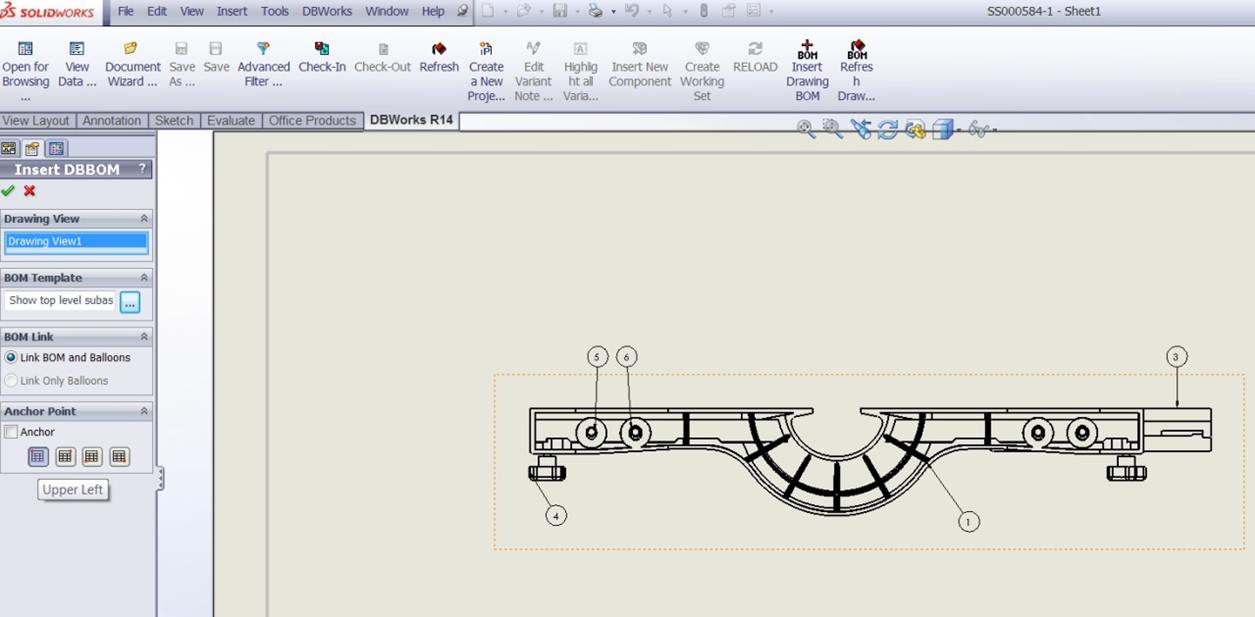
Choosing OK, the computed BOM Table is placed and all the existing related balloon referencing BOM Table items are updated accordingly to their definition (item position/item quantity).
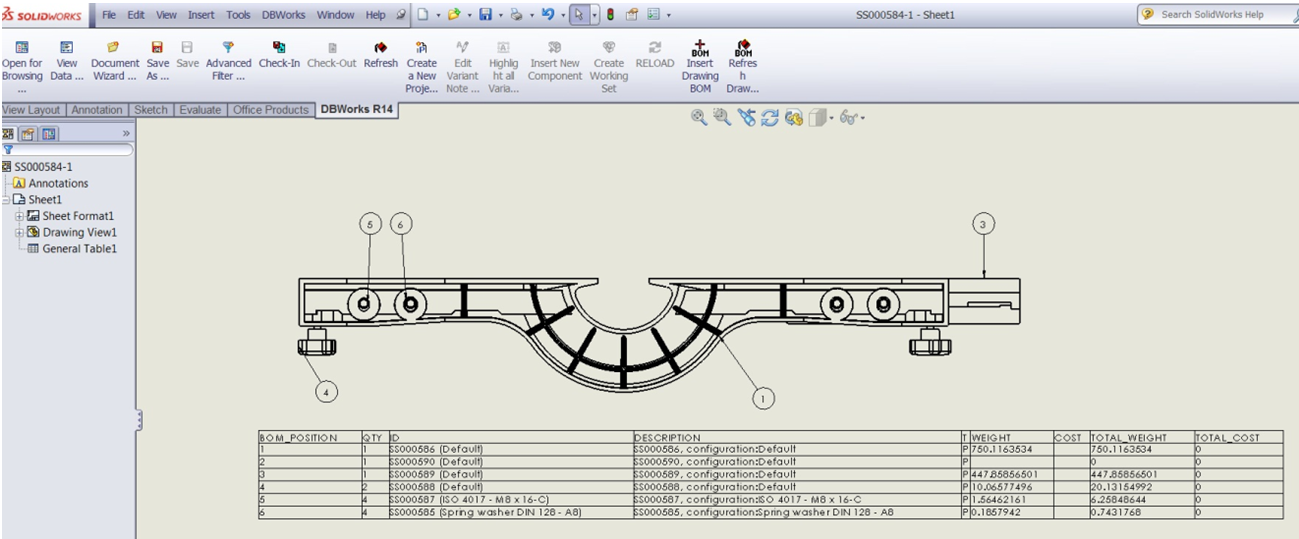
BOM refresh
The command performs a refresh of an existing BOM Table and all defined Balloons referencing BOM Table items, in the current sheet (default) or for each sheets containing BOM Tables in the drawing document (if Shift key is pressed in command execution).
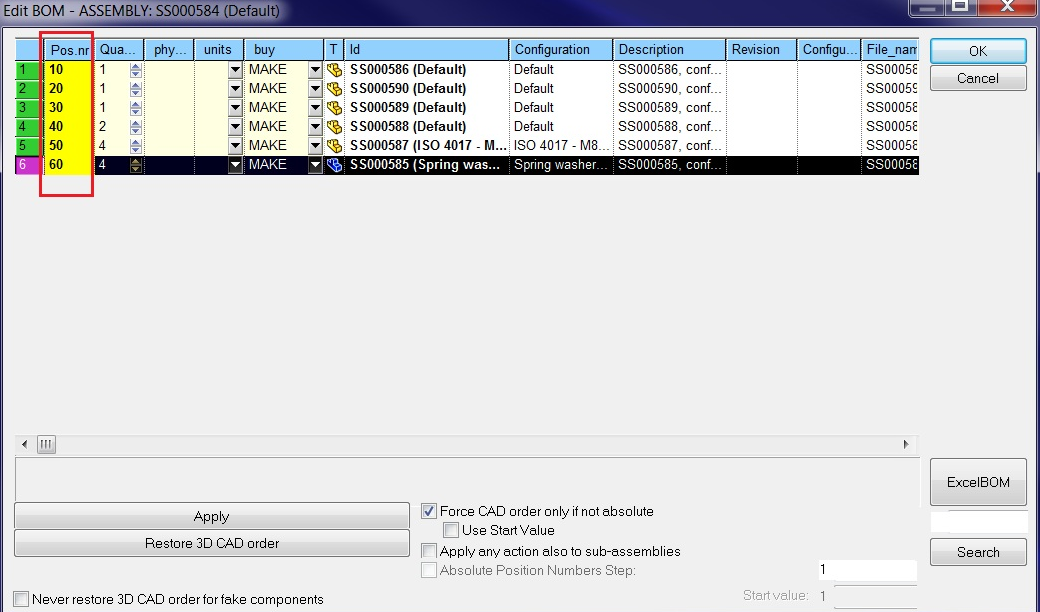
As an example, after changing the item position in DBWorks (BOM → Edit Bom, see image below):
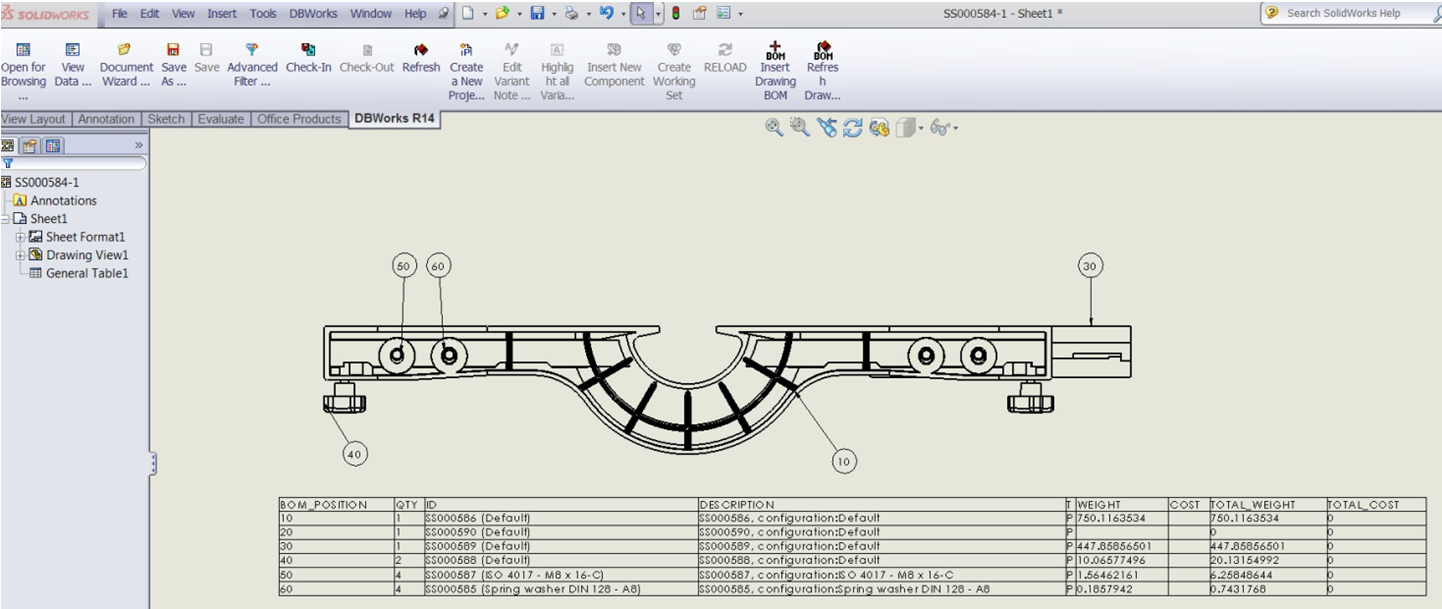
and executing BOM Refresh the new layout is:
Delete Drawing BOM
This functionality is currently available for DBWorks integration only.
It removes the previously added BOM from the drawing.
Table templates
It is possible to define a table template to be used for BOM definition.
In Insert BOM execution, DBWorks loads the .sldtbt from the <PAR_DIR> folder: the template name must be aligned with the Bom parameter file name (like Buylist.sldtbt, Show top level subassemblies and parts only.sldtbt).
In Refresh BOM execution, the table settings are kept and no automatic changes on table style are executed.
Due to a known SW limitation: SPR 335881 - DrawingDoc::InsertTableAnnotation2 ignores the border thickness and the grid line thickness of the saved.
DBWorks Drawing Bom: cutlist items ballooning
Startin from R17, it is possible to manage balloons related to cutlist items. For placed BOM table containing cutlist items, the related balloons are managed accordingly without any additional effort at user level. 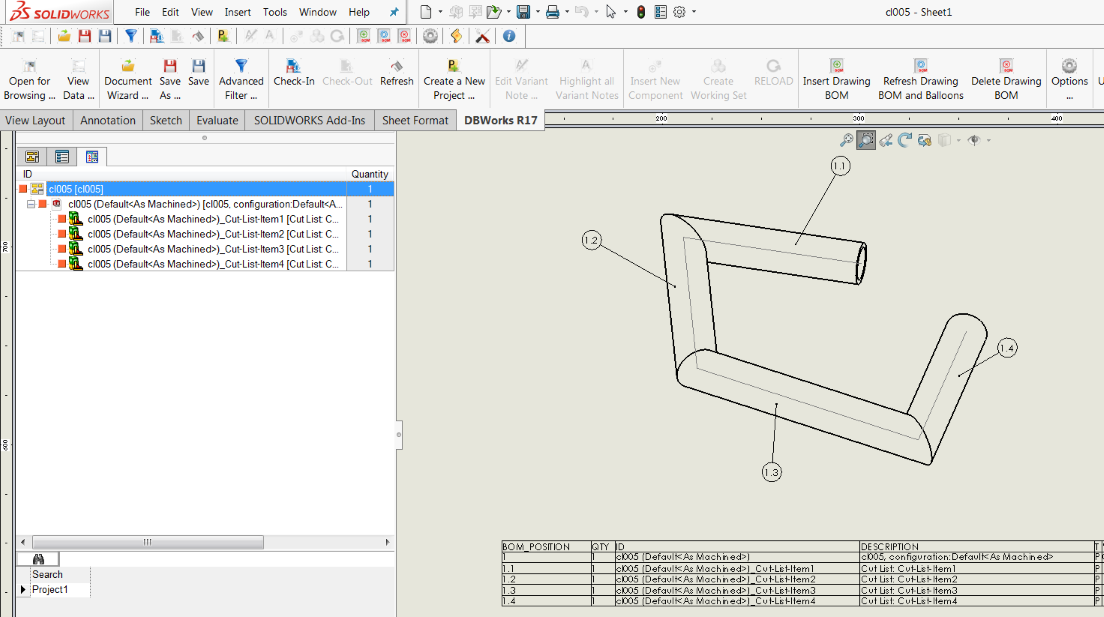 Compared to the existing DBSolidEdge integration, with DBWorks no additional specification is required at BOM template level (the NAME_FIELD_LENGTH specification is required only for DBSolidEdge).
Solid Edge integration
Insert BOM
Using a registered drawing document, with at least one drawing view and related balloons (Tables → Parts List → Auto-Balloon... -no need to insert explicit SE PartsList), the BOM insert command uses a Ribbon bar to manage all required input data:
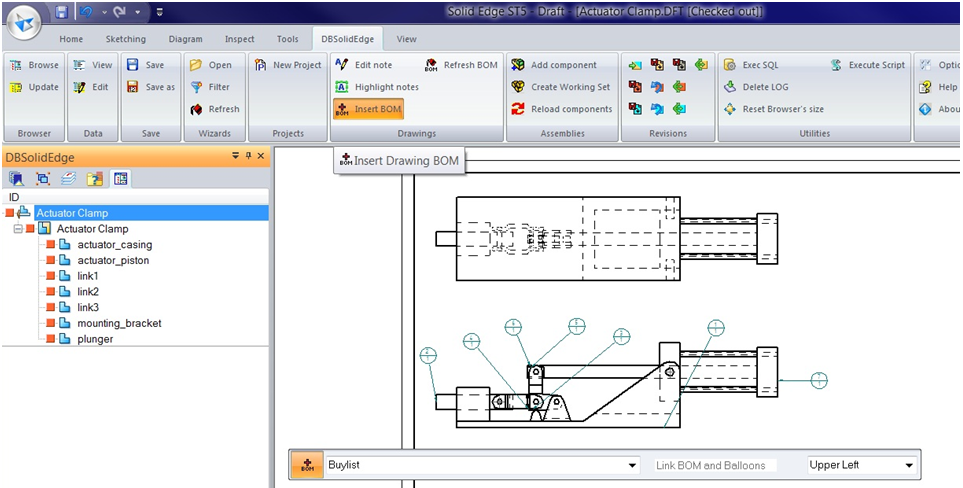
1.Bom template: to choose the template name to use in BOM construction
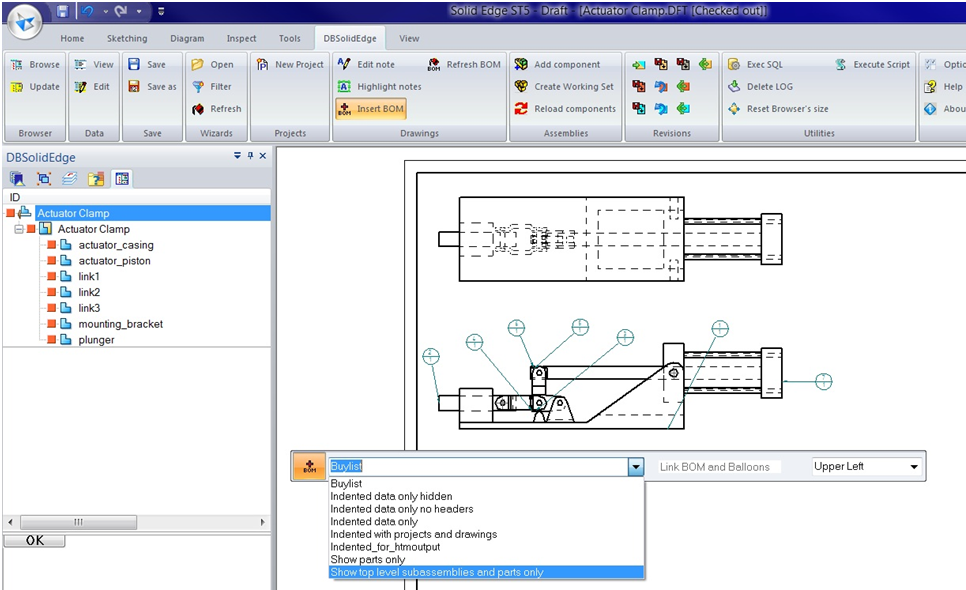
2.Bom link: at the moment only Link BOM and Balloons mode is available to place BOM table and to update defined balloons accordingly. Further extension could be the Link Only Balloons, to update defined balloons without placing the BOM Table (only computed, not placed);
3.Anchor type: the BOM Table is created with origin in the [xmin,ymin] of the selected drawing view bounding box and it can be anchored with the related parameter.
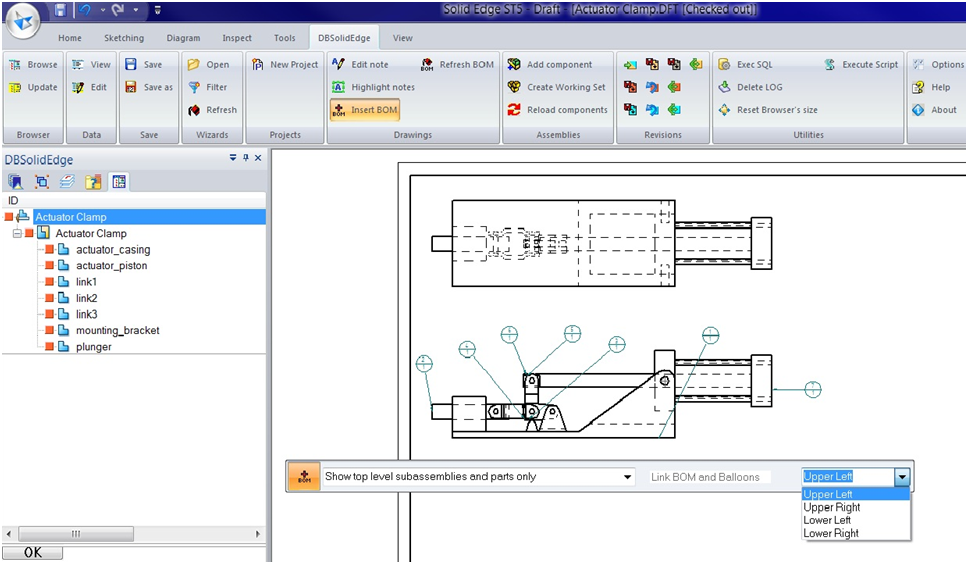
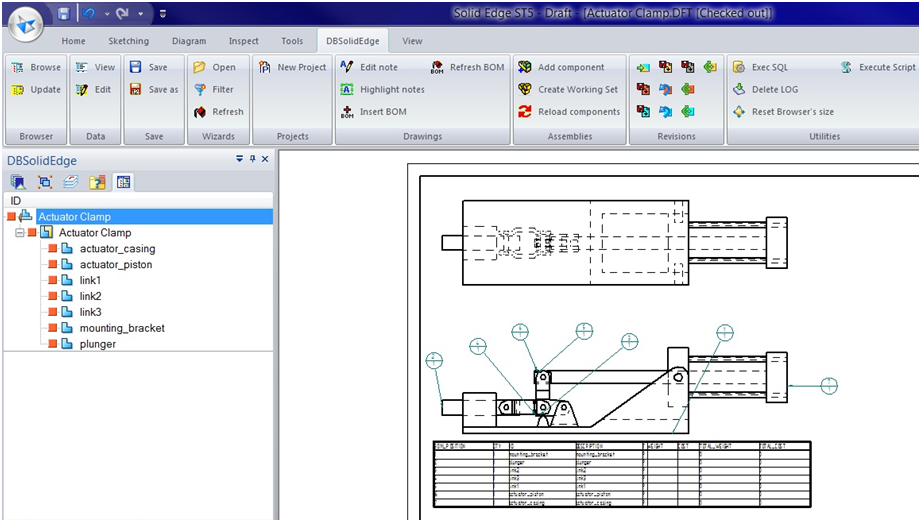
Clicking on a Drawing View, the ribbon input values are applied to the related model/configuration and the computed BOM Table is placed.
The existing related balloons, in the current sheet, are updated accordingly to the PDM database data: DBSE updates Higher/Lower text (if defined) using the Item Number (BOM_POSITION) and the Item Count (QTY) respectively.
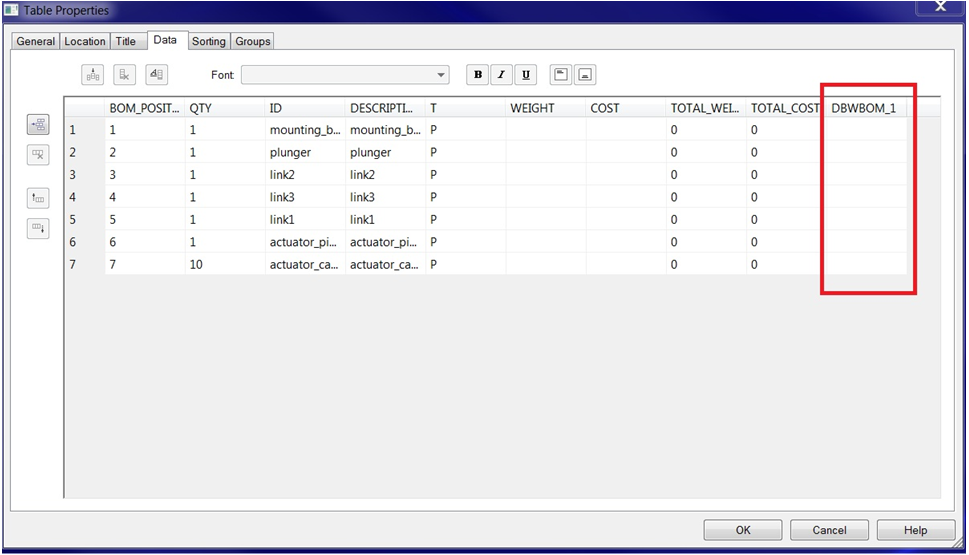
Note: Looking at the Properties of the BOM Table (in SE, select the table RMB → Properties), DBSE stores as last column an additional hidden column to keep internal table name and no user changes must be done on such column.
BOM refresh
The command perform a refresh of an existing BOM Table and all defined Balloons referencing BOM Table items, in the current sheet (default) or for each sheets containing BOM Tables in the drawing document (if Shift key is pressed in command execution).
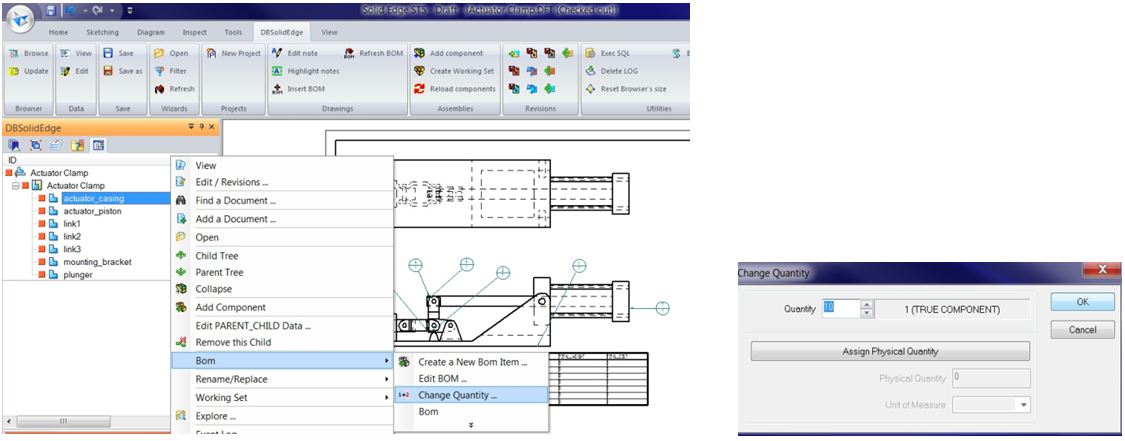
As an example, after changing the quantity in DBSE (BOM → Change Quantiy from 1 to 10 of item at position 7):
and executing BOM Refresh the new layout is:
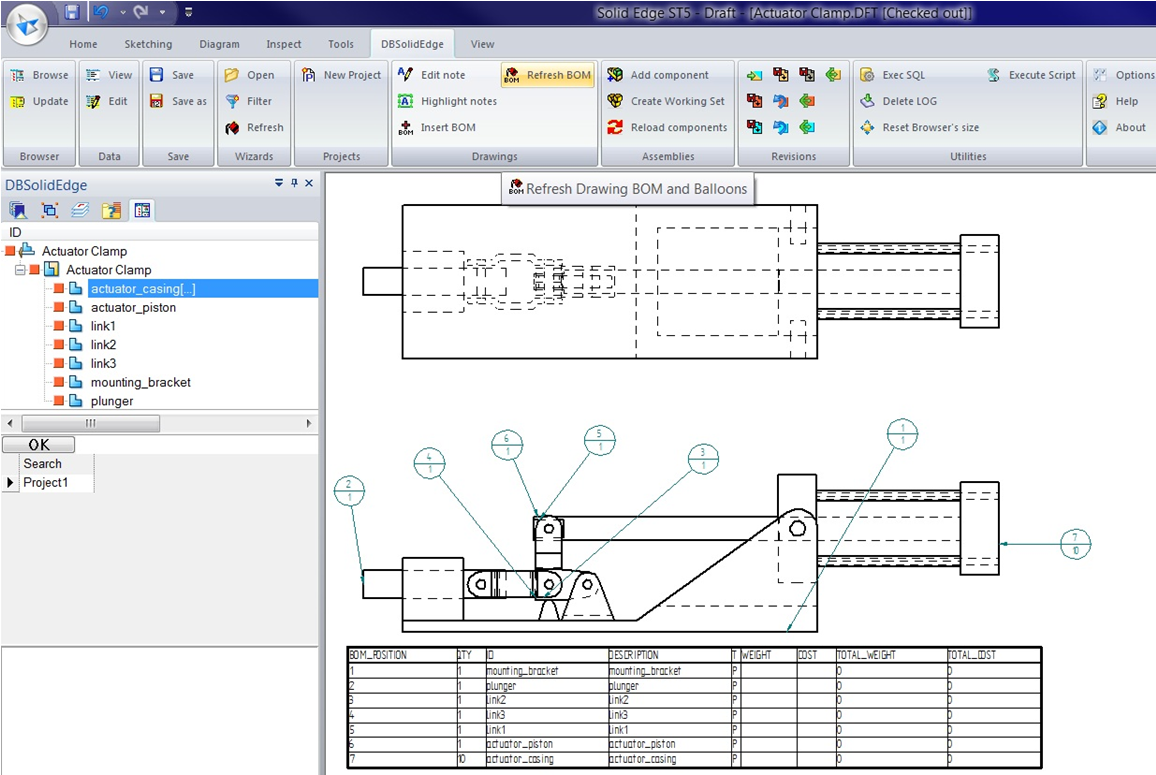
Since with SE ST5 MP7, there is no API to remove existing rows/columns in Table object definition, the BOM Refresh command resets all existing cell data and registers the new updated values (empty row could appear).
DBSE Drawing Bom: cutlist items ballooning
Through this feature is possible to manage balloons related to cutlist items.
By design, this behavior is implemented based on the NAME_FIELD_LENGTH specification required at BOM template level definition to generate unique items at BOM table level.
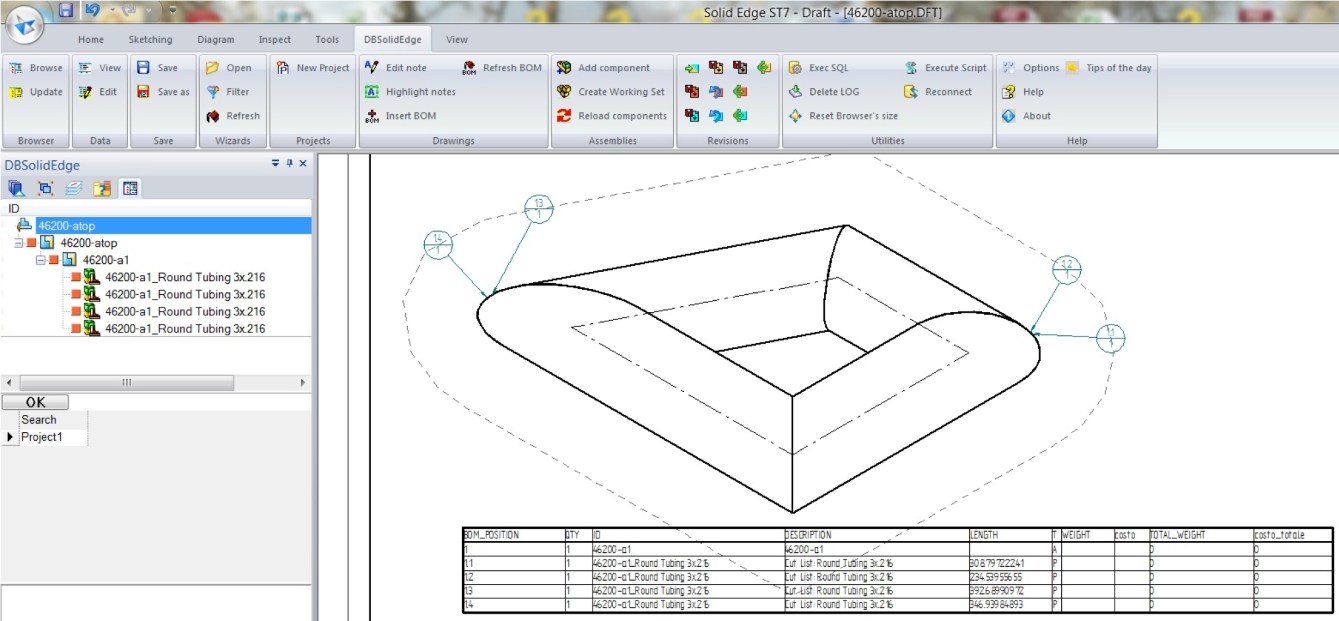
Example
This is an example of BOM template definition with LENGTH field (based on Indented with project and drawings):
INDENTATION 3
FILTER LEVEL >0
BOM_TYPE indented
INCLUDE_PART_CHILDREN
MULTILINE ", "
ERROR_ON_DUPLICATE_POSITIONS
COLUMNS
BOM_POSITION A
QTY B
ID C
DRAWING.ID asCommentOf C
DESCRIPTION D
PROJECT.ID asCommentOf D
LENGTH E
T F
WEIGHT G
COST as costo H
TOTAL_WEIGHT I TOTAL calculatedField: QTY * WEIGHT
TOTAL_COST as costo_totale L TOTAL calculatedField: QTY * COST
Inventor integration
Insert BOM
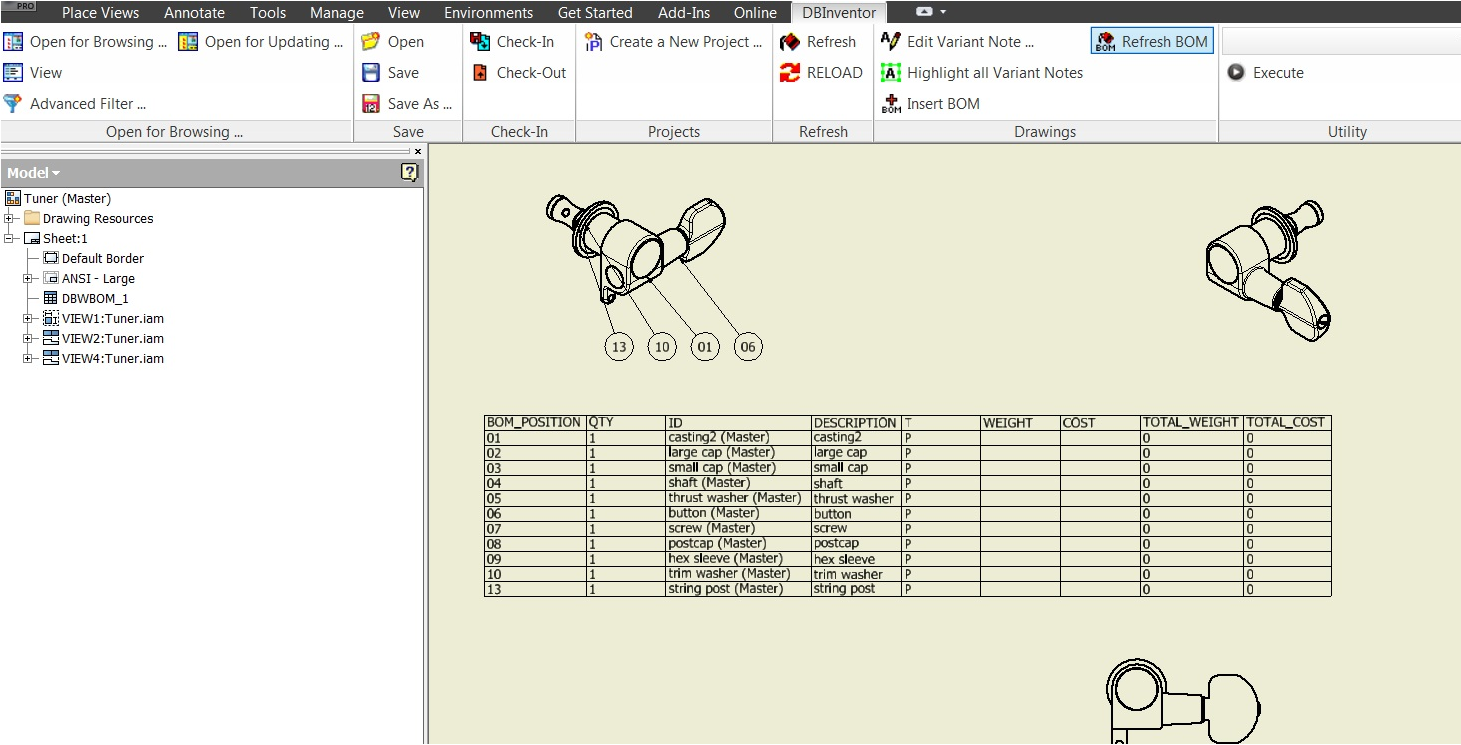
The BOM insert command works on writable and registered drawing document (with at least one drawing view and related balloons). To run, a drawing view must be selected and then it prompts for the BOM template definition file:
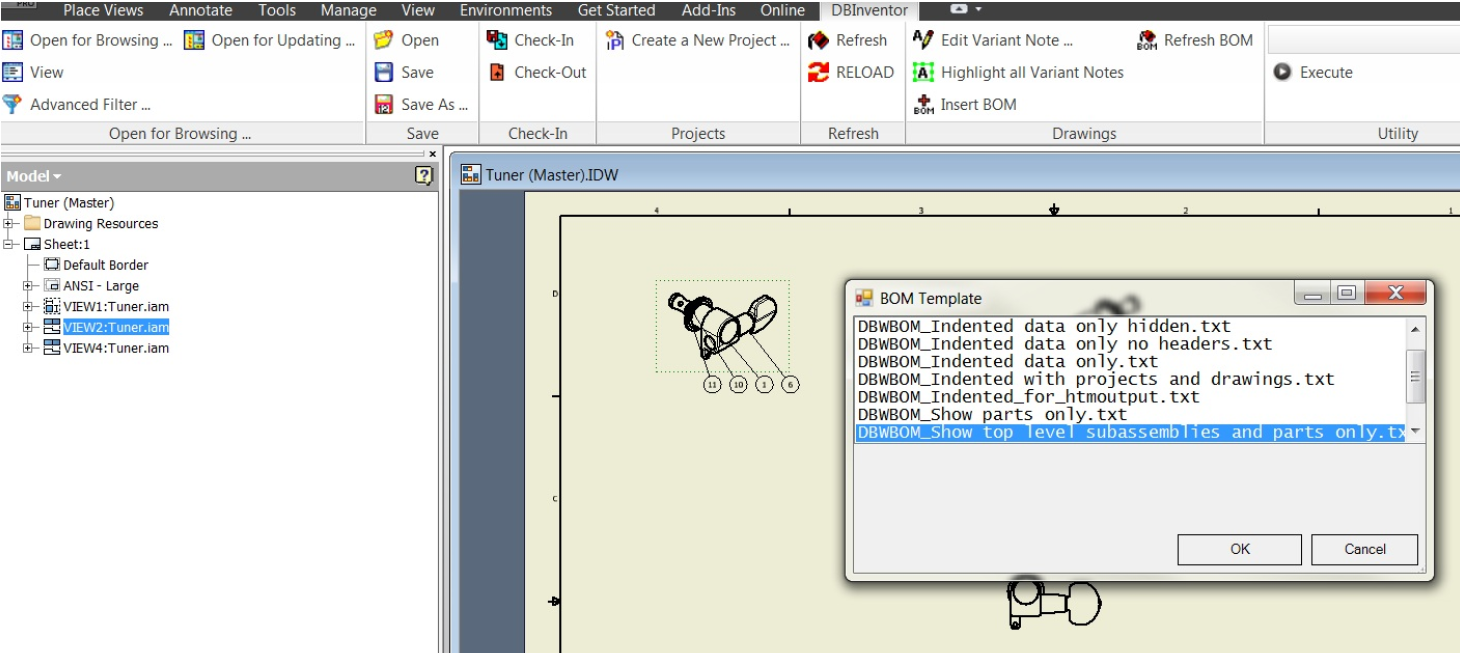
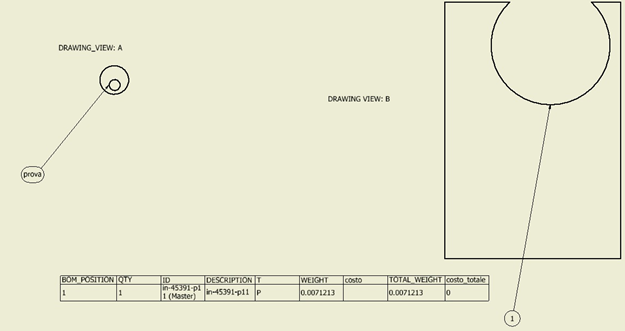
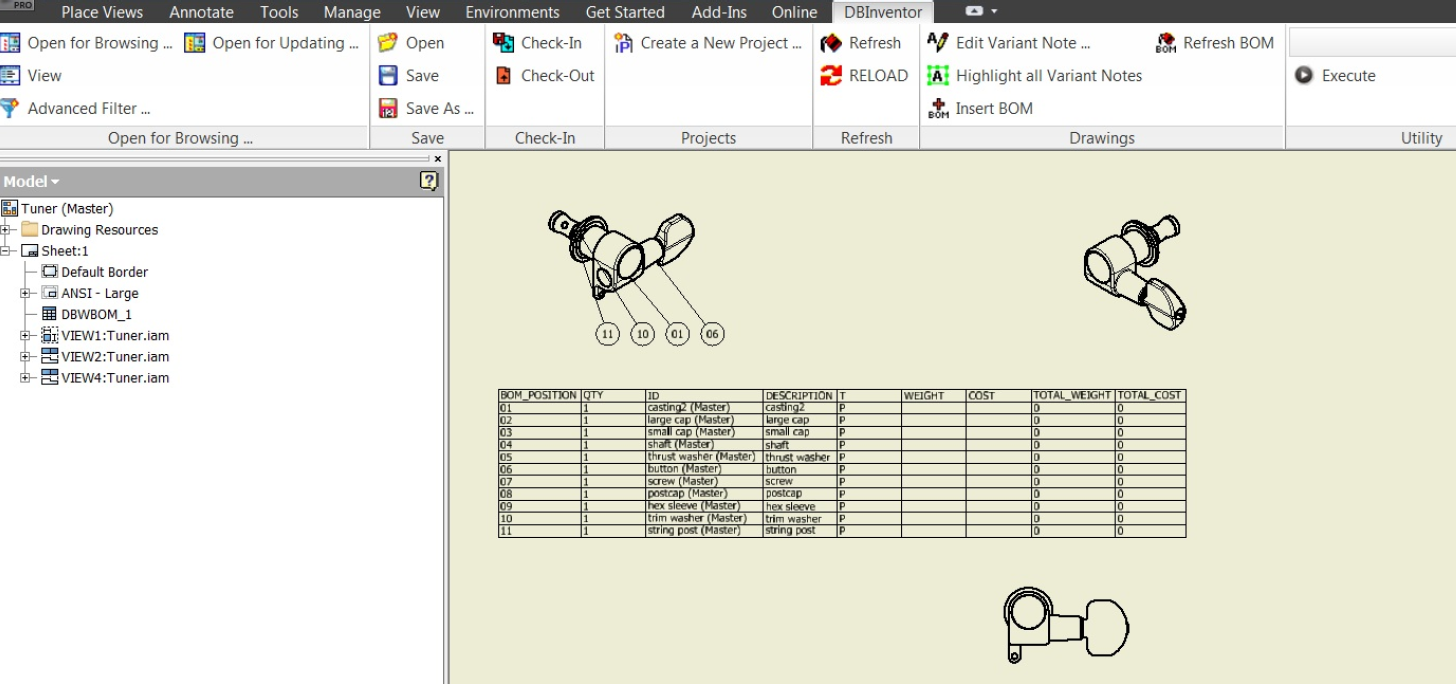
Pressing ok the required BOM Table is computed and placed with origin in the [xmin,ymin] of the selected drawing view bounding box. The existing related balloons, in the current sheet, are updated accordingly to the PDM database data: DBInventor overrides text (if defined) using the Item Number (BOM_POSITION) corresponding value.
With respect of other MwPDM integrations, there is no concept in Inventor to anchor General Table and the BOM table mode is by default Link BOM and Balloons.
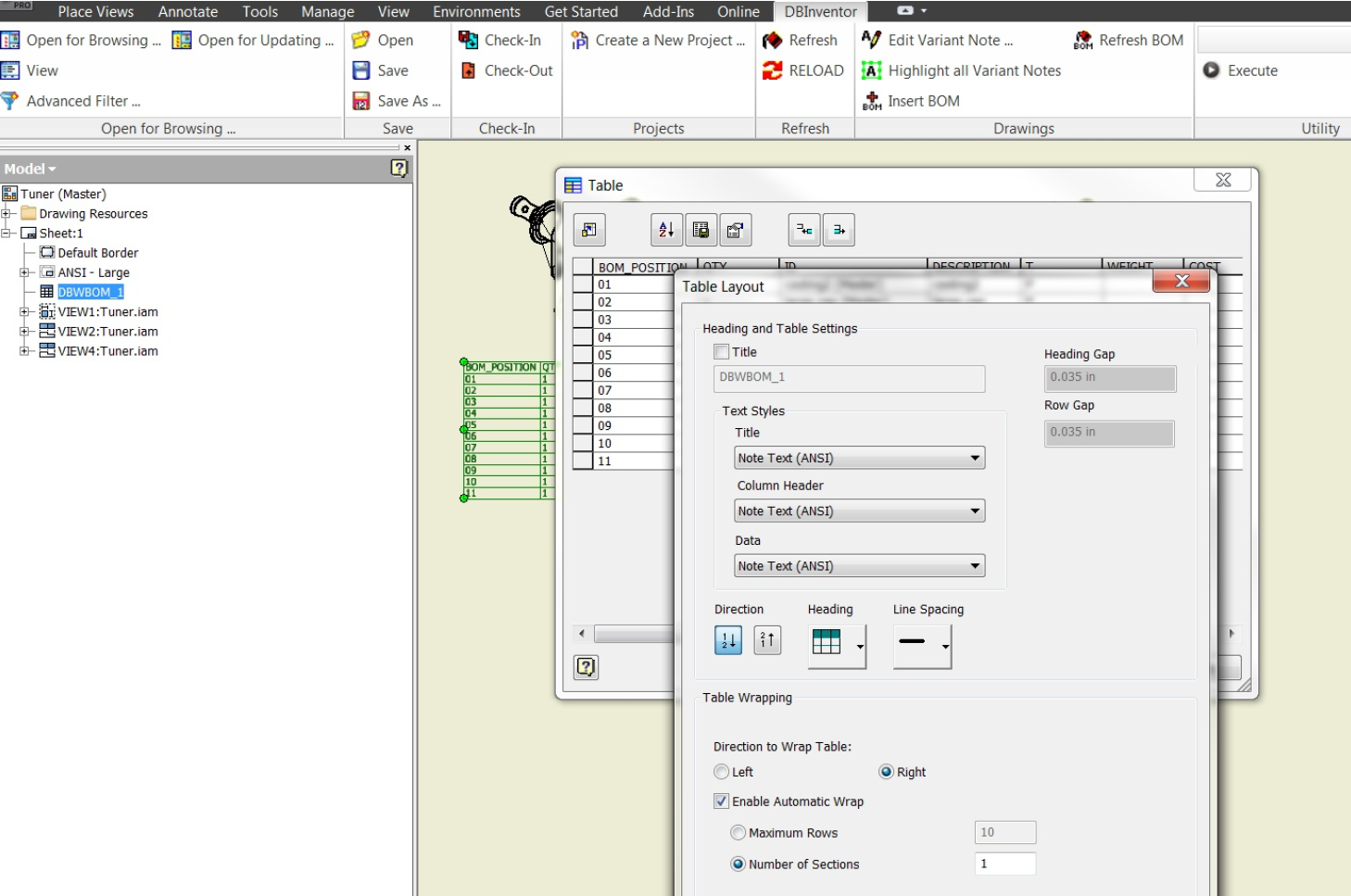
Note: Looking at the layout of the BOM Table (in Inventor, select the table RMB→Edit and press the TableLayout button), DBInventor stores the internal table name as hidden Title and no user changes must be done at this level.
BOM refresh
The command perform a refresh of an existing BOM Table and all defined Balloons referencing BOM Table items, in the current sheet (default) or for each sheets containing BOM Tables in the drawing document (if Shift key is pressed in command execution).
As an example, after changing the quantity in DBInventor (BOM -> Change Pos. nr from 11 to 3):
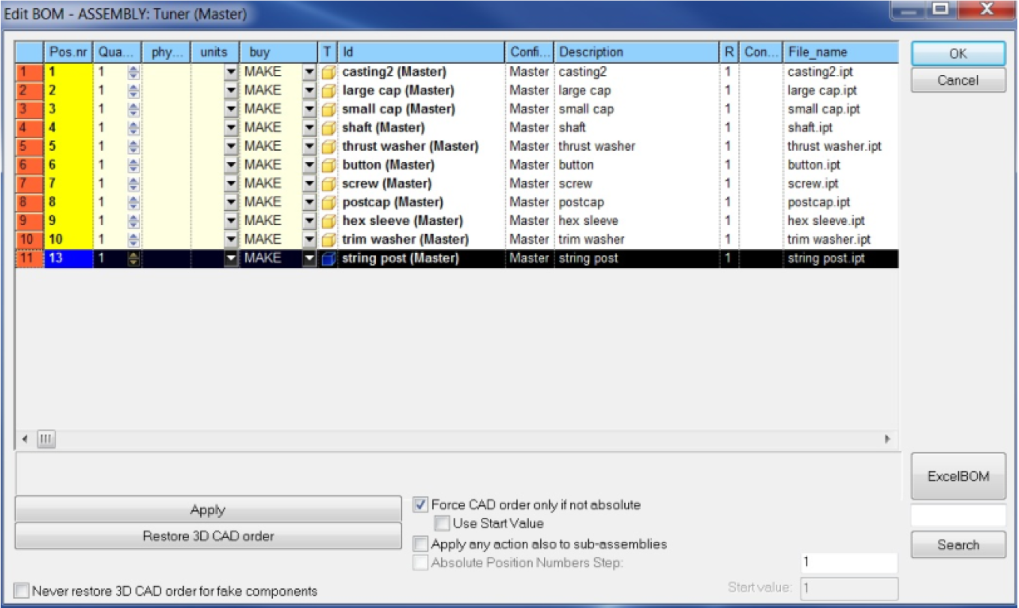
and executing BOM Refresh the new layout is:
Editing "question mark" balloons
In Insert/Refresh BOM commands, all the balloons defined in the sheet of existing BOM table are updated automatically to avoid wrong association.
To update all the balloons accordingly, the reference path of related component must exist in the BOM table and it must be unique: in case of wrong situation a question mark is used to warn the user.
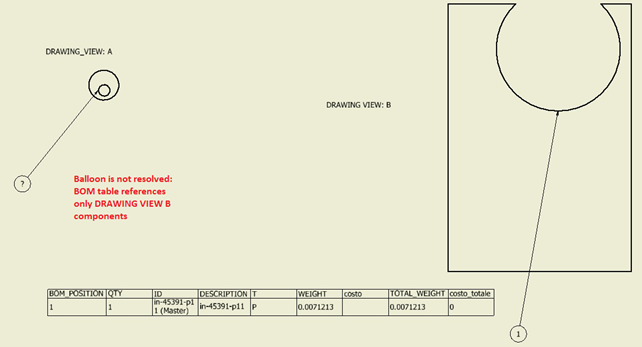
For Inventor, it is possible to manage manually the question mark balloons using an overwritten text that will be ignored by next BOM refresh as follows:
•Select the question mark balloon → Edit Balloon
•In the Balloon Value set ITEM as blank and Override with the overwritten text. Press OK.
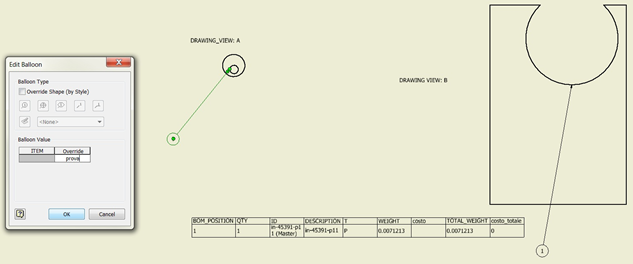
With next BOM refresh, the overwritten text is kept (i.e. no question mark is used).