BOM Options
 Solidworks users only
Introduction
This set of options (user level) is available in General→Drawings to configure the BOM table and balloon display:
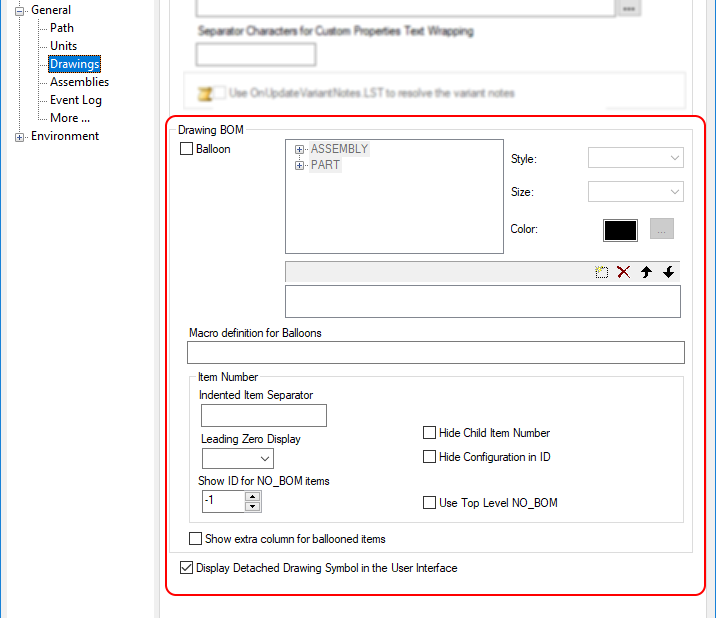
The options are persistent and stored in the DBWApp.par/DBWLApp.par;
they are applied each time a BOM table is inserted or refreshed to understand how the table and balloons should be displayed.
The MAKE_BUY used component value is based on the Document Table field.
 Balloon
The Balloon options allow the user to control the balloon style, size, and color based on the MAKE_BUY value.
Balloon Style
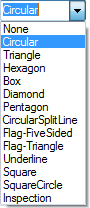
The style of the balloons can be controlled depending on the MAKE_BUY value. The various options are as follows:
Balloon Size
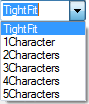
the size of the balloons can be controlled depending on the MAKE_BUY value. The various options are as follows:
Balloon Color
the color of the balloons can be controlled depending on the MAKE_BUY value. A color dialog is shown as follows:
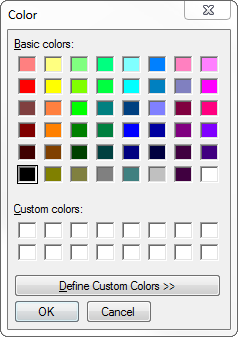
Once defined, the list of defined Balloons Options becomes available to provide more feedback at user level (to list/delete defined options).
For example, setting the options for PART/MAKE document with Box Style, Red Color and a Size of 3 characters, the Balloon option looks like:
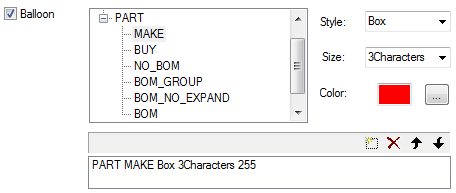
and, at drawing document level, the balloon display is updated accordingly:
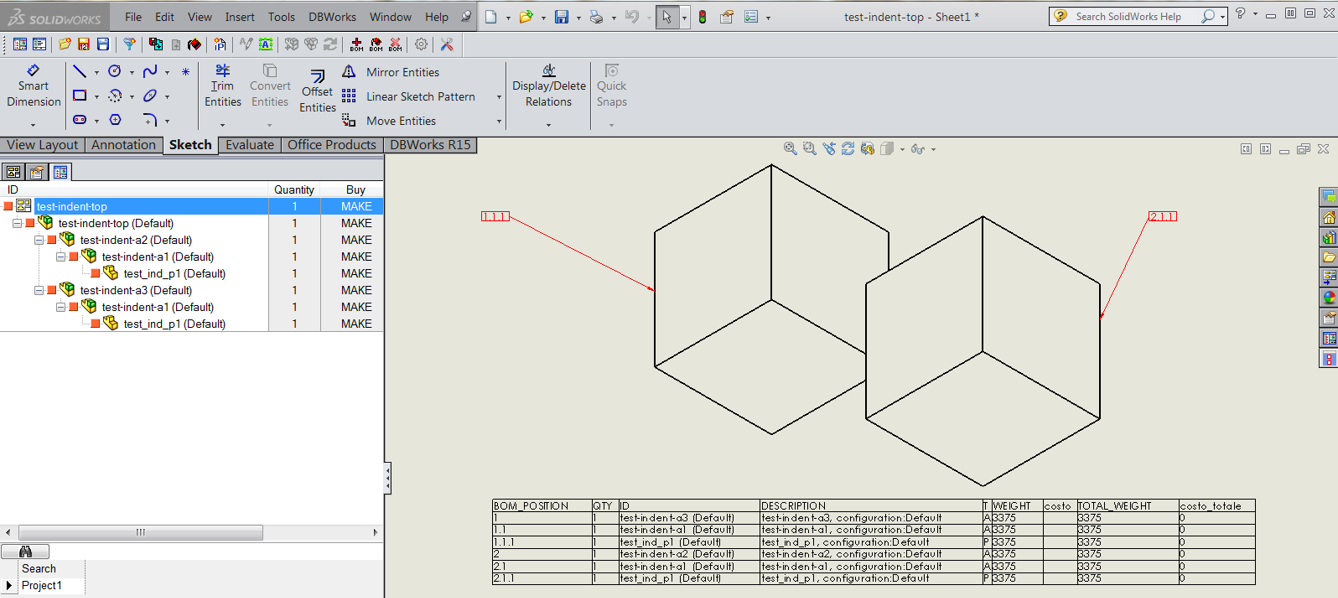
Macro definition for Balloons
This option allows a macro definition to be used for balloons text instead of the position number/quantity. An example of macro definition is:
ID $(FILE_NAME) REV $(REVISION)
The option is available at user level and it applies to all balloons contained in sheets with Drawing BOM table ("Link BOM and Balloons" or "Link Only Balloons" construction mode) in Drawing Documents.
Item number
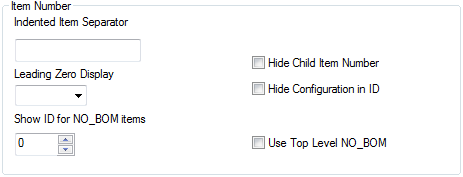
The Item Number options allow the user to control how the Part Number and BOM Position are displayed in the table and balloons.
Indented item separator
in an indented BOM, this option allows to redefine the separator character in the BOM Position, the default is a period.
For example, setting the option to a dash:
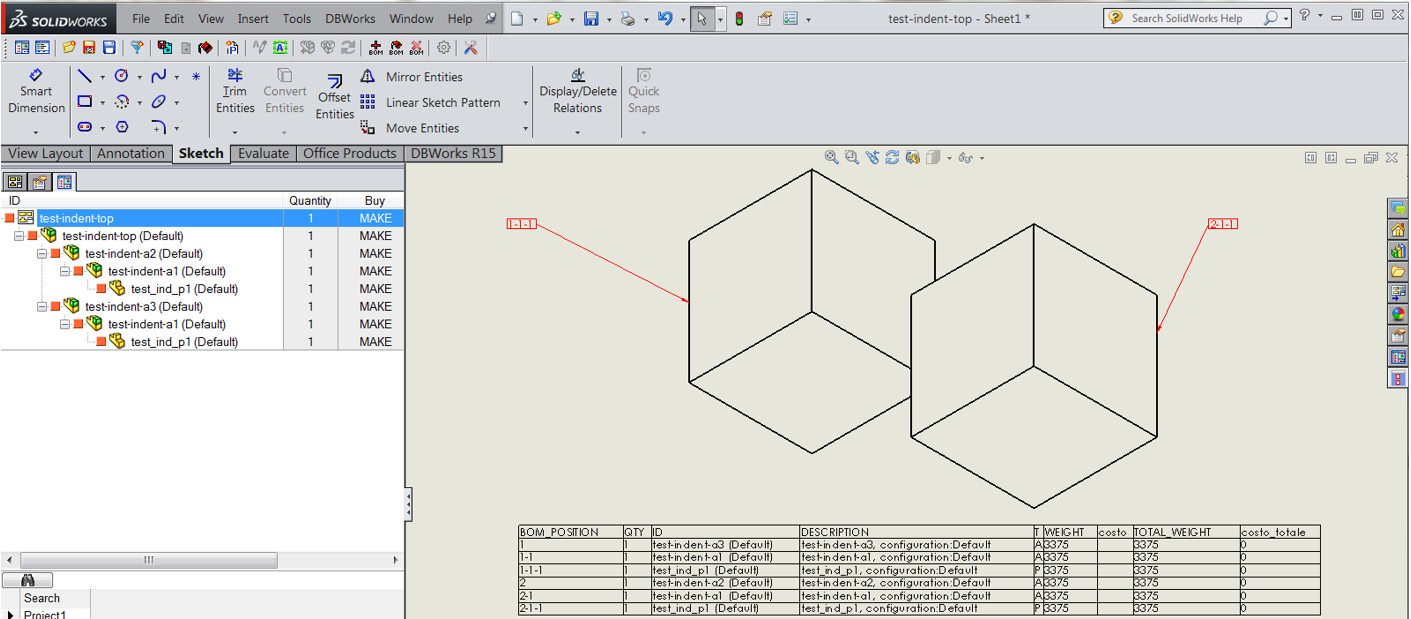
The modified BOM Position affects BOM table and Balloon definition.
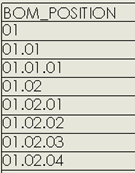
Leading Zero display
this option controls whether or not there is a leading zero displayed before the single-digit item number.
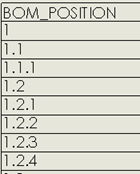
In case of 0#, a "0" will be added to obtain a 2-digit substring (e.g. 01.02.09, 01.02.10).
For example:
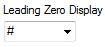 →
→
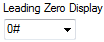 →
→
The modified BOM Position affects BOM table and Balloon definition.
Hide Child Item Number
Please note this option requires a Indented item separator has been defined in the above option
This option controls whether Child Item Numbers are displayed in the indented BOM. By default it is disabled (so the children are visible).
For example, enabling it:
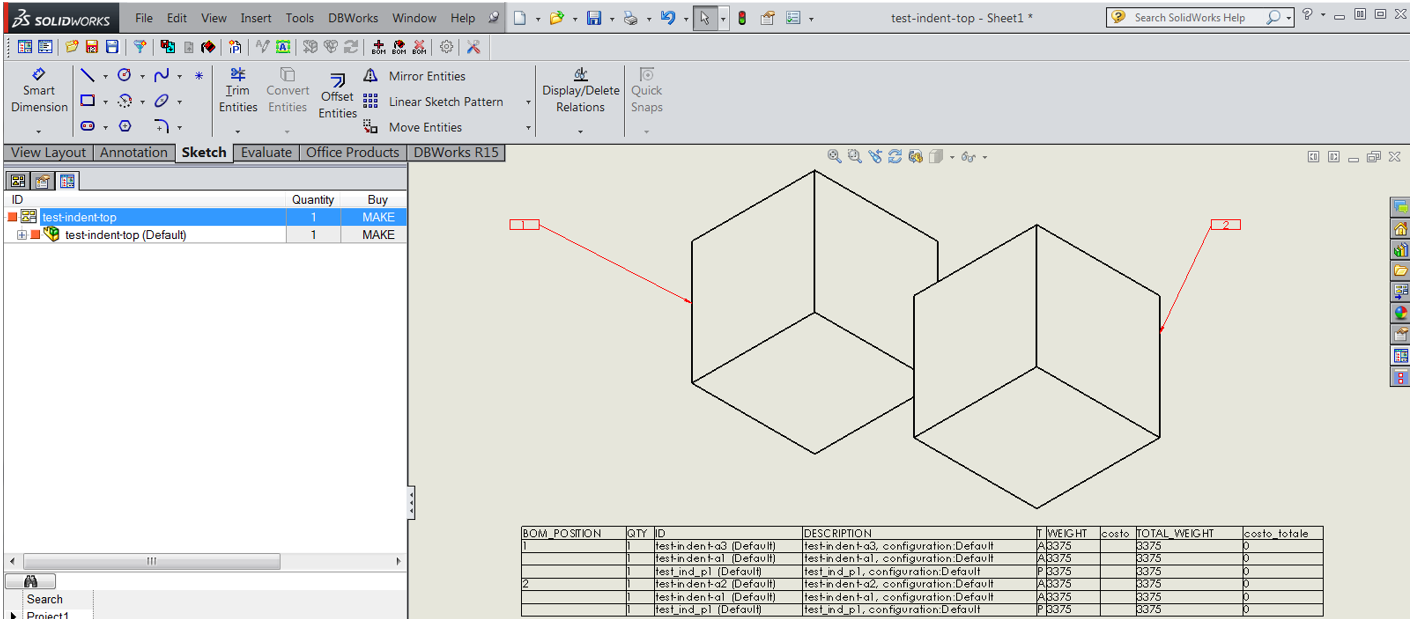
The modified BOM Position affects BOM table and Balloon definition.
Hide Configuration in ID
For environments using configurations in the main ID, this option allows to hide the configuration portion (based on default definition between brackets "(…)") of the ID in the drawing table. By default it is disabled.
For example, enabling it:
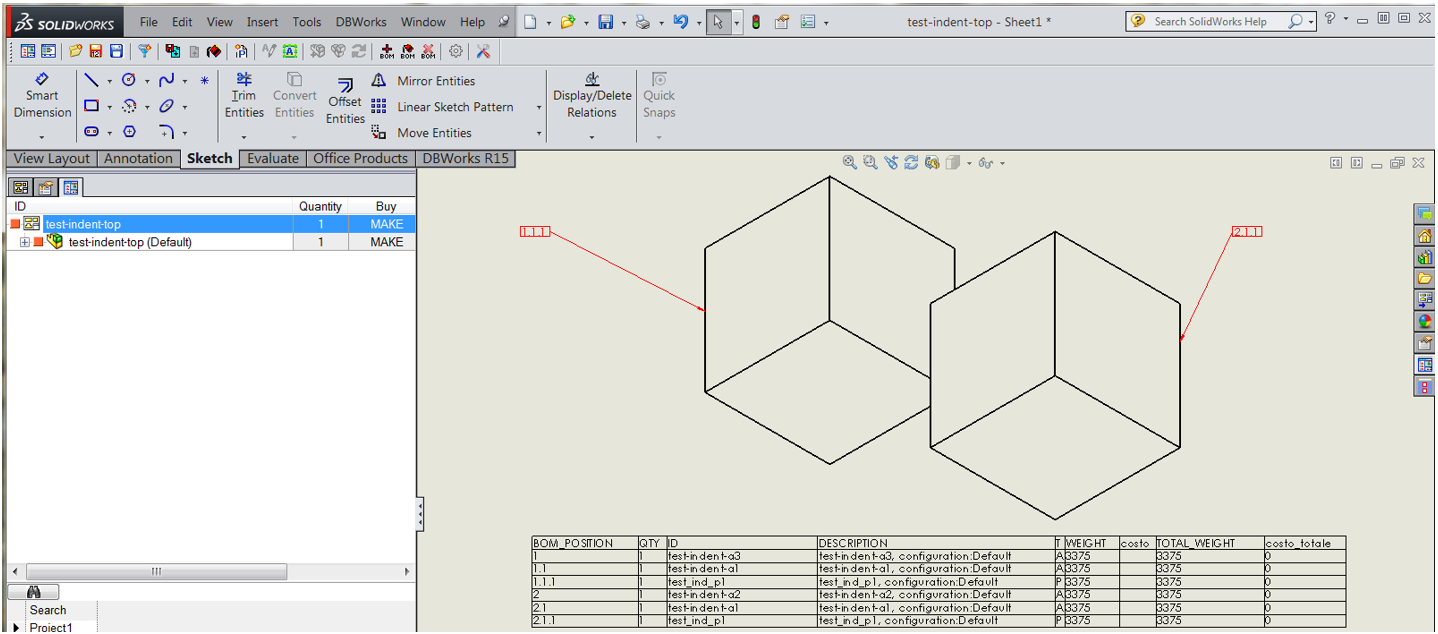
The modified BOM Position affects BOM table and Balloon definition.
Show ID for NO_BOM items / Use Top Level NO_BOM
These two options involve only Balloon definition and they are used together to control how the balloons of NO_BOM items are handled:
•Show ID for NO_BOM Items determines if - and for what levels - the ID (rather than the BOM Position Number) should be used in the balloon
•Use Top Level NO_BOM determines what is displayed for NO_BOM items at a level greater than the level set in the Show ID for NO_BOM Items option
Based on specific options value, the expected behavior is:
Show ID for NO_BOM items |
Use Top Level NO_BOM |
Expected behavior |
|---|---|---|
-1 |
Not used |
IDs are used for all NO_BOM items |
0 |
Not used |
IDs are not used in the balloons attached to NO_BOM items |
1..n |
Enabled |
IDs are used in the NO_BOM items with a level equal to the level set. For greater levels, the parent ID is used. |
Disabled |
IDs are used in the NO_BOM items with a level equal to the level set. For greater levels, the own ID is used. |
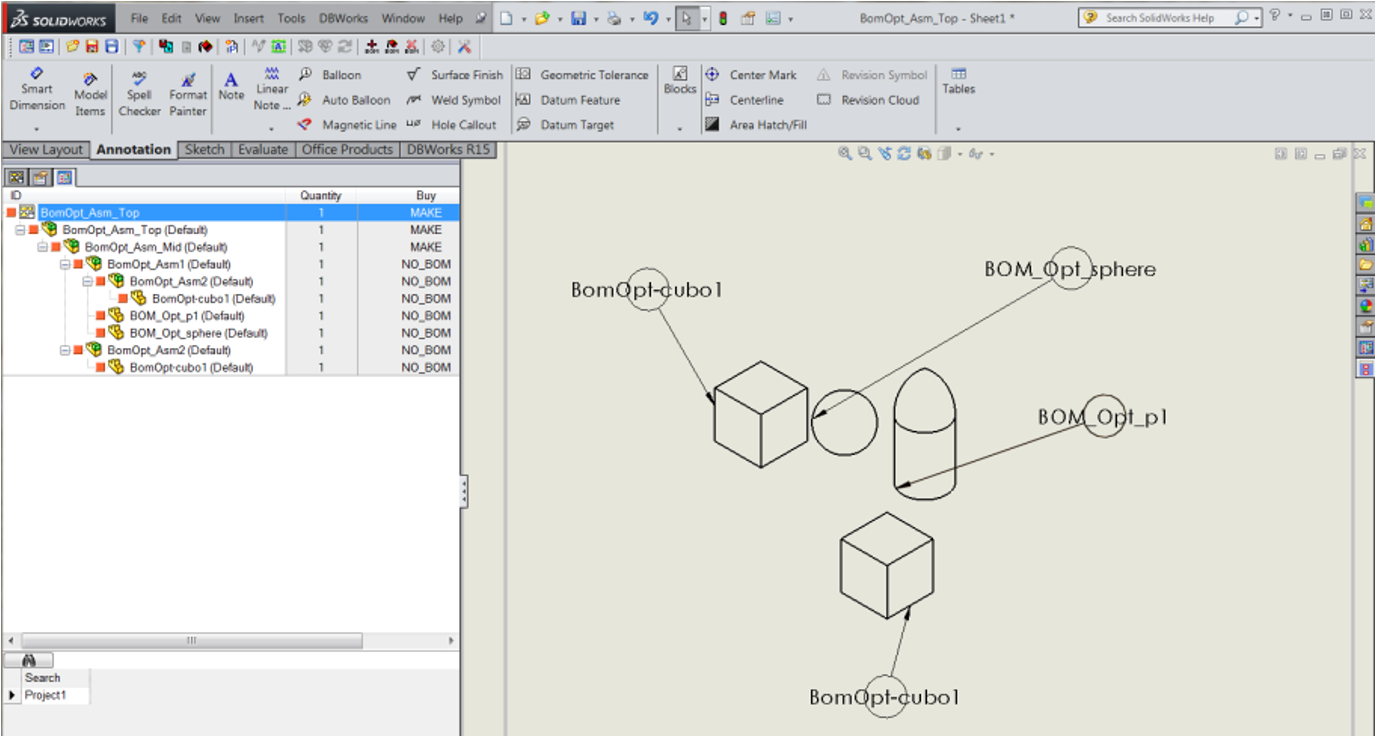
Here are some examples (the Hide Configuration in ID option is on for better visibility, there are NO_BOM item at level 2, 3 and 4):
•setting the Show ID for NO_BOM Items option to -1, all NO_BOM items show their ID in the balloons:

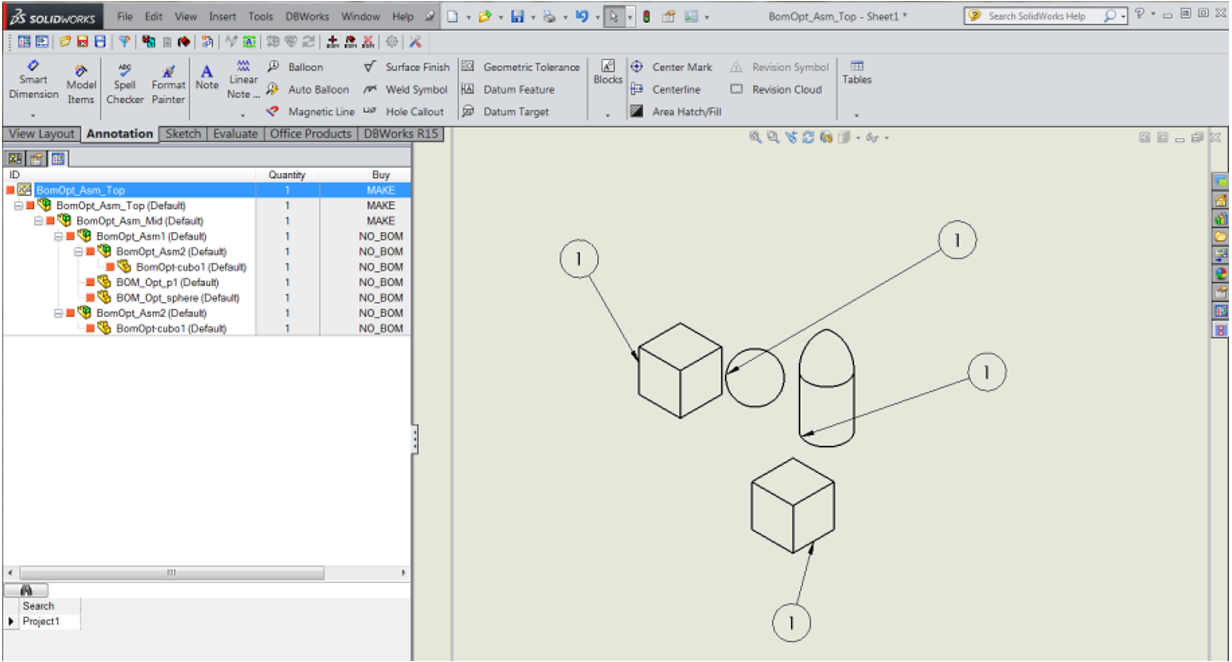
•setting the Show ID for NO_BOM Items option to 0, no items show their ID and the BOM_POSITION is used in the balloons:

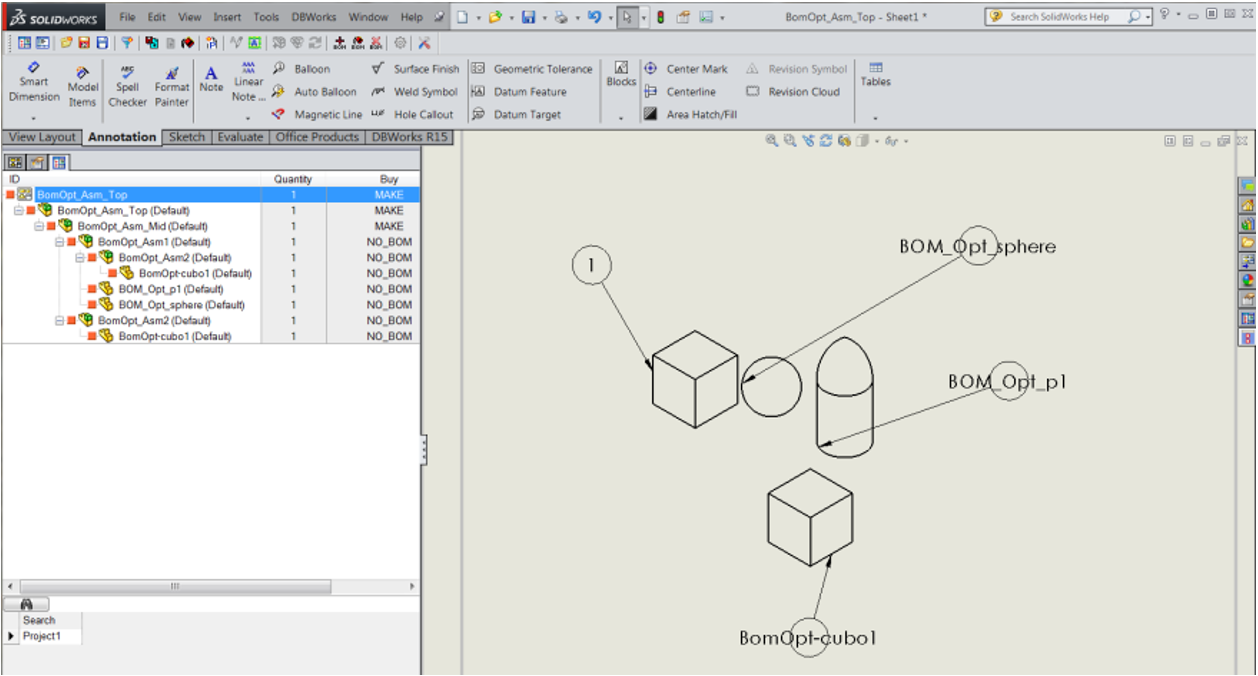
•setting the Show ID for NO_BOM Items option to 3, NO_BOM items at level 3 show their ID:

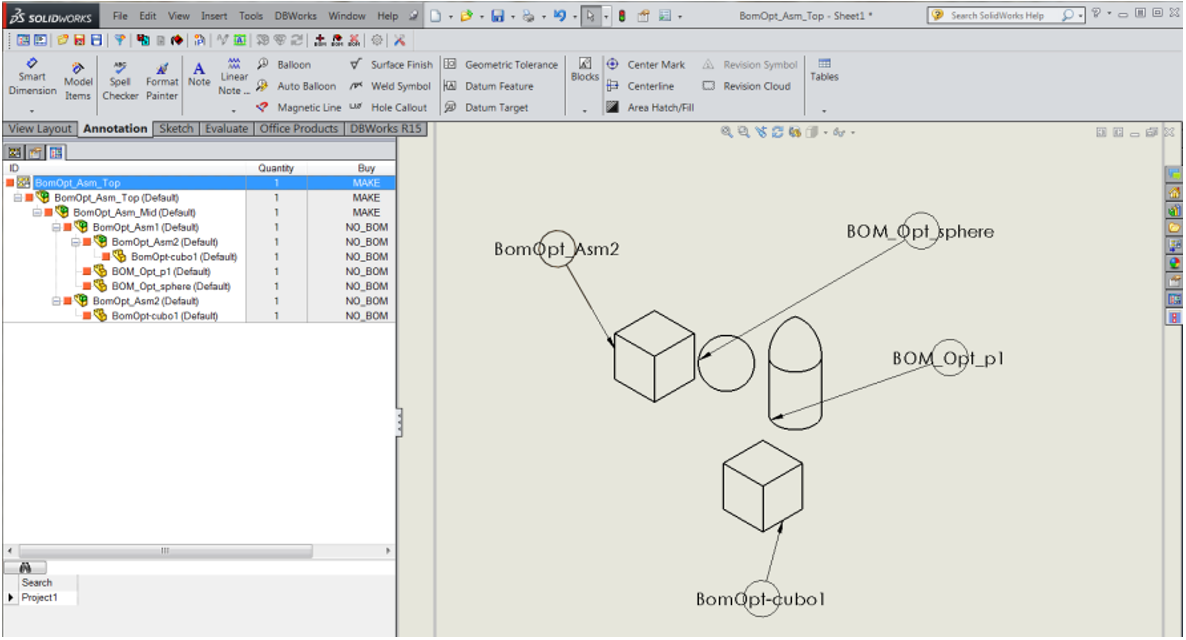
and enabling also the option Use Top Level NO_BOM, then NO_BOM descendants of level 3 NO_BOM items show their level 3 NO_BOM parent ID:

Show extra column for ballooned items
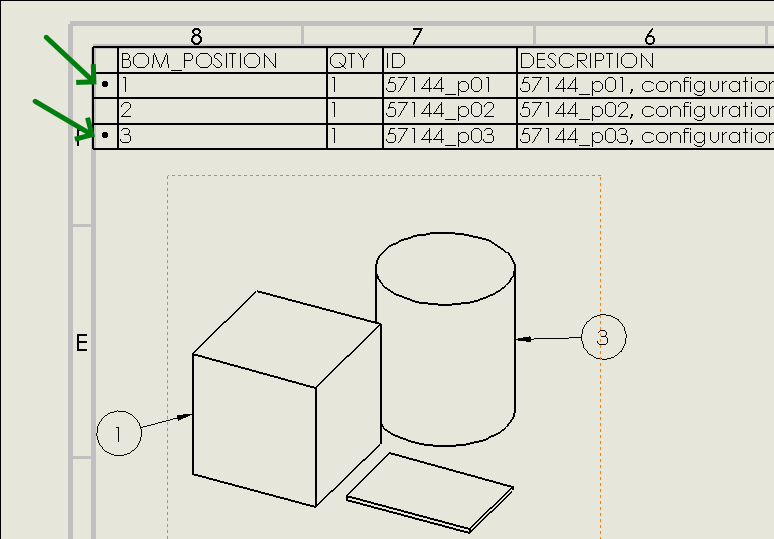
When checked, this setting adds the display of an additional (first) column to the placed Drawing BOM table to mark with a " • " the row items referenced by balloons. The option is available at user level and it applies to existing Drawing BOM tables ("Link BOM and Balloons" construction mode) in Drawing Documents.