Login: Advanced Security
Login: Advanced Security
Web Client incorporates security settings similar to the ones available in DBWorks to grant higher security to the system.
Web Client tends to have a separate set of passwords from DBWorks, in the sense that each new password created is created and maintained in a separate location, because your office and the internet are distinct environments that may require separate security levels. In a fresh installation the passwords used in DBWorks will allow you to log on to Web Client as well.
These options are managed in the options of DBWorks, section Environment, DBWArm. Use the Stand Alone on the server to set them.
Web Client allows users to change their passwords in the page changePassword.asp. The password set here is not the one used to login in DBWorks. The acceptance of the new password set is subject to validation such as minimal complexity if the related option in active in DBWorks.
When this option is active every time a new password is set it is encrypted in the database and is therefore not visible. The option does not transform the existing passwords that remain human readable. Web Client works correctly in a system where the passwords are partly encrypted and partly human readable.
This option makes sure that the password are at least 7 characters long and contain numeric, upper and lower case characters.
Once the options is set all the users that have a password too simple are obliged to set a new one, that will be valid only in Web Client and not in DBWorks.
View demo in external window (requires an internet connection)
This option requires that the CDONTS component on the IIS web server are working correctly and that an e-mail address is specified as in the following line in the file DBWorks Stand Alone\WebViewer\WebViewerOptions.txt
admin_email [email protected]
The e-mail is sent on failed logins only optionally, but when an account is (optionally) blocked because of too many failures the e-mail is always sent as the intervention of the admin in such a case is mandatory to unlock the account.
When a user fails to login for 6 times in a row, from anywhere and during distinct sessions, if this option is active the account is locked and at next try the user receives a clear notification.
If the IIS server is configured to use CDONTS components correctly, the administrator receives automatically a notification by e-mail.
View demo in external window (requires an internet connection)
This option keeps the users from using blank passwords. It is not as safe as the DBWorks/DBWARM option that grants minimum complexity, but at least avoids the most obvious choice.
Yo activate the option open or create the text file on the server named DBWorks Stand Alone\WebViewer\WebViewerOptions.txt and add the following line:
NO_BLANK_PASSWORDS
then save. The option is active immediately without restarting the server and affects the user since at login.
When a user with a blank password tries to login he's invited to change his password in a separate window and is not granted access to the application.
View demo in external window (requires an internet connection)
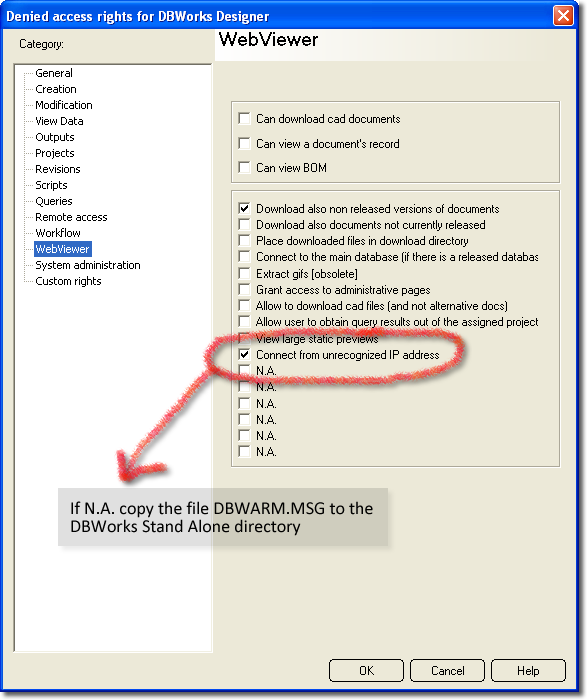
For this option to be active, you need:
oto define a list in the file DBWorks Stand Alone\WebViewer\IPAddressesAllowed.txt
oto set in DBWARM a limitation for a group of users
If the file that contains the list of allowed is not there, no matter the DBWARM settings everybody will connect from everywhere.
Definition of the list of IP addresses recognized
Create or edit the file DBWorks Stand Alone\WebViewer\IPAddressesAllowed.txt
Define the list as in the following example:
127.0.0.*
128.0.10.5
Add to the list as many IP addresses as you need to. Regular Expressions. Read more on the expressions supported (requires an internet connection).
Setting the rights in DBWARM
Make sure that the file DBWARM.MSG has been copied from the setup directory to the DBWorks Stand Alone directory. Click the option to inhibit the access from unknown IP addresses.
When should I use this option?
The most obvious use is to make sure that while an Administrator can get connected from home or even the airport and check the state of the documents, designers or newcomers cannot download and edit documents models from home. Another use could be to keep generally speaking the access from outside the company locked and allow only external collaborators or specific customers to log in on specific projects.