Web Client setup

Server prerequisites
oIIS 7 or newer
oThe Web Server must be inside a Domain
oMicrosoft Share Point Server should not be installed on the same Web Server
o.NET Framework 3.5, both on the server and on the client
oDBWorks Stand Alone with the options file (DBWAPP.PAR) installed locally. Start it to see that it gets connected to the database correctly.
oDBWARM must be active with explicit login. Every user that is expected to login using the WebViewer client must be assigned at least one project. Unlike in DBWorks if no projects has been assigned to you, as a WebViewer client you won't see any document.
oThe database must be SQL Server 2012 or newer.
oThe globalParametersPath of the StandAlone installed on the server must be the same as the installation path and point to a local drive
oThe buffer for download and upload might have to be raised. Read more on the subject in this page.
oThe Stand Alone on the tasks client machines cannot have the option for full user name active.
oUAC must be disabled.

Client prerequisites
oWindows 7 or 10
o.NET 3.0
oeDrawings
Tasks Client
oMechWorks Tasks Client
oDBWorks Stand Alone in order to perform lifecycle operations (check in/out, approve, ...)
oSolidWorks in order to generate files in other formats (.tiff, .dwg, .dxf, ...)
Setup procedure
The WebViewer server must be installed on the server that hosts the IIS web server. Make sure that when you install the software you have Administrator rights.
Before installing Web Client make sure that UAC is disabled on the web server.
Before installing, the server side components on the web server must be deleted.
On the web server go to Control Panel, Administrative Tools, Component Services
In the tree on the left expand the COM Plus components and delete the components DataServer and WebViewerStaticServer.
The setup verifies that the necessary tables are in place in the database and, if needed, adds them. If you use a Windows Authentication connection to the database, create a temporary explicit connection and update the dbwconn.par accordingly. This is necessary because every .msi is executed as an admin, and therefore has a different personality, so every connection to the database could fail if the admin itself has not been granted the necessary rights to have access to the database.
How to install
Run WebClientSetup.exe
When the installation is complete you are ready to test.
Adding the licenses file
The licenses file provided with the setup shuold be placed in the directory c:\program files (x86)\Common Files\Mechworks .
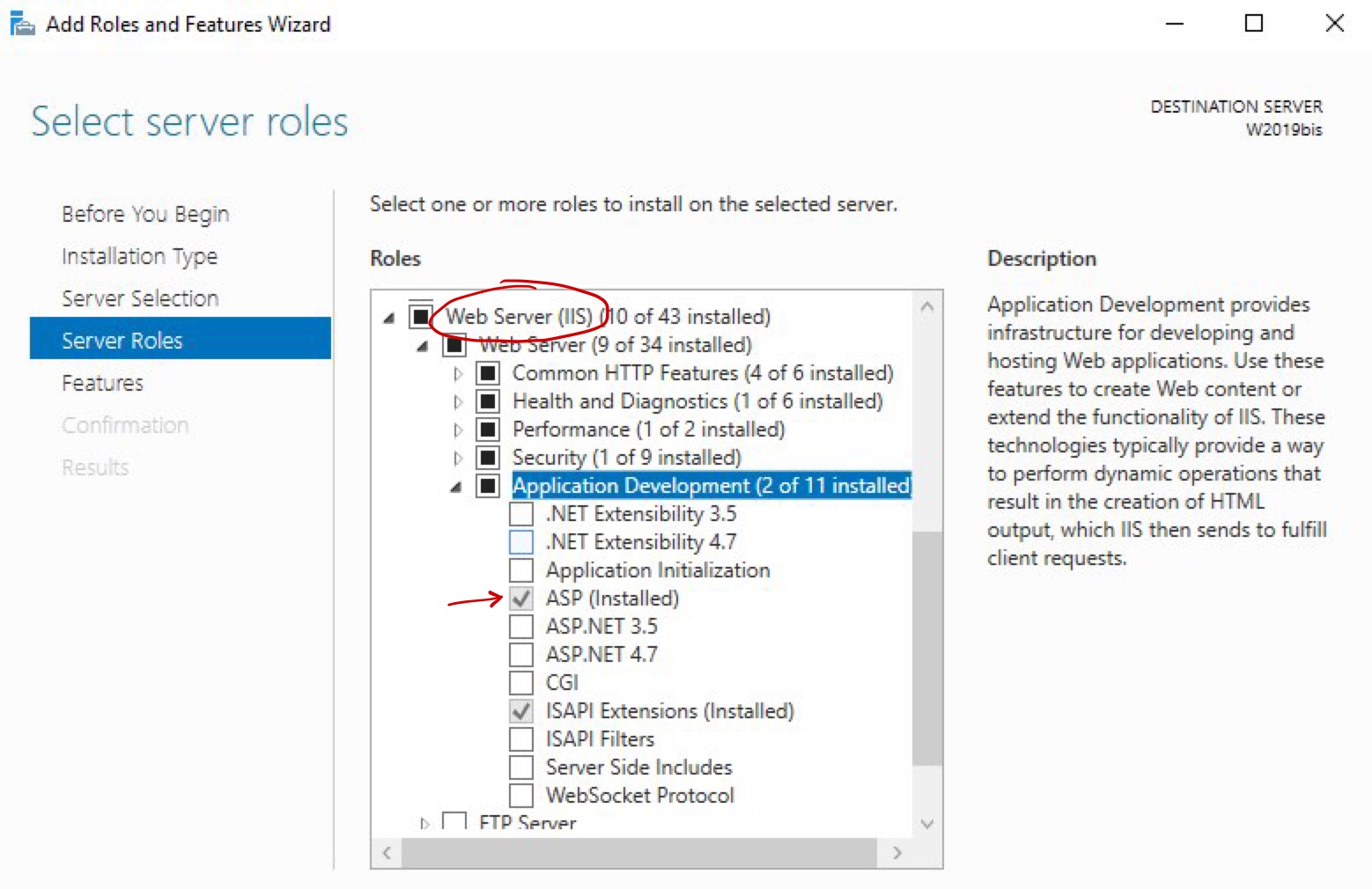
Make sure that IIS supports ASP pages
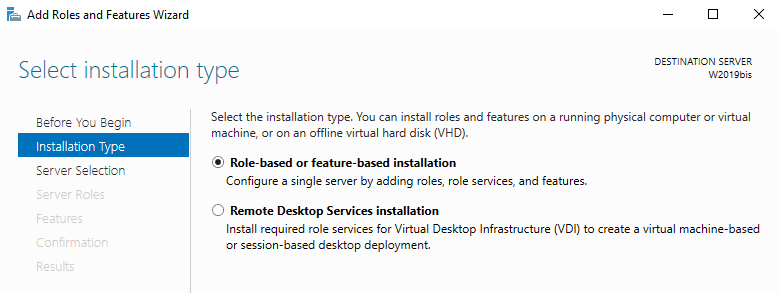
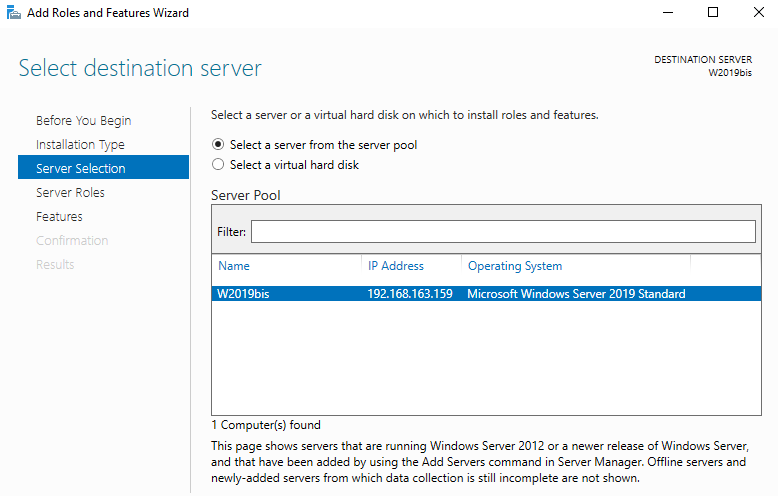
The extension for ASP pages must be active. Please open on the web server the IIS Manager and check that the ASP pages are supported.
This is where you would find the asp check if it was active
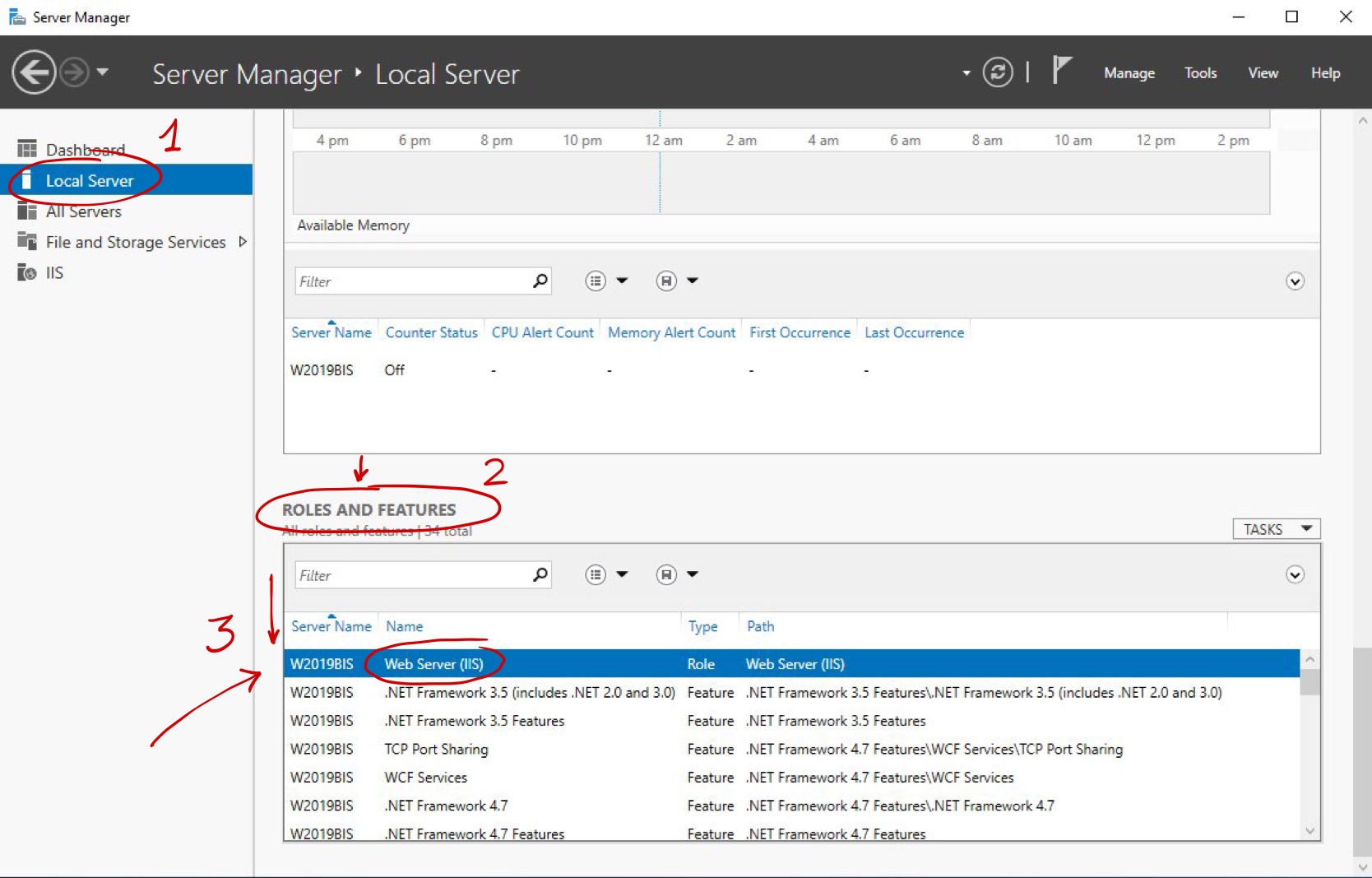
Normally it is not active, so you need to enable it.

Test
Install a client using the provided setup ClientSetup.msi, set the location of the server to http://localhost/webviewer and use a valid DBWorks username and password to login.
Large downloads
You might have to download large assemblies and drawings, that zipped are larger than 4 MB.
Change the AspBufferingLimit setting in Metabase.xml to a larger size. The default value is 4194304, which is about 4 MB. Change this to whatever limit is reasonable for the types of files your users will be attaching.
IIS stores these files in the systemroot\System32\Inetsrv folder of your computer. To view and modify these files, you must be a member of the Administrators group.
Upload buffer size
You might have to upload eDrawings or other files larger than 200K.
Change the AspMaxRequestEntityAllowed setting in Metabase.xml to a larger size. The default value is 200000, which is about 200 KB. Change this to whatever limit is reasonable for the types of files your users will be attaching keeping in mind that the maximum value allowed is 1073741824 (around 1GB).
The issue is documented in Microsoft Knowledge Base as the case 327659.
For large uploads you may have to edit the ASP Script Timeout in order to provide the server with sufficient time to process the upload. The value to be ser depends largely on the connection speed, but you can test with 900 seconds (15 minutes) for a large drawing or assembly.
Rights
The rights are assigned for the server side components in ControlPanel, Administrative Tols, Compoment Services
In the dialog select Component Services, Computers, My Computer, COM+ Applications,
The COM+ components used by Web Client are Data Server, WebViewerStaticServer and are assigned during the setup. If you need to reassign the values eventually, you can right click both these components and select properties, then click the tab Identity.
The identity set here must be explicit and should be a domain identity so that its credentials are valid also on other computers on the domain.
The user defined here must have read/write access to the local folder program files\dbworks stand alone directory and recursively to all the \webviewer folders, read/write/delete acess to the local %temp% folder as defined for the selected user and read access to all the files in order to send back the file content for downloaded if needed.
If you use NT Authentication in SQL Server the user must also have read/write access to the DBWorks database.
Updating the clients
The clients can be installed using the msi file located on the web server in /webviewer/client/ClientSetup.msi
The msi can be downloaded from every client, if a previous version is installed the new version will overwrite it.
If the installed version is not compatible with the updated version of the server side components the user receives a notification that a new version is available and is allowed to download and install the new version or skip it.
If, on the other hand, the installed version is not compatible with the server side components the user is forced to download and install the new version. The Administrator can force the users to install the new version by adding the optional line
FORCE_CLIENT_UPDATE
to the parameter file webviewer/WebViewerOptions.txt
Performance issues
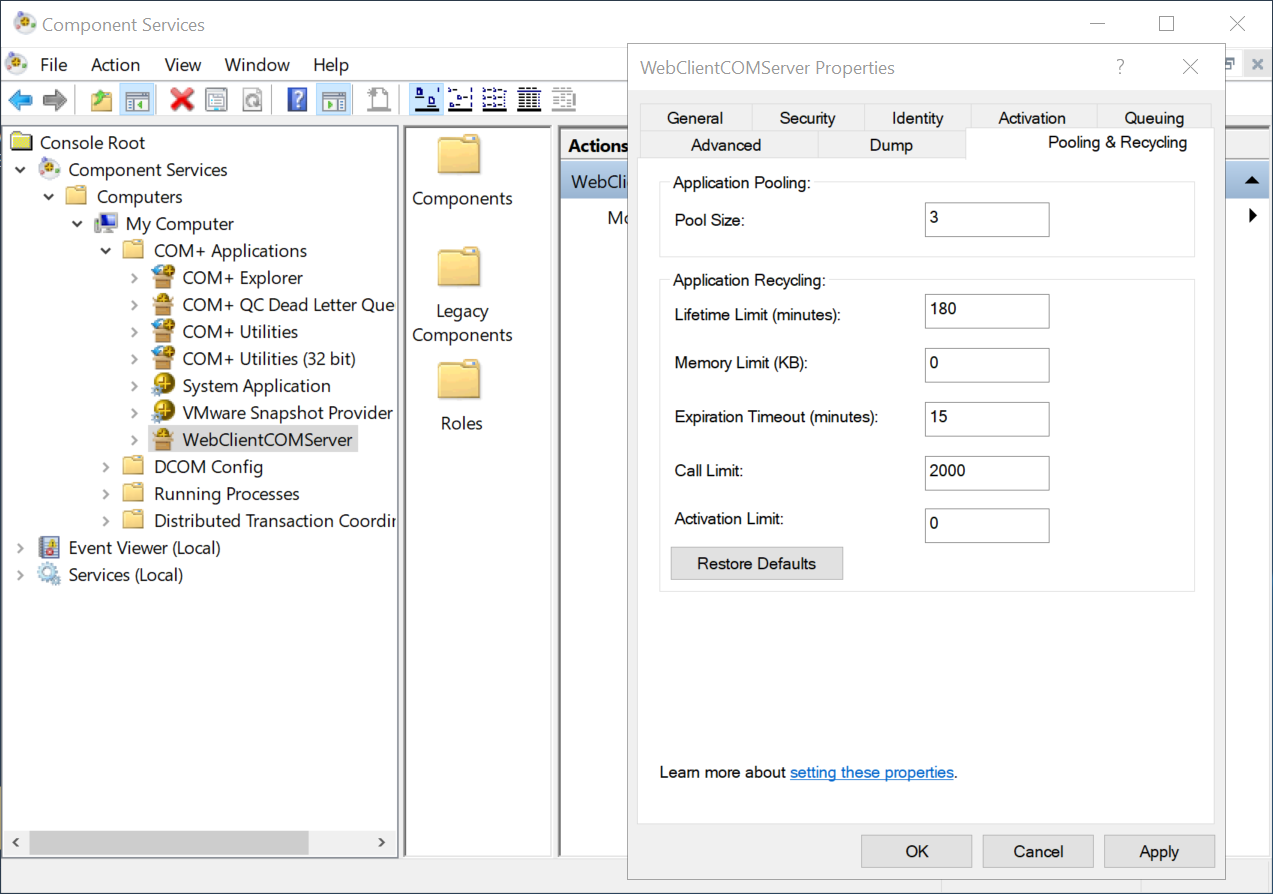
In case of performance issues, you can enable the automated recycling of the components after a number of calls or after a certain number of minutes. Please read the Microsoft documentation here
Tasks Client Setup
The Tasks Client workstation can be setup to run tasks that need to be performed either by Stand Alone or SolidWorks.
These tasks typically are related to commands that affect the state of documents (such as approve, check in, check out, ...) or to the creation of files in alternative formats (.tiff, .pdf, .dwg. and more) and require server side operations that require an external application to start.
Since the commands are executed as scripts, you could write your own scripts to perform custom tasks that are associated to popup menu entries on the clients.
oThe Stand Alone is needed on the Tasks Client workstation if you will run tasks that invoke the DBWorks API in any way.
oSolidWorks is needed on the Tasks Client workstation if you will run tasks that require opening and saving a document in another format or any other operation that require loading a SolidWorks model file.
The creation of a pdf or of a dwg from a SolidWorks drawing is one of the most typical examples of an installation that requires
The Tasks Client workstation can be the web server itself, in which case a TasksClient must be installed on the web server.
The web server always comes with a Stand Alone licence in order to define and test the DBWorks environment on the server, and that license can be used to perform tasks that require the Stand Alone.
Note, though, that if another workstation requiring the Stand Alone is used to perform the tasks, then another Stand Alone license will have to be purchased separately for the dedicated Tasks Client workstation.
If both the Stand Alone and SolidWorks are required in order to perform server side tasks, then they must be both installed on the same workstation.
SolidWorks, if required, must not have DBWorks or other add-ins active while executing tasks.
In Web Client all the lifecycle commands are performed server side by a DBWorks Stand Alone version of DBWorks. When the check in and approve commands are performed, CAD documents are not loaded in the CAD. As a result, variant notes and relations between documents (for instance parent child relations between assemblies and parts) are not updated. It is left to the Administrator to make sure that the Variant Notes in the drawings and the links are updated before the final approval.
It is mandatory to make sure that during the lifecycle commands the related scripts, if active, require no human interaction whatsoever server side (selection dialogs, confirmation dialogs, and so forth...) as this would block the process when performe automatically by an API call server side.
Microsoft SharePoint Server is more than just a web application and changes the default behaviour of IIS taking control of the Web Server. For the above reason we experienced issues in that the normal security policies that would apply to COM Plus components would not be valid anymore, which would keep Web Client from running.
Eventually we had customers that would configure SharePoint manually and got everything to work, but we do not guarantee that Web Client will run seamlessly after a simple setup if SharePoint is installed on the same IIS Web Server.