Simplified view
The Simplified view is an alternative client layout focused on a direct workflow: search, inspect the results and execute actions on the selected documents.
It is intended for users who do not need the full navigation model of the Classic view and only need a fast way to retrieve documents and work on them through the contextual menu.
The upper area is dedicated to the search. The results are listed immediately underneath and the right side displays the preview area for the selected document.
The philosophy is to reduce the interface to the essential steps of the daily activity: find the document, verify that it is the correct one and then apply the same actions already available in the standard document menus.
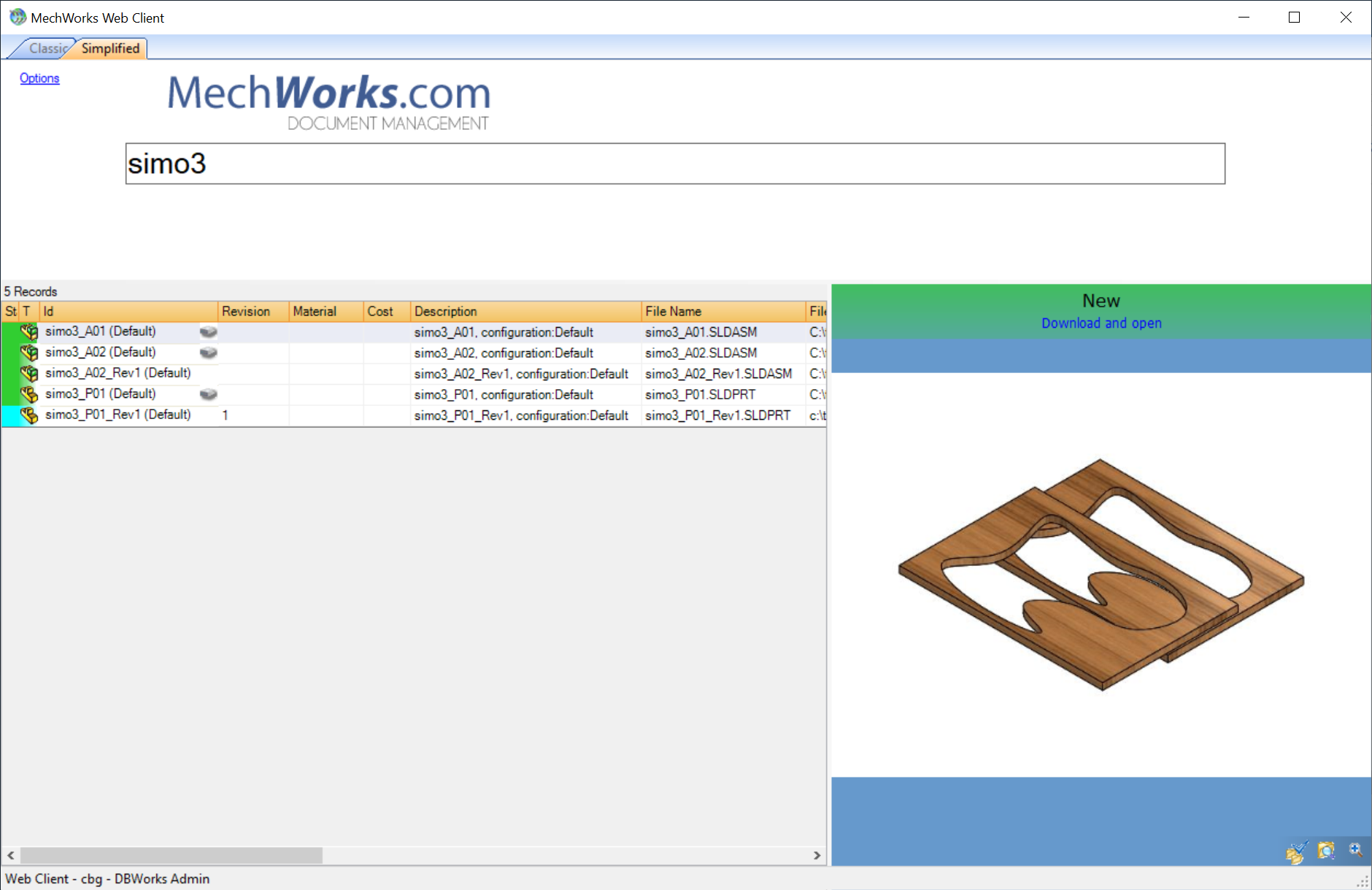
Once the search results are displayed, the user can work on the selected document with the contextual menu exactly as in the other view.
This means the Simplified view does not require a separate set of document commands: it reuses the same operations already configured for the Web Client, while presenting them in a more focused interface.
Web Client now also provides a dedicated Tablet view for Windows tablets. This workspace is designed for touch-first document consultation and is not simply a scaled down version of the Classic interface.
The preview area is given more prominence, record details are presented as a concise summary, and related resources such as PDF files, alternative files and attachments are grouped into tabs to reduce visual clutter.
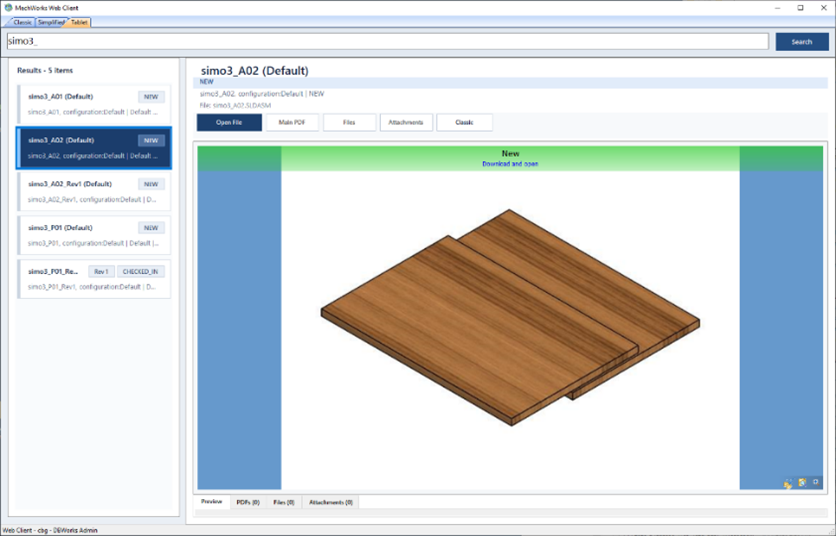
This workspace is especially suitable when the goal is rapid consultation with the main actions always within easy reach.
The visibility of the Simplified view is normally assigned in the Web Client options at group level. This makes it easy to enable the view for a functional role such as production, purchasing or occasional users that should not be exposed to the full Classic interface.
When both tabs are visible, the user can switch between Classic and Simplified. When only the Simplified tab is enabled, the user is guided directly into the reduced workflow.
Users can start from the Simplified view to locate a specific document quickly and then move to the Classic view when they need additional information such as broader navigation, parents and children trees or more detailed record inspection.
The Tablet view follows the same principle: it focuses on consultation and responsiveness, while the Classic view remains available for workflows that require the full desktop layout.
Besides the group based visibility configured in the options, the file tabs.xml can also be used to explicitly assign the tab visibility to individual users.
The file defines each tab and the related rights. A typical example is:
<tabs>
<tab name="classic">
<rights>
<group>DBWorks Project Managers</group>
<user>cbg</user>
</rights>
</tab>
<tab name="simplified">
<rights>
<group>DBWorks Production Control</group>
<user>cbg</user>
</rights>
</tab>
</tabs>
In this way the normal assignment can remain group based, while specific users can be added explicitly when needed for testing, gradual rollout or exceptional access.