o20260709 - UserInterface - ShortcutBar: when upgrading from R23 to R26 or when setting up a new MWPDM environment from scratch, the option [X] User options -> Display the shortcut bar as icon list in narrow panel is no longer enabled by default. Each user can independently choose whether to switch to the new shortcut bar display by enabling this option.
o20260611 - Solidworks Integration - Option [X]Open/Save > Save as > "Always Create Detached Drawings on a DBWorks Save as..." is removed.
Since MWPDM R26 service supports SOLIDWORKS 2024 and later, and Detached Drawings were discontinued starting from SOLIDWORKS 2023, this feature is no longer functional and the option is no longer visible in the section Open/Save > Save as.
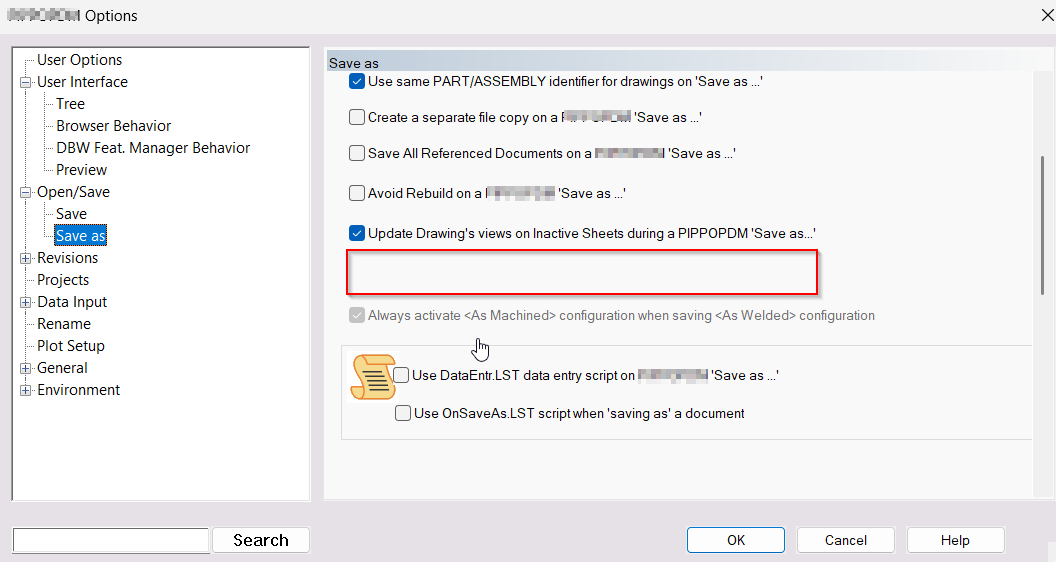
Attempting to save a drawing in detached mode through the SolidWorks API causes an error, so the option has been removed from the MWPDM Service Options's menu. Drawings previously saved in detached mode will continue to work normally and can still be identified in the vault through the existing [X]General->Drawings->Display Detached Drawing Symbol in the User Interface option.
o20260610 - Setup - Office Integrations Fully Managed by the PDM Installer
The MWPDM Office integration components — Word, Excel, and Outlook add-ins — are now fully managed by the PDM installer. Separate components installations are no longer required.
What's Changed
The following components are managed directly by the MWPDM installer:
MechWorks Word Add-in
MechWorks Excel Add-in
MechWorks Outlook Add-in
This change ensures a consistent, fully supported configuration and simplifies deployment and maintenance.
Action Required Before Upgrading
If any of the following products are currently already installed on your system:
•MechWorks_WordAddin
•MechWorks_ExcelAddin
•MechWorks_OutlookAddin
you must uninstall them before running the new MWPDM installer.
To do so, go to System Settings → Add or Remove Programs and remove any of the above that are present on your machine.
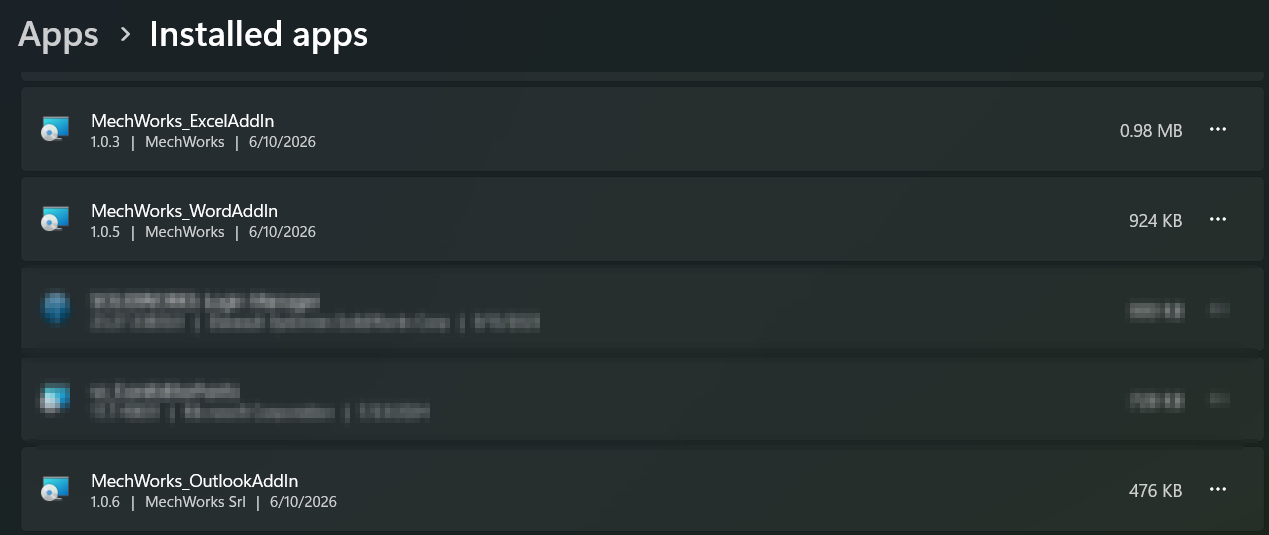
Once removed:
•restart the MWPDM installer
•select feature "Word, Excel, Outlook (classic)"
•complete the setup.
Alternative: Keeping Existing Installations
If you wish to retain the obsolete component installations, you may do so by deselecting the Standalone → "Word, Excel, Outlook (classic)" feature during the MWPDM installation. However, this configuration will not be supported in future releases and is not recommended.