o20260727 - Shortcut bar: the new version vbs free of the tool Analisys->Check for parent-child recursions is now more faster.
o20260720 - Excel BOM the data engine avoids to load the data for the linked tables unless necessary because of a linked column to be filled
o20260720 - Web Client: the limitation of 300 projects assigned as a filter has been removed
o20260720 - Advanced Filter: added button to refresh hierarchical relations
o20260715 - Setup - Silent Install Cheat Sheet to manage integrations: AutoCad, Office etc ....
General rules:
- syntax is PROPERTY=value with no spaces around = ·
- do not add a trailing backslash to directory values ·
- feature names are case-sensitive.
Installer version: MechWorks_Pdm_Msi_R26_SP0_1.exe (or later)
Mode 1 — First install / upgrade: SolidWorks integration + Standalone
REM set installerPath and logPath
set SETUP=\\Path\To\Your\MechWorks_Pdm_Msi_R26_SP0_1.exe
set LOGFILE=%temp%\installmsi.log
REM Add all features
set ADD=ALL
REM Remove all features except DBWorks, Standalone
set REMOVEFEAT=DBInventor,DBSolidEdge,AdminTools,DBWord,DBExcel,DBOutlook,DBDratfSight,DBBricsad,DBAutoCad
REM set GlobalParametersPath
set GPPATH=X:\MechWorks_Pdm_Server
REM set Installation Type: Individual, Client, Server
set INSTTYPE=Client
REM set language: EN, DE, IT, FR, ES
set LANG=EN
REM set MWPDM installation directory (avoid final backslash)
set INSTDIR=%programfiles(x86)%\MechWorks\MechWorks_Pdm
REM set SOLIDWORKS_INSTALLED value (mandatory to install the SolidWorks integration)
set SWINST=Yes
REM set SOLIDWORKS_VERSION value, e.g. 2025 (mandatory to install the SolidWorks integration)
set SWVER=2025
REM Run installation command (set following command in one line)
"%SETUP%" /qb /l*vx "%LOGFILE%" ADDLOCAL=%ADD% REMOVE=%REMOVEFEAT%
GLOBAL_PARAMETERS_PATH=%GPPATH%
INSTALLATION_TYPE=%INSTTYPE% DBW_LANG="%LANG%"
APPDIR="%INSTDIR%"
SOLIDWORKS_INSTALLED=%SWINST% SOLIDWORKS_VERSION=%SWVER%
Mode 2 — First install / upgrade: Standalone only
REM set installerPath and logPath
set SETUP=\\Path\To\Your\MechWorks_Pdm_Msi_R26_SP0_1.exe
set LOGFILE=%temp%\installmsi.log
REM Add all features
set ADD=ALL
REM Remove all features except Standalone
set REMOVEFEAT=DBWorks,DBInventor,DBSolidEdge,AdminTools,DBWord,DBExcel,DBOutlook,DBDratfSight,DBBricsad,DBAutoCad
REM set GlobalParametersPath
set GPPATH=X:\MechWorks_Pdm_Server
REM set Installation Type: Individual, Client, Server
set INSTTYPE=Client
REM set language: EN, DE, IT, FR, ES
set LANG=EN
REM set MWPDM installation directory (avoid final backslash)
set INSTDIR=%programfiles(x86)%\MechWorks\MechWorks_Pdm
REM Run installation command (set following command in one line)
"%SETUP%" /qb /l*vx "%LOGFILE%" ADDLOCAL=%ADD% REMOVE=%REMOVEFEAT%
GLOBAL_PARAMETERS_PATH=%GPPATH%
INSTALLATION_TYPE=%INSTTYPE%
DBW_LANG="%LANG%" APPDIR="%INSTDIR%"
Mode 3 — Add the new features gradually (maintenance mode)
After having installed/upgraded the Standalone using Mode 1 or Mode 2
Run against the existing installation: only ADDLOCAL with the feature to add — no REMOVE, no other properties. Everything already installed stays untouched
REM set installerPath and logPath
set SETUP=\\Path\To\Your\MechWorks_Pdm_Msi_R26_SP0_1.exe
set LOGFILE=%temp%\addfeature.log
Add AutoCAD (standard):
REM Add feature (parent DBAutoCad + sub-feature)
set ADD=DBAutoCad,DBAutoCad_Standard
REM Run installation command
"%SETUP%" /qb /l*vx "%LOGFILE%" ADDLOCAL=%ADD%
Add AutoCAD Mechanical:
set ADD=DBAutoCad,DBAutoCad_Mechanical
"%SETUP%" /qb /l*vx "%LOGFILE%" ADDLOCAL=%ADD%
Add AutoCAD Electrical:
set ADD=DBAutoCad,DBAutoCad_Electrical
"%SETUP%" /qb /l*vx "%LOGFILE%" ADDLOCAL=%ADD%
Add Word integration:
set ADD=DBWord
"%SETUP%" /qb /l*vx "%LOGFILE%" ADDLOCAL=%ADD%
Add Excel integration:
set ADD=DBExcel
"%SETUP%" /qb /l*vx "%LOGFILE%" ADDLOCAL=%ADD%
Add Outlook integration:
set ADD=DBOutlook
"%SETUP%" /qb /l*vx "%LOGFILE%" ADDLOCAL=%ADD%
Or add several at once:
set ADD=DBAutoCad,DBAutoCad_Standard,DBWord,DBExcel,DBOutlook
"%SETUP%" /qb /l*vx "%LOGFILE%" ADDLOCAL=%ADD%
Remove a feature (same pattern, REMOVE instead of ADDLOCAL):
set REMOVEFEAT=DBAutoCad_Mechanical
"%SETUP%" /qb /l*vx "%LOGFILE%" REMOVE=%REMOVEFEAT%
Remove several at once
set REMOVEFEAT=DBAutoCad_Mechanical,DBAutoCad_Electrical,DBOutlook,DBWord
"%SETUP%" /qb /l*vx "%LOGFILE%" REMOVE=%REMOVEFEAT%
Mode 4 — First install / upgrade: Standalone + Word, Excel, Outlook integrations
Identical to Mode 2, but DBWord, DBExcel and DBOutlook are not in the REMOVE list, so they get installed together with the Standalone client.
So user can install immediately together with Standalone.
REM set installerPath and logPath
set SETUP=\\Path\To\Your\MechWorks_Pdm_Msi_R26_SP0_1.exe
set LOGFILE=%temp%\installmsi.log
REM Add all features
set ADD=ALL
REM Remove all features except Standalone, DBWord, DBExcel, DBOutlook
set REMOVEFEAT=DBWorks,DBInventor,DBSolidEdge,AdminTools,DBDratfSight,DBBricsad,DBAutoCad
REM set GlobalParametersPath
set GPPATH=X:\MechWorks_Pdm_Server
REM set Installation Type: Individual, Client, Server
set INSTTYPE=Client
REM set language: EN, DE, IT, FR, ES
set LANG=EN
REM set MWPDM installation directory (avoid final backslash)
set INSTDIR=%programfiles(x86)%\MechWorks\MechWorks_Pdm
REM Run installation command (set following command in one line)
"%SETUP%" /qb /l*vx "%LOGFILE%" ADDLOCAL=%ADD% REMOVE=%REMOVEFEAT%
GLOBAL_PARAMETERS_PATH=%GPPATH%
INSTALLATION_TYPE=%INSTTYPE%
DBW_LANG="%LANG%" APPDIR="%INSTDIR%"
o20260715 - Conversion Wizard: the wizard now performs a more robust file permission check before processing. Files that cannot be modified are skipped immediately, reducing processing time on files that would ultimately fail on save.
o20260715 - Conversion Wizard: the resulting error log is more clear and reports the files which had errors during conversion without verbose informations usually not usefull to the user.
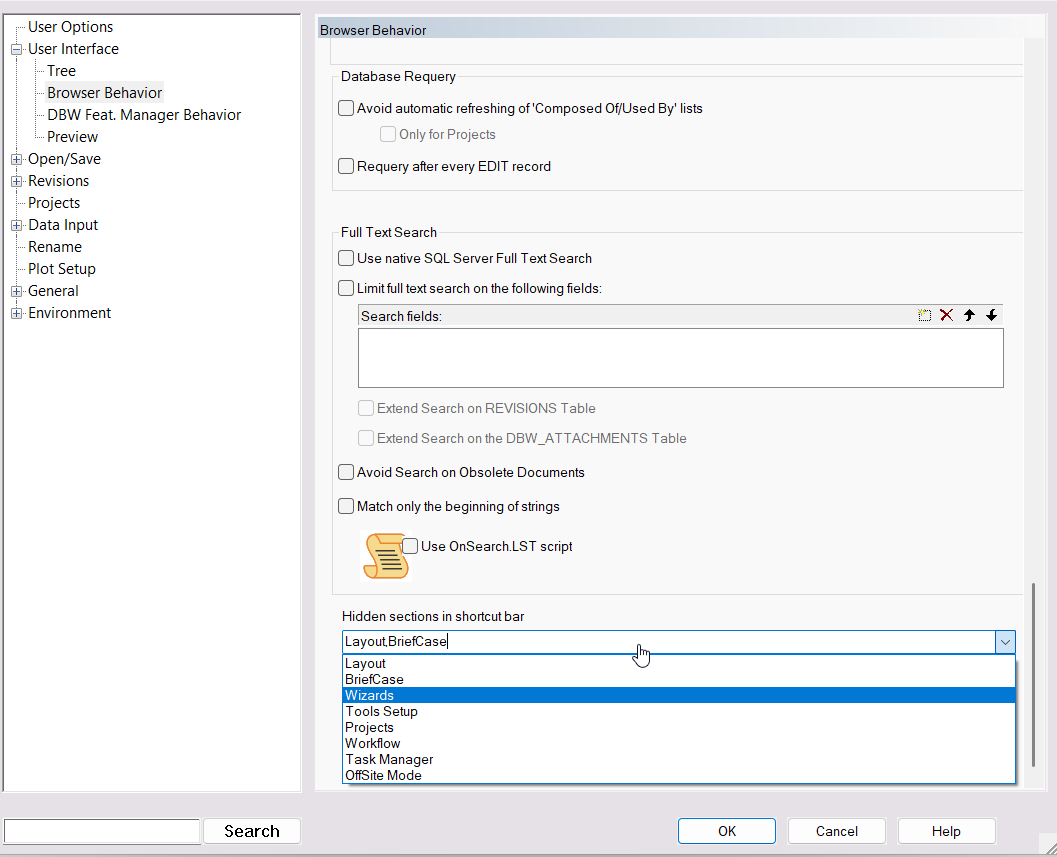
o20260713 - ShortcutBar - default MWPDM sections visibility - It is now possible to hide specific default sections of the ShortcutBar (DBWSCBAR.SYS) for all users in the company, via a new global option [X]User Interface -> Browser Behavior -> Hidden sections in shortcut bar. The sections selected as hidden are not loaded in the user interface, so users only see the sections that are actually useful for their daily work.
o20260710 - Conversion Wizard: in the task selection dialog the tasks can now be ordered either by total file size (the current default) or the job and task names.
o20260710 - Conversion Wizard: the maximum number of tasks has been incremented to 500.
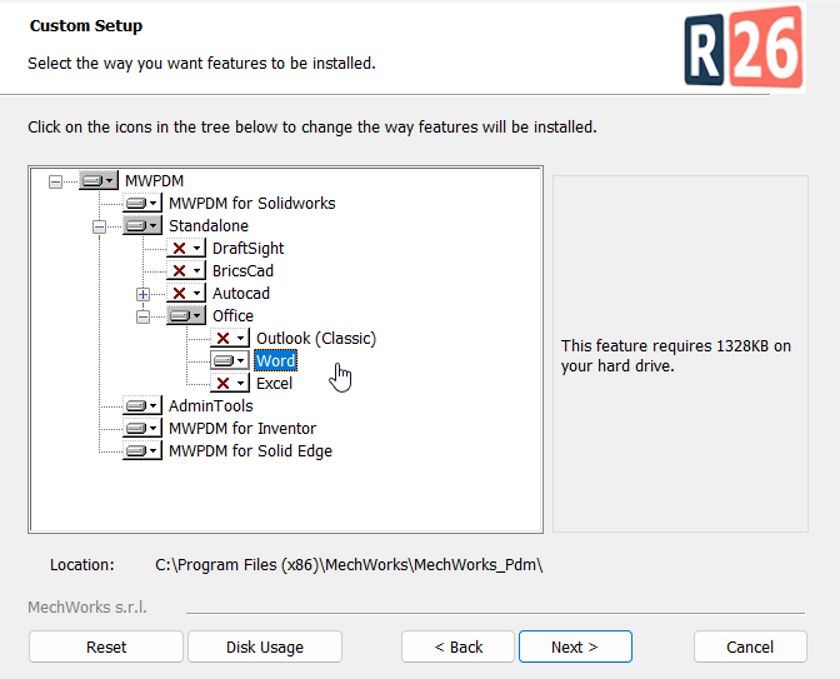
o20260709 - Setup - Office integration components: The installation of the Office integration components has been split to let customers choose which features to install. For example, if you need to install the MWPDM Service integration for Word only — and not for Excel or classic desktop Outlook — you can simply select the Word feature.
o20260708 - Scripting - OnHookOkG reference examples in both Powershell and Python are now available and distributed respectively under <GPP>\lst\demo\demo_ps1 and <GPP>\lst\demo\demo_py folders.
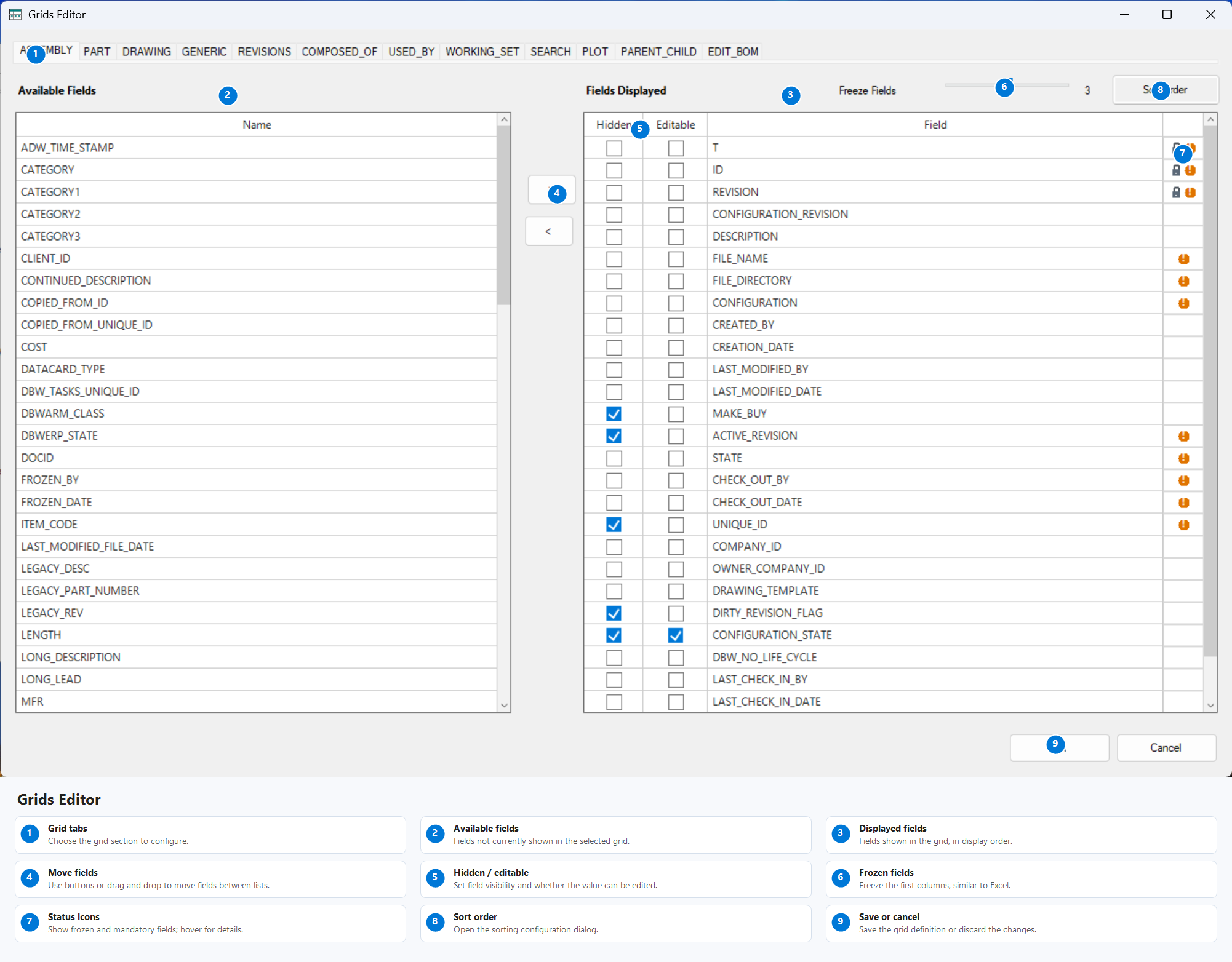
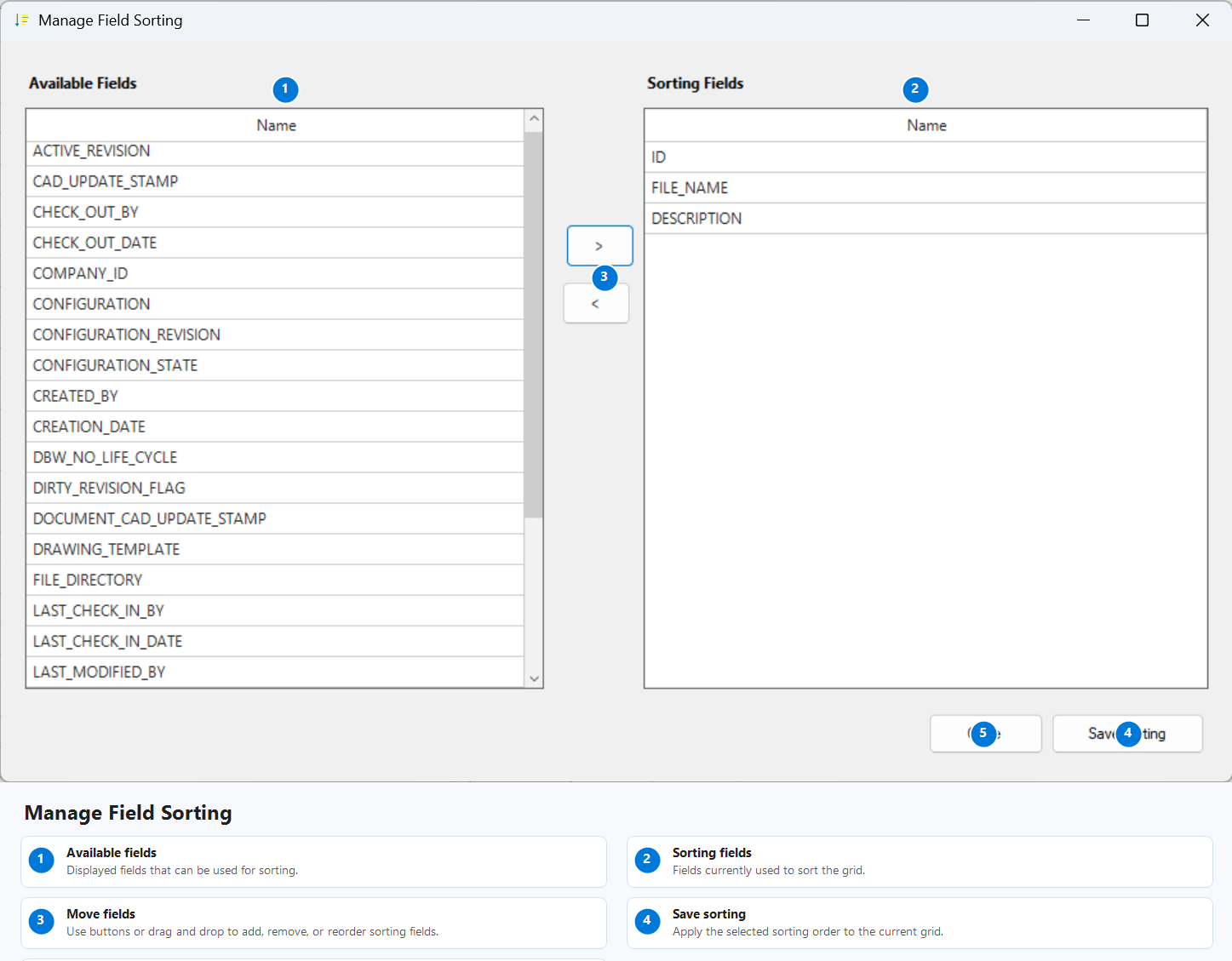
o20260703 - Redesigned the Tables2.dfl editor with a new native grid-based interface, replacing the previous browser-based editor. The new UI is more consistent with the other administration tools and improves field selection, ordering, frozen fields, mandatory field indicators, and sorting configuration.
o20260702 - SaveWizard: added an inline text filter to SaveWizard choice lists, shown automatically when 15 or more options are available.
o20260630 - DBWArm Editor: script OnDBWArmUsersTableUpdated is now supported both in PowerShell and in Python too.
The script receives in input the same parameters that were present in the vbs file. In PowerShel it is as follows:
param(
[string]$DBWorksApplicationName,
[string]$DBWARM_UsersTableAction,
[string]$DBWARM_UserName,
[string]$DBWARM_UserFullName,
[string]$DBWARM_UserGroup,
[string]$DBWARM_UserNameWas
)
And in Python:
app_name = sys.argv[1]
action = sys.argv[2]
user_name = sys.argv[3]
full_name = sys.argv[4]
user_group = sys.argv[5]
old_user_name = sys.argv[6]
Complete examples can be found in the LST\demo\demo_ps1 and in LST\demo\demo_py folders under the installation folder.
Note: If more than one of vbs, ps1 and py files are present, only one of them will be executed given the following precedence: vbs first, then ps1 and then py.
o20260623 - Remote Access: File replication scripts have been converted from VBScript to PowerShell.
The old VBScript-based file replication scripts have been converted to PowerShell and are now available under:
<GPP>\LST\demo\demo_ps1
The files involved in the conversion are:
replicate_Files_launcher.bat -> replicate_Files_launcher_ps1.bat
replicate_Files_launcher.vbs -> replicate_Files_launcher.ps1
replicate_Files_batch.vbs -> replicate_Files_batch.ps1
During the conversion, most of the logic previously implemented in replicate_Files_batch.vbs has been moved into MWPDM and is now available through the new RunFileReplication() API.
This makes the replication flow more integrated with the MWPDM core logic, easier to maintain, and significantly faster. The new PowerShell scripts are approximately 3 times faster than the previous VBScript implementation.
New customization parameters have also been added and can be configured in the ReplicationScriptParameters.par file:
START_DATE
Defines the lower date limit for candidate selection.
When specified, only documents with LAST_MODIFIED_FILE_DATE on or after this date are considered.
This parameter has priority over the incremental replication date logic.
Accepted formats: yyyyMMdd, yyyy/MM/dd, yyyy-M-d, yyyy-MM-dd, dd/MM/yyyy, d/M/yyyy
Default value: empty
Example:
START_DATE=2026-06-01
END_DATE
Defines the upper date limit for candidate selection.
When specified, only documents with LAST_MODIFIED_FILE_DATE up to this date are considered.
The end date is inclusive for the whole day.
This parameter has priority over the incremental replication date logic.
Accepted formats: yyyyMMdd, yyyy/MM/dd, yyyy-M-d, yyyy-MM-dd, dd/MM/yyyy, d/M/yyyy
Default value: empty
Example:
END_DATE=2026-06-30
CANDIDATE_ADDITIONAL_JOIN
Defines an additional SQL JOIN fragment appended to the candidate selection query.
The document table alias used by the generated query is d.
This parameter is intended for advanced filtering and customizations.
Accepted values: any valid SQL JOIN fragment, or empty
Default value: empty
Example:
CANDIDATE_ADDITIONAL_JOIN=INNER JOIN REVISIONS r ON r.DOCUMENT_UNIQUE_ID = d.UNIQUE_ID
CANDIDATE_ADDITIONAL_WHERE
Defines an additional SQL WHERE fragment appended to the candidate selection query.
This parameter is intended for advanced filtering and customizations.
Accepted values: any valid SQL condition fragment, or empty
Default value: empty
Example:
CANDIDATE_ADDITIONAL_WHERE=r.NOTES = 'test'
CANDIDATE_ORDER_BY
Defines the SQL ORDER BY fragment used to sort candidate documents.
This value is used by the generated candidate query to assign the replication order.
Accepted values: any valid SQL ORDER BY expression, or empty
Default value: empty
If empty, the default ordering is by document type and document id.
Example:
CANDIDATE_ORDER_BY=r.APPROVAL_DATE, d.UNIQUE_ID
DOWNLOAD_ATTACHMENTS
Defines whether document attachments are downloaded together with the main file.
Accepted values: 0, 1
Default value: 0
Note: table DBW_ATTACHMENTS needs to be replicated.
MAX_FILES_PER_RUN
Defines the maximum number of files that can be scheduled for download in a single replication run.
If empty, no explicit limit is applied.
Accepted values: empty or any positive integer
Default value: empty
o20260619 - BOM: Added the new API function: String BomAsJson(String uid, String parameterFile, String revision = "")
The function generates a complete multilevel BOM as a JSON string without creating an Excel file. The generated JSON preserves the BOM hierarchy through nested child elements and contains:
columns: column names, titles and positions defined by the selected BOM template;
root: the root BOM item;
metadata: language-independent structural information, including UID, parent UID, level, BOM position, BOM path, quantity, total quantity and make/buy value;
values: values generated according to the BOM template columns;
children: the nested collection of direct child items.
Document headers, comments, previews, Excel formulas and subtotals are not included.
o20260618 - Outlook Integration: Improved embedded image recognition in emails, resulting in fewer false positives and negatives when the DBW_ADD_EMAIL_ATTACHMENTS_NO_EMBEDDED_IMAGES option is enabled.
o20260616 - Setup - Office Integrations: By default, the 64-bit version of MWPDM Standalone is executed.
o20260610 - Setup - Office Integrations: when classic desktop Excel,Word,Outlook applications are already installed on the system, selecting the new standalone sub-feature “Word, Excel, Outlook (classic)” will automatically install and configure all required components, allowing the integration to start automatically without the additional execution of separate installation components.
If any of the following products are currently installed on your system, you must uninstall them before running the new MWPDM installer:
•MechWorks_WordAddin
•MechWorks_ExcelAddin
•MechWorks_OutlookAddin
To do so, go to System Settings → Add or Remove Programs and remove any of the above components that are present on your machine. Once removed,
•restart the MWPDM installer
•select feature "Word, Excel, Outlook (classic)"
•complete the setup.
for all the details, see the release Notes in the Behavior Changes section.
o20260529 - Scrpting: the .MWNET directive extension to drop-in specific event execution previous implemented only for for .lst/.spt files is now implemented also for .mwnet files.
The extended format for the mentioned files is:
.MWNET [objectName]
o20260522 - The Advanced Filter can now restrict a search to the documents contained in a selected project or assembly. This makes common searches easier, for example:
Find all PDFs contained in project PRJ-001
Find all documents contained in assembly ASM-1000
In the Advanced Filter, add a condition like:
Document is contained in project <project id>
Document is contained in assembly <assembly id>
The database structure requires that a new table is added using the Admin Tools or the feature won't be available.
- The first search may take a little longer while the hierarchy information is prepared.
- Very large projects or assemblies may take more time to process.
- Temporary data created by this feature is cleaned up automatically.
- If the support table is not available, the Advanced Filter will show an error and the feature will not be active.
o20260519 - Setup - AutoCad Integration: when AutoCadCad is already installed on the system, selecting the new standalone sub-feature “Autocad” will automatically install and configure all required components, allowing the MWPDM for AutoCad integration to start automatically.
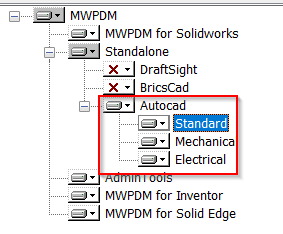
The supported AutoCad (Standard, Mechanical, Electrical) versions currently are 2024, 2025, 2026 (see details MWPDM Compatibility Matrix)
The supported AutoCad installation languages are: english, german, italian, french, spanish.
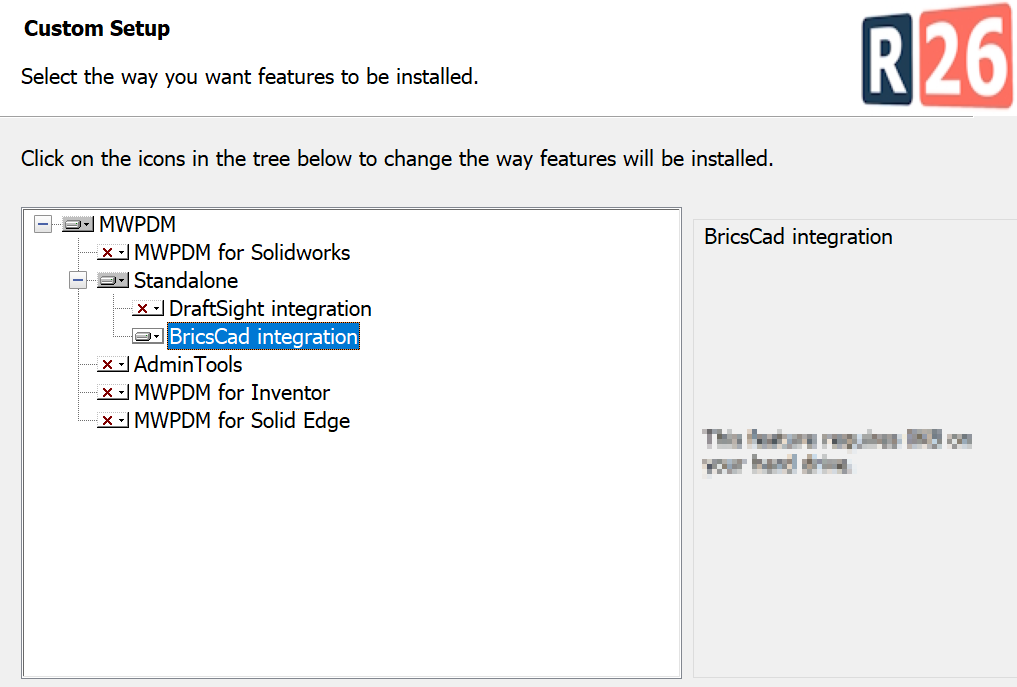
o20260519 - Setup - BricsCad Integration: when BricsCad is already installed on the system, selecting the new standalone sub-feature “BricsCad” will automatically install and configure all required components, allowing the MWPDM for BricsCad integration to start automatically.
The supported BricsCad version currentlys are 2024 and 2025 (see details MWPDM Compatibility Matrix)
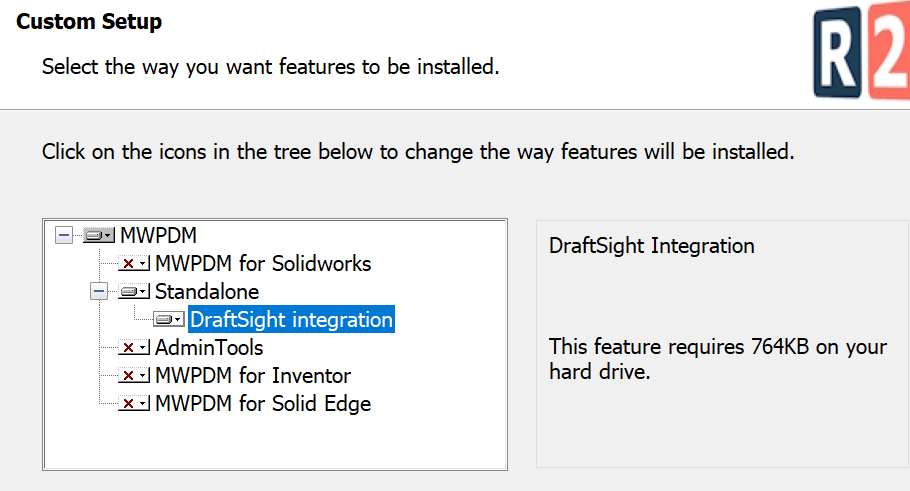
o20260518 - Setup - DraftSight Integration: when DraftSight is already installed on the system, selecting the new standalone sub-feature “DraftSight” will automatically install and configure all required components, allowing the MWPDM for DraftSight integration to start automatically.
The supported Draftsight version currently is 2025 (see details MWPDM Compatibility Matrix)
o20260514 - Remote Access: The script used to create Database Replication has been converted to PowerShell. Additionally, in order to support the execution on SQL Server 2025, two additional parameters have been implemented:
TRUST_SERVER_CERTIFICATE if set to 1 enables the Trust Server Certificate. MANDATORY starting from SQL Server 2025.
DB_MASTER_KEY if different from empty string creates the database master key on publisher and subscribers. MANDATORY starting from SQL Server 2025.
o20260511 - UserInterface - A fallback strategy has been implemented for the Options dialog resizing: when the configuration/parameter file is not available, the height is automatically adjusted based on the screen resolution to ensure correct usability.
o20260511 - Scripting: OnNewPrj.lst converted to Powershell, Python, VB.NET and C# versions.
o20260507 - Scripting: OnNewRev.lst conversion to both PowerShell and Python examples.
o20260507 - OnNewRev.Lib (VBSCRIPT) has been ported to vb .NET
The logic originally implemented in <GPP>\LST\OnNewRev.Lib has been migrated to VB.NET within the already existing MWPDMAPI class Revision, improving maintainability and integration within the MWPDM R26 scripting framework.
o20260505 - UserInterface - The Options dialog now remembers its page size and restores it the next time it is opened.
o20260504 - Advanced Filter Logical Groups -
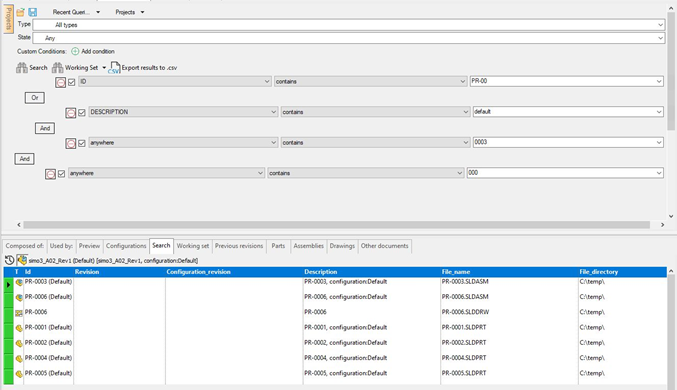
The Advanced Filter can combine custom conditions with nested AND and OR groups. This makes it possible to build expressions such as:
((A OR B) AND C)
without writing SQL manually. Use Group lower rows to move the grouping toward the rows below the selected operator.
Use Group upper rows to move the grouping toward the rows above the selected operator.
These commands change the logical parentheses represented by the indentation. They do not change the individual condition values.