A rule is created by comparing the automatically generated conversion with the user-revised version of the script.
Starting from scratch, the steps to create rules are the following:
a)Launch the application and select the Revision Page. At this stage, the Generate Rule button is disabled.
b)Click the Load Original Script button. A file selection dialog opens, allowing you to select the original VBScript file.
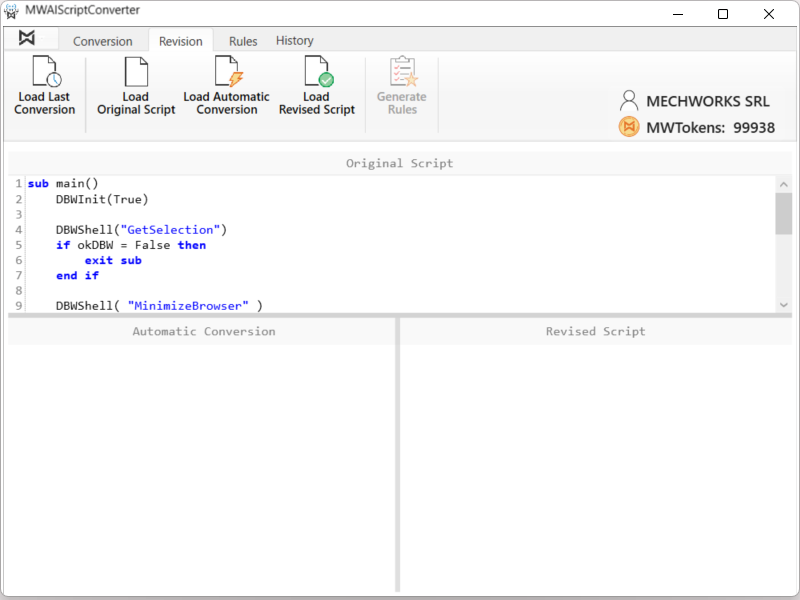
c)Click the Load Automatic Conversion button. A file selection dialog opens, allowing you to select the automatically generated converted script.
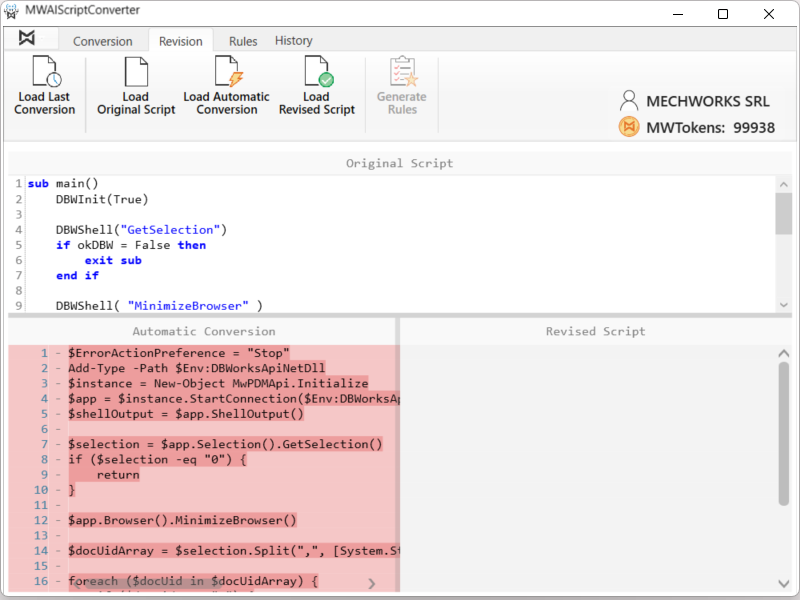
d)Click the Load Revised Script button. A file selection dialog opens, allowing you to select the user-revised version of the converted script.
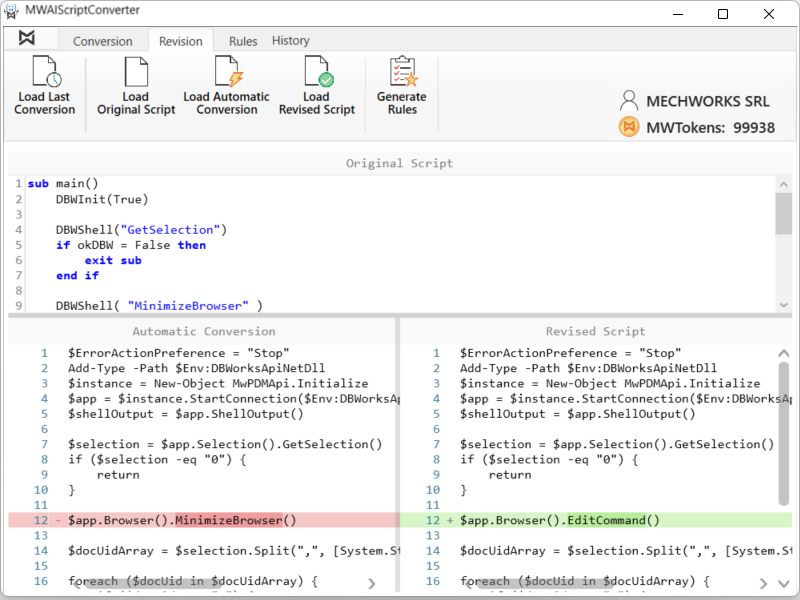
MWAIScriptConverter highlights all differences between the last two loaded scripts. These differences are analyzed by the application and used to automatically generate conversion rules, one for each detected difference. At this point, the Generate Rule button becomes enabled.
e)Click the Generate Rule button. A Save Rule dialog box is displayed.
If multiple rules are generated, they are all listed in the dialog. A selection flag allows the user to choose which rules should be added to the Rules List. 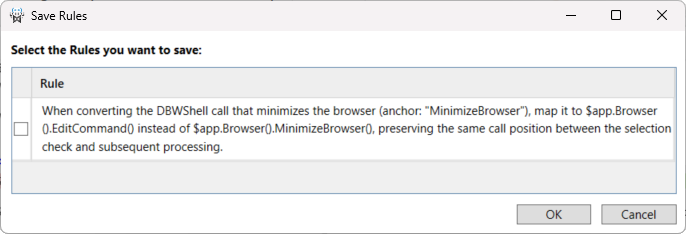
f)Confirm the operation by clicking OK.
Note:
•If a rule creation is performed immediately after converting a script, steps b) and c) are not required. The application automatically fills the Original Script and Automatic Conversion panels using the data already available.
•If the converted script is edited, as described in section 6.1, step e), step d) is automatically performed by the application.
•If the Load Last Conversion button is selected, the application automatically fills the Original Script and Automatic Conversion panels using the data from the most recent conversion.