Adding variant notes with the SolidWorks method
There are two methods you can use to insert variant notes into a SolidWorks drawing: the usual SolidWorks procedure and a new procedure introduced by DBWorks to improve flexibility on the notes content. For an overview of the pros and cons of each of them, please read Inserting DBWorks fields into a drawing.
The SolidWorks method
Edit the drawing template: right click the background and in the popup-menu click Annotations, Note.
When the properties dialog appears, click the Link to properties button.
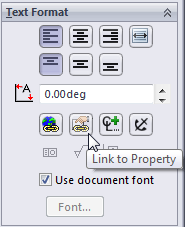
In the Link to Property dialog, ensure that the Model in view specified in sheet properties is enabled, then select a property in the list.
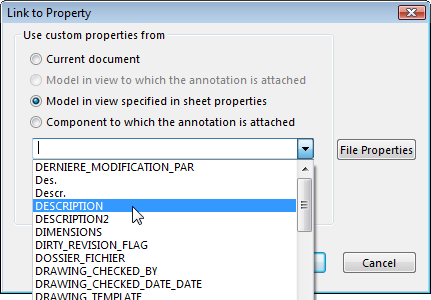
Click OK.
The Note text has changed in the dialog. Click OK. The note appears in the drawing:

Solidworks variant note type
•$PRP points to the drawing.
•$PRPVIEW points to overall model for the view that the note is attached to. If you didn't double-click the view before adding the note, you can turn on and attach a leader to the model, and then hide the leader again.
•$PRPSHEET points to the overall model referenced in the default view specified in the sheet properties. By default it is set as the first view on the sheet.
•$PRPMODEL points to one component of the assembly. You will need to have a leader attached to the component (and can be hidden).
Reduced number of Sheet Activations in DBWorks Variant Notes
The procedures that manage the MechworksPDM Variant Notes reduce the number of Drawing's Sheet activations.
After a 'Save' or 'Refresh' operation, the Drawing is always reset to the first Sheet.