You can insert DBWorks fields into drawings in order to have custom templates that can display any information stored into the database; the notes can be related to the document (part, assembly) contained as well as to the drawing itself.
There are two available methods that obtain similar results but maintain slight differences: the SolidWorks method amd the DBWorks method. It is important that you understand pros and cons of using one or the other as none of them is generally speaking 'better'. It is up to you to decide which technology to implement, anyway both can co-exist in the same drawing.
The SolidWorks way
Each time you save a SolidWorks document, DBWorks stores the related data into the custom properties of the file itself. SolidWorks can therefore retrieve the data from the custom properties and use them to fill in the annotations on the sheet.
As a SolidWorks user, you should be familiar with this simple method of inserting notes, so the learning curve is simply null.
For more information on how to insert note this way, read the topic Adding variant notes with the SolidWorks method
The DBWorks way
The procedure introduced by DBWorks lets you create a note and then uses a dialog to link the content of an overwriting note directly to the database, either simply to a field or to a complex SQL query. Fields are refreshed when you save the drawing.
The procedure itself is quite simple and it doesn't take long to learn. The basic advantages of this method are that the information is strictly linked to the database, so you are sure that the content of the note is up-to-date; this method is also more flexible as it allows you to include the result of any database query that may involve the document contained or the drawing itself. You may like to include information on the revision history or the list of people who worked on it or any other information that makes sense to your company.
An important point about this note is that once you created one you cannot move it: if you have to, you need to delete it and create a new one with similar content in the new position.
For more information on how to insert note this way, read the topic Adding variant notes with the DBWorks method.
Add notes in Inventor
To manually define a variant note, follows these steps:
1.edit the Title Block of a drawing
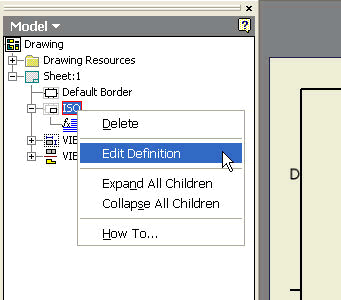
2.insert a note
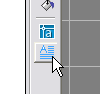
place it and give it a name
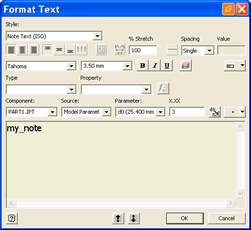
3.select the just added note
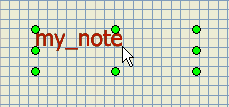
and modify it with the "Edit Variant Note" button in the DBInventor toolbar 
4.insert, the definition of a DBInventor variant note: @DBW=<variant note definition>
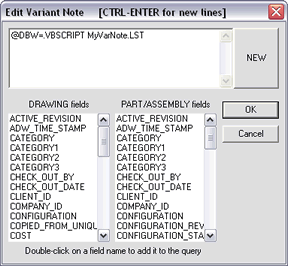
5.save the Title Block ( with a different name, if needed )
Add notes in Solidedge
DBSolidedge variant notes must be created as callout type.
Let's see the procedure:
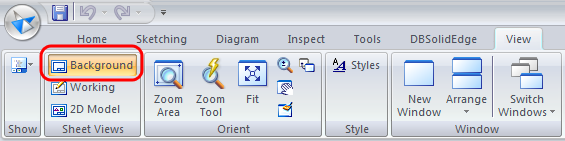
1.Select the layer to create the variant note on (background or working):
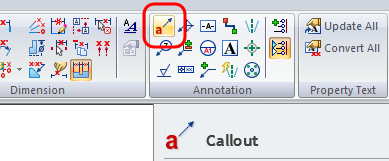
2.Select callout from the Annotation section of the Home ribbon bar:
3.The typical string for the Mechworks PDM script or field value has to be entered in Simple field of the Feature Callout tab:
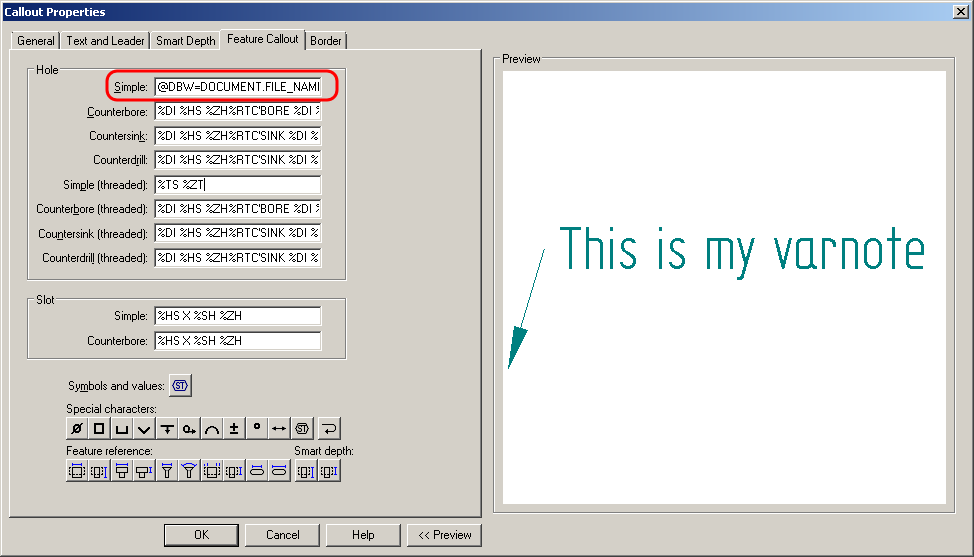
in this case it's set the FILE_NAME through the string:
@DBW=DOCUMENT.FILE_NAME
but it can be associated to a script result in this way:
@DBW=.VBSCRIPT MyScript.LST
4.Finally to remove the arrow of the callout, deactivate this button:
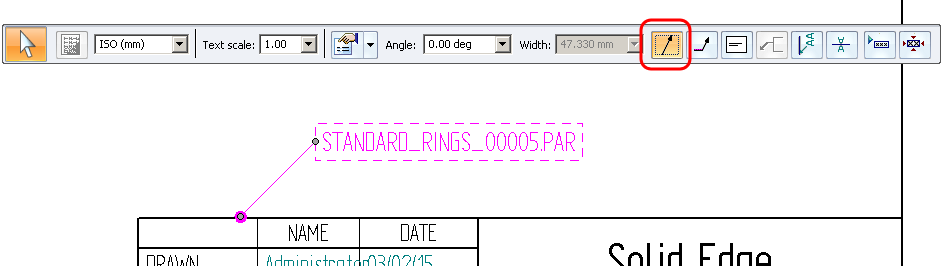
so to obtain simply the string:
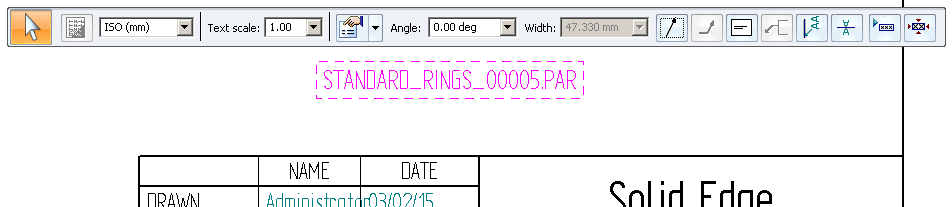
When edit the variant notes, please note you've to set properly the associated background sheet format:
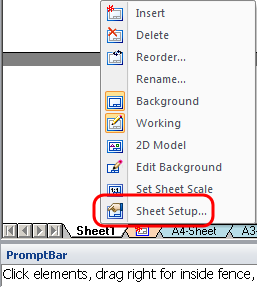
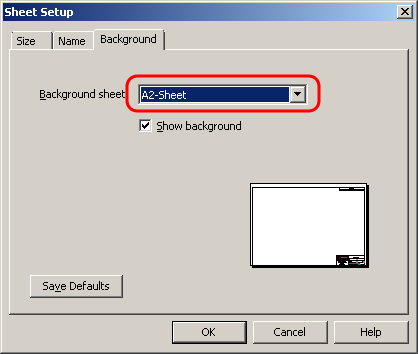
In this case, since the background sheet associated to the current sheet1 is the A2 format, you've to activate A2-sheet to edit variant notes on the background.
