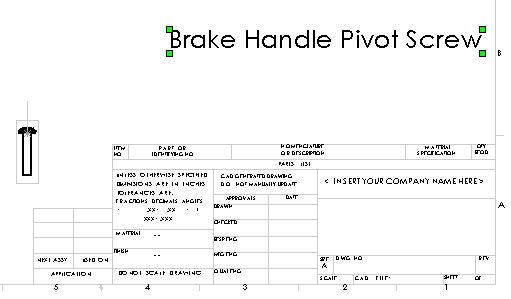
Adding variant notes with the DBWorks method
 Users only | See also
There are two methods you can use to insert variant notes into a SolidWorks drawing: the usual SolidWorks procedure and a new procedure introduced by DBWorks to improve flexibility on the notes content. For an overview of the pros and cons of each of them, please read Inserting DBWorks fields into a drawing.
The DBWorks method
Edit the drawing template: right click the background and in the popup-menu click Annotations, Note.
When the properties dialog appears, enter a few white spaces as note text and click OK.
1.Click the note to highlight it:
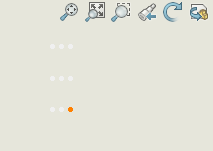
2.Click the button Edit variant note in the DBWorks toolbar: 
3.The Edit note dialog appears: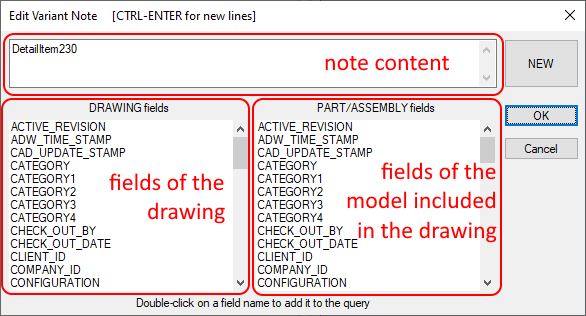
To enter a field value for the drawing double-click a field in the drawing grid, to enter a field value for the included document double-click a field in the document grid and confirm your choice clicking OK.
To query the database in a more flexible way, please read Field attachments using SQL queries.
To query the database and generate formatted and flexible output, please read Variant notes including scripting commands.
After creating your DBWorks variant notes, you need to save the drawing in order to display the correct values: