Browser: true SolidWorks Client Window support
Run as an internal model-like SW client window
See recommended settings first
DBWorks as default run inside SolidWorks as a model window. Previously the DBWorks browser was running only as an external window, outside the frame of the main application window.
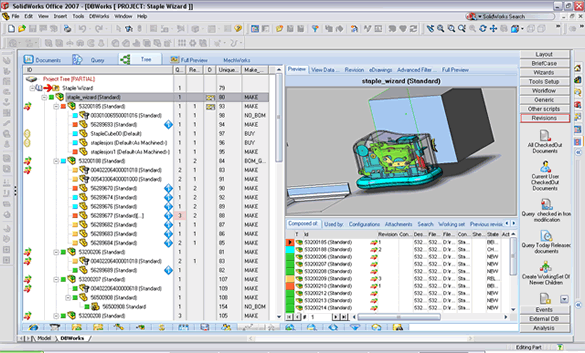
run as CAD window
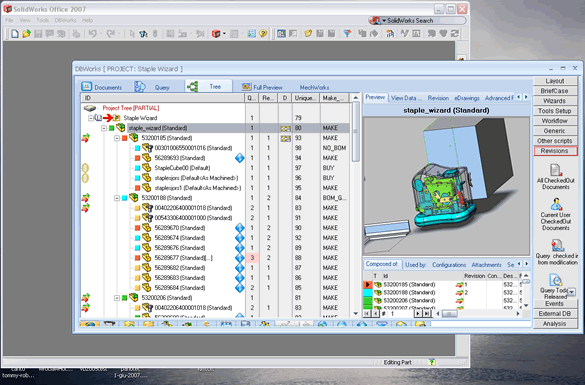
run as external window
The tighter level of integration provides a better environment to the designer, who has to manage only SW windows without the exception of an external, always-in-front window.
Activation
To enable/disable this feature you need to check/uncheck the option
User Interface→Browser Behavior→ Show browser as CAD application window
DBWorks looks for a file named PART.PRTDOT in the BIN sub-dir of the installation path. If the file does not exist, you must manually copy it from the Data\Templates directory of the SolidWorks installation. The Setup of DBWorks takes care of copying this file in the proper directory.
SW API Programming Remarks
The Browser is displayed in a true SW model, of type "Part", named "DBWorks".
When the Browser is the foreground window in the SW desktop, the swApp.ActiveDoc will return the handle of the Browser hosting model itself.
For this reason, when using the Browser hosted in a child window, it is always a good practice to call the swApp.ActivateDoc before getting the swApp.ActiveDoc object:
Example:
Suppose pathName is the known full path name for the document being processed:
…
swApp.ActivateDoc(pathName)
activeDoc = swApp.ActiveDoc
…
Avoid SolidWorks notifications
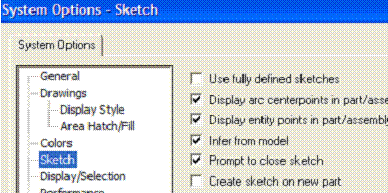
When the browser runs inside SolidWorks, it may happen that you receive unwanted warnings by SolidWorks itself, which can be annoying. To stop receiving these warnings, uncheck the SolidWorks option Sketch, Create sketch on new part