Browser behavior options
 Always open browser only with Project...
 Default
  Current
It opens the browser with the mode Show selected projects only, with only the Default Project added to the selection, and with the mode Show current project's documents only disabled; this avoids to open the browser with the last project's selection, in case it's heavy to load.
Parent projects are added to the selection displayed in the Project Tree; this means that for every project, the whole path of projects from the top-level parent to the bottom-level child are displayed in the project tree.
 Always open browser in the Tree Page
It opens directly the tree page displaying on the left the Projects Tree page. This is the most projects oriented view; we advice this option to be checked for new users.
Open Browser at Startup
Self explaining
Open Standalone Browser in Search mode
When enable, this option force the standalone client browser to be open in search mode, where only the Search grid is visible, and with just the Preview and Full Preview tabs displayed at the top: 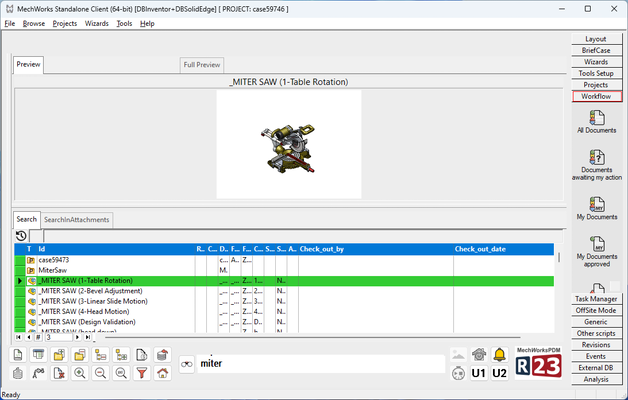
Please note the search mode is intended to be run under DBWARM management, so for specific user group only (driven by specific DBWAPP.PAR)
When disabling this option, please note you've to reset the grid related option User Interface→Tree→Visible Grids sice the standalone search mode modify it by showing Search tab only.In case the DBWAPP.PAR parameter file is set as readonly you do not need to do such action.
You can optionally disable the grids you are not using, obtaining an improvement in the application performance.
This option can be particularly handy for the users that integrate DBWorks in AutoCad and ME10 with DBWorks/ACAD and DBWorks /ME10 as they manage only drawings and parts.
Disable Assemblies grid
Disable Parts grid
Disable Drawings grid
Disable Generic Document's grid
Avoid automatic ID column resizing
If checked, MechworksPDM avoids the automatic resizing of the ID column when opening the browser and requerying it.
Hide Projects in the UsedBy grid
If checked, MechworksPDM avoids to show projects in the UsedBy grid;
since the grid order is: 1.projects, 2.assemblies, 3.drawings, 4.generics and 5.parts, if a document is contained in several projects then the grid could required to be scrolled down to find CAD models.
Enable multi-line texts in the Browser grids
If checked, the texts in the cells of the Browser's grids will be formatted on more than one line when exceeding the width of the cells.
Note: this option disables the Tooltip functionality on the cells of the grids.
Enable Automatic Row Resizing calculated on the DESCRIPTION field
If checked, MechworksPDM calculates the optimal row height to display the entire content of the DESCRIPTION field value.
The option is useful when the DESCRIPTION field contains texts of more than one line.
Enable drag from the Grid
To drag, select or multiple select a set of rows in the grids, then place the mouse near the borders of the cells until the cursor icon displays a small rectangle.
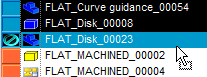
Then, press the mouse down and drag the documents on CAD desktop (open) or to the Project Tree (add to project).
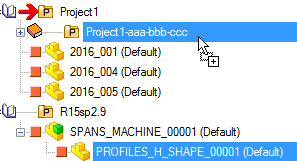
Please note when dragging from grids to tree, the mouse pointer will always show the plus icon [+] even if moving (not copying) the record to the project tree
Disable SQL Query Page
If checked, the SQL window of the Query Page, containing the SQL command to be executed, is hidden together with the three right-most buttons (OK, Load and Save).
Disable Document Page
If checked, the Document Page is disabled.
This option is effective only if the option Always open browser in the Tree Page is enabled.
Disable Full Preview Page
If checked, the Full Preview Page is disabled.
Use Intelligent Menus
If checked, MechworksPDM displays at first glance only most recently used commands in popup menus allowing you to display others on request. This feature has the same look and feel as the one that has become popular with recent versions of Microsoft Office. Read more
Keep browser synchronized with selection
If checked, MechworksPDM synchronizes the current record of the browser to any selection done in an assembly so that when you click a component, the browser repositions itself on that record. This could be a very heavy operation when thousands of records are present in the database
Show Browser as a CAD Application Window
If checked, MechworksPDM displays its browser as a child window of the hosting CAD application. The maximization/minimization is always contained in the frame of the hosting CAD application.
Note: Due to MFC architecture limitations, MechworksPDM can never become an active MDI child window.
Avoid automatic browser minimization when CAD is minimized
If checked, the PDM browser is not minimized when the CAD application main window (SolidWorks, Solid Edge, Inventor) is minimized.
If the above option  Show Browser as a CAD Application Window is enabled, it takes precedence when the CAD application is minimized, and therefore this option won't have any effect.
Minimize browser after opening a document
If checked, every time you open a document you're ready to view/edit it without the obtrusive presence of the browser window that is minimized
Use fixed character size font in Trees and Grids
If you check this option, the default font of characters used for the Trees and the Grids is set to fixed size, true type, Lucida Console. The feature is not applied in the CAD feature manager windows, because it would be incompatible with the environment. It can be useful when the alignment of the codes is important for a quick understanding of typing errors in the document's part numbers.
Use OnDoubleClick.LST script when double-click a Document
This option allows to filter out documents from both the Tree and Grid User Interface. See specific topic.
Apply only to Grids
Limits the filtering defined above to Grids only.
A different icon will be displayed to identify such behavior.
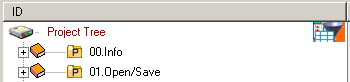
Apply only to Trees
Limits the filtering defined above to Trees only.
A different icon will be displayed to identify such behavior.
Avoid automatic refreshing of 'Composed Of/Used By' lists.
This option, if checked, keeps MechworksPDM from executing automatically at each click the queries that retrieve hierarchical information. This option can speed up MechworksPDM if connected to a remote data source (i.e. on a web server via Internet).
In the Tree page the Composed Of / Used by tab must be selected in order to display the related records.
Only for Projects
When checked, it inhibits the update of the ComposedOf/UsedBy grids after selecting a different project
Requery after every EDIT record
If checked, this option forces MechworksPDM to requery the current grid after the confirmation of the editing of a record in order to maintain consistency between the data displayed in the grids and the values stored in the database.
If this option is not checked, if you want to ensure that the information displayed is up to date you need to push the button Reset Filter of the browser.
Use native SQL Server Full Text Search
When checked, and when the database engine is Microsoft SQL Server, MechworksPDM will use the CONTAINS(…) SQL command for the full text search functionality.
The input string is passed as-it-is to the CONTAINS function. the MS SQL Server Full Text must be enabled and activated for having this functionality to work properly.
The following is the list of commands ( to be executed from a SQL Server Query window ) for enabling the Full Text search service.
-- Enable the fulltext
exec sp_fulltext_database 'enable';
-- Create catalog
exec sp_fulltext_catalog 'Cat_FullTextDBWorks', 'create';
exec sp_fulltext_catalog 'Cat_FullTextDBWorks', 'start_full';
-- Add tables
EXEC sp_fulltext_table 'DOCUMENT', 'create', 'Cat_FullTextDBWorks', 'DOC_KEY';
-- Add columns
EXEC sp_fulltext_column 'DOCUMENT','ID','add';
EXEC sp_fulltext_column 'DOCUMENT','DESCRIPTION','add';
EXEC sp_fulltext_column 'DOCUMENT','FILE_NAME','add';
EXEC sp_fulltext_column 'DOCUMENT','FILE_DIRECTORY','add';
EXEC sp_fulltext_column 'DOCUMENT','CONFIGURATION','add';
-- Activate the full-text index
EXEC sp_fulltext_table 'DOCUMENT','activate';
-- Start tracking
EXEC sp_fulltext_table 'DOCUMENT', 'Start_change_tracking';
EXEC sp_fulltext_table 'DOCUMENT', 'Start_background_updateindex';
Please note that once the Full Text service is enabled and the Full Text Catalog has been created, the table and columns to be added could also be defined through the SQL Server Full Text Property by:
1.RMB on the dbo.DOCUMENT table → Full-Text Index... → Properties
2.Choose the tab Columns
3.Please note that with the native Full Text search enabled:
•no REVISIONS field can be searched
•no OBSOLETE document can be discarded
Only text field can be managed from this functionality.
No numeric or date field are allowed.
Limit full text search on the following fields:
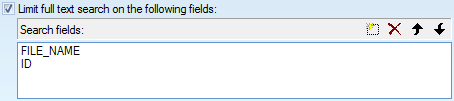
If checked, the program limits the  full text search to the fields enlisted, improving the overall performance for full text queries.
Extend Search on REVISIONS Table
When checked, the Quick Search is extended in order to evaluate any REVISIONS table field listed in the Search Fields list.
To allow a correct separation between fields of the DOCUMENT table and fields of the REVISIONS table, the fields must be prefixed with the name of the proper table (this feature is automatically managed by the field selector dialogs).
Since the search on the REVISIONS table can retrieve a long list of results, it is recommended with this option, to limit as much as possible the number of fields to be considered for the Search.
It is NOT recommended to leave in the Search Fields list any REVISIONS.<name_field> entry if not necessary.
The result of the Quick Search is a list of documents that have, in any of their revisions records, a record that matches the assigned search condition on the REVISIONS fields.
Example
Suppose that PART1 has revisions Rev1,Rev2,Rev3. Suppose that the ECO_ID for Rev2 is equal to "20987: Reduced the Brake Size". Then again, suppose to have a Search Fields List as the following:
DOCUMENT.ID
DOCUMENT.DESCRIPTION
REVISIONS.DESCRIPTION
REVISIONS.ECO_ID
If you assign a Search Condition as the following:
"Brake Size"
The result of the Search will be the DOCUMENT record:
PART1
You then need to look at the PART1 Revisions Fields to understand what revision contains the ECO_ID with the string "Brake Size".
Extend Search on the DBW_ATTACHMENTS Table
Usually an attachment is linked to the DOCUMENT record through the UNIQUE_ID value only.
For this reason specific attachment data is outside the common search fields.
By enablig this option it's possible to search into DBW_ATTACHMENTS table data too.
Example
Some examples for searching pattern:
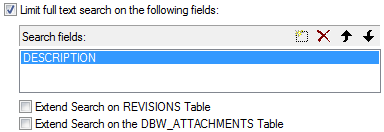
Search in DOCUMENT.DESCRIPTION only
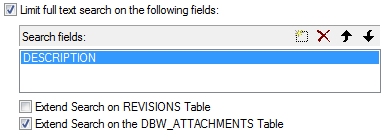
Search in DOCUMENT.DESCRIPTION and in DBW_ATTACHMENT.DESCRIPTION
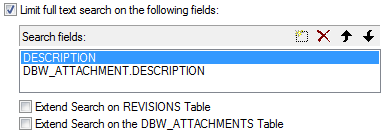
Search in DOCUMENT.DESCRIPTION and in DBW_ATTACHMENT.DESCRIPTION
Avoid Search on Obsolete documents
If checked, avoids the full text search functionality to apply the search condition to the documents in a obsolete state
Match only the beginning of strings
When checked, the Search engine will search only by matching the beginning of any word/string to be searched.
The performance of the search is greatly enhanced when using such option.
Example
given the following IDs:
012345
234567
345678
Searching for the string "345" with  Match only the beginning of strings results:
012345
234567
345678
Searching for the string "345" with Match only the beginning of strings results:
345678
It is always possible to put the % character in front of the search keyword for getting the full substring search results
Example
given the following IDs:
012345
234567
345678
Searching for the string "%345" with Match only the beginning of strings results:
012345
234567
345678