User Interface
 No input when saving
If checked, MechworksPDM is set to transparent mode and does not require any input while saving. MechworksPDM keeps on tracking all the documents you are saving filling in the fields for which it can collect or guess valid information.
 No dependents input when saving
If checked, MechworksPDM always traverses down all dependent documents (descendent traversing) when saving a document without showing this dialog:
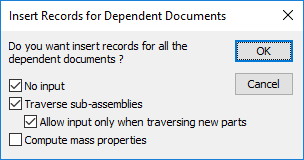
However, if the Shift key is pressed when clicking in the data input form, the dialog will be displayed anyway.
Allow input only when traversing new parts
When checked, the save assembly process asks for input only for the new parts it contains
This option is reflected during the save process in the Insert Records for Dependent documents dialog, with a checkbox: 
No input on checkin
If checked, MechworksPDM doesn't show the data entry input form when checking a document in; the default values will be used instead to update the database.
This option can be useful when checking in a working set to speed up the operation.
No input on save of checked-out documents
If checked, MechworksPDM doesn't show the data entry input form when saving checked-out documents.
In case of assemblies, even if the  No dependents input when saving is unchecked, the no-input/traverse dialog won't be shown anyway
The option Open/Save, Save, Always update database structure on checked-out documents save needs to be checked
Show Descriptions in RMB Popup Menus
If checked, MechworksPDM shows DESCRIPTION (rather than only ID) when dynamically displaying RMB.
for example when doing RMB?Open Drawing?<drawing>
The 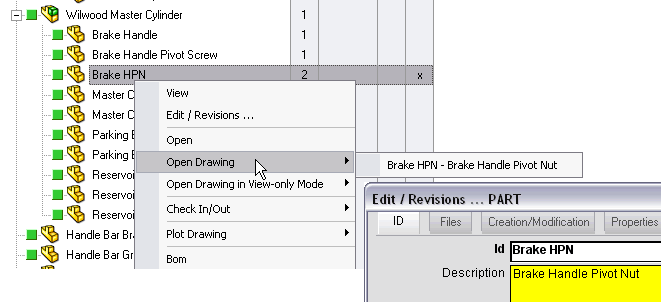
please note 80 char are shown
Show only Scripts in RMB Popup Menus
This option (default: unchecked) permits to hide all the built-in popup menus shown by MechworksPDM and to display only the popup menus that launch the scripts located in the AnyType,A,P,D,G,0 sub-directories of the LST directory.
The intention of this option is to allow the MechworksPDM Administrator to prepare reduced sets of commands to be displayed in the MechworksPDM popup menus.
Hide Scripts in RMB Popup Menus
This option (default: unchecked) permits to hide all the script RMB popup menus, also if the .VBS script has been created in the LST\<doc type> specific folders.
Example
The default condition, with the User Interface->[] Show only Scripts in RMB Popup Menus unchecked, displays both the built-in and the scripts RMB popup menus:
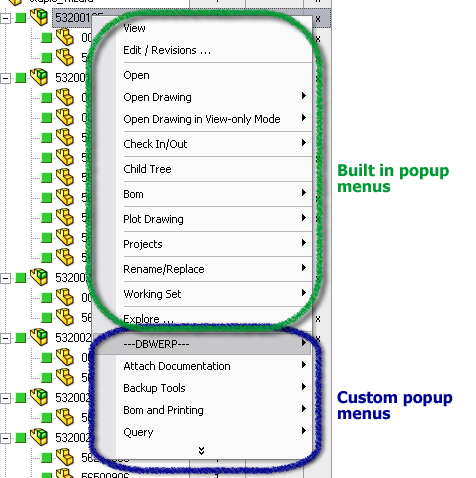
After checking the  Show only Scripts in RMB Popup Menus, only the Scripts RMB popup menus are displayed:
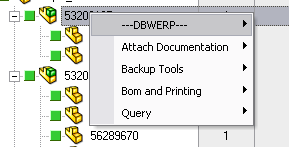
Use Window native RMB Popup Menus
This option has been introduced to fix a known limitation of 3rd party MechworksPDM library (after editing a sketch of a part, the RMB Popup Menus were no longer reacting to the mouse-over events)
It shows the RMB Popup Menus using the native Microsoft functionalities.
Such native menus:
•don't have any image displayed
•can't collapse automatically on the most recently used commands
It is up to the customer to accept the above limitations or continue to work with the full MechWorks PDM popup menus (but facing the issue described at beginning)
Disabled Toolbar Buttons
The list is composed of identifiers, one for each button in the toolbar. The BROWSE button can never be disabled.
The button on the left side of the separators controls their visibility too.
The identifiers available are:
|
VIEW_RECORD |
|---|---|
|
OPEN_WIZARD |
|
DBW_SAVE_AS |
|
DBW_SAVE_CURRENT |
|
ADVANCED_FILTER |
|
CHECKIN |
|
CHECKOUT |
|
REFRESH |
|
CREATE_NEW_PROJECT |
|
ASSIGN_VARIANT_NOTE |
|
SELECT_ALL_VARIANT_NOTES |
|
INSERT_NEW_COMPONENT |
|
CREATE_WORKING_SET |
|
RELOAD_COMPONENTS |
|
INSERT_DRAWING_BOM |
|
REFRESH_DRAWING_BOM |
|
OPTIONS |
|
CUSTOM_TOOLS |


Example
To disable the Advanced Filter, Open Wizard and Create New Project buttons, the option content will be as follows:
ADVANCED_FILTER,OPEN_WIZARD,CREATE_NEW_PROJECT

with no filter

with filter
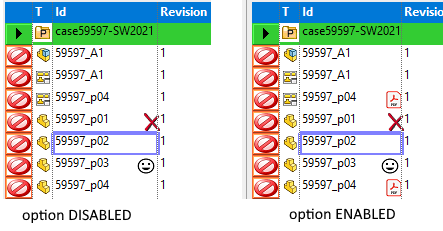
Enable Visual Cues
Visual cues are icons that mark visually the records depending on patterns value defined for any field
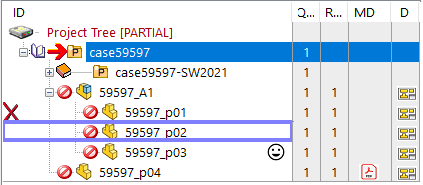
This option must be checked for Visual Cues to display
Please read the topic Visual Cues for further details
this option is clickable only if its definition file SCHEMA\IMG\DBWVisualCuesDef.txt exists.
Such file is created during the first run of the visual cues managing utility from the Administrative Tools.
Visual Cues TreeColumn shown in Grid
This option allows to show also in the grids the visual cues displayed as TreeColumn (in the above pic is column "MD"):