User options
This section of the options unlike the other is user dependent and is administered locally in a network installation
 Show MechworksPDM message area
If checked, displays the PDM toolbar in the CAD
In Solidworks this option is mandatory so it's active and grayed.
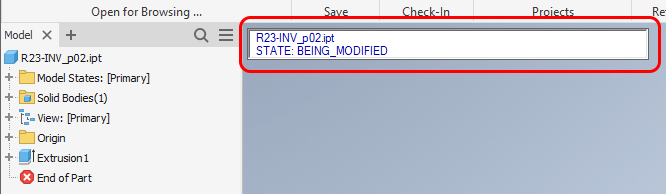
In Inventor it shows the Document Status Bar (see the picture below), containing MODEL NAME and STATE of the opened file:
Show MechworksPDM shortcut bar
Activates or deactivates the shortcut bar in the PDM browser.
Display the shortcut as icon list in narrow panel
This option enables the more compact visualization of the shortcut bar as icon list.
These options enable the support for tooltips displaying both the main DOCUMENT record information (customizable through the file SCHEMA\DBWEnhancedTooltipsFields.txt, see below for an example) and the Preview image of the document currently under the mouse pointer.
Example
A sample of the DBWEnhancedTooltipsFields.txt is the following:
;=================================================================================
;
; DBWorks (C)MechWorks Enhanced Tooltips Fields definition file
;
; DOCUMENT field
; DOCUMENT field
; ...
; REVISIONS. REVISIONS field displayed in the PREVIOUS REVISIONS grid
;
; ! DOCUMENT field displayed only as a value
; REVISIONS.! REVISIONS field displayed only as a value
;=================================================================================
!ID
!STATE
!DESCRIPTION
UNIQUE_ID
COMPANY_ID
CONFIGURATION
CONFIGURATION_REVISION
CONFIGURATION_STATE
ITEM_CODE
REVISION
REVISIONS.!DESCRIPTION
REVISIONS.ECR_ID
REVISIONS.ECO_ID
REVISIONS.CREATED_BY
REVISIONS.CREATION_DATE
REVISIONS.APPROVED_BY
REVISIONS.APPROVAL_DATE
 Show Enhanced Tooltips in All the Grids
If enabled, Mechworks PDM will display the Enhanced Tooltips even in the Used By grid displayed in the standard Input Form for viewing the record data.
Show Enhanced Tooltips in the Search Grid
Enable enhanced tooltips in the Search Grid
Show Enhanced Tooltips in the Revision Grid
If enabled, it displays the REVISIONS record information and the Preview of the revision.
Show Enhanced Tooltips in the Delete/Plot Grid
If enabled, it displays the record information in the dialog for Deleting/Plotting documents.
Show Enhanced Tooltips in All the Trees
Show enhanced tooltips in every tree.
Lock Splitters
If checked forces DBWorks to save the current positions of all the splitters (Browser, DBW Feature Manager) and to maintain their state for the specific user. The drag behaviour of the splitters is inhibited.
DBWorks Administrators can preset the USERS\<user name>\DBWORKS.PAR files in order to have all the users to load the same parameters.
This option has been introduced for the users that like to define an optimal visualization in their interface and keep it that way.
Display printer setup dialog
Displays the setup dialog before printing
Current Visual Cues [Blank: use default]
The purpose is to allow the user to display sets of Visual Cues, depending from specific conditions he likes to highlight.
The application looks in the SCHEMA\IMG directory for files with the naming convention: DBWVisualCuesDef_*.txt
The available file suffixes are listed in the Options→User Options tab:
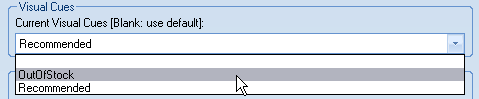
allowing the user to select the desired Visual Cues definition file.
Once selected, DBWorks will reload the Visual Cues definitions, so dynamically changing the current Visual Cues visualization.
Example
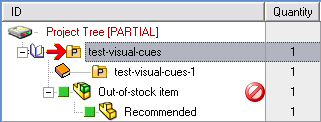
Selecting OutOfStock, only the items that satisfies the DBWVisualCuesDef_OutOfStock.txt definitions will be displayed with a Visual Cue:
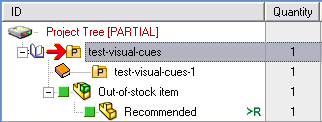
Selecting Recommended, only the items that satisfies the DBWVisualCuesDef_Recommended.txt definitions will be displayed with a Visual Cue:
Show MechworksPDM Task Pane
DBWorks installs a custom Task Pane in the SolidWorks Application, similar to the search dialog.
Data is not populated if you don't activate manually the pane.
The Projects Selection will always be aligned to the Projects Selection applied in the Browser’s Tree Page.
Drag&Drop operations between the Task Pane Tree and the Browser Trees are allowed.
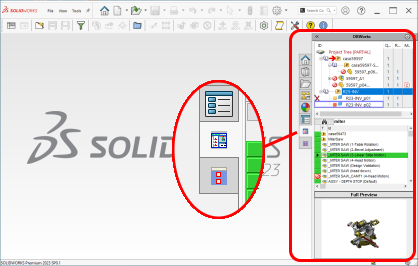
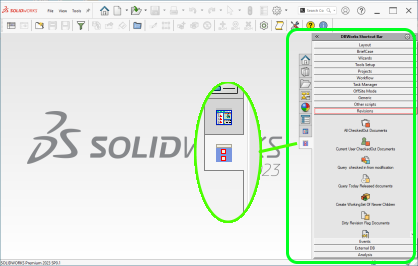
Show DBWorks Shortcut Bar Task Pane
The standard right-side tool bar of the DBWorks Browser can be displayed as a Task Pane of Solidworks.
Use SolidWorks Property Manager
DBWorks can use the Property Manager Page of SolidWorks for displaying the component's record data. The Property Manager Page displays both the document record data and the revisions record data for the current revision of the component. Read more.
Use SolidWorks Popup Menus
Unchecking this option it is possible to avoid displaying DBWorks specific menus in the contextual popup menus of SolidWorks RMB Popup Menu available for Parts and Drawings. In this case the popup menu is available right clicking the root of a Part or Drawing model
Work locally
This option enables the Local Mode for the current user. See specific help topic.
See specific help topic.
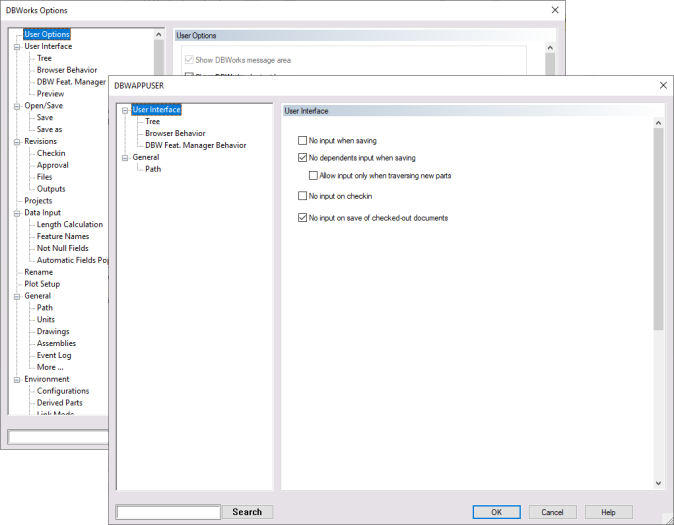
Edit more user options...
This button (enabled only if DBWAPP.PAR file is in a readonly state) allows to set user specific options overriding the global settings.
See specific DBWAPPUser.PAR topic for further information
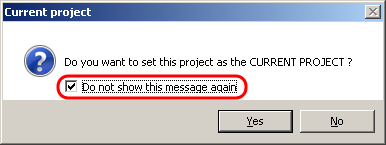
Restore Hidden Messages...
This button allow to restore the display of message boxes that have been made hidden using the check box Do not show this message again that appears in some message boxes:
By checkin the row, and pressing OK, the corresponding message will be restored:
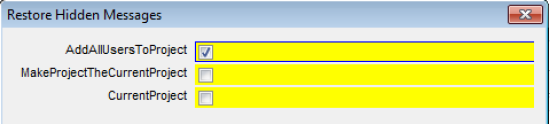
The button is disabled if no message is hidden.
.NET custom assembly path
Path containing assemblies for events customization. See specific help topic.
Act as Task Executer
Enable the current workstation to act as Task Manager executer. See specific help topic.
Start play automatically
Self explaining.
Shutdown application after completion of tasks: [10]
This option allows the user to shutdown the application in the execution node, hence reducing chances of hangs when long time requiring tasks are executed in large quantity.
In order to make the application run again, in the execution node, a dedicated windows vbscript must be set-up and launched so it can check whether the process is running or not.
To alert about this application shutdown, an event will be created in the EventLog table and a fading popup will be shown.
Please note the specified number will be show in the task executor dialog, as the total task number:
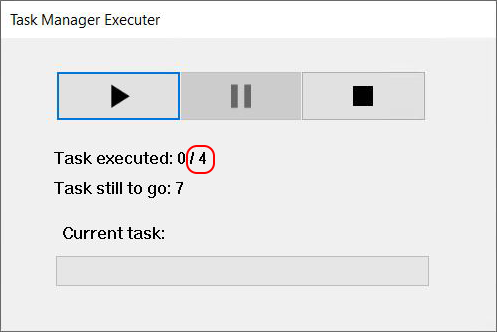
Show Task Manager notifications
It is used to enable/disable the notifications sent to the user once his tasks have been completed by the task executer