Support for offloaded run of time demanding tasks
Pre requisites
Setup of the environment (database, operating system)
Priority and Server Name
Executer Node
Submitter Node
Typical usage Checkin
Typical usage Plot
Task Director
Task Agent
Support for offloaded run of time demanding tasks
In order to allow users to run time demanding tasks in a different time without overloading their workstation (offloaded mode), a new functionality, named Task Manager, has been introduced.
MWPDM has now the capability to queue tasks from users’ nodes into a shared system that provides their execution in specific nodes (servers) properly configured in the database, using the same conditions as they had originally at creation time. Users’ machines may also be used as executing nodes, but they need to be configured too in the DB.
Users can submit to the task manager activities like check-in, approve and plot: during this phase, a list of available nodes (capable to run that task), will be shown to the user, ordered from lower to higher load, allowing him to choose the specific node where to queue the task. In this way, a basic load balancing policy for task execution is implemented directly by the user launching the Tasks: choosing always the top node will assign the task to the less loaded server.
Each executing node (server) will run all the queued tasks, printing out the status of each command in the Activity Console.
Documents involved in activities queued in the task manager system won’t be available for edit purposes until the tasks will be completed.
Hence, for those documents, the edit/revisions context menu item in the browser tree will be disabled whereas the edit properties dialog, opened from the MWPDM menu in the CAD system, will be actually in read only mode with a fading popup alerting the user about the reason.
For the same reasons, opening the document on SolidWorks/DBWorks and SolidEdge/DBSolidEdge integration) (from both the MWPDM browser and from the CAD environment) will make them available in read only mode with a fading popup alerting the user about the reason. In Inventor/DBInventor integration only the popup will be shown.
Once the task is executed, the user will be shown a notification popup signaling the result of the activity being processed.
Pre requisites
The user creates tasks to postpone actions and, regarding the execution nodes, there are two ways:
•Client executing nodes (user machine): the same logged in user executes tasks on the same machine (working locally);
•Server executing nodes (dedicated server machine): the logged in user executes the queued tasks on the server (working remotely).
Setup of the environment
Database settings
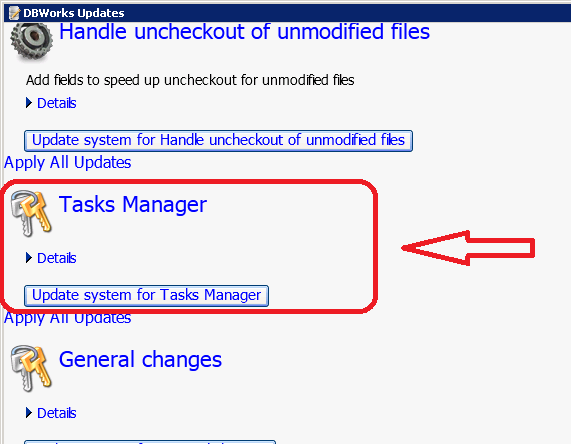
To start using the Task Manager functionalities, the DB must be properly configured. The DB Customizer tool has been changed in order to update the DB schema accordingly to the TM requirements: some new tables will be created, some more fields added to existing ones and some views regenerated:
Once the DB is updated, we need to configure all the executing nodes on a new specific table, called DBW_TASK_EXEC_NODES: to achieve this a new tool has been added among the admin tools:
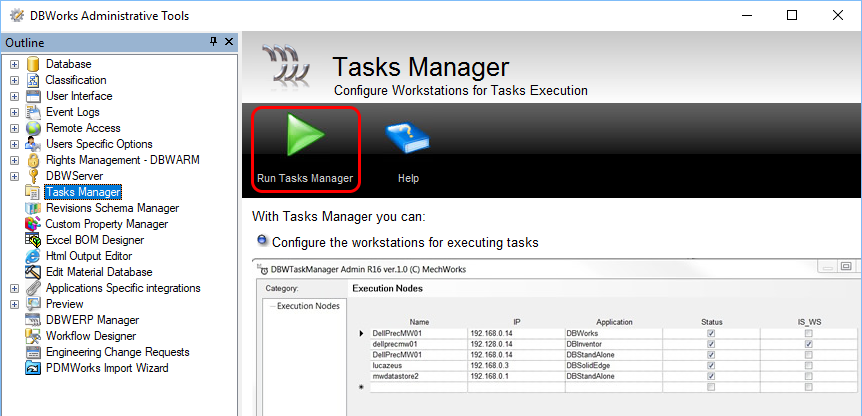
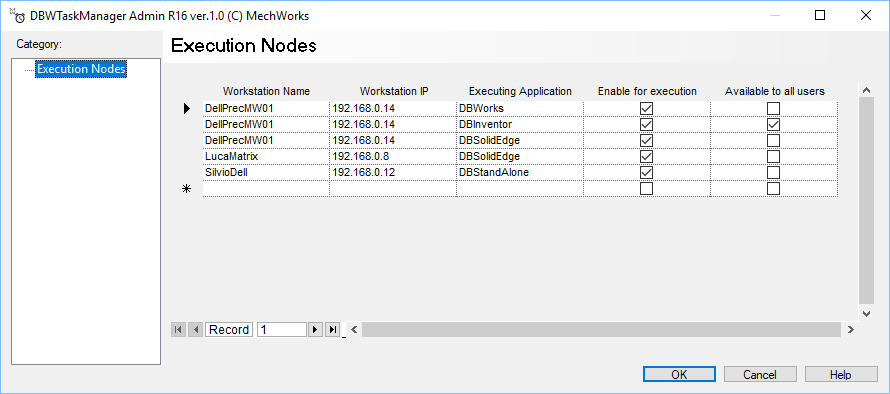
Launching this tool, you will be able to configure the executing nodes, specifying for each of it the name, its IP, the application running on it (which will be used to run tasks), whether it’s enabled or not (STATUS), if it’s a general working server or a specific user machine (IS_WS):
Once the system has been configured, in the DBW PDM option dialog, in the Environment section, a new panel called Task Manager will be shown:
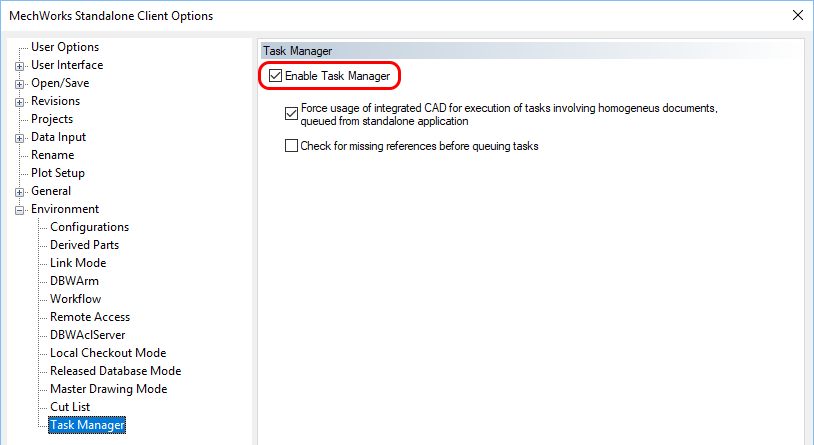
Flagging the Enable Task Manager will turn on the functionality.
This section is visible to DBWARM administrators only.
Further info about this topic are available in options→Environment→Task Manager specific page.
If a machine, running a specific CAD application, has been configured as executing node, it will be possible to get the executing dialog by setting a specific option User Options: User Options→ Act as Task Executer
After the environment has been set and the executing nodes configured, Task Management functionalities are ready to be used. You may notice this in the Browser because two new tabs will be visible, Tasks and TaskActions:
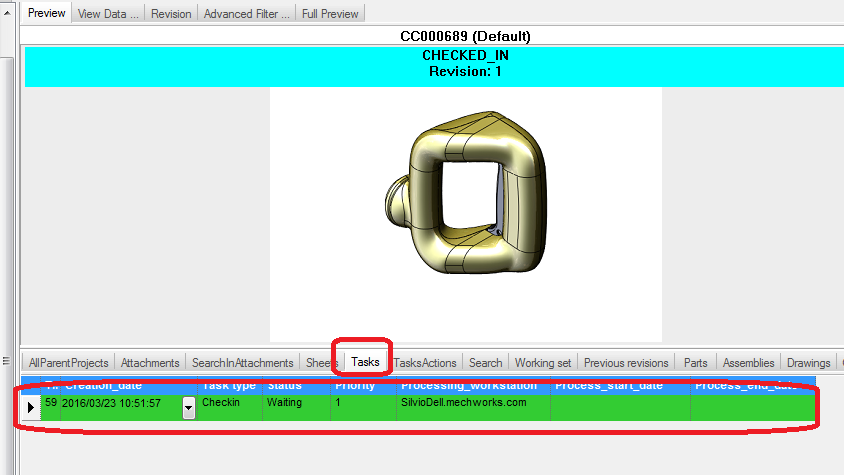
In the Tasks tab the user will be shown all of his tasks that have been queued but not completed (i.e. waiting to be executed, failed, paused and stopped). Clicking on one of them and them moving to the TasksActions, the user can see all the commands belonging to that task, with their execution state (created, executing, completed, failed) and some more details:
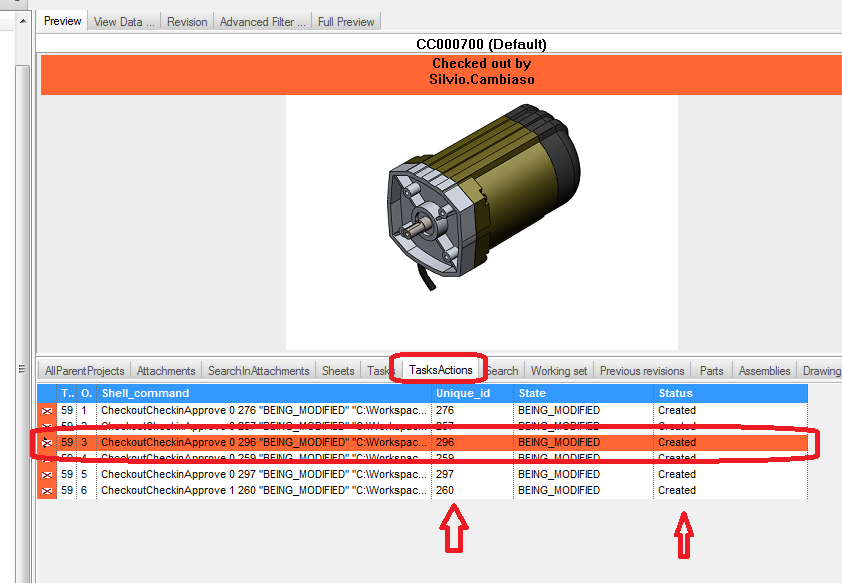
In order to keep those tabs as clear as possible, successfully completed tasks are removed from this tabs because the user can see directly on the tree from the status of the involved documents.
Operating System settings
In order to let the functionality run on behalf of different users in the Executer node, a specific login must be provided.
With NO ACL Server running
In this case, you need to create a user ad hoc to execute the tasks; This user must be an admin or it must have enough rights to perform actions on the files.
With ACL Server running
Depending on how the DBWACLServer has been configured, you have to proceed differently:
1.If the DBWACLServer is run by a specific user, you can set the same user as login for the executer node; this choice grants the neede permissions to properly execute tasks.
If for any reason this is not possible, use a specific login after having provided the Full Control right in the DBWACLServer environment (through adding it in the DBWAclServerADM.TXT file).
In the latter case make sure not to share login credentials since are considered as administrator.
2.If the DBWACLServer is run by the Domain Administrator, we strongly suggest to avoid its usage as login on executor; in this case you must use the specific login just mentioned in the previous case.
Default Priority and Working Server Name
Priority
It is possible to define a default Priority and default Working Server Name for accoding tasks: the task manager dialog will not be prompted again.
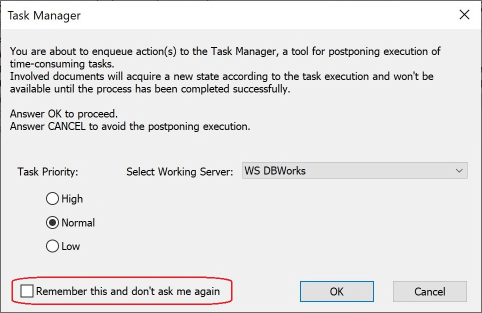
As per other options, to uncheck this behavior and return to manually select Priority and Working Server, use the Options → User → .
Working Server Name
There is a field for Execution Nodes, VISIBLE_NAME, that is an alias to better handle the situations where Machine Names on the Networks are hardly recognizable during the queuing process.
If this value is NULL will be displayed as always the Machine Name of the Network. This value has to be different for every machine and different from every other WS Machine Name.
Executer node
The executer node must be accessed through a proper login chosen in the previous chapter. In such workstation the expected CAD/PDM, as specified in the database configuration section, must be installed.
Following options are available when the task manager is active and the current workstation has been enlisted as Executer in the Admin Tools: 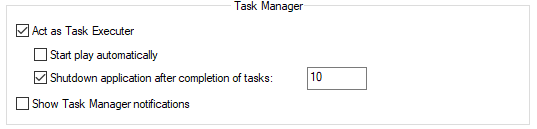
Act as Executer
When enabled the main "Act as executer" option, a dialog is shown, displaying the typical buttons for Play, Pause and Stop:
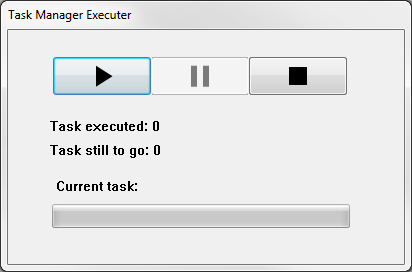
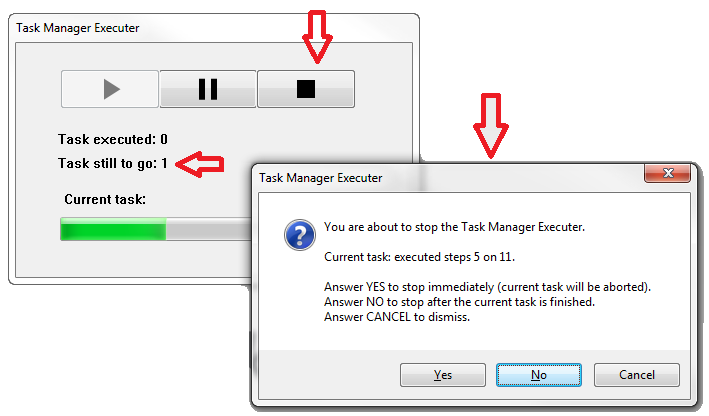
Play and Pause are pretty self-explanatory, but clicking on Stop button will cause a message appearing if there is one task running and there are still tasks still to go:
Start play automatically
It makes the previous dialog start automatically with play button pressed at startup of the PDM.
Shutdown application after completion of tasks
To enhance system stability it's a good practice to restart the CAD after some executions so to free memory and avoid system hangs. This option sets the number of execution after that the application is shutdown.
Since the application is not able to restart automatically, you can create a script to do it.
Example
Here is an example of a .vb script that checks every 30 seconds about the CAD process. If not existing in windows process, it starts it.
please note the usage of the DBWLAPP.PAR for override the following settings:
RUN_TASK_MANAGER_EXECUTER 1
TASK_MANAGER_EXECUTER_START_PLAY_AUTOMATICALLY 1
TASK_MANAGER_SHUTDOWN_APPLICATION_AFTER_TASKS_COMPLETION 1
TASK_MANAGER_TASKS_TO_WAIT_TO_SHUTDOWN 10
Imports System.Diagnostics
'get running Windows processes list
Dim p As Process
Dim pp() As Process
Dim iProcess As Integer
Dim processNameToMatch As String
Dim paramFile2 As String
Dim paramFile1 As String
processNameToMatch = "SLDWORKS"
start1:
pp = Process.GetProcesses
iProcess = 0
For Each p In pp
namep = p.ProcessName
If UCase(namep) = processNameToMatch Then
iProcess = 1 'SLDWORKS is running
GoTo wait
End If
Next
If iProcess = 0 Then
paramFile1 = "Z:\Mechworks_PDM_Server\DBWLAPP_restart.par"
paramFile2 = "Z:\Mechworks_PDM_Server\USERS\JOE\DBWLAPP.PAR" 'change here the account under the DBWTaskmanger session is running
On Error Resume Next
Kill(paramFile2)
On Error Resume Next
System.IO.File.Copy(paramFile1, paramFile2)
On Error Resume Next
System.Threading.Thread.Sleep(5000)
Shell("C:\Program Files\SOLIDWORKS Corp\SOLIDWORKS\SLDWORKS.EXE", AppWinStyle.NormalFocus)
End If
wait:
System.Threading.Thread.Sleep(30000)
GoTo start1
Show Task Manager notification
If enabled, it shows notifications in popup messages 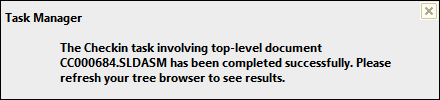
Submitter node
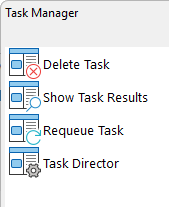
These entries are available in the Task Manager shortcut bar section, and require a selection of task(s) in the Task tab of the TreePage lower pane
|
Delete taskIt will clear the task from the database: if the task has still to be executed (in Waiting or Paused status), this allows the involved records to be available again for interactive commands. An alerting message will be shown to ask confirmation. Show task resultsIt is allowed only for tasks having Completed, Stopped, Crashed or Failed status and a message box will be shown with the complete log message of the execution. RequeueIt is allowed only for tasks having Crashed or Failed status and it is intended to be used when the failure cause has been fixed and the task is ready to be submitted again. Please note that the new execution will start from the failing action till the end. An alerting message will be shown to ask confirmation. Task DirectorIt is an external application to allow administrative operations on tasks (view, edit or delete). See specific topic. |
Typical usage: checkin
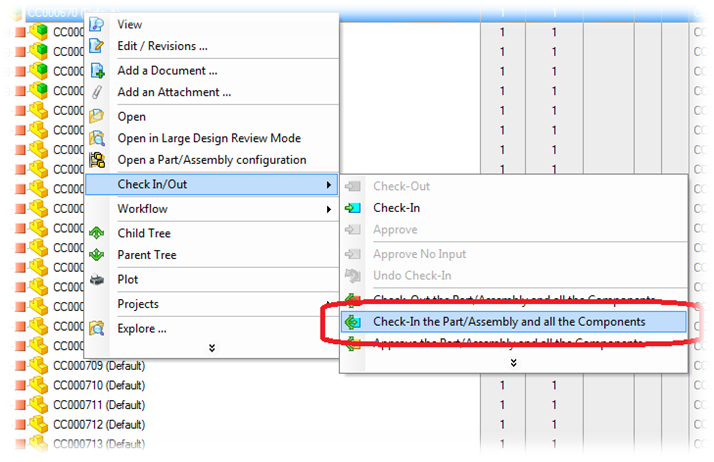
Offloading a check-in of a large assembly:
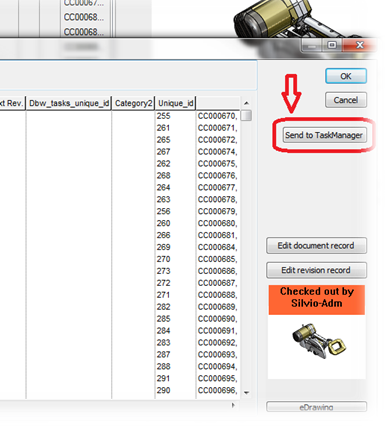
Then, inside the dialog, a new button is available, which will create a task for the task manager instead of executing it directly from that workstation:
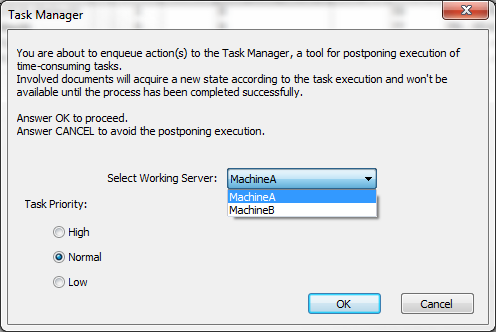
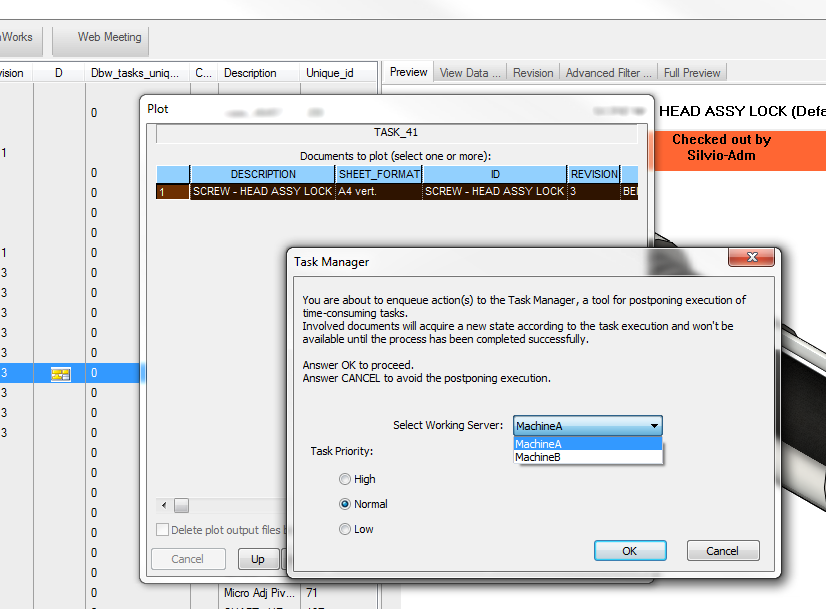
An alerting box will be shown, allowing the choice of the executing node and, only in cases of users with DBWArm Administrative roles, of the priority of the task:
If we are in an environment with local checkout mode enabled, it’s still possible to queue a task involving checked out documents, but only on local user machine, which must be configured in the system as well as the server nodes.
In such a case, the user will be shown a message box signaling that only his machine will be in the server list:
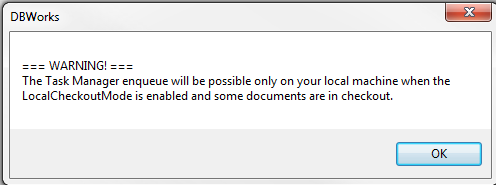
If the user local machine is not configured as executer node, another message is displayed and the queuing activity won’t be allowed, unless the users unselects the checkedout documents in his working set:
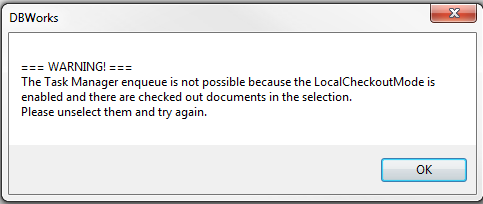
The reason of this message is that the User must be aware that something will happen to the current task according to the choice that will be done.
During the execution, the server application UI will be disabled to get the user mouse events, whereas its activity console will signal all the activities being achieved:
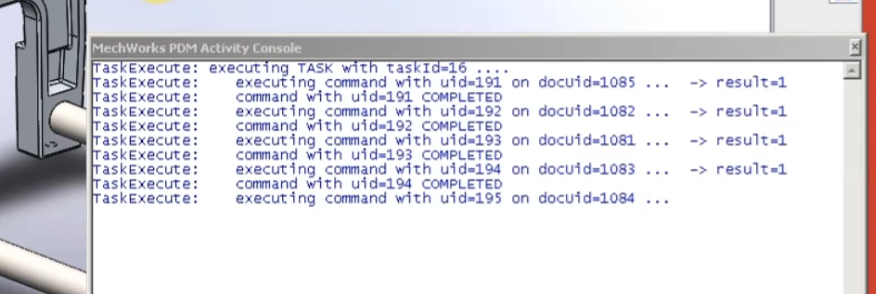
Once the pause/stop buttons are clicked, the server environment gets the input focus again.
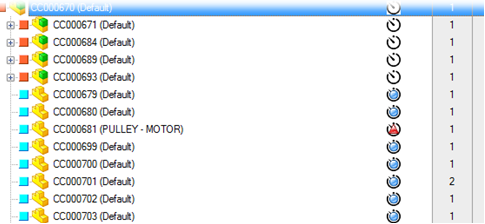
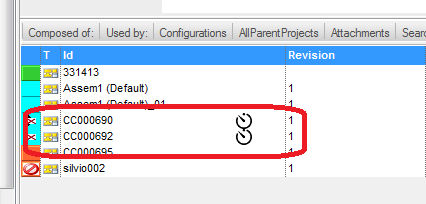
At users' workstation, the MWPDM Browser will show up specific icons directly on the Tree, signaling the status of the task execution:
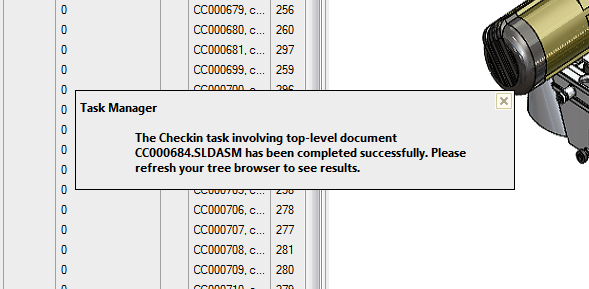
Once the task has been executed, a notification popup will be shown at users’ workstation, signaling the result of the activity involving the top-level document:
Typical usage: plot
Offloading a plot of documents (click on plot menu item called on multiple drawings selection):
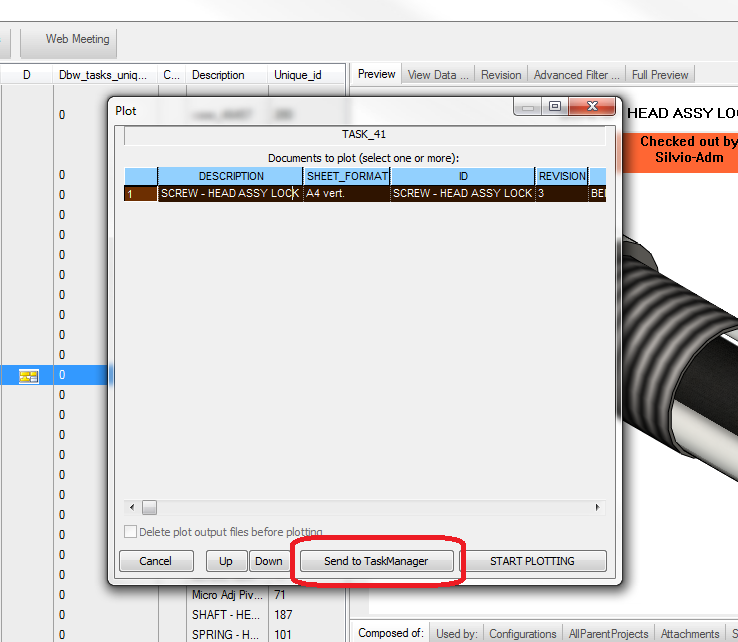
Clicking on the Send to TaskManager button will show the same confirmation dialog as seen in the previous example:
After the OK, the involved documents will be shown with the queued icon on the right:
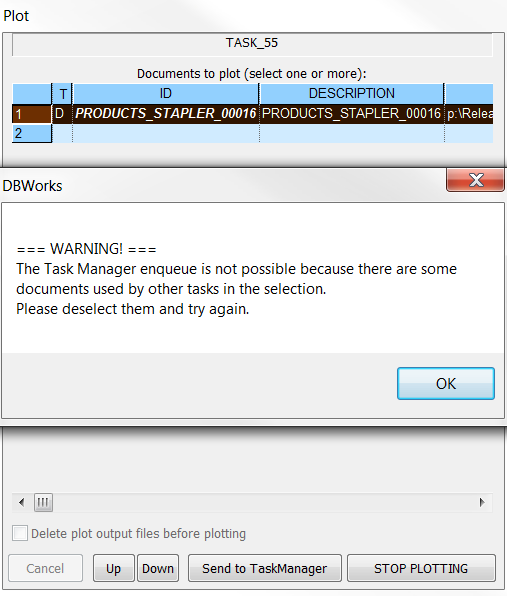
Please note that it is NOT possible to generate new tasks on documents involved in queued tasks: in such a case, the user will be notified by a message box suggesting to deselect.
Task Director
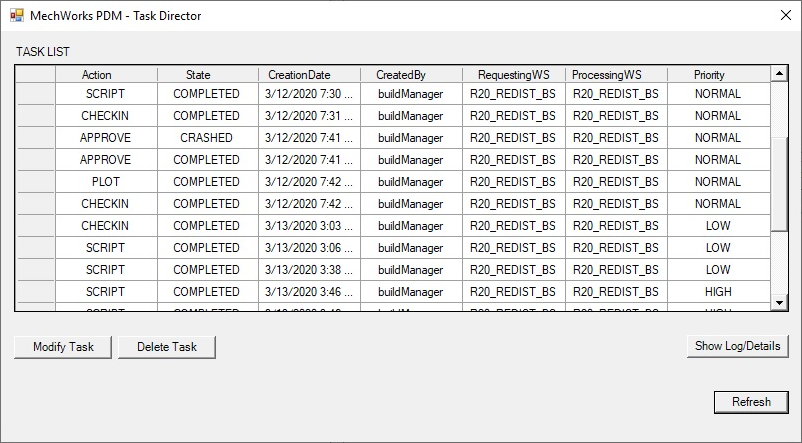
The Task Director is an external application to allow administrative operations on tasks (view, edit or delete).
It's a new tool in addition to the existing ones for allowing the redefinition of a task (like modify its priority, delete the task) independently of the requesting user.
This tool, available only for users of the DBWARM Group DBWorks Admin, can be launched from the Task Manager shortcut bar section.
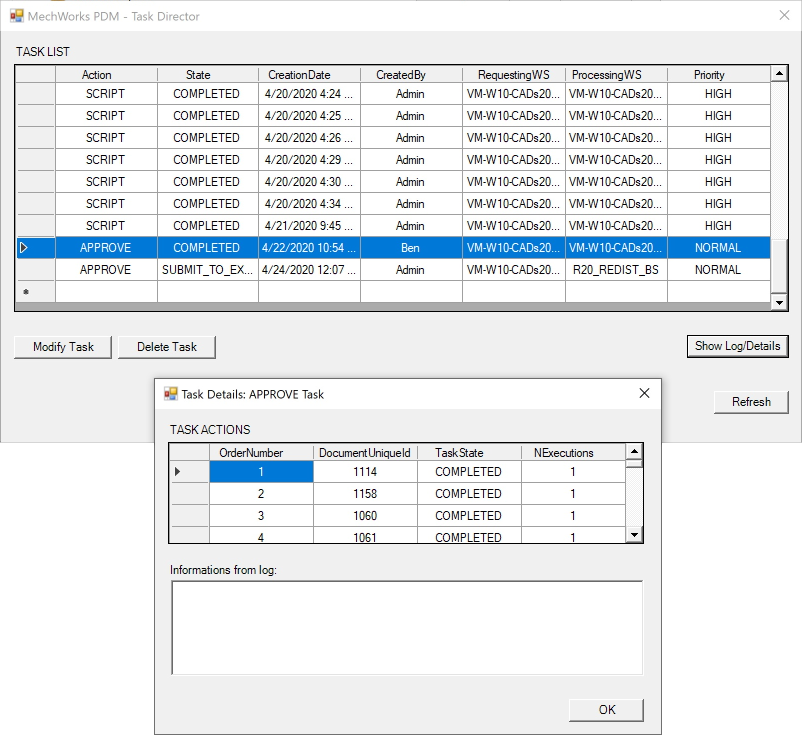
Once run the application, a complete Task List is shown and, after selecting a task, it can be modified::
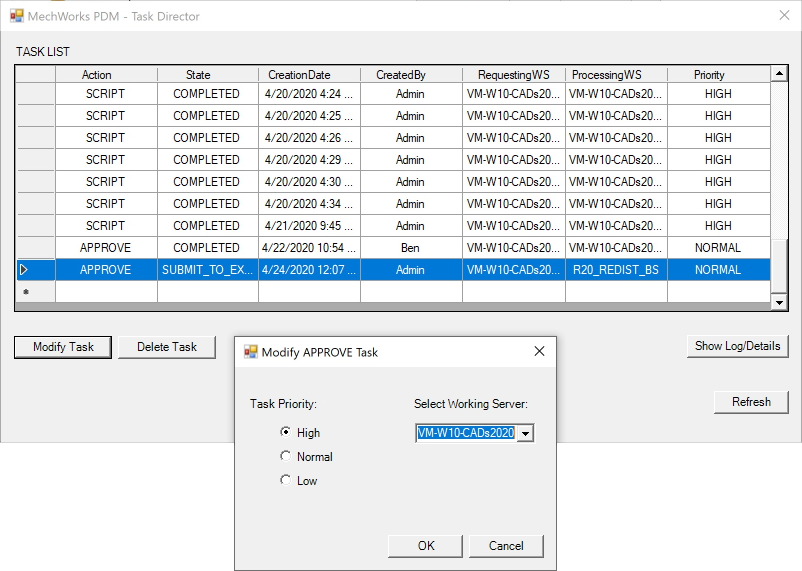
The button shows a Dialog for selecting the new Priority and the new Processing Working Server::
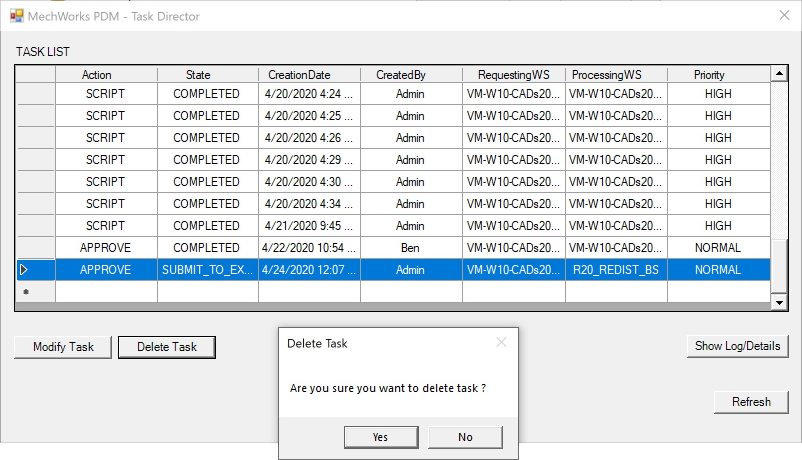
The button shows a confirmation dialog:
The shows every Action connected to the selected Task, and Log information (if any):
Task Agent
The Task Agent is a an external application to be run on task executor machines only.
It will search every interval time for a new task to be executed on the machine and if it discover one, it will start the target application (SolidWorks, SolidEdge, Inventor or StandAlone) end automatically execute the task.
If an hang state of the application is detected it will close and automatically restart it to ensure that the submitted task will be completed. If an application is running but no tasks are detected to be running on it will be closed to save potential floating licenses.
Task Agent has no user interface, but while running an icon  will be shown in the system tray. By right mouse button clicking on the icon you will be able to exit the application that otherwise will continue running until the machine is shut down.
DBWTask Agent can be customized by using a parameters file called DbwTaskAgentNode.config that must be placed in the same folder of the executable. The input parameters are the following and must be written with the following syntax:
;minutes (default 1) between the check against new tasks
CHECK_INTERVAL_MINUTES=1
;the limit CPU percentage for considering a CAD hanging (and so to restart)
HANG_CPU_USAGE_PERCENTAGE_THRESHOLD=2
;the desired wait time in secs (default 60) before Task Agent starts interacting with the CAD application.
CAD_STARTUP_WAIT_TIME_SECONDS=30
;the CAD applications' executable:
SW_EXECUTABLE_PATH=C:\Program Files\SOLIDWORKS Corp\SOLIDWORKS\SLDWORKS.exe
SE_EXECUTABLE_PATH=C:\Program Files\Siemens\Solid Edge 2022\Program\Edge.exe
INV_EXECUTABLE_PATH=C:\Program Files\Autodesk\Inventor 2022\Bin\Inventor.exe
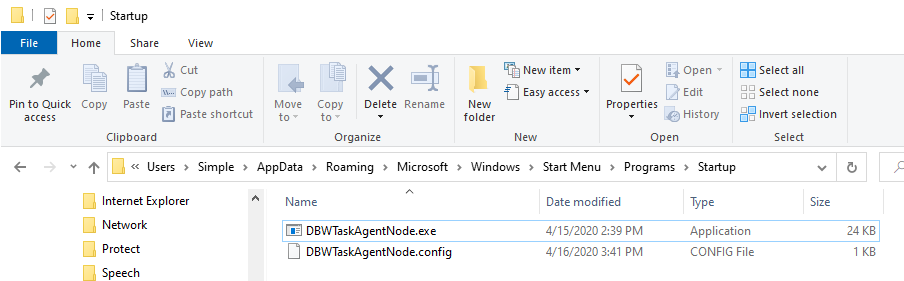
The executable file can be found as <InstallationPath>\bin\DBWTaskAgentNode.exe and it is suggested to be placed into C:\Users\XXX\AppData\Roaming\Microsoft\Windows\Start Menu\Programs\Startup\ folder, in that way when the Task Executor machine is started DBWTask Agent will automatically be run and start checking for new tasks to be executed.