Master Drawing Mode (MDM)
Introduction
When the Master Drawing Mode is active, MechworksPDM considers that the drawings used inside the company for production are not in the native CAD format, but in a industry standard format like TIFF or PDF.
MechworksPDM is able to preview/open/plot/visualize previous revisions, directly managing the master drawings and not the native CAD drawing.
Beside managing a uniform drawing format across all the departments of the company, another goal of this module is improving the performances of the approval process: any approval information (like the approver signature, approval data, etc.) are stamped directly into the TIFF or PDF Master Drawing, without having to open the original CAD drawing in memory.
Setup
It's assumed Adobe Reader is installed before enabling the Master Drawing Mode.
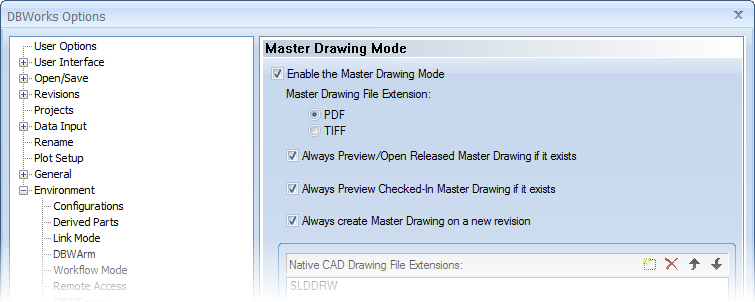
Then set the MechworksPDM options to abilitate the Master Drawing Mode
Please refer to the specific help topic for further information about each option
Features
•Creation of the Master Drawing:
this functionality is implemented through a script named OnCreateMasterDrawing.LST; typically the creation is made through a Save As… or Plot from the native CAD to the PDF/TIFF format (see later a pratical example for SolidWorks)
File Names
A Master Drawing File Name contains the originary FILE TYPE and the REVISION information:
Example
MySolidWorksDrawing.SLDDRW → MySolidWorksDrawing.SLDDRW.01.PDF
The creation of the PDF/TIFF document is automatic and it's performed when passing from state checkout → checkin or when performing a refresh action ( toolbar button) on a checkedout document.
•Approval of the Master Drawing:
this functionality is implemented through a script named OnApproveMasterDrawing.LST; the script is responsible for adding text/graphic stamps to the PDF/TIFF Master Drawing. The script uses a set of DBWShell() functionalities that allow to write directly onto PDF or TIFF files.
•Management of the Master Drawing:
all the operations needed to support the Master Drawings are implemented directly in the core functionalities of MechworksPDM.
oPreview
If the Master Drawing exists and the document is released, it is always used for the preview.
oRefresh
If the record is in checkedout state, the Master Drawing is re-created at every refresh ( toolbar button)
oRevisions
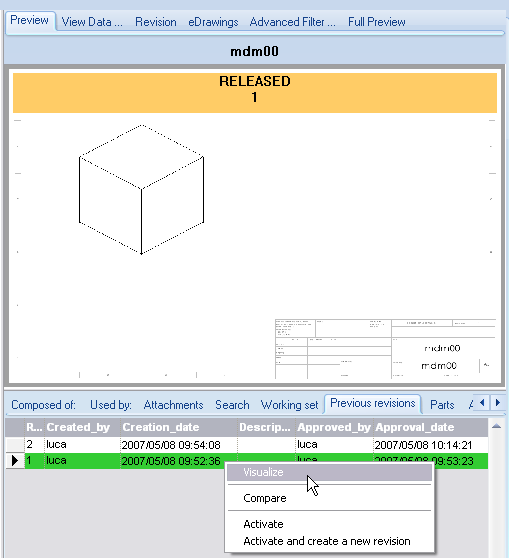
As for original drawings, even for Master Drawings it is possible to access to previous revisions, in the Previous revision tab of the Tree Page.
On the RMB you can find available commands.
oOpen
If the option [X] Always Preview/Open Released Master Drawing if it exists is checked, it looks for the Master Drawing file; if found, it opens it with the viewer associated to the PDF/TIFF extensions.
the parameter @MASTER_DRAWING_IS_CREATING="1" is passed to the script (see below for details)
Supposing that all the MDM options are enabled (as shown in the picture at the top of the chapter), performing a RMB → open on a drawing will produce the following results:
released:  →
→ 
checkedin:  →
→ 
checkedout by another user: →
→
checkedout by you: →
→
oPlot
The paper size is read directly from the Master Drawing file.
The Options → Plot Setup → Sheet/Device association list is used for routing the plottings on the assigned devices.
OnFullPreview
The LST\SYSTEM\OnFullPreview.vbs receives the name of the Master Drawing file when invoked from a document for which the Master Drawing has been created.
With the actual version of the OnFullPreview, the full Acrobat Reader is invoked.
oRMB Pop-up menus
The RMB Pop-up menus contains the entries:
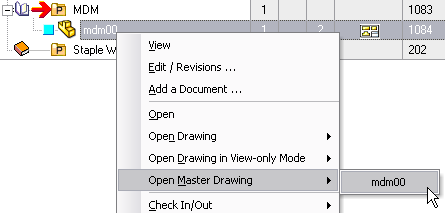
Open Master Drawing
With this function it is always possible to open the last created Master Drawing
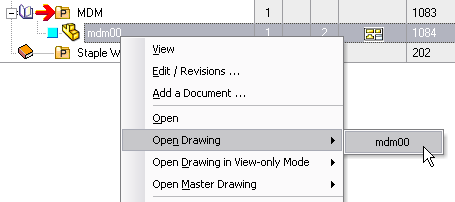
Open Original Drawing
With this function it is always possible to open the Original CAD Native document; this menu is available only for Released Drawings when the option [X] Always Preview/Open Released Master Drawing if it exists is checked
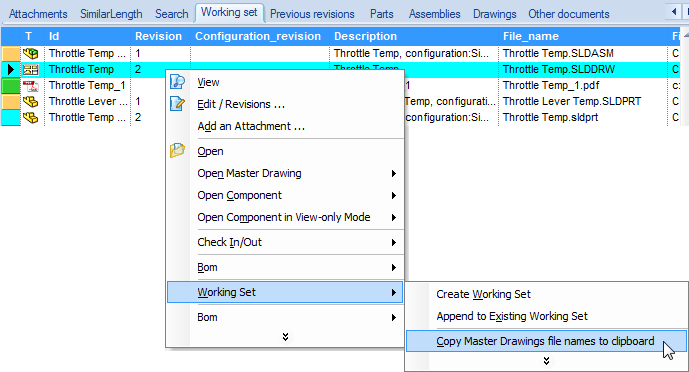
Copy Master Drawing file names to clipboard
This entry is available from WorkingSet grid RMB
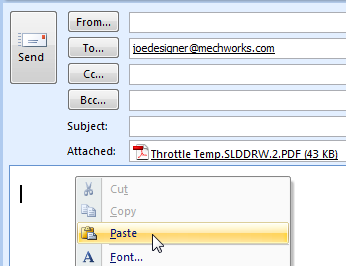
it allows to paste directly the MDM file in other application such as email client
•OnFullPreview
The LST\SYSTEM\OnFullPreview.vbs receives correctly the name of the Master Drawing file when invoked from a document for which the Master Drawing has been created. With the actual version of the OnFullPreview, the full Acrobat Reader will be invoked.
MechworksPDM supports also Free Brava! DWG/DWF Viewer from Informative Graphics. Read the topic Full Preview for more details.
Scripts
•OnCreateMasterDrawing.LST
It's invoked in the following cases:
oCheckout → Checkin with the drawing open
orefresh ( toolbar button) on a checkedout document
it performs a SaveAs PDF/TIFF the active drawing
Example
.VBSCRIPT
SUB MAIN()
DBWINIT(TRUE)
'
' MAIN INPUT PARAMETERS
'
MASTERDRAWINGFILETYPE = DBWINPUT("@MASTER_DRAWING_FILE_TYPE")
MASTERDRAWINGDIRECTORY = DBWINPUT("@MASTER_DRAWING_SUGGESTED_DIRECTORY")
MASTERDRAWINGFILENAME = DBWINPUT("@MASTER_DRAWING_SUGGESTED_PATHNAME")
'
' OTHER USEFUL INPUTS AVAILABLE
'
'DBWINPUT("@DOCUMENT_PATHNAME")
'DBWINPUT("@DOCUMENT_FNAME")
'DBWINPUT("@DOCUMENT_FEXT")
'DBWINPUT("@DOCUMENT_FDIR")
'DBWINPUT("@DOCUMENT_UNIQUE_ID")
'MSGBOX("ONCREATEMASTERDRAWING.LST!" & VBCRLF & MASTERDRAWINGFILENAME )
IF MASTERDRAWINGFILETYPE = 0 THEN
EXT = ".PDF"
ELSE
EXT = ".TIF"
END IF
'
' MANAGE BUG SW2004/2005 IN PDF OUTPUT FILE NAME (SPR 203874):
' USE A TEMPORARY NAME AND DBW WILL RENAME IT
'
TEMPMASTERDRAWINGFILENAME = MASTERDRAWINGDIRECTORY & "$DBWTEMP" & EXT
DBWSHELL("SWSAVEAS " & REPLACE(TEMPMASTERDRAWINGFILENAME," ","|") )
DBWOUTPUT "@MASTER_DRAWING_OK_RENAME","1",FORWRITING
DBWOUTPUT "@MASTER_DRAWING_TEMPORARY_PATHNAME",TEMPMASTERDRAWINGFILENAME,FORAPPENDING
DBWOUTPUT "@MASTER_DRAWING_PATHNAME",MASTERDRAWINGFILENAME,FORAPPENDING
END SUB
•OnApproveMasterDrawing.LST
Called on Approval with the drawing closed: adds texts/images/lines to the Master Drawing created at checkin time.
If the option [X] Always Preview Checked-in Master Drawing if it exists is checked, MechworksPDM calls the OnApproveMasterDrawing.LST script with the parameter @MASTER_DRAWING_IS_CREATING set to "1".
By checking this parameter, the script can decide to draw or not the revision table in the just created .PDF/.TIFF.
Example
.VBSCRIPT
SUB MAIN()
DBWINIT(TRUE)
'IF THE SCRIPT IS CALLED FROM A CHECKIN->CHECKOUT STEP, YOU CAN DECIDE
'TO DRAW OR NOT THE REVISION TABLE IN THE JUST CREATED .PDF/.TIFF.
MDISCREATING=DBWINPUT("@MASTER_DRAWING_IS_CREATING")
IF MDISCREATING="1" THEN EXIT SUB
'
' MAIN INPUT PARAMETERS
'
MASTERDRAWINGFILETYPE = DBWINPUT("@MASTER_DRAWING_FILE_TYPE")
MASTERDRAWINGDIRECTORY = DBWINPUT("@MASTER_DRAWING_DIRECTORY")
MASTERDRAWINGFILENAME = DBWINPUT("@MASTER_DRAWING_PATHNAME")
'
' OTHER USEFUL INPUTS AVAILABLE
'
'DBWINPUT("@DOCUMENT_PATHNAME")
'DBWINPUT("@DOCUMENT_FNAME")
'DBWINPUT("@DOCUMENT_FEXT")
'DBWINPUT("@DOCUMENT_FDIR")
'DBWINPUT("@DOCUMENT_UNIQUE_ID")
'MSGBOX("ONAPPROVEMASTERDRAWING.LST!" & VBCRLF & MASTERDRAWINGFILENAME )
DBWSHELL("MDOPEN " & REPLACE(MASTERDRAWINGFILENAME," ","|"))
IF OKDBW = FALSE THEN
MSGBOX "ERROR OPENING MASTER DRAWING " & MASTERDRAWINGFILENAME
EXIT SUB
END IF
MDID = DBWRESULT("@MDID")
X = 100 'MM
Y = 100 'MM
TEXT = "(100,100)"
FONTFACENAME = "ARIAL,ITALIC"
FONTHEIGHT = 10 'MM
FONTORIENTATION = 0
STYLE = 1
RGBCOLOR = RGB(0,0,0)
DBWSHELL("MDADDTEXT " &_
MDID & " " &_
X & " " &_
Y & " " &_
REPLACE(TEXT," ","|") & " " &_
REPLACE(FONTFACENAME," ","|") & " " &_
FONTHEIGHT & " " &_
FONTORIENTATION & " " &_
STYLE & " " &_
RGBCOLOR )
X = 200 'MM
Y = 200 'MM
TEXT = "(200,200)"
FONTFACENAME = "ARIAL,ITALIC"
FONTHEIGHT = 10 'MM
FONTORIENTATION = 0
STYLE = 1
RGBCOLOR = RGB(0,0,0)
DBWSHELL("MDADDTEXT " &_
MDID & " " &_
X & " " &_
Y & " " &_
REPLACE(TEXT," ","|") & " " &_
REPLACE(FONTFACENAME," ","|") & " " &_
FONTHEIGHT & " " &_
FONTORIENTATION & " " &_
STYLE & " " &_
RGBCOLOR )
X1 = 100 'MM
Y1 = 100 'MM
X2 = 300 'MM
Y2 = 200 'MM
STYLE = 0
WIDTH = 2
COLOR = RGB(255,0,0)
DBWSHELL("MDADDLINE " &_
MDID & " " &_
X1 & " " & Y1 & " " & X2 & " " & Y1 & " " &_
WIDTH & " " & STYLE & " " & COLOR )
DBWSHELL("MDADDLINE " &_
MDID & " " &_
X2 & " " & Y1 & " " & X2 & " " & Y2 & " " &_
WIDTH & " " & STYLE & " " & COLOR )
DBWSHELL("MDADDLINE " &_
MDID & " " &_
X2 & " " & Y2 & " " & X1 & " " & Y2 & " " &_
WIDTH & " " & STYLE & " " & COLOR )
DBWSHELL("MDADDLINE " &_
MDID & " " &_
X1 & " " & Y2 & " " & X1 & " " & Y1 & " " &_
WIDTH & " " & STYLE & " " & COLOR )
DBWSHELL("MDCLOSE " & MDID )
END SUB