The Property Window in the Tree Page
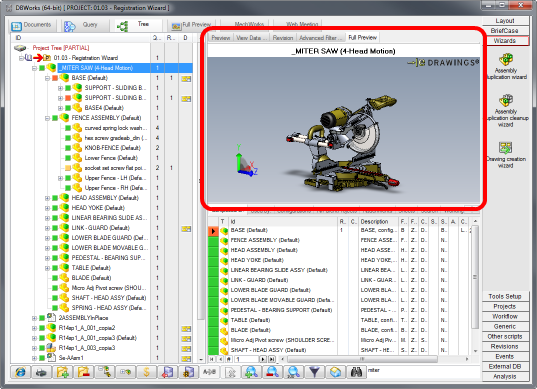
The Property Window in the TreePage of Mechworks PDM displays information about the document currently selected and allows to find documents applying specific filters.
The window is divided in tabs, each displaying specific information:
Preview
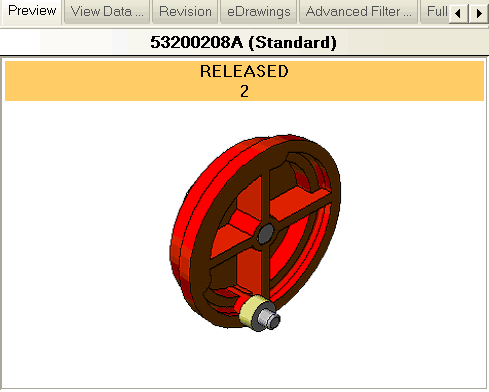
This tab hosts the static preview of the document, depending on the type of document. For cad documents it's an image with state information on top, for projects or text files it's a textual description.
View Data
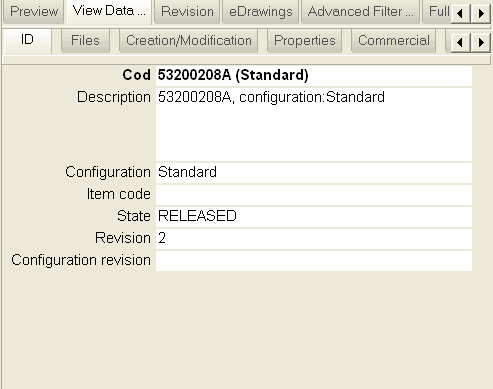
This tab hosts the data that have been set either from the system or from the user for the document. These data are consistent with the custom properties of the document and are grouped by customizable tabs to improve readability.
Revision
This tab hosts data concerning the current revision of the document. The interface is the same as in the View Data section.
The Integrated Advanced Filter
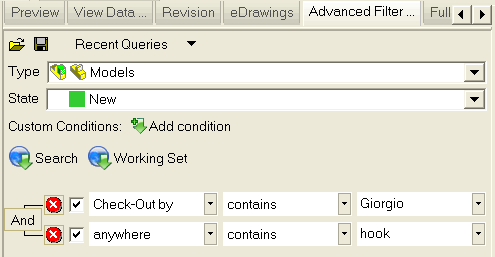
In an effort to simplify and centralize the interface, the Advanced Filter, previously running in a separate window, has been inserted as a tab in this window. All the preexisting features have been transferred in this panel that allows to look for documents applying filter on any property of the document. An effort has been made to allow both quick search on most common fields and specific queries involving any field. Queries can be saved and reloaded both locally and in a shared directory. The results are displayed in the window below, either as a simple query result (a common list of records) or as a Working Set, allowing batch operations. Read more on the Integrated Advanced Filter.
Full Preview
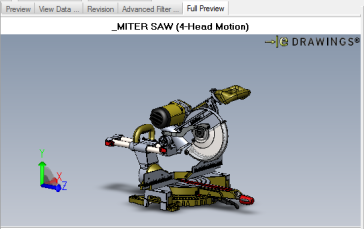
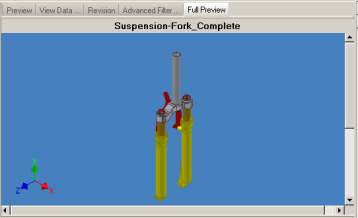
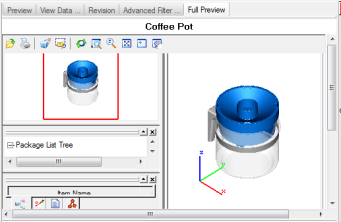
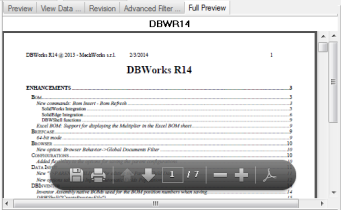
The Full Preview tab includes plugins to provide advanced previewing capabilities to selected documents.
CAD documents are rendered to provide a 3D view, while other documents (e.g. PDF or MSOffice documents) are show in a page dynamic way.
Some example:
|
|
|
|
When the tab is clicked, the script LST\SYSTEM\OnFullPreview.VBS is launched by Mechworks PDM, in order to create the information needed to the full preview.
The script is responsible for choosing the proper viewer for the class of document passed as argument.
The script LST\SYSTEM\OnFullPreview.VBS supports the Cimmetry Systems Autovue viewer, allowing to display more than 500 different file formats, with red-lining capabilities. Among them, well known 3D formats like Pro-Engineering, SolidEdge, Catia, etc.
Note that the Cimmetry Systems Autovue viewer is not included in the Mechworks PDM package and can be purchased by the customer separately.
Inventor 2012 and newer full preview activations
Inventor 2012 out of the box is not able to properly show the Full Preview of a model.
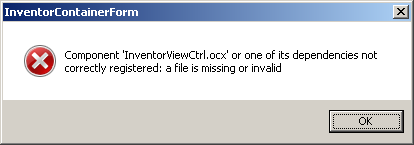
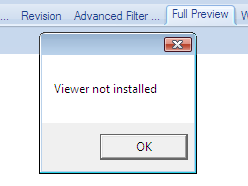
If you receive a "viewer not installed" error while trying the DBInventor FullPreview in a x64 environment, you've to manually register a 32bit Autodesk control provided with Inventor installation.
or
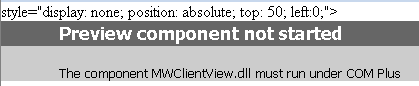
or
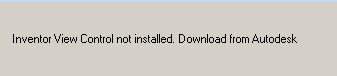
For all of the above cases, open a MSDOS command prompt as administrator and type:
regsvr32 "C:\Program Files\Autodesk\Inventor 2013\bin\Bin32\InventorViewCtrl.ocx"
(please note the above path may change according with the Inventor version and installation path).
If the above solution is still not effective, in order to use the just registered control you've to add following entries to the registry:
[HKEY_CLASSES_ROOT\Inventor.ViewControl.1]
@="Autodesk Inventor View Control"
[HKEY_CLASSES_ROOT\Inventor.ViewControl.1\CLSID]
@="{A6336AB8-D3E1-489A-8186-EE40F2E027FE}"
[HKEY_CLASSES_ROOT\Inventor.ViewControl.1\Insertable]
@=""
For your convenience you can find here a .reg that does the job.
Workflow decision view
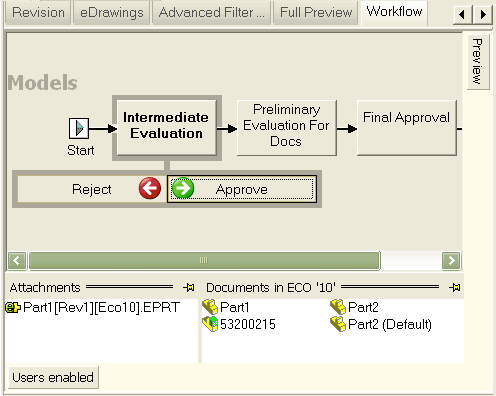
A new view has been created to provide the decision makers of the company a control panel where approval and rejections are made with a click. An effort has been made to maintain the interface as simple and natural as possible and still provide all kind of useful information to help the Manager in the decision. The interface includes collapsing panels so that it remains up to the user to define what information must be always visible and what should rather be displayed on demand (a simple mouse move over the side labels is sufficient). Read more on the Workflow Decision View.