 The Integrated Advanced Filter
Introduction
Applying common filters
Applying custom filters
Searching within projects and assemblies
Displaying query results
Saving and loading queries
Incremental conditions
Managing linked and special fields
Full text search in Advanced Filter
Introduction
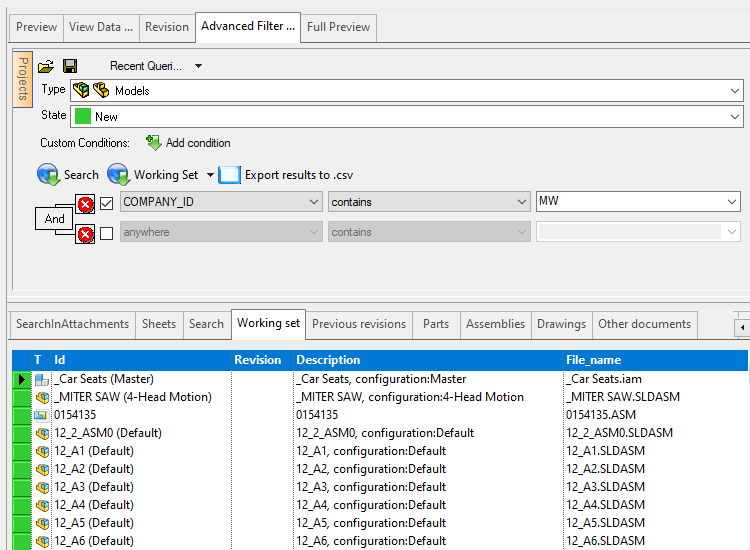
In MechworksPDM a general attempt has been made to centralize and simplify the user interface. The Advanced Filter, which was running in a separate window and used to offer a limited set of commands has been rewritten in its interface to provide a more natural look and feel and run integrated inside the Tree Page of the MechworksPDM browser. The results are displayed directly inside the browser, offering the full sets of commands on each record and allowing batch operations.
Applying common filters
Most common filters have been made available in drop down lists. These queries involve the type of document you are looking for and the state. Searches by ID have been deliberately left out as the quick search integrated in the browser is more effective for this type of queries.
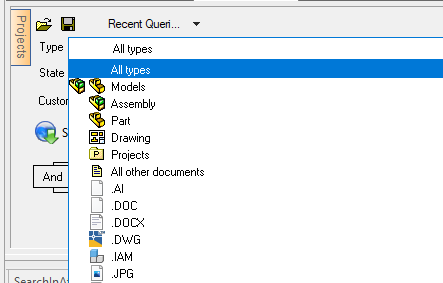
Models, as recalled by the icons, includes in the search parts and assemblies. All other documents includes in the search all the non cad documents. Following this entry in the list are added all file types that are not cad documents. In the image below, the last entry displays DWG documents that on the workstation are opened by default using the eDrawing application. All types of non cad documents available in the database are added to the list:
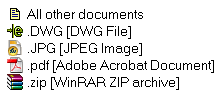
To sum up: the list of other documents depends on the files registered in the database while the icon depends on the current settings on the workstation and reflects the settings of Windows Explorer.
The second list allows you to filter the record by state
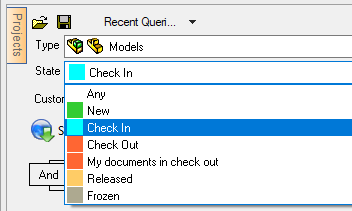
a special entry has been added to quickly find the documents you have checked out and are therefore locked by you for editing. Since other users have no write acces to these files a periodic check is adviced not to lock files for longer than necessary.
Applying custom filters
You can apply custom filters on any of the fields defined for documents. Custom conditions are enlisted at the bottom of the interface.
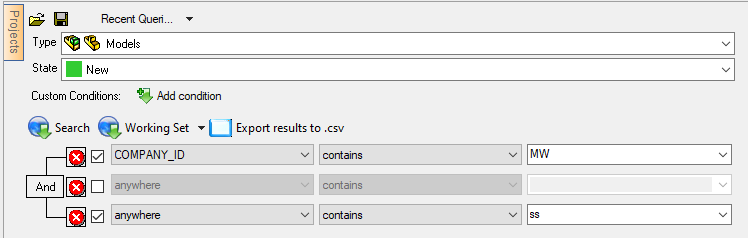
To add a new condition, click the button Add condition. A new line appears below with three drop down lists.
The first list includes the field names. The first field, anywhere, indicates that the query is ran on all text fields. The second list displays all the conditions such as 'contains' or 'smaller than' and depends on the type of field selected in the first list. Changing the condition may change the number of lists: the condition 'is not null' does not need any parameter, so the third list is removed and first two enlarged to exploit the horizontal space as much as possible. The third list includes the distinct values in the database available for the field selected in the first list. The list is filled only if there are less than 500 distinct values for performance reasons.
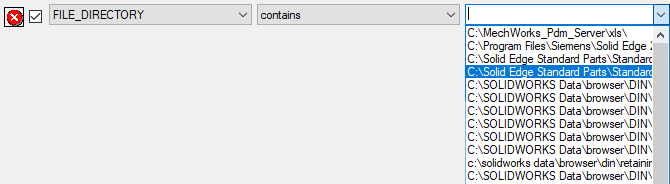
In the image the file directories available in the database are enlisted in alphabetical order.
Single conditions can be temporarily disabled or removed. To disable untick them: 
To remove them, click the red button beside the condition 
By default the custom conditions are joined by a logical AND operator, which obviously means that all the conditions must be fulfilled. To change the operator into an OR (and viceversa) click the operator and select one from the popup list.

The field anywhere is a special field and indicates a multi fields search. Anywhere applies always only to fields of type text, so it isn't valid for dates or numbers. More, if in the options User Interface, Browser Behaviour, Limit full text serach... a list of fields is defined to simplify these queries then the query applies only to those fields.
As of today, the operator joins all custom conditions and queries like 'ID contains 'a' or 'b' and file directory is 'c:\SWFiles'' are not possible. For such and more complex query, you should write a sql query and run it in the query page, maybe adapting an existing one.
Select fields to show in combo with AdvFilterFields.txt file
The parameter file schema\AdvFilterFields.txt regulates the list of fields that can be dropped down in custom conditions in the integrated Advanced Filter.
The file is a list of fields as defined in the DOCUMENT table as in the following example:
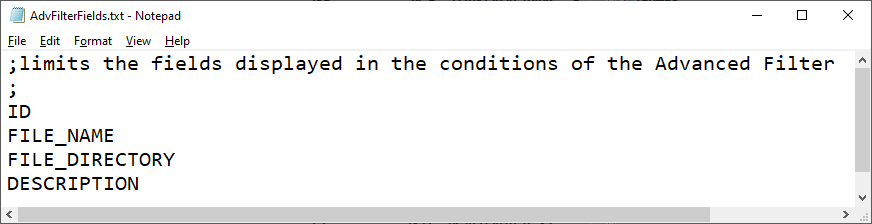
Forcing the list of fields available in the drop down list. Non existing fields declared in the parameter file are simply ignored. 'anywhere' is always visible. The fields are in alphabetic order.

Searching within projects and assemblies
The Advanced Filter can restrict a search to documents contained in a selected project or assembly. Add a custom condition, select Document is contained, choose in project or in assembly, and select or enter the corresponding ID.
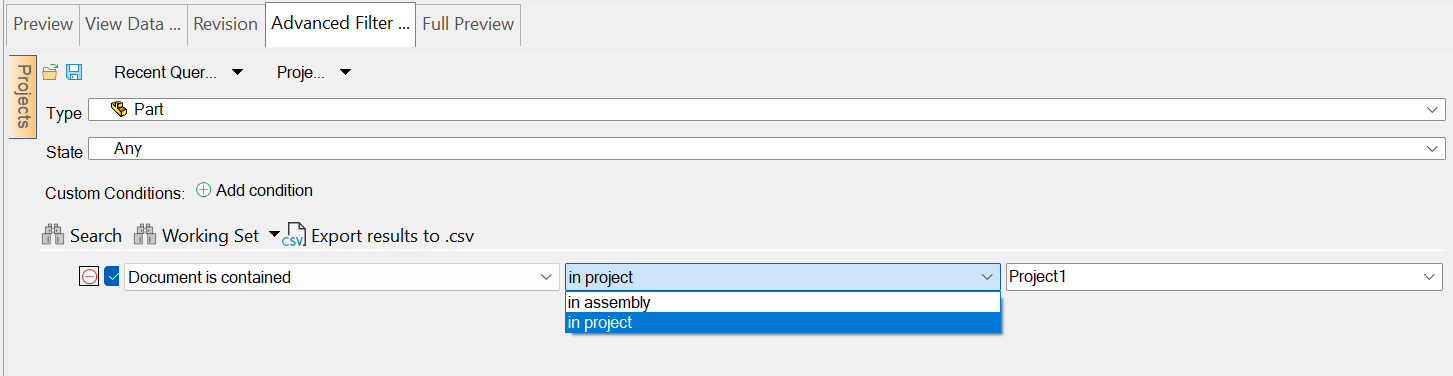
The selected project or assembly is included in the search scope together with all documents contained below it, across every hierarchy level. This condition can be combined with the other Advanced Filter conditions.
Enabling hierarchical searches
This feature must be enabled by a database administrator. Run Admin Tools, select Update Database Version, expand General changes for R26, and verify that the update includes the script Add Table DBW_HIERARCHY_FILTER.sql. Click to apply it.
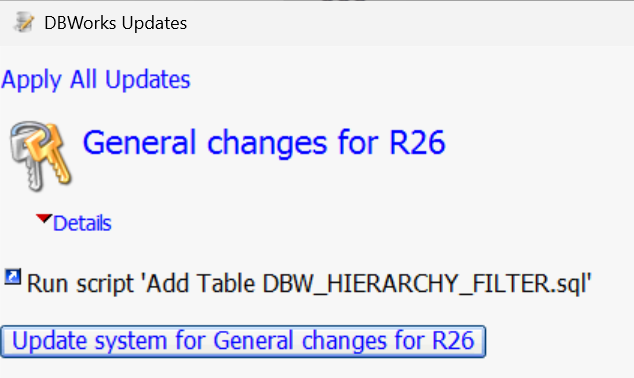
The update creates the DBW_HIERARCHY_FILTER support table. If the table is not available, the hierarchical search option is not displayed. Hierarchy data is prepared in the background when the Advanced Filter is opened and refreshed automatically.
Displaying query results
Once you have specified the filters run the query clicking one of the buttons  .
.
The first applies a normal search and displays the result in the tab of the window below. The second creates a Working Set, which has restricted size limitations but then allows to proceed with batch operations on the query results.
After you have obtained the resulting set of records, you could switch the above tab to preview so as to see the documents as you click the records below.
Saving and loading queries
Two buttons are available on the top of the panel to load and save queries.
If you click any of the two a common Windows dialog appears.
The Default folder is set to %commonprogramfiles(x86)%\Mechworks\Local Queries\ that should be used for test and temporary queries.
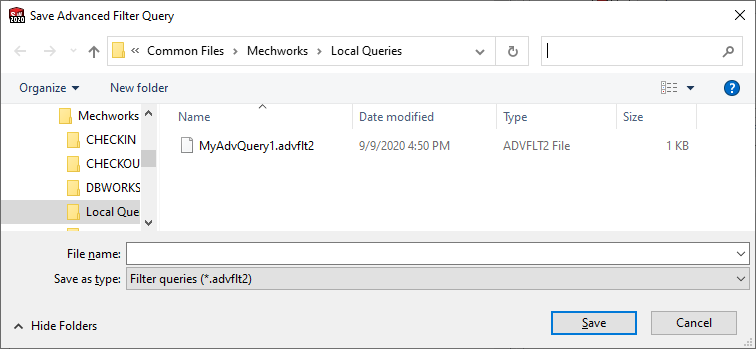
Other shared and system queries should be placed on the server.
The file name for Advanced Filter queries are .advflt2 and are not compatible with the ones saved for the previous version of the Advanced Filter. Opening a query does not imply running it automatically.
Every query loaded or saved is added to the list of the 10 most recent queries. To recall a recent query, drop down the list and click one. The name of the query starts with Shared Queries\ or Local Queries\ and is followed by the simple query name as assigned at save time. The Shared and Local labels do not reflect exactly the name of the folder where the queries has been saved, but it is a logical shortcut to find queries quickly with a name that is meant to be human readable.
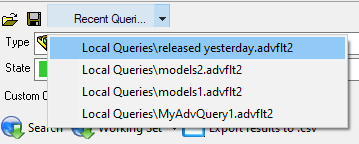
Recalling a query from the list runs it automatically, unlike with the open button. This was a deliberate choice as often loaded queries are older queries opened to be modified before being executed.
Incremental conditions
In the Advanced Filter drop down values depend on all the others conditions currently active in the panel.
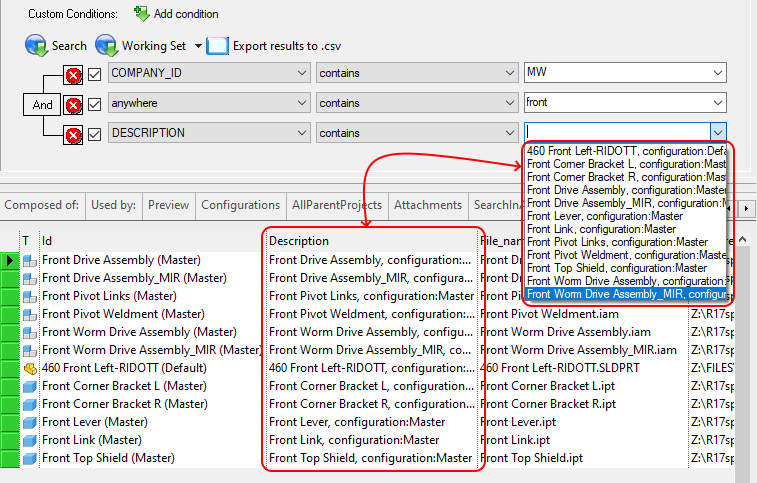
In the above case, you can see the content of the dropdown list is exactly made by the values of the DESCRIPTION field already shown in the search results.
Support for SQL conditions on any database table. Select the table, add an SQL conditon and test on the fly.
Example
suppose you're looking for a screw of a certain type. You can specify either that the category is 'screw' or maybe add a filter to the ID because in your company you have a naming convention for the screws. After applying this basic condition add a new custom condition on the field 'diameter' and drop down the values list to see the distinct diameters available for the type of screw you need. The state of the panel can be saved for reuse when you're looking for screws.
Managing linked and special fields
Linked fields can be difficult to use to filter the Document table because their values can be picked not only from another table but following links of the second degree, which means that getting the values involves querying an intermediate table and a final one linked only to the latter.
The solution for these fields, as well as for fields that require special advanced conditions, is to associate the 2 basic actions:
•Get a list of the existing values
•Apply a filter given a relation (is, contains. Is between, ... ) and the related parameters to stored procedures declared in the database.
Here is how to proceed:
Create a file named PAR\AdvFilterSpecialFields.txt and inside add a list of the field names that must be treated as special, one per line.
In this case we handle only the field SUPPLIER_ID, so we add a single line:
SUPPLIER_ID
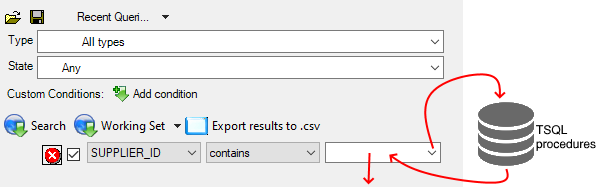
In the database we create 2 procedures: one to display the list when the list is dropped down and one to apply the filtering.
The name of the procedures has a fixed part followed by the field name and the name of the parameters must follow the examples displayed below.
The content of the procedure starting after BEGIN is where you develop your custom query or logic.
Example of procedure to retrieve the field values:
CREATE PROCEDURE [dbo].[get_values_for_SUPPLIER_ID]
@projectUids varchar(255)
AS
BEGIN
select name from suppliers where id in (select PrimaryVendorId from AX_InventTable) order by name
RETURN
END
In this case, we get the values from a table linked to a second table, so the degree of the link is 2.
Example of procedure to apply the filtering based on a relation and 2 parameters.
Please note that the procedure must return a recordset of UNIQUE_Ids as int containing the list of DOCUMENTS for which the conditions apply. 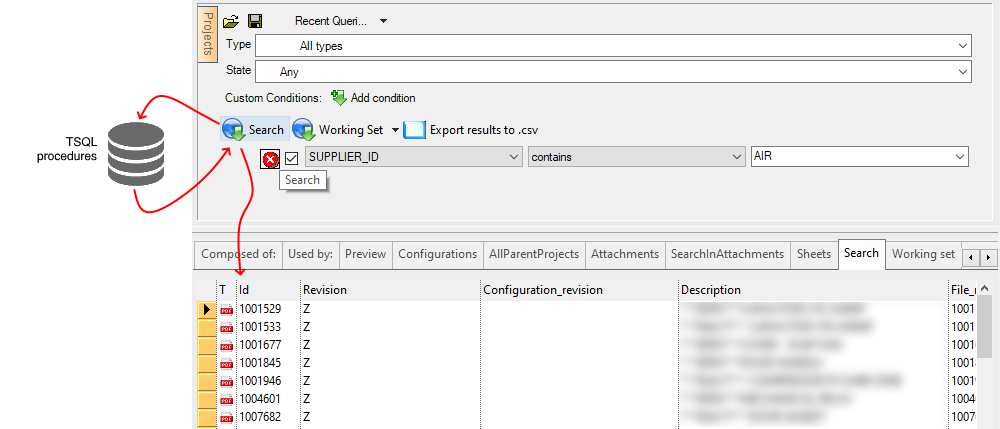
CREATE PROCEDURE [dbo].[filter_uids_for_SUPPLIER_ID]
@relation varchar(50),
@par1 varchar(255),
@par2 varchar(255)
AS
BEGIN
CREATE TABLE #itemIds (id VARCHAR(255))
if @relation = 'is' insert into #itemIds SELECT ItemId FROM AX_InventTable WHERE PrimaryVendorId IN (SELECT ID FROM SUPPLIERS WHERE NAME = @par1)
if @relation = 'isnt' insert into #itemIds SELECT ItemId FROM AX_InventTable WHERE PrimaryVendorId IN (SELECT ID FROM SUPPLIERS WHERE NAME <> @par1)
if @relation = '<' insert into #itemIds SELECT ItemId FROM AX_InventTable WHERE PrimaryVendorId IN (SELECT ID FROM SUPPLIERS WHERE NAME < @par1)
if @relation = '>' insert into #itemIds SELECT ItemId FROM AX_InventTable WHERE PrimaryVendorId IN (SELECT ID FROM SUPPLIERS WHERE NAME > @par1)
if @relation = '<=' insert into #itemIds SELECT ItemId FROM AX_InventTable WHERE PrimaryVendorId IN (SELECT ID FROM SUPPLIERS WHERE NAME <= @par1)
if @relation = '>=' insert into #itemIds SELECT ItemId FROM AX_InventTable WHERE PrimaryVendorId IN (SELECT ID FROM SUPPLIERS WHERE NAME >= @par1)
if @relation = 'isbetween' insert into #itemIds SELECT ItemId FROM AX_InventTable WHERE PrimaryVendorId IN (SELECT ID FROM SUPPLIERS WHERE NAME >= @par1)
if @relation = 'contains' insert into #itemIds SELECT ItemId FROM AX_InventTable WHERE PrimaryVendorId IN (SELECT ID FROM SUPPLIERS WHERE NAME LIKE '%' + @par1 + '%')
if @relation = 'doesntcontain' insert into #itemIds SELECT ItemId FROM AX_InventTable WHERE PrimaryVendorId IN (SELECT ID FROM SUPPLIERS WHERE NAME > @par1 AND NAME < @par2)
if @relation = 'startswith' insert into #itemIds SELECT ItemId FROM AX_InventTable WHERE PrimaryVendorId IN (SELECT ID FROM SUPPLIERS WHERE NAME LIKE @par1 + '%')
if @relation = 'doesntstartwith' insert into #itemIds SELECT ItemId FROM AX_InventTable WHERE PrimaryVendorId IN (SELECT ID FROM SUPPLIERS WHERE NAME NOT LIKE @par1 + '%')
if @relation = 'endswith' insert into #itemIds SELECT ItemId FROM AX_InventTable WHERE PrimaryVendorId IN (SELECT ID FROM SUPPLIERS WHERE NAME LIKE '%' + @par1)
if @relation = 'doesntendwith' insert into #itemIds SELECT ItemId FROM AX_InventTable WHERE PrimaryVendorId IN (SELECT ID FROM SUPPLIERS WHERE NAME NOT LIKE '%' + @par1)
if @relation = 'isnull' insert into #itemIds SELECT ItemId FROM AX_InventTable WHERE PrimaryVendorId IN (SELECT ID FROM SUPPLIERS WHERE NAME IS NULL)
if @relation = 'isnotnull' insert into #itemIds SELECT ItemId FROM AX_InventTable WHERE PrimaryVendorId IN (SELECT ID FROM SUPPLIERS WHERE NAME IS NOT NULL)
if(NOT EXISTS(SELECT 1 FROM #itemIds))
select 0
else
select unique_id from document where id in (select id from #itemIds)
RETURN
END
In this case we create a temporary table in which we store the list of IDs that fulfill the condition, then use the values in the table to obtain a recordset of the UNIQUE_IDs that we consider valid documents.
Please note that the ideal use of this technique should not return tens of thousands of records, so it fits very well the case when you look for documents associated to a specific supplier but not to all suppliers at once or to all suppliers but one.
Full Text Search in Advanced Filter
See specific topic here.