User Interface quick reference
Here you can find a list of user interface standard that are used by Mechworks products.
Record types
meaning |
Solidworks |
Inventor |
SolidEdge |
|---|---|---|---|
Assembly |
|
|
|
Part |
|
|
|
Drawing |
|
|
|
Drawings |
|
|
|
Presentation |
|
||
Cutlist item |
|
||
Generic documents |
|
||


 ...
...Structures
 Project icon

 Project loaded/not loaded in memory (see here for details)
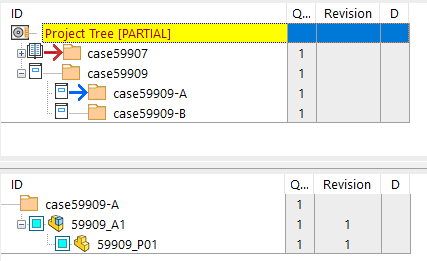
Current Project and Selected Project
 The red arrow highlights the current project.
 The blue arrow highlights in the upper Tree the selected project that's currently expanded in the below tree (see Explorer Project Tree Mode)
Revisions and record states
 New
New
 Checked-in
 Checked-out
 Checked-out by another user
 Released/Approved
 Frozen/Obsolete
See details about revision cycle
Checkedout label in the Preview tab
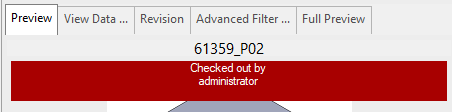 Record checked out and locked, e.g. opened in the CAD by you
 Record simply checked out
the Preview label is customizable through the script OnShowPreviewLabel.LST
Dirty revisions flag
 Dirty revision flag for a released/approved record
 Dirty revision flag for a checkedin record
 Dirty revision flag for a checkedout record
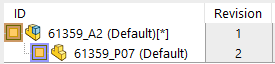
In this example, the A2 assembly is marked as dirty and its child P07 is marked as dirtyMaker

In this example, due to the option User Interface→Tree→ Even for documents in CHECKED-IN/CHECKED-OUT state, also a checkedin record can make its parent dirty
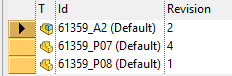
In this example, you can see the grid visualization of the dirty flag: the state color is slightly darker for dirty records
Please note in the trees the dirty records are marked both with a gold frame in the state icon and with a "[*]" symbol after the ID.
If Release Database Mode is active, the dirty revision flag is used to mark those components that result APPROVED in the RELEASED database but that have been initialized for a new revision cycle in the PRODUCTION database.
See details on how to set the dirty revision flag visualization.
Unmanaged revisions
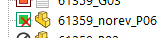
Tree icon of revsion unmanaged

Grid icon of revsion unmanaged
See details on how to set the Revision managed or not.
Remote access
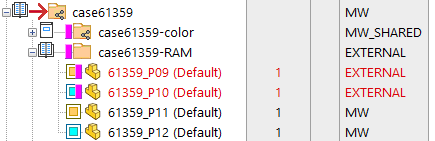
Foreign documents are marked with a fuchsia tag.
Local records that's older than remote ones (i.e. field LAST_MODIFIED_FILE_DATE value is more recent than the Modified property of the file) are displayed with a red font.
See details about Remote access interface
Local mode

Documents that have been copied in the local folder (Local checkout mode) are marked with a bold brown color in the tree, and with an harddisk icon in the left side of the preview label.
See details about Local mode using the local chekout mode
Standard parts / Toolbox items

Standard parts in the Tree

Standard parts in the Grid
See details about defining Standard Parts
Database support for not updated records (doc saved in the CAD but not updated in the DB)

See details about this on page User Interface → Trees → Highlight records not updated in the DB
Fake components (entries for the BOM) and fake quantities
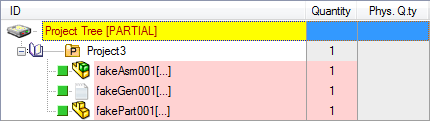
These components have been created through the Create a new BOM item... functionality.
The whole record line has a pink color background to indicate that's a virtual entry.

The quantity of this real component has been faked through the Change Quantity... functionality.
Only the quantity column background color has been changed in pink, because only the quantity has been faked.

If only the physical quantity has been changed (entered) no fake color will be apply since it doesn't change the structure relations.
Suppressed components (shown in Feature Manager)
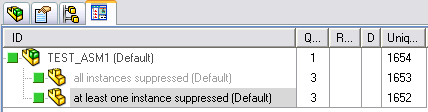
See specific topic on MechworksPDM Feature Manager
Missing components (Solid Edge case only)
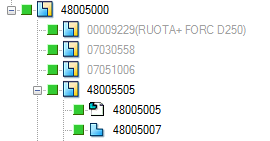
See more details about option Open/Save→Save→Consider also hidden components
Workflow icons
|
This document has passed all the wf process steps so it is ready for being released |
|---|---|
|
This document has been rejected in the workflow decision process so it needs to be checkedout and checkedin again for being re-submitted to wf process |
|
This document is in the wf process and it still needs to be advanced |
The following icons depends on set of the option Environment→Workflow→ |
|
|
This document has finished its WF process but other documents, belonging to the same ECO_ID, still need to be ready for the approval (option ENABLED) |
|
This document has finished its WF process but other documents, belonging to the same ECO_ID, still need to be ready for the approval (option DISABLED) |


See details on workflow actions here Workflow decision view.
DBWERP
 DBWorks record is aligned with relative SAP material/document (dbwerp_state=1)
 DBWorks record is not aligned with relative SAP material/document (dbwerp_state=1,OOD)
 DBWorks record is aligned with relative SAP BOM (dbwerp_state=1,BOM)
 DBWorks record is not aligned with relative SAP BOM (dbwerp_state=1,OODBOM)
Image files lookup into SCHEMA\IMG\ERP
It is possible to make custom versions of the above image files
SCHEMA\IMG\DBWERPStateInserted.BMP
SCHEMA\IMG\DBWERPStateInsertedBOM.BMP
SCHEMA\IMG\DBWERPStateInsertedOODBOM.BMP
SCHEMA\IMG\DBWERPStateInsertedOOD.BMP
by creating a copy of them under a sub-folder named SCHEMA\IMG\ERP and modifying them accordingly.
MechWorksPDM searches first into the IMG\ERP sub-folder, then, if the image files are not found there, it will load the image files from the default SCHEMA\IMG location.