Change Quantity
The Change Quantity... function allows you to set the quantity of an item in a Bill Of Material both for fake parts and for parts that have a correspondent item in the CAD document.
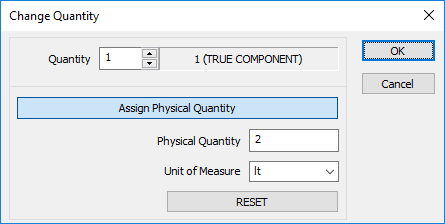
Number of instances of components for BOM purposes
When you select this command for a tree item, a dialog appears allowing you to set the value number.
The number proposed is the real quantity as in the geometry of the cad documents.
For real items, which have correspondent components in the cad document, you cannot set a value lower than the actual quantity of the document.
Two cases are managed:
1.Change the quantity of real items, which have correspondent components in the CAD document: the quantity can only be augmented and can never be smaller than the actual number of components in the assembly; as a special case, assigning a value of 0 (zero) the quantity is reset to the actual number of components in the assembly.
2.Change the quantity of a component created with the function Create New Bom Item...: the quantity can be freely assigned; as a special case, assigning a value of 0 (zero) shows a message box asking if you want to REMOVE the BOM Item as child of the assembly, but the record of the fake item is not deleted as it could be used also elsewhere. If you want to delete the record of the fake component after removing it from the BOM, you have to proceed manually.
Note: for the implementation of this feature, special values of the PARENT_CHILD_INDEX field are now used, so any script relying on the values of the PARENT_CHILD_INDEX field should be tested against this build of MechworksPDM.
In particular, values less or equal to -10 ( minus ten ) are now interpreted as BOM Item instances.
Shell commands
See reference for BOM commands
Assignment of physical quantities for BOM purposes (i.e. weights, lengths, volumes)
The dialog shows, in the lower half, two edit boxes for the assignment of:
1.the Physical Quantity Value (a double precision decimal number)
2.the Unit of Measure for the above quantity
These boxes are enabled only when the button is pushed.
Why is the button grayed?
This feature is usually already enabled (in the distributed databases) but in case you can add it on demand.
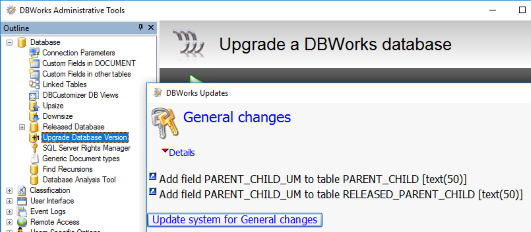
Automatic procedure using Admintools
Run Administrative Tools, select Update Database Version and update the system for BOM quantity and for General changes (as in picture):
Manual procedure intervening directly on the database tables
To be able to use this feature, the database table PARENT_CHILD needs to be added of 2 extra fields:
PARENT_CHILD_QTY |
(float,null) |
|---|---|
PARENT_CHILD_UM |
varchar(50),null |
The field names PARENT_CHILD_QTY and PARENT_CHILD_UM are language-dependent as follows:
English |
PARENT_CHILD_QTY |
PARENT_CHILD_UM |
|---|---|---|
Italian |
PARENT_CHILD_QTY |
PARENT_CHILD_UM |
German |
ELTERN_KIND_QTY |
ELTERN_KIND_UM |
French |
PARENT_CHILD_QTY |
PARENT_CHILD_UM |
Spanish |
PARENT_CHILD_QTY |
PARENT_CHILD_UM |
The functionality is disabled until the database is not prepared with the above modification.
To prepare the database for this functionality, the Admintools can be used. The allowed Unit of Measures must be listed in a special LST file named PARENT_CHILD_UM.LST
The table DOCUMENT in the database requires the new field UM (stands for Unit of Measure); if filled with any value, this will be used as default value for all the assignments in the Change Quantity... functionality (see later).
This field name is managed through the NAME_FIELD_UM entry of the DBWORKS.MSG file in the DBWorks directory that is used for localization.
If, for any reason, a field representing the Unit of Measure is already declared in the database and filled with the proper values, you can override the NAME_FIELD_UM definition with the methods exposed in the topic Localization files in DBWorks/Custom .MSG files of the main help.
Be sure to backup your data before making any modification to the database structure. More, evaluate well any possible side-effect of the modification of the PARENT_CHILD table structure on your running scripts (if any accessing directly the PARENT_CHILD table).
Physical Quantity Outputs in Bom and Buy List Functionalities
As for the above new features of assigning physical quantities to components (like weights, lengths, volumes) for BOM purposes (as an example, a sheet metal with quantities expressed in meters, or an oil with quantities expressed in liters), the Bom and Buy List functionalities have been updated to show the data inserted with the new Change Quantity... functionalities.
If, as indicated above, the database has been correctly prepared with the new PARENT_CHILD fields PARENT_CHILD_QTY and PARENT_CHILD_UM, these values are also made available in the Bom and Buy List.
For the Bom functionality, you also need to prepare the database as follows:
Remove from the database all the temporary tables named BOM_<user name> and BOMAUX_<user name>; MechworksPDM will recreate them at run time; if special permissions are applied to the database so to deny the permission of creating new tables from the clients, the same BOMxxx_<user name> tables must be updated with the following structure:
BOM_<user name>
UNIQUE_ID |
integer |
|---|---|
CHILD_INDEX |
integer |
HIERARCHY |
integer |
CNT |
integer |
PARENT_CHILD_QTY |
real |
PARENT_CHILD_UM |
varchar(50) |
BOMAUX_<user name>
UNIQUE_ID |
integer |
|---|---|
CHILD_INDEX |
integer |
HIERARCHY |
integer |
PARENT_CHILD_QTY |
real |
PARENT_CHILD_UM |
varchar(50) |
For German Language, the fields PARENT_CHILD_QTY and PARENT_CHILD_UM must be created as ELTERN_KIND_QTY and ELTERN_KIND_UM.
The data types need also to be declared specifically for the database engine (see the sub-paragraph 2) Managing the assignment of physical quantities for BOM purposes for more info).
The files SQL\BOM.SQL and SQL\BOMHIER.SQL must be updated as follows (English language, modifications are hilighted):
BOM.SQL
SELECT DISTINCT
CHILD_INDEX AS POS,
DOCUMENT.T AS T,
DOCUMENT.ID AS ID,
DOCUMENT.DESCRIPTION AS DESCRIPTION,
PARENT_CHILD_QTY AS QTY,
PARENT_CHILD_UM AS UM,
%s.CNT,
DOCUMENT.UNIQUE_ID AS UNIQUE_ID
FROM
%s,
DOCUMENT
WHERE
%s.UNIQUE_ID=DOCUMENT.UNIQUE_ID AND
DOCUMENT.T In ('P','A') AND
DOCUMENT.MAKE_BUY NOT In ('NO_BOM')
ORDER BY
%s.CHILD_INDEX
BOMHIER.SQL
SELECT
CHILD_INDEX AS POS,
%s.HIERARCHY AS H,
DOCUMENT.T AS T,
DOCUMENT.ID AS ID,
DOCUMENT.DESCRIPTION AS DESCRIPTION,
PARENT_CHILD_QTY AS QTY,
PARENT_CHILD_UM AS UM,
%s.CNT
FROM
%s,
DOCUMENT
WHERE
%s.UNIQUE_ID=DOCUMENT.UNIQUE_ID AND
DOCUMENT.T In ('P','A') AND
DOCUMENT.MAKE_BUY NOT In ('NO_BOM')
ORDER BY
%s.CHILD_INDEX
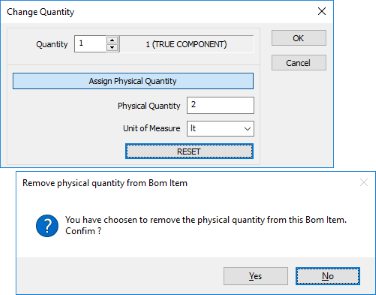
Reset physical quantity
|
To reset physical quantity you can press the button in the dialog or you can set a value of 0. Please note if you simply disable the management of the quantity (clicking the button) the value in the database won't be reset to NULL. |
Customize Unit of Measure field
As for others .LST fields, it is possibile to enhance the data input of the field PARENT_CHILD_UM that contains units of measure for physical quantities.
You have to fill the file LST\PARENT_CHILD_UM.LST (language dependent, see above for translation) with a list of values to choose among, simply entering one value for each line.
Example
Kg
mm3
liter
.SQL-type declarations are supported too, but with limitations:
1..KEY, .REQUERY, .COLWIDTHS keywords are not supported; the .KEY is ALWAYS the first field in the query
2.$(...) macros are not supported
Example
.SQL
SELECT UNIT_OF_MEASURE FROM UNITS ORDER BY UNIT_OF_MEASURE;