The Workflow Decision View
Introduction
The Workflow Decision View (or Workflow Pane) simplifies the approvers task of making a decision. The aim was providing the necessary information within reach of one click and making it as simple as possible to understand where the document is in the process and where it goes after your approval/rejection.
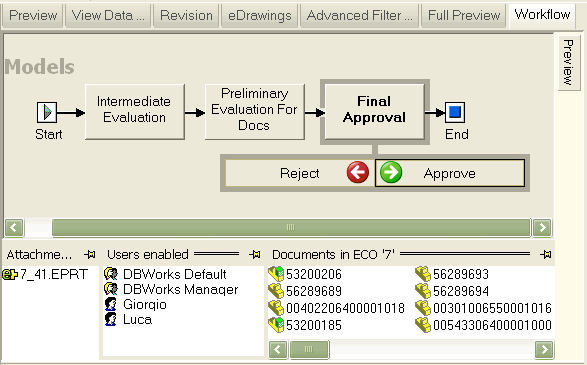
The process panel
The main panel of the window is the process panel. The process name is in the left-top corner and is always visible, also if you scroll. Below you can see a graphical represntation of the process, going from left to right. The current workflow state is framed in dark grey: in the image it's Final Approval. If the process includes several states, you can scroll the window horizontally; in any case at first display MechworksPDM makes sure the current state is always visible, so scrolling is really just to see far states in the process.
Below the current state you can see two buttons that you'll use to decide wether the document is approved or rejected. We'll come back to this later.
The attachment panel
By default when a document enters the workflow, DBWorks creates an eDrawing and attaches it to the document in the workflow so that this eDrawing is not added to the main database. Clicking the attachment in the panel opens the eDrawing. If you have a professional version of eDrawing on the workstation, you can redline the eDrawing. A description of eDrawing redlining goes beyond the goal of this help.
Users enabled
This panel displays who is entitled to approve or reject the document in the current state. The panel displays the groups and users explicitely authorized and not the user implicitely authorized as they belong to one of the authorized groups.
Documents in the same ECO
Documents are normally submitted to the workflow in batch, since if one is rejected, others could be depending in the geometry from it and become implicitely rejected. This panel allows you to see at a glimpse what other documents are involved in the change order and would be influenced by your decision. Clicking one of them would display it as the current workflow document in this window.
State Change of Related Documents
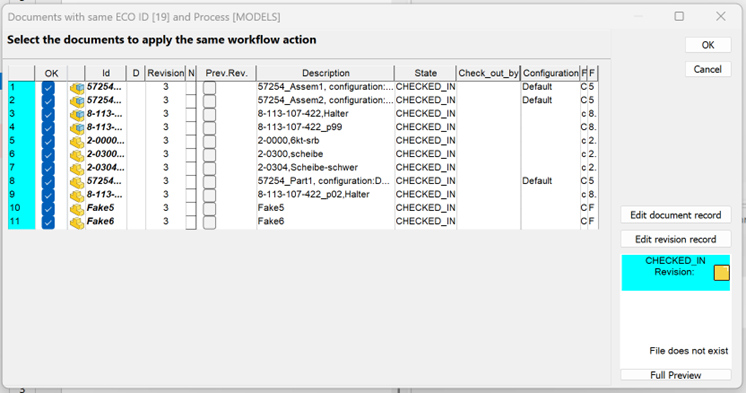
Starting from R26, a Document Selector Dialog has been introduced to simplify and improve the workflow state change process for documents linked by the same ECO ID.
Previously, when changing the workflow state of a document, the system displayed a confirmation dialog that only allowed a global choice (apply the state change to all related documents or not).
With the new approach, the confirmation dialog has been replaced by a selector that allows the user to explicitly choose which related documents should proceed to the next (or target) workflow state.
This provides finer control and prevents unintended state changes on documents that should remain unchanged.
Preview window
This window displays a static preview of the document
Collapsing windows
Beside the main process panel, which contains a graphic rapresentation of the process, all other windows, including Attachments, Users enabled and others can be collapsed and disappear. Read more on the topic.
Approve or reject a document
After analizing the document, to approve it or reject it click the button. Below the button appears a list of the available choices and as you move the bouse above them an arrow displays in the graphic representation of the process where exactly the document would be sent after your decision.
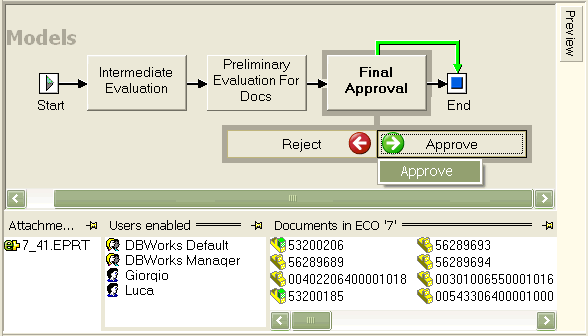
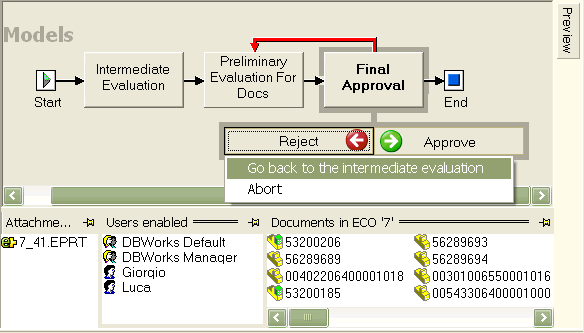
The decisional process, involving a confirmation and the possibility to add notes is described in the workflow module of the help file.