Collapsible and dockable panels
Collapsing windows in the Workflow Decision View
Beside the main process panel, which contains a graphic representation of the process, all other windows, including Attachments, Users enabled and others can be collapsed and disappear.
In this example we act on the Preview panel that is collapsed on the right side. We first display it and set it as a fix window, then hide it again. The procedure is the same for any other such window.
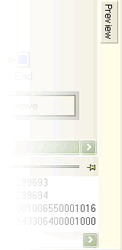
At the beginning the window is hidden, a label is visible on the right side:
If you move your mouse over the preview label the window is displayed with the preview of the document:
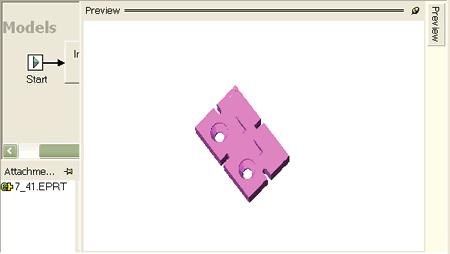
Now click the pin on top-right corner:

and the windows docks on the side. All other windows are rearranged accordingly.
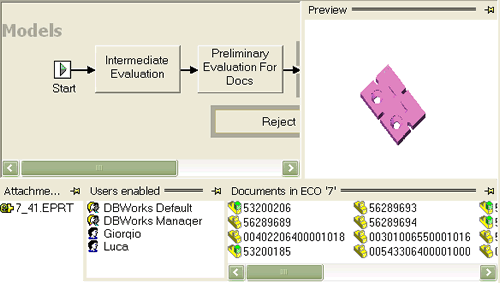
Now you can resize the window dragging its left border to leave more space for the others.
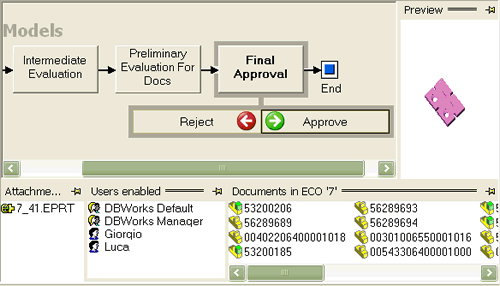
If you click the pin once again the window will enlarge going above others and as soon as you move the mouse away, the window disappears collapsing on the side. When a window is not pinned down, it is therefore displayed on demand. Moving the mouse over the label displays it and moving the mouse away makes it disappear.
Dragging windows
Windows can be dragged to other sides. Drag the window header and move it to another border. As soon as you approach a black frame displays where the window would be docked if you stop dragging:
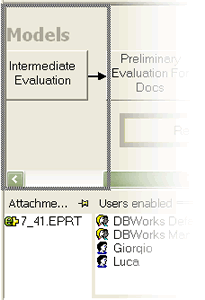
If you stop dragging the window is docked on the side.
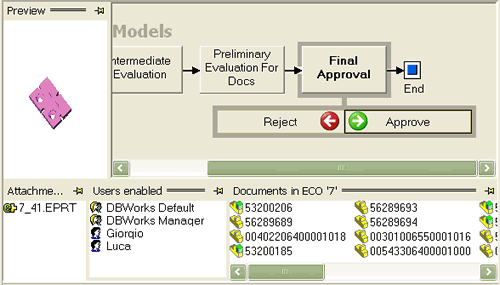
MechworksPDM 'remember' the windows position and state next time you open the browser. If for any reason you need to reset the position settings, delete the file C:\MechWorks Common Files\wkfDecisionView.dsl where c:\ is the drive where your OS in installed.