Local Mode - Working on Local Drives by using the Remote Access support
Introduction
This feature permits to work locally on large assemblies; local means that files will be downloaded/uploaded via the LAN from/to a main central server.
The main global option for enabling this modality is
Environment → Remote Access →  Enable Local Mode
Please note it is a sub-option of
Environment → Remote Access → Use Multiple Network Drives
because the Local Mode needs to know the name of the Network Drives currently used for accessing the files in the shared archive.
Prerequisites
The Global Parameter Path (GPP) and the record files must be located on different network drives.
Example
This setting is not supported for Local Mode:
GPP → O:\MechworksPDMServer\
CAD files → O:\CADArchive\
but if you map O:\ also as M:\ and move the GPP declaration in the registry:
GPP → M:\MechworksPDMServer\
CAD files → O:\CADArchive\
then it is supported
Limitations
As a consequence of the above statements, Local Mode has some limitations:
1.The Local Mode does NOT support databases where the FILE_DIRECTORY field is populated with a UNC path
2.The Local Mode must have the file archive’s Network Drives different from the Network Drives used for the GlobalParametersPath shared installation files; if this limitation may cause problems for the IT Administrators, as a workaround, the GlobalParametersPath and any directory parameter in the DBWAPP.PAR itself (like the LST_DIR, PAR_DIR, SCHEMA_DIR, SQL_DIR, USERS_DIR, XLS_DIR) may be set with an UNC path (like \\MyServer\MyShare)
Other options:
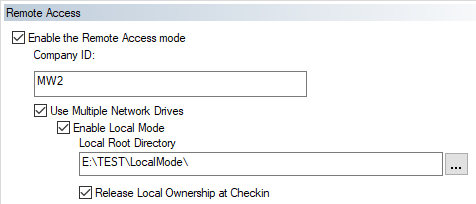
Environment→Remote Access→Local Root Directory
Contains the Local Drive directory, there Mechworks PDM will rebuild the file structure of the main shared archive.
Environment→Remote Access→ Release Local Ownership on Checkin
When checked, it forces the release of the Local Ownership at Checkin time.
The Local Ownership is always released at Approve time.
User Options→Remote Access→ Work Locally
Since it is a User option, it is ALWAYS exposed to each user, no matter about the DBWArm permissions on the full options editing.
How it works
Mechworks PDM switches dynamically the Network Drives declared in the DBW_COMPANY_INFO table, assigning them to Local Drives or to Network Shares depending from the state of the Local Mode user option.
The designer will normally work in the Shared environment, until he will need, for performance reasons, to work locally on his workstation.
The local files are synchronized with the shared files:
1.whenever a reference document is opened; if it is an assembly, the whole child structure is checked and synchronized if necessary
2.whenever a RELOAD message is received from any other workstation
The user can always force a manual synchronization with the RMB→Remote Access→Refresh local copies command.
Example
Prerequisites
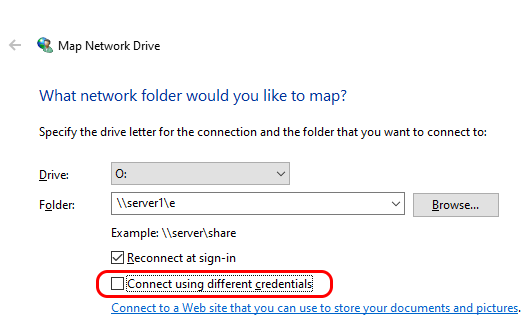
Please note at the moment the Connect using different credentials mode is not supported, so the remote drive where the files are located on must be accessible through the current login authentication way.
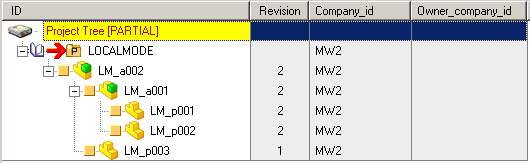
Suppose the designer wants to work locally on the shared LM_a002 main assembly; for this example, the assembly is considered in the Released state:
The Environment→Remote Access parameters are set as follows:
A.The designer opens the User Options and checks the option

By clicking in the Options, Mechworks PDM will re-assign the Network Drives declared in the DBW_COMPANY_INFO to the Local Drive; for this example we will use only ONE Network Drive, named O:

Please make sure the path contained in SHARED_PATH filed doesn't end with a "\" char otherwise the subst command will fail
Before hitting , the O: drive was assigned to \\server1\E, after the the O: drive is now assigned to E:\TEST\LocalMode\, with a SUBST Windows Shell command.
B.The Tree is now displayed as follows:
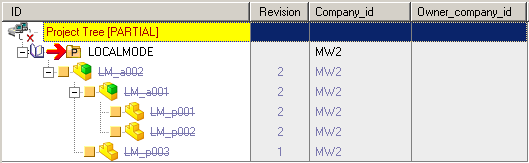
Each item is now displayed with a lighter color, and striked-out. The convention used is:
i.lighter color: the document is not OWNED by the designer, and it is still shared to everyone
ii.strike-out: the document file is NOT existing on the local Workstation, and needs to be downloaded
iii.the project tree root: shows a network disconnected icon
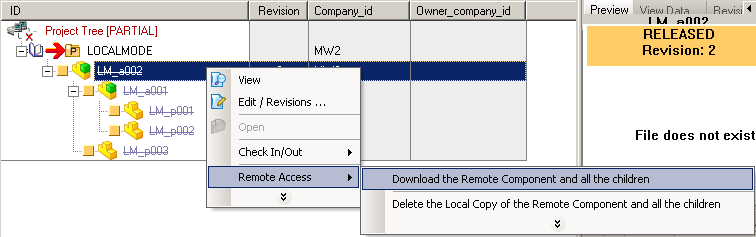
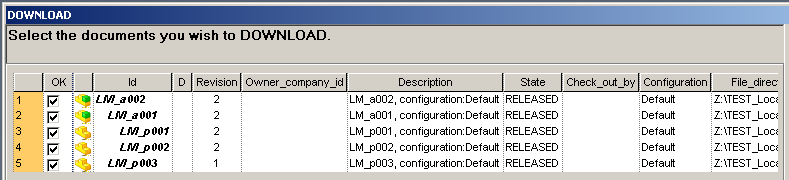
C.The designer wants now to work locally on the sub-assembly LM_a001, but he needs to have locally the whole main assembly LM_a002; so, it downloads locally the LM_a002 assembly, by selecting it and using the functionality
RMB→Remote Access→Download the Remote Component and all the children:
D.The main assembly is now available locally, under the E:\TEST\LocalDrive\O\ location (Mechworks PDM creates a sub-directory for each Network Drive declared in the DBW_COMPANY_INFO table), mapped as O: ; the Tree appearance changes as:
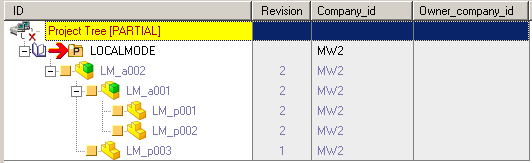
The items are no more striked-out since their files now exist locally.
E.The designer can now CHECK-OUT the sub-assembly on which he wants to work:
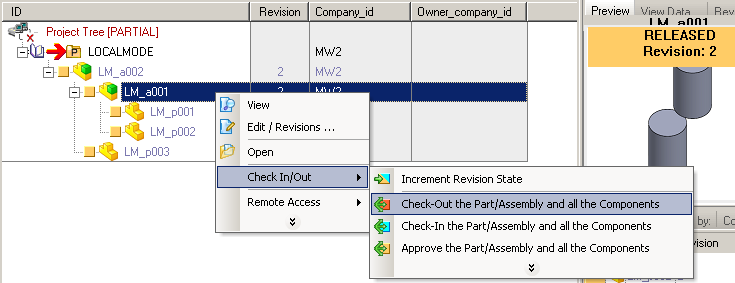

F.After clicking the OK, the documents are now fully owned by the designer, and the owned items are now displayed normally:
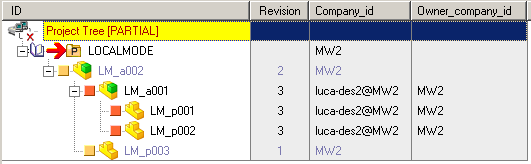
In the above picture, please note that for the owned items, the Company_Id has been now internally changed to <designer id>@<main company id>, and that the Owner_company_id in the database has been assigned to <main company id> to indicate that the items are TEMPORARILY owned by a designer, since he is working locally on them.
G.When finished working on the sub-assembly, it can be CHECKED-IN or APPROVED with the Multiple Approval functionality; lets say we will now do a CHECK-IN on it:
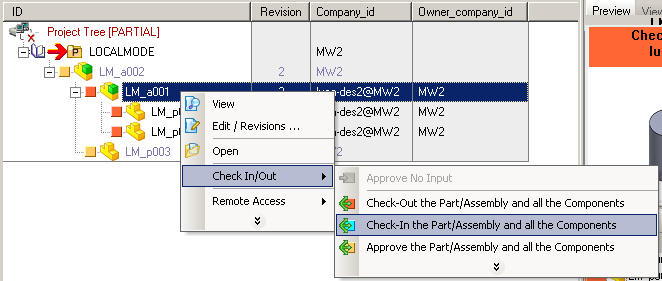

H.After clicking OK, the documents are no more exclusively owned by the designer: their ownership has been RELEASED:
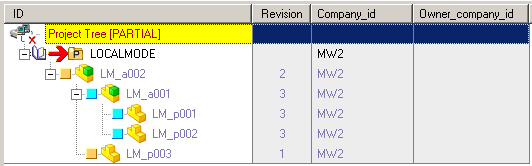
I.The documents in CHECK-IN state are now displayed again with a lighter color, to indicate that any operation on them can now be undertaken on the shared archive
J.Suppose now that the designer has finished to work locally; before switching to the Shared Mode, if he likes and if he needs to clean up some free space on his hard disks, he can delete the Local Copies with the proper Remote Access command:
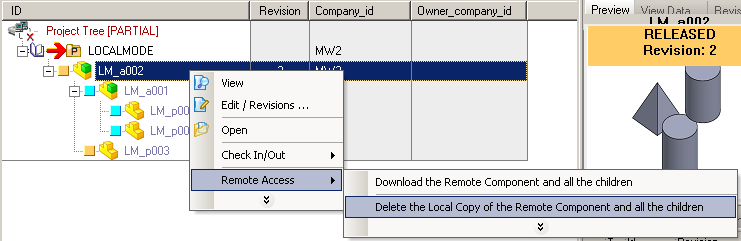
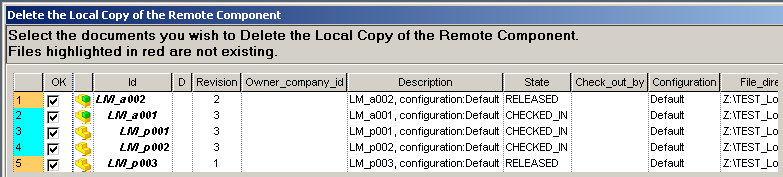
He is now ready to switch back to shared mode by unchecking the User Option:

Mechworks PDM will now re-attach the O: drive to the Share \\Server1\E as declared in the DBW_COMPANY_INFO table; this allows to work back on the shared folders.
K.The appearance of the Tree now has no more light items, since all the items are now shared; also the Project Tree root icon has set back to the default one:
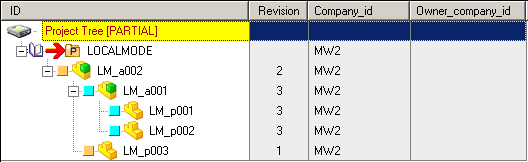
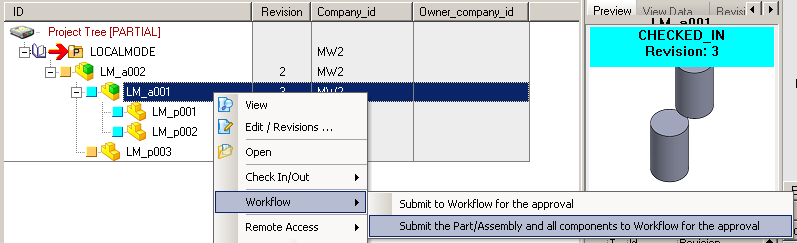
If the Workflow module is available, the designer can now submit the modified sub-assembly to the workflow, for its definitive approval: