Local Mode - Working on Local Drives by using the Local Checkout Mode support
Introduction
This feature will permit to work locally on large assemblies while continuing to use the Local Checkout Mode.
A new option has been added to the Local Checkout Mode page for enabling this modality:
Environment→Local Checkout Mode→ Enable Read-Only Local Copies
The folder where the local copies will be copied is assignable in the same page.
MechworksPDM creates a default folder named ReadOnlyLocalCopies under the default local folder
C:\Program Files\Common Files\MechWorks
A sub-folder named StandardParts is also created under the ReadOnlyLocalCopies folder, for managing the local copied of the standard parts.
How it works
The two new folders for the local copies, ReadOnlyLocalCopies and ReadOnlyLocalCopies\StandardParts , are inserted in the SolidWorks External References File Locations list, between the Local Checkout and the Shared Checkin folders.
So, the SolidWorks File Locations list will be like the following:
<Local Checkout Folder>
<ReadOnlyLocalCopies Folder>
<ReadOnlyLocalCopies Standard Parts Folder>
<Shared-Checkin Folder>
<Shared-Released Folder1>
<Shared-Released Folder2>
…
<Shared-Released FolderN>
In the Autodesk Inventor environment, the same sequence is applied to the Local Checkout Mode Inventor Project, to be used when working in Local Checkout Mode.
A set of functions in MechworksPDM manage the file transfers between the Local Directory and the Shared Directories, avoiding unnecessary transfers when the local files are already updated.
The whole process will be explained better with the following example.
Example
Suppose the designer wants to work locally on the shared Handlebar Complete assembly; for this example, the assembly is considered in the Released state:
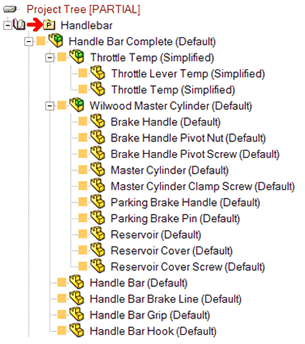
A.The designer right-click the Wilwood Master Cylinder assembly and chooses the function
RMB→Working Set→Copy the node and all the children files to the Read-Only Local Copies Directory:

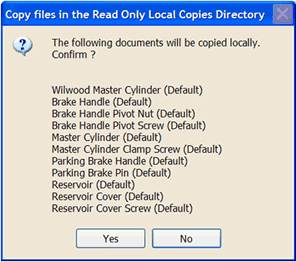
B.A confirmation dialog is displayed; the designer clicks YES:
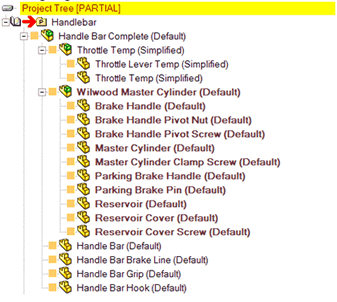
C.DBWorks creates a Working Set of the node and all the children component and copies the component’s files to the Read-Only Local Copies Directory. When the operation is terminated, the documents with a Local Copy are highlighted with a bold font:
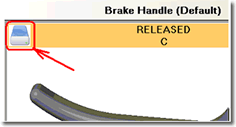
D.The preview image displays an hard-drive icon on the top-left corner for the documents with a Local Copy
E.Opening the selected document from the DBWorks Browser will now open its Local Copy
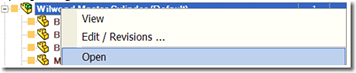
F.The designer can now modify the desidered components by checking them out as usual; on checkin, the Local Copy will be updated as well.
G.Any out-of-date condition between the versions of the files in the Local Copy and in the Shared Folders (Shared Checked-in or Shared Released) is highlighted by DBWorks with a RED color:
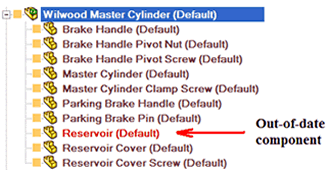
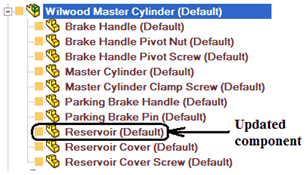
Anyway, every time a document with a Local Copy is opened in memory, a complete refresh of the whole structure is performed, so potentially avoiding any out-of-date problem with the components kept locally. So, in the above example, on the next open of the Wilwood Master Cylinder, the Reservoir component will be correctly updated:
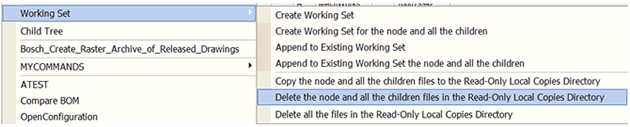
H.When the designer wants to stop working locally, he can delete all the Local Copies or only a sub-set of them with the following two RMB functions:
RMB→WorkingSet→ Delete the node and all the children files in the Read-Only Local Copies Directory RMB→WorkingSet→ Delete all the files in the Read-Only Local Copies Directory
I.To get a list of the documents currently in the Read-Only Local Copies Directory, the designer will choose the function: RMB→WorkingSet→ Create the Working Set of documents with a Read-Only Local Copy

J.The Working Set RMB menu, available from the Working Set grid, contains also two entries for managing the Read-Only Local Copies Directory: RMB→WorkingSet→ Copy the files to the Read-Only Local Copy Directory RMB→WorkingSet→ Delete the files in the Read-Only Local Copy Directory
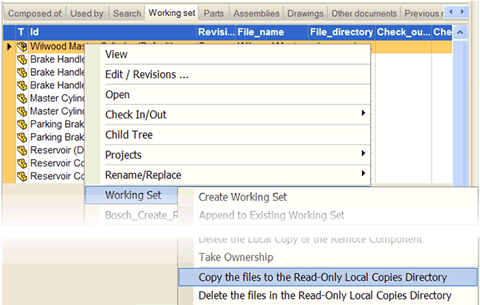
These functions are applied to the documents currently included in the Working Set.