Purpose of the OSM
Overview
Prerequisites
Getting started
OffSite Cache Manager Tool
OffSite Mode User Options
PDM options affected by OffSite Mode
Download files in OffSite Mode
Asynchronous File Transfer
OffSite Mode Script Environment
Solidworks Toolbox and OffSite Mode
Concurrent engineering in Offsite Mode
DBWARM right for Offsite Mode
Purpose of the OSM
Starting from the already existing remote working approaches, the aim of the OSM is to setup a suitable environment to access shared information balancing the cost of maintaining local copies versus remote access.
The shared MwPDM elements to be considered are:
1.GPP path: A subset of necessary files contained in the GPP will be cached locally to minimize the time needed to access. The local copy and systematic synchronization with server version will be automatically handled by the PDM.
2.Database: Will be necessary, to use the OffSite Mode, a VPN connection to database server. The PDM must be always connected to work properly.
3.File repository: The files you are working on will be downloaded locally, either way manually or automatically.
The suggested way to properly use the OffSite mode is to enable it when you are physically inside the company. During the starting operation you will be asked to specify which files you will need while working offsite. Those files and other GPP files will be immediately downloaded on your local machine. This operation may require a lot of time if executed from outside the company due to connection issues.
Once the files are locally stored you will be able to manage them through a new UI tool called OffSite Cache Manager Tool. It lets you upload your local stored files to synchronize them to file server, update your local copy from file server or delete the local copy.
You will be able to work on your local files in the exact same way you could have doing being in office, if more files are needed the can be downloaded at any time. In some circumstances it's possible that some files will be automatically downloaded, for example if you are trying to open an assembly, all the need sons will be automatically downloaded.
Disabling the OffSiteMode will automatically synchronize your local file with the server version and you will be able to continue working as usual on your shared files.
Starting from R23 release and so to guarantee more reliability, to start or stop OffSite Mode it is required that no files are opened in the CAD.
Moreover, the application will be automatically shut down at starting/stopping OffSite Mode.
Overview
The OffSite mode has been designed with the goal of give costumers an easy to setup and easy to use way to work outside their company in the same way they would have done in their offices, no overhead costumer side is required. The new environment supports all PDM features and it requires network connection.
Shortcutbar entries
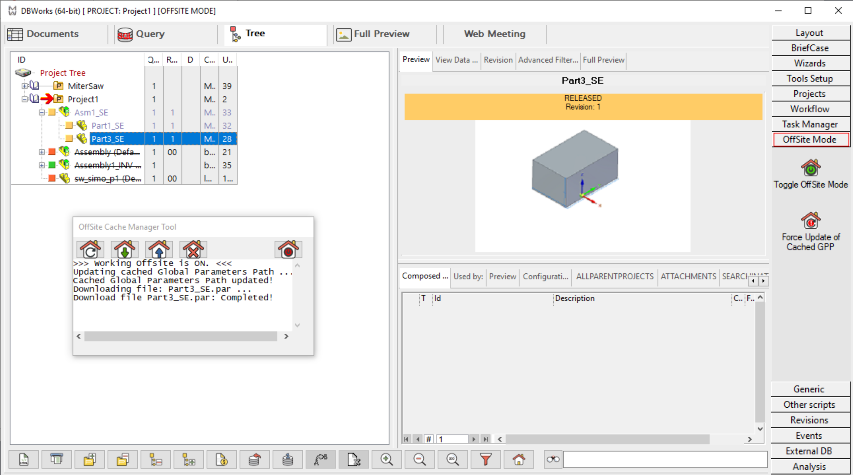
Toggle Off Site Mode
This button enables or disables the mode. Entering the OffSite mode will download on the local machine the needed CAD files and cache some PDM files in order of minimize the remote accesses and also show a new designed window OffSite Cache Manager that has been implemented to log the download and upload operations and interact with the local stored CAD files.
The enabling and disabling process will require you to restart the CAD application to correctly setup the environment.
Force Update of Cached GPP
If pressed it will send a message to every other user and the next time they will start the application, if OffSite Mode is enabled, the cached GPP will automatically be updated.
This button will be visible for administrator users only.
The automatic update will take place at the following reboot.
Prerequisites
DBWAclServer and DBWARM
In case DBWAclServer is enabled, DBWARM activation is mandatory to use OffSiteMode.
If not enabled, a message warns the user about: 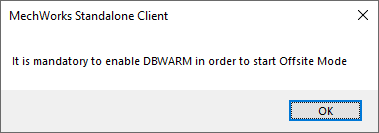
More, the DBWARM users must be the same of the Windows domain users; read more about the funtionality in the Auto-populate topic of DBWARM specific help.
Last, the DBWARM explicit login will be enabled for the whole OffSite Mode usage time if not already enabled in the options: 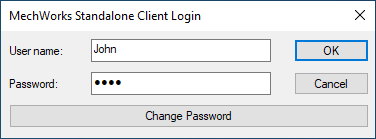
VPN connection
A VPN connection is required to always have access to the remote database and remote file system in order to download and\or upload files and data.
Valorize the COMPANY_ID field in database
A necessary prerequisite to use Offsite Mode is to valorize the Company_id field for each entry into the Document table. To accomplish that it's possible to use Company ID manager tool. You can find it into the Admin Tools under the section Remote Access.
Please note the COMPANY_INFO.DBW_TIME_ZONE_OFFSET field must be NOT NULL in order to properly work with OSM.

Set Remote Access environment
In order to enable the OffSite Mode is necessary to setup the Remote Access environment correctly. To do so it's required to set the following options:
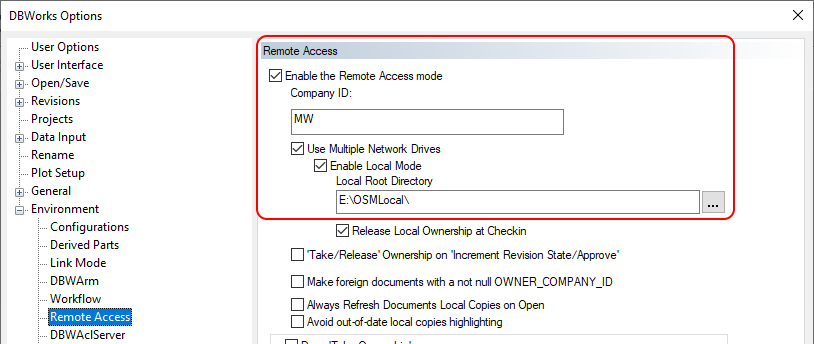
•CompanyIdString is the identifier string of the company. Normally just few characters to remind its name.
•Use Multiple Network Drives
•Enable Local Mode → Local Root Directory is the LOCAL path where the CAD files will be downloaded to let you work locally.
Getting started
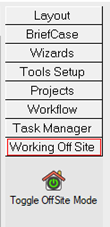
A new tab into the shortcut bar has been added to enable the OffSite Mode called Working Offsite. It contains a toggle button that let the user enable\disable the OffSite Mode, its color will change depending on the current state, green if the OffSite Mode is currently disabled, red otherwise.
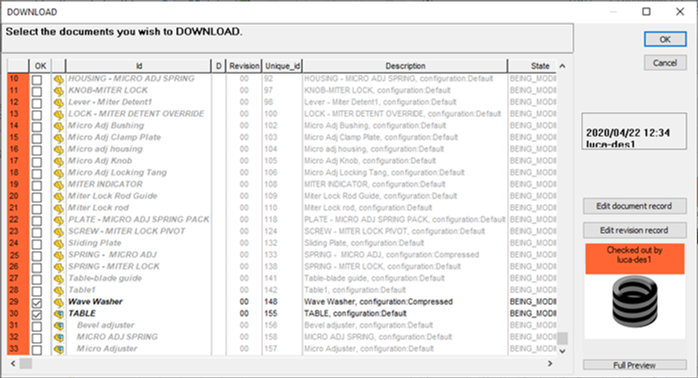
By clicking on it the needed GPP files will be automatically cached and, depending on the options (explained later in this page), a document selector dialog will be prompt to let you choose which CAD files you wish to download in order to work on them locally.
Otherwise if you chose to automatically download your checked-out files, the document selector dialog won't be shown and the files will be automatically downloaded.
Enabling the OffSite Mode will also show the OffSite Cache Manger Tool: a small prompt that cannot be dismissed. Its goal is to log and give feedback about the ongoing operation that the PDM will execute, such as downloading or uploading files, caching or updating GPP files and so on.
The OffSite Cache Manager Tool will be explained later.
Enabling the OffSite Mode let the user have access to a larger set of entry on right mouse click menu on the tree elements. It is possible to download files that you missed downloading at the start or update the local ones. It is also possible to delete from the local cache the files you already downloaded but you no more need. files that have not yet been downloaded will appear strikethrough on the tree, the downloaded ones will appear as usual, to give the client an immediate feedback on what his cache contains.
OffSite Cache Manager Tool
The OffSite Cache Manager Tool has been designed to log the user about every upload and download operation is going on. The window can't be closed while the OffSite Mode is enabled because it's needed to give user immediate feedback on operation that could require a bit of time to be completed due to connection reasons.
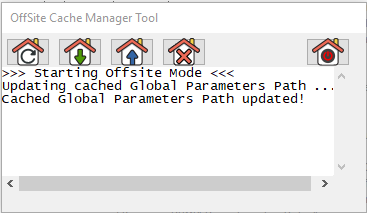
The OffSite Cache Manager windows contains 4 buttons:
|
Refresh Offsite local cache: Updates all the GPP cached files. |
|---|---|
|
Update local files: Shows a document selector dialog populated with the local Checked-in and Released files. You can choose which you want to download from the server file system. |
|
Upload local files: Shows a document selector dialog populated with the local Checked-out and New files. You can choose which you want to upload to the server file system. |
|
Delete local files: Shows a document selector dialog populated with the local Checked-in and Released files. You can choose which you want to delete from local cached files. |
|
Exit Offsite mode: Exit from the OffSite Mode. |


Please note all the above Update listed operations could be time consuming.
OffSite Mode User Options
In the PDM User Options, a section called Offsite Mode contains related options.
Such options are enabled only if the correct Remote Access option are set: 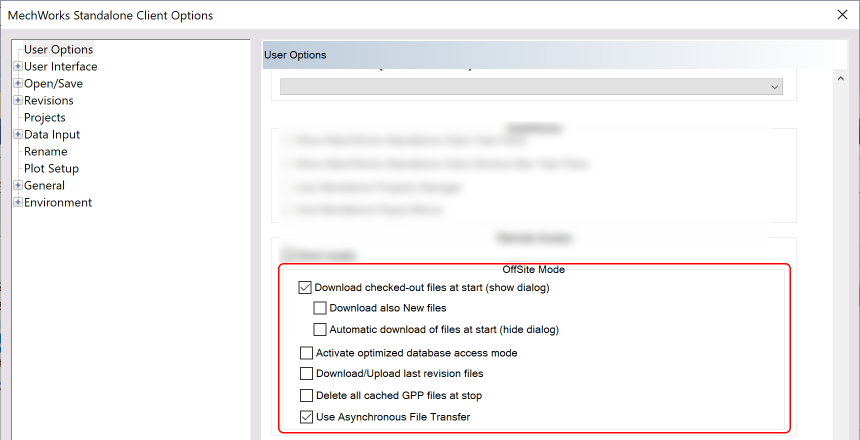
 Download checked-out files at start (show dialog)
If checked, the document selector dialog will be shown, populated only with checked-out files by the current user, and it will be possible to select which file to download.
If not checked, the document selector dialog will be skipped and no file will be downloaded at OffSite Mode start.  Download also new files at start
If checked, also the files in state NEW will be added to the document selector dialog.
Automatic download of files at start (hide dialog)
If checked, the document selector dialog will be hidden and the checked-out files will be automatically downloaded;
depending on the previous option, also the files in state NEW will be downloaded.
Activate optimized database access mode
If checked, the PDM introduces a series of limitations in the user interface to speed up its execution (like the VPN MODE). It is suggested in case of degraded connection.
Download/Upload latest revision files
If checked, the revision files (.gz and .TREE) of the last revision will be downloaded/uploaded at the same time of the corresponding CAD file.
Delete all cached GPP files at stop
If checked, deletes the cached GPP files when exit the Offsite Mode.
Use Asynchronous File Transfer
See specific topic below
PDM options affected by OffSite Mode
Once the OSM has been enabled, some options of the PDM will be forced to a specific value so to fit the OSM functionality.
Here below are the involved options:
Environment→Remote Access→Deny 'Take Ownership'
Environment→Remote Access→Allow 'Take Ownership' even when the file does not exists
Environment→Remote Access→Copy all revision files on a change of ownership
Environment→Remote Access→Copy all revision files on every download/upload
Environment→Remote Access→Allow same user to take the ownership of his own checked-out files
Environment→Remote Access→User Server Side File Transfer
Environment→Remote Access→User DBWAclServer protected File Transfer
Environment→Remote Access→Never download remote files
Download in OffSite Mode
When downloading a released or obsolete file with OSM, the original file will be downloaded instead of the last released version of the file itself.
Asynchronous File Transfer
If enabled, at OffSiteMode start or when clicking RMB on a tree record → OffSite Mode → Download the Remote Component and all the children

selecting the desired file to download and clicking , the download operation will be parallelized.
The core will automatically start a new executable called DBWAsyncAgent that will be in charge of physically copy the files from the server to your local folder while the core is computing the necessary data to be downloaded.
 The parallelization enabled by DBWAsyncAgent will speed the download up by up the 100% of the previous elapsed time.
When the transfer is completed a popup will inform the user of the event and will be possible to access the downloaded components. After 5 minutes of inactivity DBWAsyncAgent will autonomously end. 
Asynchronous Upload of Files
Every upload towards the server is parallelized. DBWAsyncAgent automatically starts and takes care of file transfer while the user can keep on working on other files.
During DBWAsyncAgent file upload the involved records will be locked (many operations including check-in, check-out, approve, download, ... are disabled). A visual cue will be shown in the tree and grids to remind that the record is being uploaded and it can not be modified by any user. 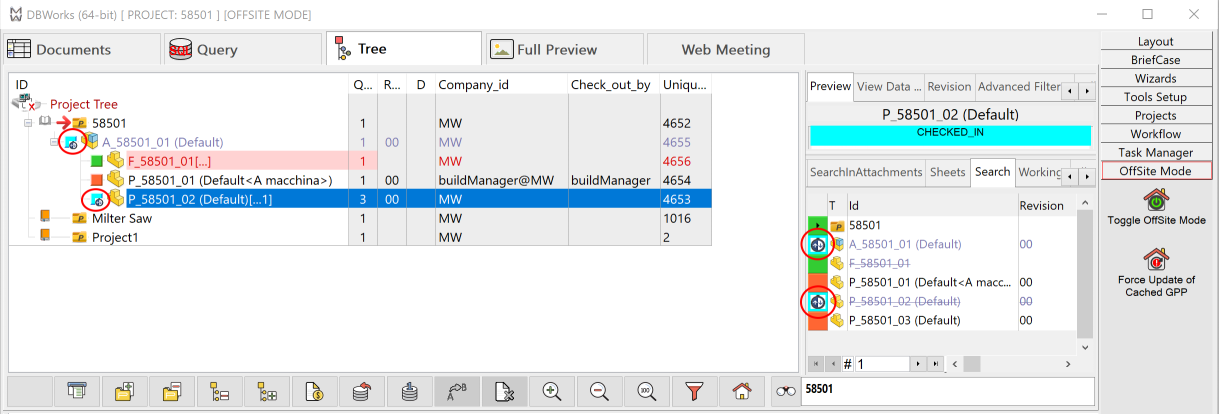
When the transfer is completed, a popup informs the user of the event and that's then possible to modify the uploaded components. 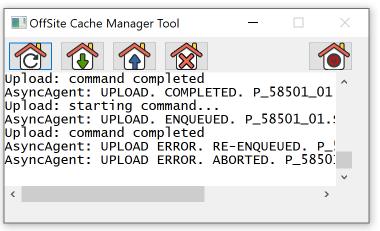 In case of error the upload will be re-enqueued, if the upload fails again it will be aborted. After 5 minutes of inactivity DBWAsyncAgent autonomously ends its execution.
IMPORTANT: In order to enable the User Options→OffSiteMode→ Use Asynchronous File Transfer is mandatory to update the database in order to add the field ASYNC_OPERATION_LOCK to the DOCUMENT table
OffSite Mode Script Environment
It has been implemented a script hook on start and stop events of the OffSite Mode.
The engine checks if exist the file OnOffSiteModeStart.lst (for the start hook) and OnOffSiteModeStop.lst (for the stop hook) in the LST folder of the GPP, if exist they will be fired. The scripts are completely customizable and they are designed to setup the client environment if some non-standard operations need to be performed.
The input parameters for the scripts are:
@CACHED_GPP_PATH = Local folder where the GPP is cached
@CACHED_FILES_DIRECTORY = Local folder where the files are cached (there can be multiple instances depending on the number of entries in the DBW_COMPANY_INFO table).
Solidworks Toolbox and OffSite Mode
In order to use SW Toolbox components while OffSite Mode is enabled we suggest two ways:
•Mode 1
Take advantage of the OnOffSiteMode.lst script to download the entire SW Toolbox in the locally mapped drive when OffSite Mode is enabled.
It is a one-time operation that let the user work with every SW Toolbox component locally.
It is much faster once the toolbox has been downloaded.
•Mode 2
oSet the SW Toolbox folder to UNC path as shown in figure in the SolidWorks options under Hole Wizard/Toolbox section.
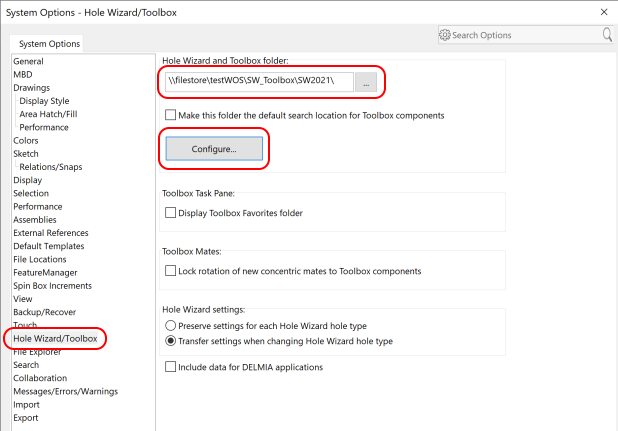
oPress the "Configure" button and go to "User options" section
oHere select the "Create Parts" radio button and set the path in a drive mapped in DBW_COMPANY_INFO table as shown in figure:
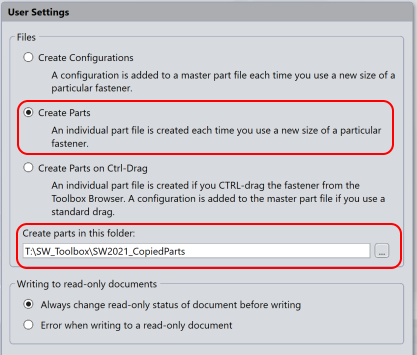
By using this method every time a toolbox component is used into an assembly, it will be automatically copied into the selected folder, while the its metadata will be accessed from the remote machine even if OffSite Mode is enabled.
Please note once this mode is set, the toolbox components will be registered in the database with the specified folder path, so it needs to be managed if Options → General → standard parts settings are enabled.
Concurrent engineering with Offsite Mode
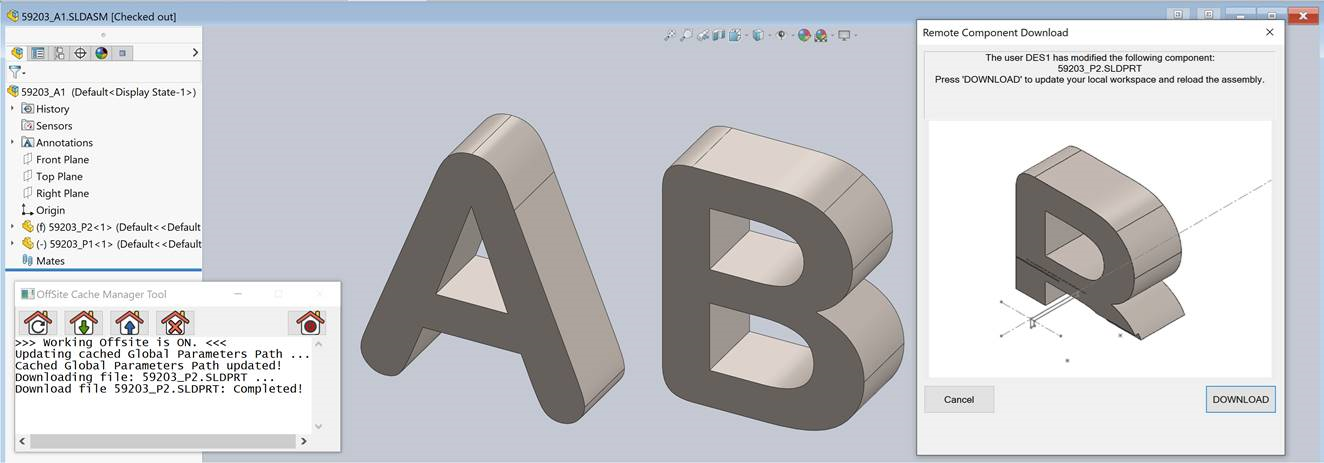
If OffSite Mode is active a reload notification will be send on upload only.
If a reload notification is received while OffSite Mode is active a dialog will be shown: if button is pressed, the component will be downloaded and the assembly currently opened in the CAD will be automatically reloaded.
DBWARM right for Offsite Mode
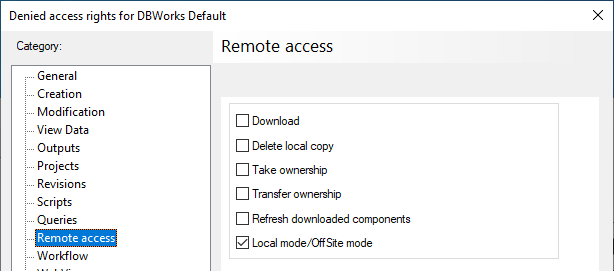
It is possible to submit OffSite Mode usage to a DBWARM right: