Introduction
Considerations for the implementation over multiple domains
SQL Server and Internet: firewalls
SQL Server and Web Synchronization
Database replication
Partial Database Replication
DBWorks Database Replication
Full or Partial Replication
Automatic setup procedure for enabling the DBWorks database to be replicated
File replication
Manual setup procedure for enabling the DBWorks database to be replicated
Manual Setup procedure for implementing a DBWorks database partial replication
DBWorks specific features for supporting the Partial Database Replication
Introduction
•The proposed model is composed of many Microsoft SQLServer databases, one for each company ( plus an Central Server, if the Partial Replication is needed ), replicating one each other through the standard replication services of Microsoft SQLServer, and many shared file archives, one for each company, accessible from any other company through an IP address or UNC path.
•All the companies must use the same localization and schema of the database; it is not possible to have more than one language in the same database ( Example: if an English company has a subsidiary in Germany, the German company must use the same database in English language ). It is possible to have different User Interface localizations, so having the database user interface correctly set for each language.
•Each company will have assigned a COMPANY_ID, that is a unique identifier assigned by the DBWorks Administrator.
•Each company must have the same directory structure with the same network logical units.
•Every company will have a SHARED_PATH, that is a shared resource available from the network and containing the components to be shared across the company group; it can be the same server machine used as file server, or a mirror of this last; this information must be stored in the table DBW_COMPANY_INFO of the MechworksPDM database:
DBW_COMPANY_INFO |
|||
|---|---|---|---|
PK |
Field Name |
Data Type |
Allow Nulls |
COMPANY_ID |
varchar(50) |
|
|
SHARED_PATH |
varchar(256) |
|
|
NETWORK_DRIVE |
varchar(2) |
|
|
DBWSTDALONE_SERVER_PATH |
varchar(255) |
|
|
DBW_TIME_ZONE_OFFSET |
varchar(10) |
|
|
OFF_LINE |
varchar(1) |
|
|
LOCAL_SERVER_NAME |
varchar(50) |
|
|
REPLICATION_PARTNERS |
varchar(128) |
|
|
DBWSTANDALONE_SERVER_PATH |
varchar(255) |
|
|
DBW_REVISIONS_UNIQUE_ID_RANGE |
varchar(50) |
|
|

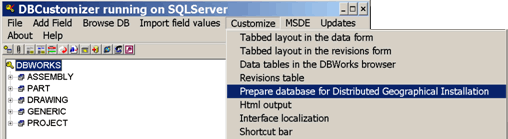
The above table, and all what is needed for the database structure are automatically created by DBCustomizer, using the specific functionality Customize→Prepare database for Distributed Geographical Installation:
Example
Company |
Lamborghini |
|---|---|
COMPANY_ID |
Lamborghini |
SHARED_PATH |
\\212.140.15.10\D |
SW files stored in |
P:\SWFiles |
|
|
Company |
Ferrari |
COMPANY_ID |
Ferrari |
SHARED_PATH |
\\212.190.25.15\M |
SW files stored in |
P:\SWFiles |
|
|
Company |
Maserati |
COMPANY_ID |
Maserati |
SHARED_PATH |
\\212.115.10.16\Z |
SW files stored in |
P:\SWFiles |
|
|
Table DBW_COMPANY_INFO |
|
COMPANY_ID SHARED_PATH |
|
Lamborghini |
\\212.140.15.10\D |
Ferrari |
\\212.190\25.15\M |
Maserati |
\\212.115.10.16\Z |
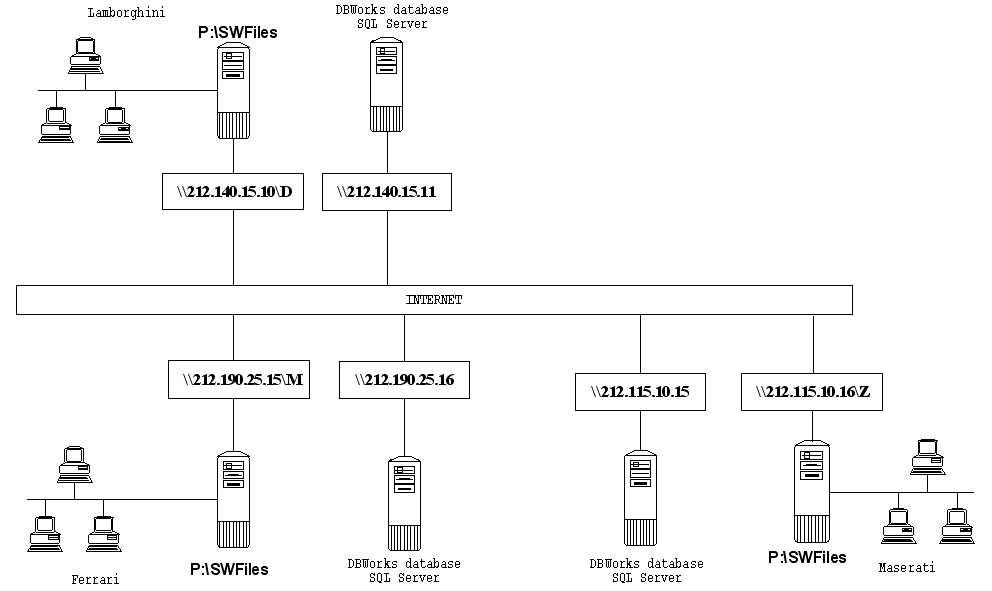
For more details about the built-in support of MechworksPDM for the Remote Access Mode, please refer to the topic Remote Access Mode in the Help of MechworksPDM.
Considerations for the implementation over multiple domains
For an easy and successful implementation, all the domains should be trusted each other ( using the standard Windows 2003 Administrative Tools→Active Directory Domains and Trusts functionality ), so having a common administrative personality being declared on every domain PDC.
The same personality must also be declared in the SQL Server’s logins, so to be assigned as start personality to all the SQL Server Services and Agents. If this is not possible, it is suggested to use the SQL Server Authentication method, so creating an Administrative personality on the publisher ( the standard ‘sa’ can be used, of course ) and authenticating each subscriber with this SQL Server login.
SQL Server and Internet: firewalls
When connecting the SQL Servers through the Internet, you have to open up the router ports that SQL Server uses. If you've done this and it still doesn't work then look at the firewall logs to see what packets it is dropping or do a network trace either side of the firewall to see what packets are not getting through. (You may want to disable/allow all through the firewall during testing to see what extra packets are allowed through).
Which ports to open depends on the net-lib you are using :
•For tcp-ip sockets the default port for SQL Server is 1433.
•For multi-protocol (rpc) the ports are normally variable, but you can fix them. See Q164667 in the MS knowledge base for details.
•For named-pipes over ip 137/138/139 are used. As these are the same ones used for file/print it is not recommended you allow these through the firewall.
SQL Server and Web Synchronization
It is possible to use Web synchronization ( which requires HTTPS ) as transport layer for the merge replication.
Database replication
Microsoft SQL Server 2005 replication
Microsoft SQL Server 2005 merge replication model is composed of the following: Publisher, Distributor, Subscribers.
Publisher
The Publisher is a server that makes data available for replication to other servers. The Publisher can have one or more publications, each representing a logically related set of data. In addition to being the server where you specify which data is to be replicated, the Publisher also detects which data has changed during transactional replication and maintains information about all publications at that site.
Distributor
The Distributor is a server that hosts the distribution database and stores history data, and/or transactions and meta data.
A remote Distributor is a server that is separate from the Publisher and is configured as a Distributor of replication. A local Distributor is a server that is configured to be both a Publisher and a Distributor of replication.
Subscribers
Subscribers are servers that receive replicated data. Subscribers subscribe to publications, not to individual articles within a publication, and they subscribe only to the publications that they need, not all of the publications available on a Publisher. Depending on the type of replication and replication options you choose, the Subscriber could also propagate data changes back to the Publisher or republish the data to other Subscribers.
Merge Replication Type
Merge replication allows various sites to work autonomously (online or offline) and merge data modifications made at multiple sites into a single, uniform result at a later time. The data is synchronized between servers either at a scheduled time or on demand. Updates are made independently (no commit protocol) at more than one server, so the same data may have been updated by the Publisher or by more than one Subscriber. Therefore, conflicts can occur when data modifications are merged. Merge replication is helpful when:
•Multiple Subscribers need to update data at various times and propagate those changes to the Publisher and to other Subscribers.
•Subscribers need to receive data, make changes offline, and synchronize changes later with the Publisher and other Subscribers.
•The application latency requirement is either high or low.
•Site autonomy is critical.
How Merge Replication Works
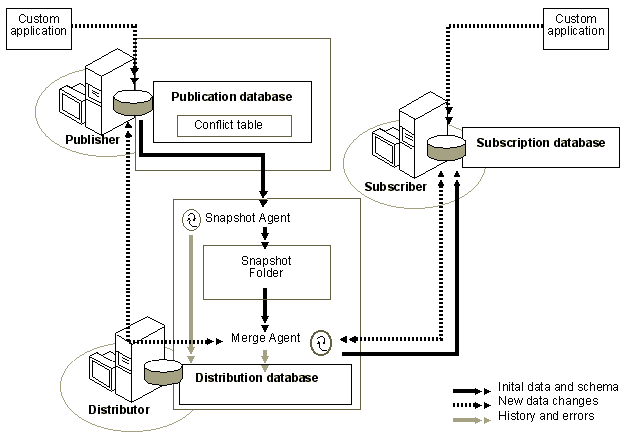
Merge replication is implemented by the Snapshot Agent and Merge Agent. The Snapshot Agent prepares snapshot files containing schema and data of published tables, stores the files in the snapshot folder, and inserts synchronization jobs in the publication database. The Snapshot Agent also creates replication-specific stored procedures, triggers, and system tables.
The Merge Agent applies the initial snapshot jobs held in the publication database tables to the Subscriber. It also merges incremental data changes that occurred at the Publisher or Subscribers after the initial snapshot was created, and reconciles conflicts according to rules you configure or a custom resolver you create.
The role of the Distributor is very limited in merge replication, so implementing the Distributor locally (on the same server as the Publisher) is very common. The Distribution Agent is not used at all during merge replication, and the distribution database on the Distributor stores history and miscellaneous information about merge replication.
UNIQUEIDENTIFIER Column
Microsoft SQL Server 2005 identifies a unique column for each row in the table being replicated. This allows the row to be identified uniquely across multiple copies of the table. If the table already contains a column with the ROWGUIDCOL property that has a unique index or primary key constraint, SQL Server will use that column automatically as the row identifier for the publishing table.
Otherwise, SQL Server adds a uniqueidentifier column, titled rowguid, which has the ROWGUIDCOL property and an index, to the publishing table. Adding the rowguid column increases the size the publishing table. The rowguid column and the index are added to the publishing table the first time the Snapshot Agent executes for the publication.
Partial Database Replication
In order to implement a Partial Database Replication, it must exist a neutral central server acting as Publisher, to which all the companies are attached with a Pull-type Subscription.
Central server as Publisher / Production servers as Subscribers
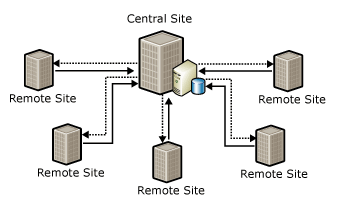
The Publisher ( in the above figure Central Site ) starts with an empty database, while the Subscribers can have an empty or not empty database.
No initialization ( no snapshot ) must be applied to the Subscribers ( in the above figure Remote Site ), in order to avoid the reset of the data in the database.
Even if all changes are occurring at the remote sites ( the real companies ), the central server must be configured as the Publisher with the remote sites as Subscribers.
The following diagram illustrates the filtering associated with this scenario:
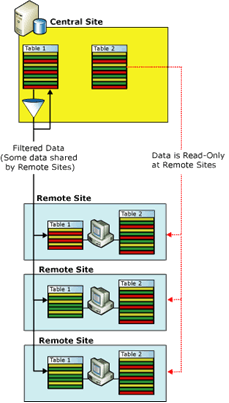
Merge replication allows you to specify code to be executed during synchronization. This code can respond to a wide range of events and has access to the data that is being synchronized.
MechworksPDM Database Replication
The proposed model for the MechworksPDM Database Replication can be described as follows:
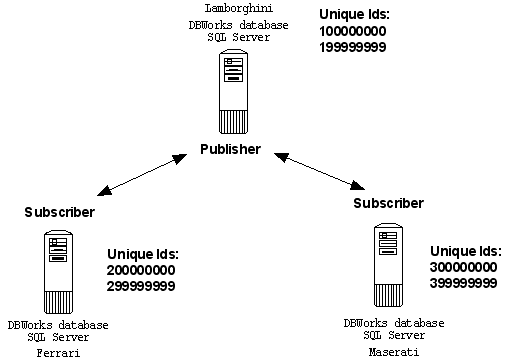
•An MS SQL Server of the group ( or a neutral SQL Server ) is the Publisher; all the other SQL Server are Subscribers of the Publisher
•All the SQL Server that are not the Publisher, will create a Pull Subscription to the published main database
•Every company has a distinct range of unique identifiers ( field UNIQUE_ID ) for the DOCUMENT table ( read also the Note below )
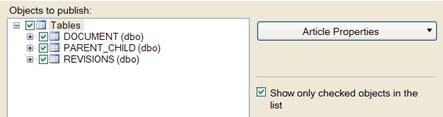
•From the publisher SQL Server, the three main tables DOCUMENT, PARENT_CHILD and REVISIONS will be Published
•When a company will have the need to directly manipulate documents belonging to other companies, it will use the standard Take Ownership method of the Remote Access support ( see later in this document )
It is also possible to replicate the DBWArm, Remote Access and Workflow tables. In particular:
Replicate the DBWArm tables
The following tables must be added to the articles to be published:
DBWARM
DBWORKS_USERS
DBW_PROJECT_USER
Replicating the DBWArm tables mean that every user, across the enterprise, must have a UNIQUE LOGIN NAME and possibly a UNIQUE FULL NAME, independently of the Domains where these users are declared.
Replicate the Remote Access tables
The following tables must be added to the articles to be published:
DBW_COMPANY_INFO
Replicate the Integrated Workflow tables
The following tables must be added to the articles to be published:
DBW_WORKFLOW
DBW_WORKFLOW_EVENT_LOG
It is suggested also to replicate the demo ECO table, at least for testing the workflow across the enterprise:
DBW_WORKFLOW_ECO
A picture showing the replication between three companies is shown below:
Full or Partial Replication
It is possible to choose between two replication solutions: Full and Partial
Full replication
Each table is fully replicated. Easy to setup, can be used when the number of companies does not exceed 4-5.
Mandatory tables to be FULLY replicated: |
|---|
DOCUMENT |
REVISIONS |
PARENT_CHILD |
DBW_COMPANY_INFO |
DBW_REMOTE_ACCESS_LOG |
DBW_DRAWINGS_SHEETS |
Optional tables: |
|---|
DBWARM |
DBWARM_CLASS_GROUP |
DBWORKS_USERS |
EVENT_LOG |
DBW_PROJECT_USERS |
DBW_WORKFLOW |
DBW_WORKFLOW_EVENT_LOG |
Partial replication
Some tables are fully replicated, some other are partially replicated, by using a dynamic filter. A more complex setup is needed. It is recommended when the number of companies does exceed 4-5 and the DOCUMENT table can be quite large (100000 records).
Mandatory tables to be FULLY replicated: |
|---|
DBW_COMPANY_INFO |
DBW_REMOTE_ACCESS_LOG |
DBW_DRAWINGS_SHEETS |
Mandatory tables to be PARTIALLY replicated: |
|---|
DOCUMENT |
REVISIONS |
PARENT_CHILD |
Optional tables to be FULLY replicated: |
|---|
DBWARM |
DBWARM_CLASS_GROUP |
DBWORKS_USERS |
Optional tables to be PARTIALLY replicated: |
|---|
EVENT_LOG |
DBW_PROJECT_USERS |
DBW_WORKFLOW |
DBW_WORKFLOW_EVENT_LOG |
File deletion in a partial replication environment
In a partial replication environment records are replicated to the other sites based on the REPLICATION_PARTNERS content.
If a record that has already been replicated gets delete on the owner site it is marked as *DEL*<OWNER_COMPANY_ID> (e.g. *DEL*Mechworks) and set to the FROZEN state.
This is down to indicate to the replicated companies that the OWNER COMPANY has deleted the record.
Project replication
A project is replicated to a remote site when we put that Company_ID in the REPLICATION_PARTNERS field.
As for common records,if you delete the project in the owner site the result will be marked as *DEL*<OWNER_COMPANY_ID> in the remote site and in frozen state.
To remove the project completely on both sites you must first remove all partners in the REPLICATION_PARTNERS field and after that delete the project.
DELETE logic for a partial replication database (REPLICATION_PARTNERS considered)
1.Proprietary document:
a.not null REPLICATION_PARTNERS:
update with *DEL* the company_id
set record state to OBSOLETE
stop further processing
b.null REPLICATION_PARTNERS:
update with *DEL* the company_id
set record state to OBSOLETE
go to point 3.
2.Foreign or _SHARED document:
Remove the current company_id from the REPLICATION_PARTNERS
(since of the filtered replication, the record will disappear from the current database subscriber)
stop further processing
3.Execute DELETE ... statement in the database
More,in recente builds the CreateReplicationScripts.vbs script is allowing the "propagation" (delete_tracking replication flag) across all the replicated databases;
if no Replication partners are attached to a specific Document record, such record is permanently deleted, and, since of the delete_tracking setting, its deletion is propagated across all the replicated sites.
Automatic setup procedure for enabling the MechworksPDM database to be replicated
Requirements
1.3 instances of Sql Server 2005 ( Standard edition with Sql Server authentication ): 1 for the Publisher and 2 for the subscribers.
The number of subscribers depends on how many sites collaborate.
2.3 identical MechworksPDM databases with the latest MechworksPDM structure (current SP 2.0 beta)
3.Appropriate setting of the UNIQUE_ID field in the subscribers DOCUMENT table with separate seed range and in particular:
The Identity must be set to Yes (Not For Replication)
The Identity Seed must be set to a value so that the range of unique ids for every company will be distinct and not overlapping; so, for example, if 2 companies are involved in the replication process, you can assign the Identity Seed as follows:
•Site 1: Identity Seed = 100000000 (one hundred millions)
•Site 2: Identity Seed = 200000000 (two hundred millions)
4.Appropriate setting of the UNIQUE_ID field in the Publisher DOCUMENT table :
The Identity must be set to Yes (Not For Replication)
5.2 MechworksPDM installations pointing to the subscriber databases with:
•Remote Access option activated and different COMPANY_ID
•DBW_COMPANY_INFO table filled in with a row for each site
(please refer to The Remote Access Mode topic for further details)
6.Creation of a shared path on the Publisher with full access to Everyone for database snapshot creation
7.CreateReplicationScripts.vbs in the LST folder
8.Replication_parameters.txt in the PAR folder
9.Replication_Partners.spt in the LST folder
10.Replication_Partners.dbwfrm in the LST\SYSTEM directory
Usage
The parameter file Replication_parameters.txt looks like :
;Replication parameter file
;==========================
;Need explicit login ,no windows authentication, for publisher and each subscriber
;All values for SUBSCRIBER and PUBLISHER definitions must be between single quotes ex. 'abs' "
;
;Subscriber info : subscriber instance name , login ,password,database name,hostname (must be listed in the field COMPANY_ID of the DBW_COMPANY_INFO table )
;
;Publisher info : Publisher instance name , login ,password,database name,publication name, snapshot folder '\\server\share'
;
;FILTER_REPLICATION if set to 1 database replication will be dependent on the values of the REPLICATION_PARTNERS field otherwise all records are replicated to all subscribers
;
;
;You may extra articles for FULL replication
;EXTRA_ARTICLE=DBWORKS_USERS
;
SUBSCRIBER='ACER8106\SUB1','sa','dbworks','DBWorks','Doboy'
SUBSCRIBER='ACER8106\SUB2','sa','dbworks','DBWorks','Tevopharm'
;
PUBLISHER='ACER8106\ACER8106','sa','dbworks','DBWorks','DBWorksPub','\\acer8106\disco_y'
;
FILTER_REPLICATION=1
;
a.All Sql Server names are full qualified names with Computer\Instance.
b.All logins are Sql Server logins with System Admin rights
c.HostName must be the same as content of the DBW_COMPANY_INFO table and MechworksPDM Company_ID option
Executing the script generates a subdirectory structure under PAR directory:
\PAR\Replication_scripts\
and
\PAR\Replication_scripts\remove\
In the first directory you will find the T-Sql scripts SetupReplication.bat that can be executed in query pages of Sql server and also batch files that will use SqlCmd utility to run the T-Sql scripts on the appropriate Sql Server.
In the second folder you will find the script RemoveReplication.bat that stops replication process.
The batch file can only be executed on a PC that has Sql Server Management Studio installed or the Sql Server Client tools.
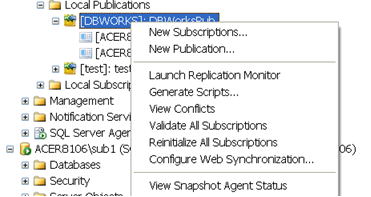
SQLServer Management Studio
1.On the Publisher you should see the publication created with the relative subsciptions under it.
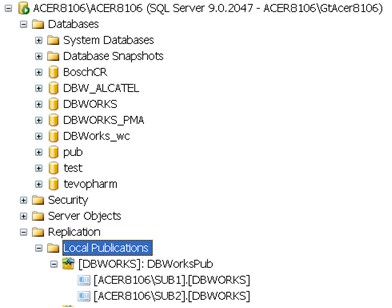
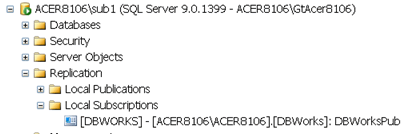
2.On the subscriber you should see the subscription created.
3.On the Publisher you should check the status of the snapshot agent , in some cases it may be needed to start it manually.
File replication
Introduction
File replication mechanism allows you to download from the remote site all/certain file marked with another COMPANY_ID.
To perform file replication you can choose between 2 methods: automated procedure or manual procedure.
Requirements
•Standalone Client must be installed on the server and connected to replicated DB
•Parameters of Standalone Client must be local (not the same of the standard MechworksPDM istallation)
•Standalone user must belong to the DBWorks Standalone Power Users group.
Automated procedure (scheduled task)
Even if you can run the script for this method manually, it has been designed to be run automatically, through a Windows scheduled task.
The file to be set as scheduled task is LST\SYSTEM\replicate_cscript_2006.vbs (that recalls the LST\SYSTEM\Replicate_batch_2006.vbs)
Because the LST\SYSTEM\ folder is a system folder, files under this folder are overwritten when performing an update.
For this reason, if you need to customize the relication script, you'd better to move it under another folder (LST\ for example) so to not loose your customization when updating.
To change its location, simply move the script file and modify the path inside the scheduled task script.
The file replication script replicate_batch_2006.vbs has been modified to support a parameter file PAR\ReplicationScriptParameters.par.
Such parameter file will be created if not existing and will contain the default values.
SHOWPROGRESSBAR=1
DOWNLOADNONEXISTINGFILES=1
With the parameter file it will not be necessary to change the script anymore for controlling the Progress bar and the check on "Non existing files"
If you change the value of DOWNLOADNONEXISTINGFILES parameter , you obtain the whole database download or only the already downloaded components.
If set to 1 (default), when executing the script, all components with different COMPANY_ID value will be downloaded locally.
If set to 0, only locally already existing components will be downloaded again.
Example
Suppose the remote server contains components A, B, C, D, E.
Suppose the user of your company donwload manually components A,C,D with RMB→Download the remote component method.
Then if you run the script with
DOWNLOADNONEXISTINGFILES=1
all components will be downloaded: A, B, C, D, E.
Otherwise if you run the script with
DOWNLOADNONEXISTINGFILES=0
components that will be downloaded are only A, C, D.
No Login version
If you need to run the script from a server that must remain in a no-logged state, you have to execute the adapted version of the replication procedure: LST\SYSTEM\replicate_batch_2006_no_login.vbs
this script :
•has no user interface
•reads mapped drives directly from DBW_COMPANY_INFO database table
Manual procedure (DBWForm)
Under distributed system you can find a script that run a dbwform: LST\SYSTEM\replicate_documents.vbs.
Since it's not exposed in the default shortcut bar, you have to run it manually (to know how to make it visible take a look to the specific Shortcut Bar topic).
Differences between procedures running the form rather than an automatic procedure are:
•You can simulate the process
•You can synchronize only a single project documents rather than the whole database
•It has to be run on the server if serverside download is active (since it uses the !command.!!! mechanism)
As reference, in Download shell command you can find error codes returned by this process.
Manual setup procedure for enabling the MechworksPDM database to be replicated
The following procedure also assumes that you just have created a MechworksPDM database in all the SQL Servers involved in the replication process, and that all the database have exactly the same tables with the same structures.
All the actions are referenced to the Enterprise Manager of SQL Server.
Step 1: Change the UNIQUE_ID field definition
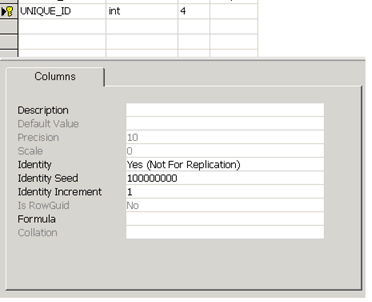
Edit the definition of the DOCUMENT table and change the UNIQUE_ID field definition as follows:
In particular:
•The Identity must be set to Yes (Not For Replication)
•The Identity Seed must be set to a value so that the range of unique ids for every company will be distinct and not overlapping; so, for example, if three companies are involved in the replication process, you can assign the Identity Seed as follows:
Company 1: Identity Seed = 100000000 (one hundred millions)
Company 2: Identity Seed = 200000000 (two hundred millions)
Company 3: Identity Seed = 300000000 (three hundreds millions)
Consider that in a reference installation of MechworksPDM, with 80/100 seats, there is a generation of about 50000 unique ids per year, so a range of 100000000 means that this will be safe for at least 2000 years !
Before doing any other operations, repeat the steps above for every SQL Server of the company group, so that every MechworksPDM database will have the UNIQUE_ID field defined as above.
Step 2: configure the distributors on all the SQL Servers
•In all the servers, create a share C ( or D, or E, or what you want on any of the disks ), and under this share, create a directory SqlServerReplication, so that this directory can be addressed as \\<servername>\<share>\SqlServerReplication
•Start now the SQL Server Enterprise Manager and select the SQL Server on which you want to operate
•Go in Tools→Replication→Configure Publishing, Subscribers and Distribution …
•When asked, change the SnapShot folder to the \\<servername>\<share>\SqlServerReplication created appositely for this purpose; don't accept the default under MSSQL\... since often this directory has the access denied to foreign domain administrators, so causing problems in the snapshot file transfers.
Step 3: publish the DOCUMENT, PARENT_CHILD, REVISIONS and DBW_REMOTE_ACCESS_LOG tables
•In the SQL Server candidate for the role of Publisher, select the DBWORKS database
•Go in Tools→Replication→Create and Manage Publications …
•Select the DBWORKS database and press Create Publication …
•The Create Publication Wizard will start: click Next
•Choose DBWorks and click Next
•For the Publication Type, select Merge, and click Next
•For the Subscriber Types, select only Servers running SQL Server 2000; then click Next
•In the Specify Articles page, check, in the right box, the entries: DOCUMENT, PARENT_CHILD, REVISIONS, DBW_REMOTE_ACCESS_LOG; then click Next
•A page named Article Issues will be displayed, saying that uniqueidentifier columns will be added to tables; accept and click Next
•A page asking the Publication name will be displayed: accept the default DBWORKS and press Next
•A page Customize the Properties of the Publication will be displayed: choose Yes, I will define data filters … and click Next
•A page Filter Data will be displayed: don't check nothing and click Next
•A page Allow Anonymous Subscriptions will be displayed: choose Yes, allow anonymous subscriptions and click Next
•A page Set Snapshot Agent Schedule will be displayed: accept the defaults and click Next
•The final page will be displayed: press Finish to start the Publication of the Database
If all successful, after pressing the OK for some notification dialogs, a new folder named Publications will be created under the DBWORKS database folder; opening it, the Publication DBWORKS will be shown.
Step 4: pull the Subscribers
For all the remaining SQL Servers, different from the Publisher:
•Select the DBWORKS database
•Choose Tools→Replication→Pull subscription to …; a dialog Pull Subscription will be displayed; select DBWORKS and click the Pull New Subscription button.
•The Pull Subscription Wizard will start: click Next
•In the Look For Publication dialog, choose Look at publications from registered servers (the default) and click Next
•In the Choose Publication page, expand the server that you know is the Publisher and select the DBWORKS publication; then click Next
•In the Choose Destination Database page, select DBWORKS and click Next
•In the Allow Anonymous Subscription page, choose Yes, make the subscription anonymous and click Next
•In the Initialize Subscription page, choose No, the Subscriber already has the schema and data (you already must have created before starting the Publishing process); then click Next
•In the Set Merge Agent Schedule page, choose Continuously and click Next
•In the Start Required Services, click Next
•The final page will be displayed: press Finish to start the Subscription of the SQL Server
If all successful, after pressing the OK for some notification dialogs, a folder named Pull Subscriptions, containing the just created Subscription, will be created under the DBWORKS database folder.
Note on network connectivity for Pull Subscriptions:
When a pull subscription runs, the distribution agent is run on the subscriber. Therefore the account used to start SQL Agent on the subscriber needs to be able to access the directory of the Publisher chosen as default for the initial snapshot.
To check for path problems, right click on your publication, select properties, select snapshot location and ensure that your subscription was created in the default location.
To check for access problems, make sure your subscriber sql server agent account can access the default folder.
By default the snapshot folder path should be
\\ServerName\c$\Program Files\Microsoft SQL Server\MSSQL\ReplData
(Please note that you normally need to specify an administrative share, in this sample c$ )
To read and verify the snapshot folder for the Publisher (which affects all publications on this Publisher), connect to the Publisher/Distributor, RMB on the Replication folder, select Configure Publisher, Subscribers and Distribution …, open the Publisher and Distributor Properties dialog box, click on the Publishers tab, select this Publisher, and then click the browse button (. . .).
What account is used to start SQL Agent service on the subscriber? It must be an account with permissions on the above path. To check this, log into NT/Win2000 on the subscriber with that account and from a command line use
net use \\servername\c$\program files\microsoft sql server\mssql\repldata\unc
(of course you can use any other path you have chosen on the remote publisher server)
Make sure you are not prompted for login credentials when running the net use command.
Manual Setup procedure for implementing a MechworksPDM database partial replication
•Each replicated table of each Subscriber must have a field named REPLICATION_DIRTY
•Each replicated table of each Subscriber must have a field named rowguid ( UNIQUEIDENTIFIER, ROWGUID=YES,Default=NewSequentialId())
•An UPDATE DOCUMENT/REVISIONS/PARENT_CHILD SET REPLICATION_DIRTY=1 must be executed on each Subscriber for transferring actual database data to the Publisher database
•The DOCUMENT table must have a field named REPLICATION_PARTNERS of type nVarChar(128)
PUBLISHER
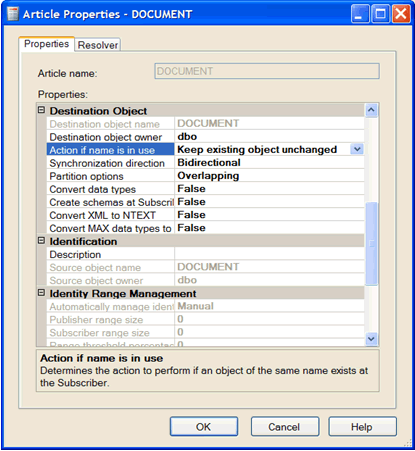
Article Properties
Article Properties modified in order to avoid delete/create of target existing objects on the Subscriber; Identity Range Management must be set to “Manual”
Define dynamic filters
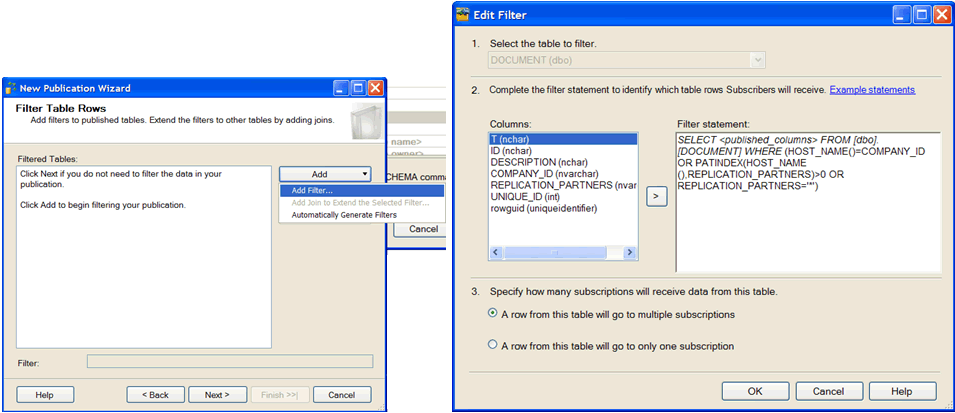
DOCUMENT table filter:
WHERE (HOST_NAME()=COMPANY_ID OR CHARINDEX(HOST_NAME(),REPLICATION_PARTNERS)>0 OR REPLICATION_PARTNERS='*')
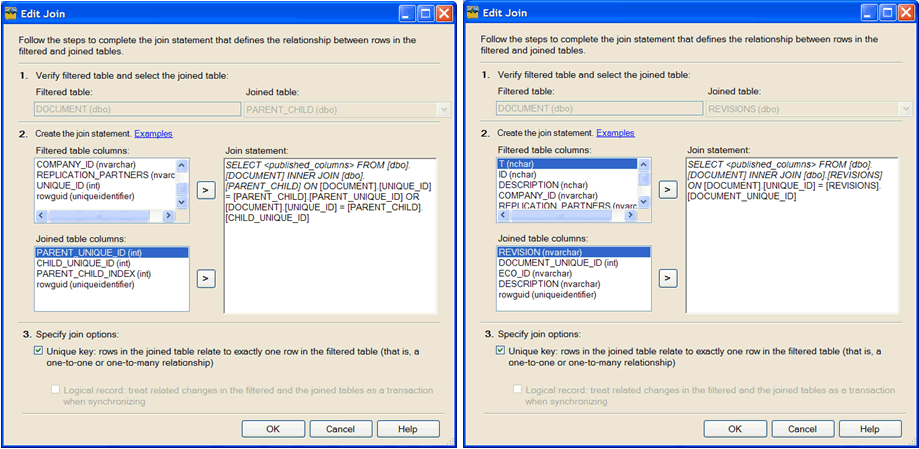
Apply a Join Filter on the PARENT_CHILD ( for the PARENT_UNIQUE_ID ) and REVISIONS table:
PARENT_CHILD JOIN filter:
SELECT <published columns> FROM DOCUMENT INNER JOIN PARENT_CHILD ON DOCUMENT.UNIQUE_ID=PARENT_CHILD.PARENT_UNIQUE_ID OR DOCUMENT.UNIQUE_ID=PARENT_CHILD.CHILD_UNIQUE_ID
REVISIONS JOIN filter:
SELECT <published columns> FROM DOCUMENT INNER JOIN REVISIONS ON DOCUMENT.UNIQUE_ID=REVISIONS.DOCUMENT_UNIQUE_ID
Snapshot
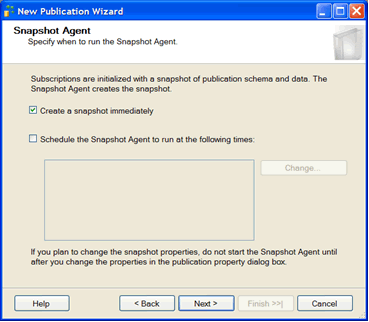
Snapshot required (it creates the rowguid field, if it is missing):
SUBSCRIBER
Dynamic filters: HOST_NAME() used for filtering data
To override the HOST_NAME() value specify a value on the HOST_NAME() Values page of the New Subscription Wizard:
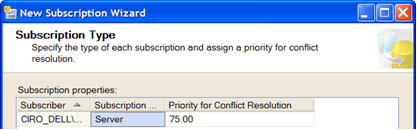
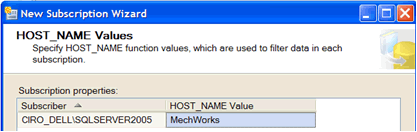
The trick is to assign in the HOST_NAME Value the current COMPANY_ID of the MechworksPDM installation
MechworksPDM specific features for supporting the Partial Database Replication
Take Ownership functionality
The Take Ownership functionality manages the REPLICATION_PARTNERS field by always automatically populating the REPLICATION_PARTNERS field with the current COMPANY_ID; this feature is needed in order to avoid that the record disappears on the current COMPANY_ID side.
Example
UNIQUE_ID |
COMPANY_ID |
REPLICATION_PARTNERS |
|---|---|---|
100000100 |
MechWorks |
DDG NA-IPS |
DDG takes the ownership:
UNIQUE_ID |
COMPANY_ID |
REPLICATION_PARTNERS |
|---|---|---|
100000100 |
DDG |
MechWorks NA-IPS |
Management of the REPLICATION_DIRTY flag
The REPLICATION_DIRTY flag is automatically managed by MechworksPDM for starting the flow of data of each linked table ( like the PARENT_CHILD and the REVISIONS table ).
Scripts for the setup automation of the Partial Replication
A set of scripts (written in Transact-SQL) is available for automating the creation of the neutral Publisher and of each Subscription.