Interface for managing remote documents
Tree interface
When the Remote Access Mode is enabled, a purple marker indicates remote documents and new commands are added to the contextual menus of every grid:
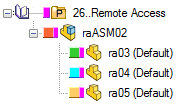
An out-of-date record is highlighted in red color.

you can chose to disable this coloration through the option Environment→Remote Access→ Avoid out-of-date local copies highlighiting
Out-of-date local copy state
The out-of-date state is set for any already downloaded foreign document that has the LAST_MODIFIED_DATE value that's newer than the file date.
The minimum time difference that will be highlighted is one minute.
To properly manage this feature,a field named DBW_TIME_ZONE_OFFSET of type VARCHAR(10) has to exist in the DBW_COMPANY_INFO table.
For each company, the field must be populated with a string representing the GMT time offset (similar to the standard Windows->Date and Time Properties->Time zone format [+/-][HH]:[MM])
Daylight Saving Time
The day-light saving time must be updated directly in the DBW_TIME_ZONE_OFFSET by the MechworksPDM Database Administrator;
this does mean that if, for example, the current GMT offset is +01:00 and the company location has the day-light saving time activated, the DBW_TIME_ZONE_OFFSET must be set to +02:00 for that period.
Example
COMPANY_ID |
DBW_TIME_ZONE_OFFSET |
Location |
|---|---|---|
MechWorks |
+01:00 |
Bologna, (Italy) GMT + 1:00 (Central Europe Standard Time) |
DDG |
-07:00 |
Duluth, GA (USA) GMT - 4:00 (Eastern Daylight / Summer Time) |
NA-IPS |
-06:00 |
Hammond, WI (USA) GMT - 5:00 (Central Daylight / Summer Time) |
Grids interface
In the grids you can see the fuchsia color (foreign records) together with the state color icon:
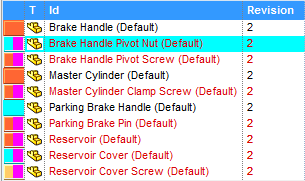
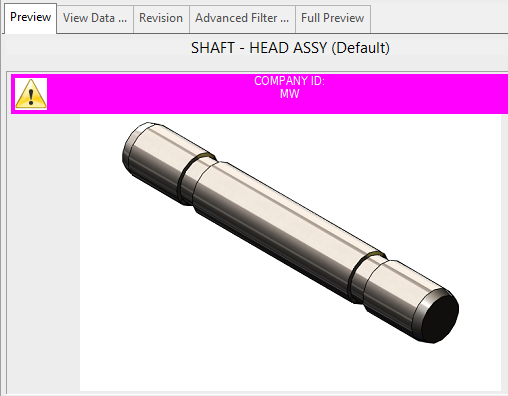
More, if the Preview tab is active, you'll be informed about the foreign owner of the current record with a warning icon:
RMB interface
The command enlisted below are available both for single documents, for documents and children and for working sets.
The commands are also available via DBWShell for programming batch actions in scripting.
Download the Remote Component [and all the children]
This command is enabled in the popup menus of records where COMPANY_ID is different from the current company (so when the record is fuchsia marked).
This function previews the remote document and, clicking it downloads the file accordingly to the below schema:
state of the record |
what is downloaded |
|---|---|
released/frozen state |
the last (.gz zipped) released file |
checkedin state |
the last checkedin file |
any state if OSM is enabled |
the remote file as it is, no matter of the state |
then unzips it on the local server in the same path of the remote server. 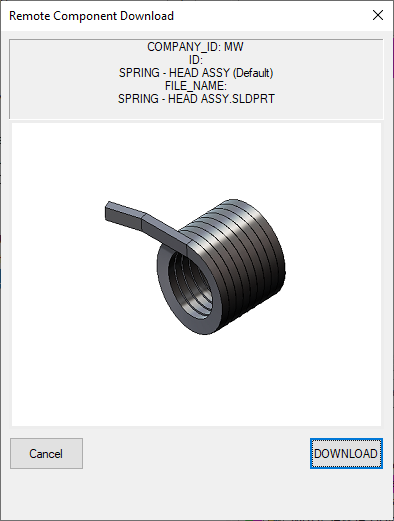
The component is then handled by MechworksPDM as a read only component, that cannot be checked-out or checked-in by anyone, since it doesn't belong to the current company. On the other hand, the component can be added to any assembly of the company.
It is allowed to download also foreign documents in checked-out state. The document being downloaded, however, is the last approved revision of the document being checked-out, so to allow to the company requesting the foreign document to access the document, even if the document is currently in a new revision phase on the remote company that owns it.
Delete the Local Copy of the Remote Component [and all the children]
This command deletes the local file copy of a remote component. The deletion avoids unnecessary refreshing if the component is not used anymore by this company.
Take Ownership [of the node and all the children]
This command assigns to the local company a remote component previously belonging to another company.
Projects relationships must then be handled manually, removing the component from foreign projects and assigning it to local ones. In practical terms, this command updates the field COMPANY_ID with the id of the current company.
Transfer the Ownership of the node and all the children
This command walks across all the downloaded components and downloads them again if the local copy is not up to date with the remote files.
Refresh Downloaded Remote Components
This command walks across all the database. It verifies, for every document, if a local (downloaded) copy exists, if so it refreshes such copy.
Refresh local copies for the node and all its children
This command processes only the files of the currently selected assembly and of all its components, downloading them if the local copy is older than the original one.
Share/Unshare this Project
This command is available only from RMB on Projects. It allows to Share or Unshare the projects.
See Foreign Projects topic below in the page.
Under DBWArm, both command are available if the user has the Create new Project priviledge
Log of downloads and of changes of ownership
MechworksPDM inserts in the table DBW_REMOTE_ACCESS_LOG records for every download or change of ownership action made through the Remote Access support.
The query to show the records of this table is:
SELECT * FROM DBW_REMOTE_ACCESS_LOG ORDER BY ABSTIME DESC
Shared projects

If the project is declared as SHARED (this means that the COMPANY_ID field containing the name of the company followed by the string "_SHARED") a distinct icon is shown in the tree.
The file SCHEMA\IMG\DBWSharedProject.BMP must exist in order to allow the visualization of Shared Projects.
To Share/Unshare a project there is an entry RMB→Remote Access→Share/Unshare this Project.
A shared project is visible even if the visualization of foreign projects is disabled (RMB→Show Foreign Projects)
It's useful, for example, when you need to work on a project that's shared between different companies.
Please note that a Shared Project is always considered foreign (fuchsia marked), but modifiable by their creator. In a PARTIAL (filtered) REPLICATION it is mandatory to add to the REPLICATION_PARTNERS field the values of COMPANY_ID that you would share the document with.
Preview remote documents with the server-side-file-transfer enabled
MechworksPDM can preview foreign documents even if the server-side-file-transfer modality is enabled.
In order to have this functionality running properly, the field DBW_PREVIEW_IMAGE must be created in the DOCUMENT table as type Image:
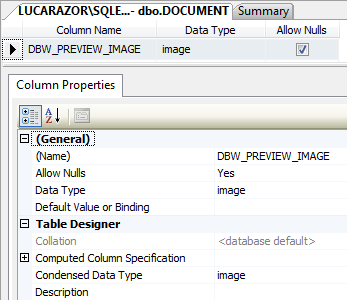
At each save, te program will update the field with a low-resolution image of the document being saved.
The low-resolution image will then be used by the Download functionality for previewing the document.
Since the preview for remote documents is generated by the foreign client, you've to enable the option Environment→Remote Access→Use Server side File Transfer on the remote client to see it properly.