 Working Set
A working set is a collection of frequently used documents.
Available Batch actions on a working set
The rmb on the tree or on a common grid element shows a minimal working set menu, focused on the adding/removing action to/from the working set: 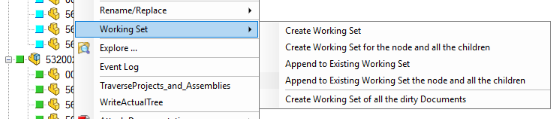
The same rmb action on the Working set grid in the TreePage, provides instead a more complete choice of actions based on the already existing working set: 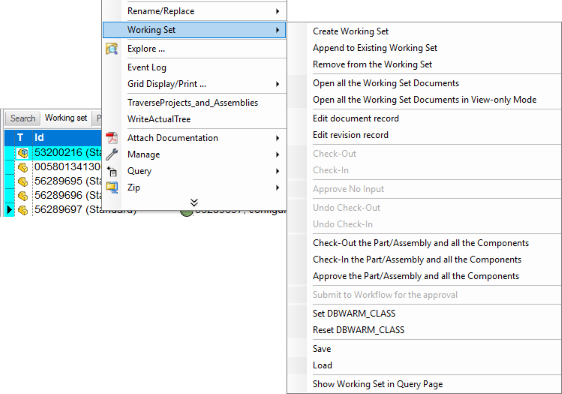
Here are the available entries of such specific working set menu:
Create a working set
You can create a working set:
1.From the MechworksPDM browser: select all the documents you need to include in the working set (pressing Ctrl or Shift for multiple selection), then right-click any of the selected document and click Working Set, Create working set in the popup-menu.
2.From an opened assembly: select all the documents you need to include in the working set and press the toolbar button or in the MechworksPDM menu in the CAD click Active Document, Create Working Set.
3.From the Integrated Advanced Filter
Append a document to the current working set
Right click a document and in the popup menu select Working Set, Append to Existing Working Set. This entry is available only if you previously created a working set.
Remove from the Working Set
This entry is available only if you previously created a working set; it removes the selected document from the current working set.
Open all the Working Set Documents
Opens all the documents belonging to the current working set.
Open all the Working Set Documents in View-only Mode
Opens in view-only mode all the documents belonging to the current working set.
Edit document record
Performs a multiple Edit record on the working set documents.
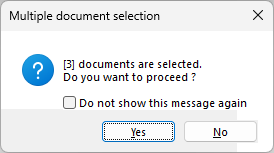
Replace functionality on Working Sets
It is possible to replace a string with another one while working with the Working Set Edit functionality. The functionality is activated by right-mouse-clicking on the left side field name (red highlighted area in the below picture) in the Editing multiple records form. A Tooltip is displayed on any Text-type field when mouse-overing on it: 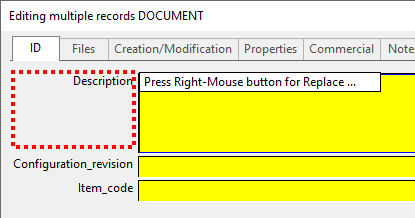
please note you can perform replace on text type fields only (not numerical/date/boolean/float replacement are allowed).
Example
In the following example, the Description field name has been right-mouse-clicked: the Replace input form is then displayed: 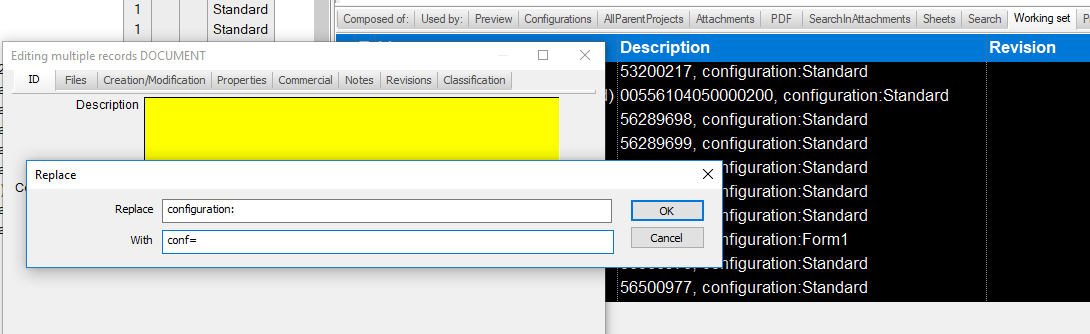
The string configuration: will be replaced with the string cfg=. When pressing the replacement is coded through a special string in the Description value: 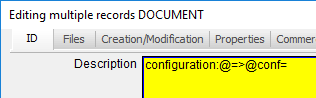
Then a confirmation dialog is shown: 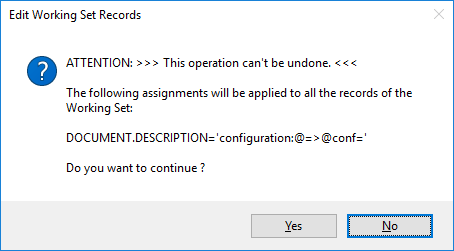
If confirmed the replacement takes place: 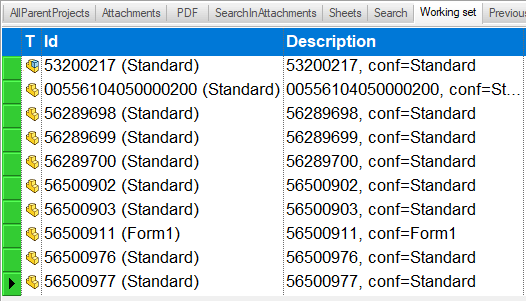
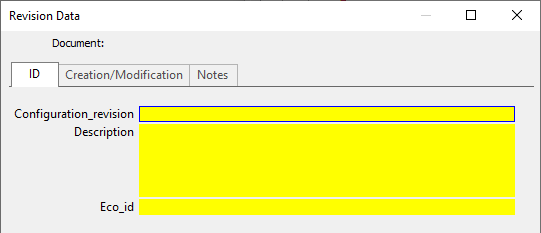
Edit revision record
Performs a multiple Edit revision record on the working set documents.
Revision Cycle Actions
Revision cycle action are performed on a working set record exactly as for records in the Tree or other grids. Please note in case of multiple selection, the revision commands are available only if all records of the set are in the same state, otherwise the entry in the rmb will be grayed. Same as for recursive action, the dialog let the user choosing records to treat:
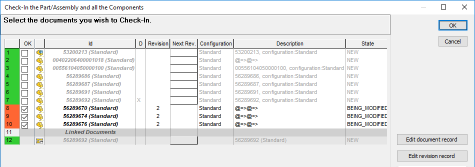
The Checkin functionality operates in two ways:
•If the documents of the working set are closed, check-in is done in the same way as doing it by the browser's pop-up menu Checkin/out → Checkin.
•If the documents of the working set are open, check-in is done in the same way as when you click the button  in the MechworksPDM toolbar.More, this mode calculate mass proprieties and can update custom proprieties of the CAD document itself.
Submit to Workflow for the approval
The command allows to submit the selected record(s) to the Workflow. Please refer to the Workflow section of the help for further information on this topic
This entry is shown only if the workflow module is enabled in environment → Workflow options
Set/Reset DBWARM classes
The commands operate on the DBWARM Classes. Please refer to the DBWARM section of the help for further information on this topic
This entry is shown only if the DBWARM module is enabled in environment → DBWARM options
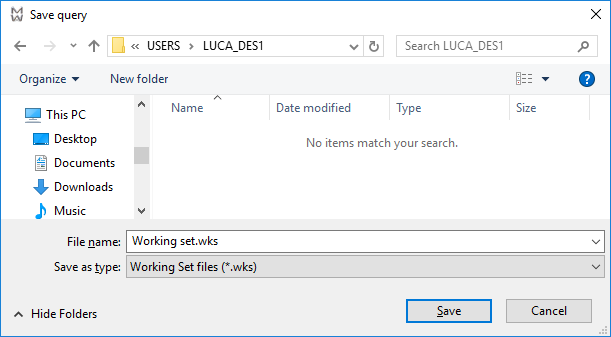
Save/Load Working sets
It shows a dialog to save new sets or to load previously saved working sets. Files with the extension .WKS are recognized as Working Set files, containing a valid Working Set query. Both the Save and Load file dialogs have the *.WKS extension available as file extension filter.
Show Workign Set in Query Page
The current working set is displayed in the QueryPage of MechworksPDM browser.
History of working sets
By right clicking the Working Set tab in the GridPane you obtain the history of the sets: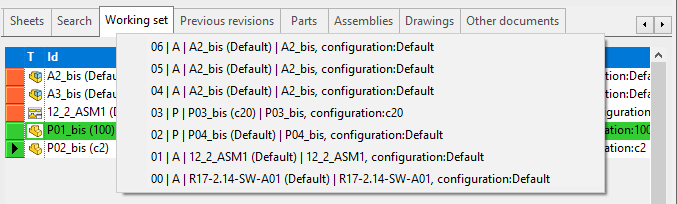
The single popup menu entry shows its number and then some database field values (T, ID and DESCRIPTION) of the first element of the working set.
Large Working Set Mode
When the Working Set size is too big, MechworksPDM switches to a different working mode, where the Working Set is created using a temporary user table, created on-the-fly by MechworksPDM, and named DBW_WS_<user login name>.
This table is populated with the unique ids of the Working Set, and the Working Set Query is assigned as:
SELECT * FROM DOCUMENT WHERE UNIQUE_ID IN (SELECT DISTINCT UNIQUE_ID FROM DBW_WS_<user login name>) ORDER BY T,ID
MechworksPDM shows the warning message for a Working Set too big if it is not able to create on-the-fly the database table DBW_WS_<user login name>. This can happen if the database is protected in some ways (read-only, as for viewer-only workstations) or if the standard MechworksPDM personality which trusts the database engine is not allowed to create tables. In all the above cases, the MechworksPDM database administrator should create a table named DBW_WS_<user login name> for each user that needs to create very large Working Sets (typically users working on very large assemblies).