Workflow Options
 Enable the Workflow mode
Enables interaction with the Workflow Integrated Module.
The module operates when a document is in CHECKED_IN state, and it is ready to be approved, and handles the approval of the document.
Enable the ECR Workflow
If checked, this option inhibits the creation of new versions of released documents without the approval from a Workflow process.
See the topic Engineering Change Request for further information.
Enable the ECO Workflow
Allow Document level Workflow approval
When this option is checked, MechworksPDM allows every document submitted to the Workflow with the same ECO_ID of other documents to be approved independently from the Workflow current state of other documents with the same ECO_ID.
When a document can be approved but there are other documents with the same ECO_ID not yet approved, the color displayed in the browser for the workflow state is a pale blue:

Avoid confirmation dialog 'Same ECO_ID Workflow Documents' (always YES)
If checked, the PDM automatically processes all the documents submitted to the workflow with the same ECO_ID of the currently processed document, avoiding to display the confirmation dialog.
Only for linked documents
If checked, avoids confirmation dialog only for related documents (i.e. it displays the confirmation dialog, asking the increment of the workflow state for documents within the same ECO_ID, only for documents that are not related through the Link Mode to the current document).
Example
Let's say that Part1 has a drawing Drawing1 and that Part2, not related to Part1, has been submitted to the workflow with the same ECO_ID of Part1.
So, assume that ECO_ID 100 has ben assigned to Part1, Drawing1 and Part2.
a.Always confirm 'Same ECO_ID Workflow Documents' Prompt unchecked
when changing the workflow state of Part1, a dialog will be displayed, asking if you want to change the workflow state of Drawing1 and Part2 as well.
b.Always confirm 'Same ECO_ID Workflow Documents' Prompt checked
Only for Linked Documents unchecked
when changing the workflow state of Part1, no dialog will be displayed at all; Drawing1 and Part2 will follow Part1 in the next Workflow state
c.Always confirm 'Same ECO_ID Workflow Documents' Prompt checked
Only for Linked Documents checked
when changing the workflow state of Part1, Drawing1 ( a "Link Mode" linked document ) will follow Part1 in the next Workflow state, but for Part2, a dialog will be displayed asking you want to change it's workflow state
Never submit a document if any child is checked-out
When checked, a document can't be submitted to the Workflow if any of its children is in a checked-out (BEING_MODIFIED) state.
 Warn if process does not exist
If disabled, suppresses the warning message that appears when a document does not belong to any Workflow Process.
Such option may be useful in the case that a Linked Document (typically a PDF Output Generic Document) has no Workflow Process defined, but their Parent Documents (typically a Drawing) must run through a Workflow Process.
In the above scenario, the PDM attempts to process through the Workflow any linked document (in this example the Generic Document) and the action may result in the display of the warning:
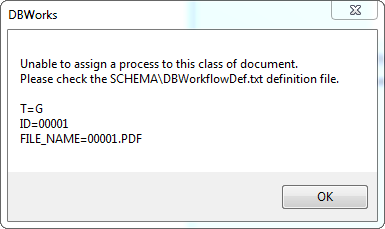
By unchecking the option, the above warning message will be suppressed.
Allow reject by the same LAST_MODIFIED_BY user
This option enables the "Reject" action if the current logged-in User is the same as the selected document's LAST_MODIFIED_BY user.
This feature is available only from the RMB→Workflow user interface.
Basically, the current user can 'reject' the documents last-modified by himself (typically when a mistake has been discovered after the 'submit to workflow' action)
Avoid Submitter approval on first state
When checked, the user that has submitted the document to the workflow, creating the ECO_ID, can't move forward the Workflow from the first state, even if he belongs to a Workflow Group that is allowed to move forward the Workflow.
Allow only for  ECR
ECR  ECO
ECO
self explaining
Create Revision Output on Submit to Workflow
The option changes the behavior of the existing Revision Outputs option for creating the Revision Output File at CHECKIN time.
When active, the Revision Outputs options are changed from this:

to this:

Remarks
1.the Revision Output Files are created at the end of the ECO_ID creation process, because such process may be canceled by the user at any time
2.the current LST\OnSubmitToWorkflow.LST should be changed for avoiding the creation of files internally to the script ( example eDrawings files ) - in such case the Revision Output options could be changed ( by customizing the SCHEMA\DBWRevisionsOutputFileExtensions.txt ) for creating multiple files at once - Example: PDF+EDRW
3.if #2 is not possible, then at least it should be avoided to use the out-of-the-box DBWCreateEDrawingAs library procedure, because it automatically CLOSE the Document that has been opened for the creation of the EDRW file - a custom copy of such procedure should be used, with NO DOCUMENT CLOSE at the end - this will allow any further Revision Output File to be created without re-opening the previously closed Document
Use OnAboutToChangeWorkflowState script
Use OnChangeWorkflowState.LST script
Use OnWorkflowStateHasChanged.LST script
Use OnCheckIfMajorRev.LST script
Use OnGetWorkflowProcess.LST script
Use OnCheckForRequiredECR.LST script
Use OnSendWorkflowNotificationToUsers.LST script
Engineering Changes Project ID
This option is specific for DBTools users. Please contact developers for further information.
To see this options section you must have the field PARENT_CHILD.PARENT_CHILD_REVISION in the database
Show all projects in the Project Tree
Show only the Engineering Changes Project in the Project Tree
Hide the the Engineering Changes Project in the Project Tree