Environment Options
 Use full user name (only on Windows domains)
If checked, MechworksPDM puts in every field where the current user name is needed, the full user name as defined in the Users list of the Primary Domain Controller for the network.
See also topic UserName vs DisplayName.
Please note this option can be enabled only if the following option is disabled:
Environment→TaskManager→ Enable Task Manager
 Always use DBWorks 'Save' and 'Save As'
This option replaces the cad Save/SaveAs with the DBWorks Save/SaveAs so that the DBWorks Save/SaveAs is always used.
Use 'DataEntr.LST' on Automatically Created Components
This option is used in special cases like mirroring. Refer to the topic Management of automatically created SolidWorks files for further details.
Support for Solidworks Save Bodies command
The Part files generated with a Save Bodies command in SolidWorks are supported by DBWorks if the above options are enabled.
Undo operations are not supported.
Additional notes
a.SolidWorks checks for the presence of a certain part file name. In particular, the file names are derived from the Part’s features that have generated the bodies (for example, for a Cut-Extrude feature, the files "Cut-Extrude1[1].sldprt" or "Cut-Extrude1[2].sldprt" would be automatically created by SolidWorks in the current working directory ). Now, the problem is that if that file exists, the standard SolidWorks "File Save" dialog will popup regardless of whether DBWorks has automatically assigned a new file name. So, if you still continue to see the SolidWorks “File Save” dialog, it means that files with the naming described above are present in the current directory, and must be manually removed.
b.Double clicking the "File" column instead of ticking the box before the file name for a body will cause the file set by DBWorks to be ignored.
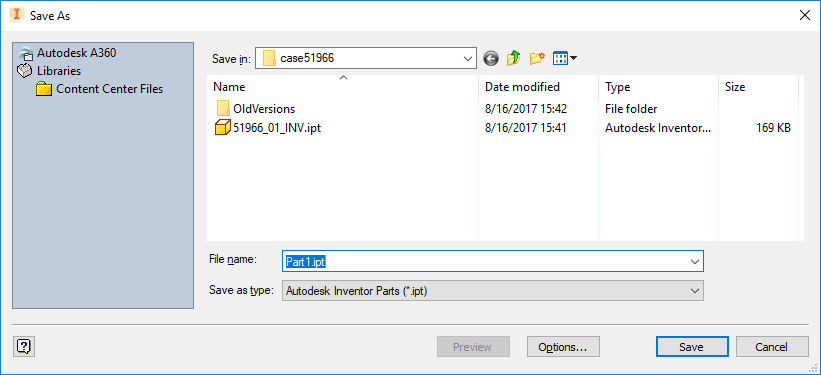
Starting from R17 release the dialog shown when saving as in Inventor is the native Inventor SaveAs dialog that includes the list of Inventor Projects on the left side:
Use 'DataEntr.LST' on Toolbox Components
When a Toolbox component is dropped into an assembly, DBWorks will call the Dataentr.LST (Save Wizard) script, passing @CONTEXT=GET_FILENAME_BEFORE_DROP as context.
The original Toolbox file name is passed with the @DOCUMENT_FNAME and @DOCUMENT_FDIR parameters.
Being the drop action a critical phase, when invoked with @CONTEXT=GET_FILENAME_BEFORE_DROP, the Dataentr.LST can not display any user interface element, like forms, message boxes, etc. else SW will hang
Enable SHIFT key for launching native CAD 'Save As...'
When checked, if the Shift key is pressed while pressing the DBWorks Save As  toolbar button, then the native SolidWorks File→Save As… dialog will be displayed, so allowing the export of the file in different formats (e.g. PDF, DWG for Solidworks; IGES, DXF for Inventor).
Enable CTRL key for executing native CAD 'Save'
When checked, if the CTRL key is pressed while pressing the Solidworks Save  toolbar button, then the native SolidWorks File→Save action is performed, so no actions will be executed by the PDM. The purpose is to allow a very quick save of the current model without any action from the PDM side.
Starting from R17sp2.1 a popup is shown to better identify the CTRL+save action vs a normal save action:
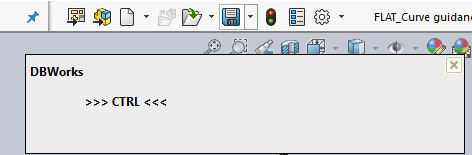
Sometimes SolidWorks needs some rebuild/save activities before invoking the PDM save procedure, so the CTRL key, if pressed too early, may not be effective - the suggestion is to keep the CTRL key pressed until the popup message appears on the screen.
Exclude Exported files
If checked, when exporting faces/loops/edges into file formats like DXF/DWG/IGES/etc., no action will be executed by the PDM.
Use DBW/DBI/DBSE for Searching Solidworks/Inventor/Solid Edge Components
When checked, DBWorks intercepts every request raised from SolidWorks when searching for a replacing component or for a missing reference.
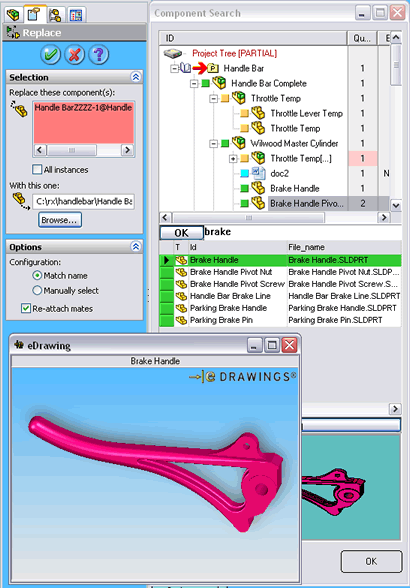
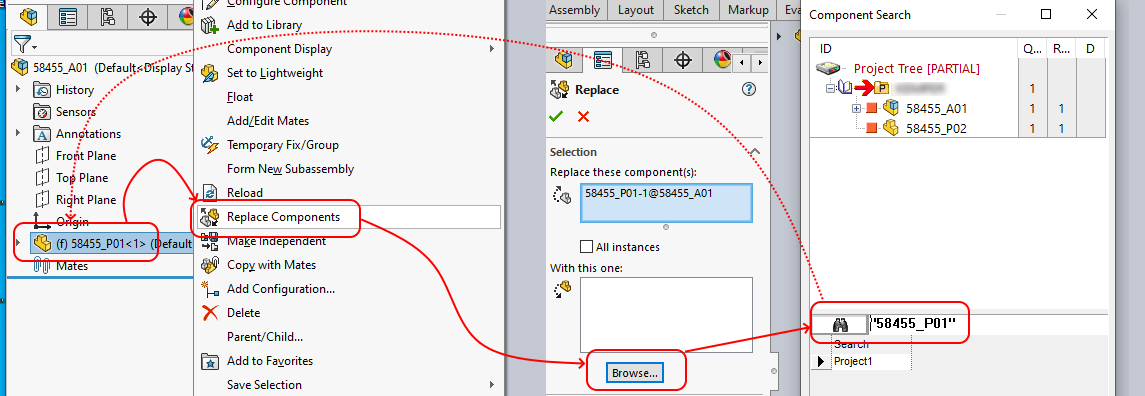
Browse for a new component
DBWorks displays a search dialog similar to the DBWorks Feature Manager window, with the ability to select the component in the Tree, or to search it quickly with some keywords:
Missing reference
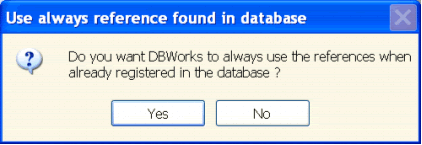
if a component with the same FILE_NAME, but with a different FILE_DIRECTORY is already registered in the DBWorks database, DBWorks displays the following message box:
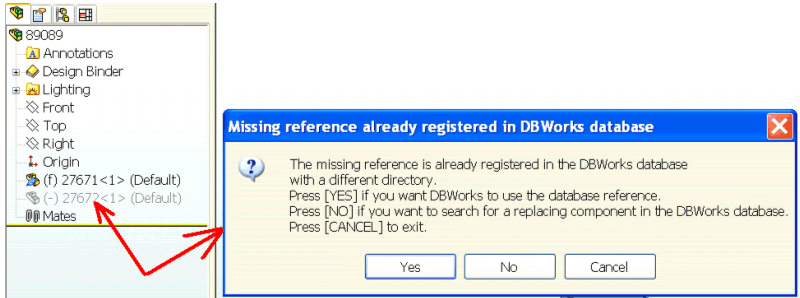
If no components with the same file name are found in the DBWorks database, DBWorks proposes only to search for a replacing component.
After confirming the choice, DBWorks asks to repeat the choice during the current session:
Enable SHIFT key for launching native CAD 'Browse ...'
If checked, it enables the use of the Shift key when pressing the [Browse…] button for inserting a new component into an assembly; the Shift key bypasses the default DBWorks Component Search dialog, and access directly the native CAD file open dialog; the option is useful for inserting components that are out of the DBWorks managed directories.
Use OnSearchComponent.LST script
read specific help about the scritp
Empty dialog text on replace
If enabled, when browsing for searching a document to replace the current assembly component, no pre-filled text is provided in the seach box.
If disabled, the ID of the document selected to be replaced will be shown in the upcoming dialg:
Avoid SolidWorks User Preference setting
If checked, avoids to set at every DBWorks startup the following SolidWorks External References options:
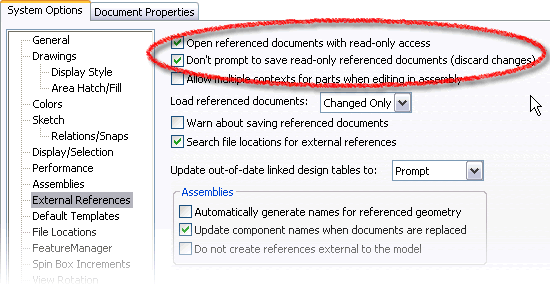
This doesn't mean that options will be disabled, but that options won't be modified and you have to set them manually.
Use SolidWorks/Solid Edge/Inventor Materials
This options allows to use the CAD imported materials instead of MechworksPDM default set ones.
Apply the material to all configurations
 Solidworks users only
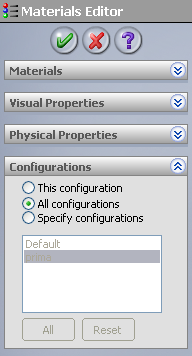
When checked, DBWorks will apply the new material (selected through the DBWorks Material Editor) to each configuration. DBWorks will also coherently update the Custom Properties for each configuration.
The option emulates the behavior of the following SolidWorks Edit Material Property Manager option:
Except when NULL
self explaining
Notify (only the first time) editing of read-only components
If checked, DBWorks notifies with a dialog the first time a feature or a sketch of a read-only SolidWorks document is modified.
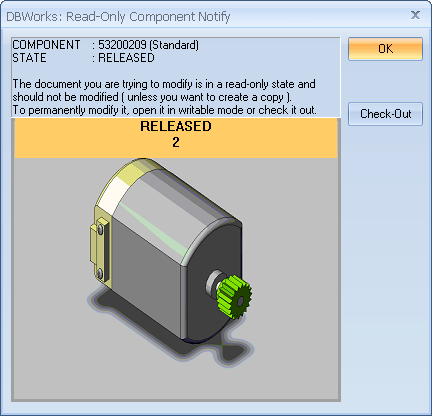
Always notify editing of read-only components
If checked (default=NO), DBWorks always notifies the user when editing a feature or a sketch of a read-only SolidWorks document.
With this new feature available, you can now uncheck the sub-option
Environment→Link Mode→Manage derived parts
so avoiding to automatically checkout all the derived parts when a base part is checked-out for modificaton.
If the modifications affect only feature not related to any derived part, there will be no need to check-out the derived parts as well.
If instead the modification will affect features related in some way to derived parts, a message will be displayed alerting you that you need to check-out other components before proceeding to the modification of the feature.
More, if the component is in checked-in state, a button [CHECKOUT] is available so to checkout on the fly the component.
Remark: since of a limitation in the reload api of SW, not callable after having started the editing process, the CHECKOUT feature is NOT AVAILABLE when running in Local Checkout Mode.
Avoid notify for active document
If checked, DBWorks doesn't notify the modification of a read only document if this is the active one. Since for the active document the information is anyway displayed on screen, receiving a new notification could be considered an unuseful and annoying interruption.
Note that if this option is unchecked it is still possible for documents in check-in state to be checked out after opening them.
Always make writeable new read-only components
If checked, MechworksPDM makes writeable the components opened in memory, if the file is writeable (therefore in NEW or CHECKED-OUT state), but with the in-memory state being read-only. This case could happen only while working with the SolidWorks Options→External References→[X] Open referenced documents with read-only access.
suppose to have:
•DBWorks option: Environment → Always make writable new and checked-out read-only
•Solidworks option: External references →  Open referenced documents with read-only access
With such condition, when the document is in NEW state the PDM behavior is aligned with the SW (save not available) since with the NEW state the PDM can't perform any check on document state/transition/owner/...
On the other hand, when the document is in CHECKED_OUT state, the PDM must allows full control for the checked_out user (by design in our revision process).
For this reason, even if the above options are set in such way, if you are the checked_out user and you open a document as described the ReadOnly document flag must be turned off.
Use OnReadOnlyComponentNotify.LST script
Always Reload Out-of-date Read-only Components
If checked, MechworksPDM will attempt to check for out-of-date read-only in-memory components in the currently opened main assembly; typically changes on read-only in-memory components can be caused when a component, checked-out by a different user, is loaded in memory in read-only state and that user updates (with a Shift + refresh or with a checkin operation) the component.
Use the 'Quick SaveMode' when updating the assemblies structures
This option is meant to speed up the saving/checking-in process of very large assemblies with thousands of parts.
When saving an assembly, DBWorks resolves any light weight components so to be able to get the component model in memory; once the component model is in memory, informations like the referenced configuration, any part-to-part in-context relationship and mass property can be automatically read from DBWorks.
However, when handling very large assemblies, the time needed to completely load the component models in memory can force you to wait for too long, and so special working ways are to be considered for handling these assemblies.
For these cases may be acceptable to work WITHOUT the following features:
1.Tracking of part-to-part in-context relationships
2.Automatic calculation of mass properties
If these limitations are acceptable, the new option can be checked, and DBWorks will avoid to load the components models in memory, so speeding up the update process of very large assemblies. We strongly suggest to use this option after having considered all the possible implications of working without the above features.
By enabling this option, you will disable (gray - not clickable) the following one:
Open/Save→Save→ Save preview images as files
Traverse only first level of assembly structures
If checked, the program stops the traversing to the first level of the structure when saving an assembly.
If not checked, the traversing is stopped only for released or obsolete components (not stopped for documents in state of new, checkedin and checkedout).
Please note that during the first registration of the assembly, this option is not considered and the tree is entirely navigated so to grant a consistent model structure.
The goal of this options indeed is to speed up following savings.
Starting from R17, the Sub-assemblies in a writeable state (NEW or CHECKED-OUT) and marked as dirty by SolidWorks, are now traversed down for updating the database structure with any possible change of the sub-assembly structure.
Save Attachments as Generic Document Records
When this option is checked MechworksPDM saves as Generic Document Records any attachment added under the Design Binder folder of every SolidWorks model.
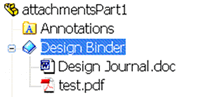
Only the attachments of type LINKED are saved, which means that a distinct file must have been created.
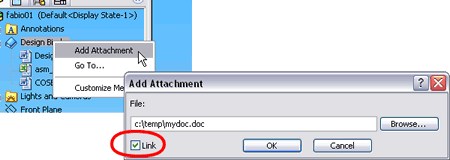
DBWorks removes all the Generic Documents links for the saved model before recreating the new links, because
it is assumed that the management of the attachments is made in the SolidWorks interface
and not using the DBWorks browser interface.
For complex situations, it is suggested to keep the option unchecked and to use the DBWorks interface for adding/removing Generic Documents links.
If the PARENT_CHILD table has the PARENT_CHILD_UM field defined, DBWorks avoids to remove all the parent-child relations of the Generic Documents children of the document currently being saved.
The just inserted PARENT_CHILD entries have the field PARENT_CHILD_UM set to the string "SW".
When checked, DBInventor saves as attachments any Parameters Table ( Excel file) embedded or linked into an Assembly Document.
Default Configuration String [Default]
This option allows to assign a string for the Default Configuration; this string should be unique among all the templates used for the part/assemblies creation. Between square brackets is displayed the currect value assumed by DBWorks for the default configuration string. Assigning an empty string resets the string to the built-in value.
The list of scripts that can be enabled on DBWorks events has been grouped in this section so as to allow the Administrator to have a clear snapshot of the customization scripts currently active. This is particularly handy if the system does not behave as expected: very often a bug in a custom script can be the cause and here's where the Administrator can disable the scripts one by one to single out the source of the problem.
The script activation options are also available in other sections of the options manager, depending on the scripts themselves. For a description of each script and of the events that triggers them, please refer to the help sections where they are treated separately helping yourself with the index.