Save options
 Save same parts in different directories as distinct records
In Order to enable this option you must disable the option
Data Input→ Avoid duplicated IDs
If checked, when you save a part MechworksPDM considers the field FILE_DIRECTORY as one of the elements that uniquely identify the record, so generates distinct records when the parts share the same filename but are located in different directories.
Examples
Moving files
Suppose you have an assembly A1.SLDASM, made of two parts P1.SLDPRT and P2.SLDPRT and you save the first time this assembly in the directory C:\ARCHIVE. MechworksPDM creates THREE records: one for the assembly and two for the parts.
Suppose now that for some reasons you want to move the files on a network drive, say, Z: and that the new directory of reference is Z:\SWFILES\ARCHIVE\MACHINE1.
What you need to do is copy the files from C:\ARCHIVE to Z:\SWFILES\ARCHIVE\MACHINE1 and load in SolidWorks the assembly A1 from Z:\SWFILES\ARCHIVE\MACHINE1.
When you save the assembly again, MechworksPDM updates the directories of the parts in the records of the database, so in the end you will still have THREE records, but the FILE_DIRECTORY fields have been updated.
Copying files on a network
Suppose now that you want to create a NEW COPY of the assembly to start developing on a new workstation, so you need to modify some parts in the new directory.
You create a new directory named Z:\SWFILES\ARCHIVE\MACHINE2 and copy in some way the files to the new directory.
Now, before registering the new assembly in MechworksPDM (opening it and saving it), you must check the option:
 Save same parts in different directories as distinct records
Once the option has been enabled, when you save the assembly A1 in the directory Z:\SWFILES\ARCHIVE\MACHINE2, MechworksPDM keeps the old records related to the directory Z:\SWFILES\ARCHIVE\MACHINE1, and creates THREE NEW ENTRIES for the records related to the directory Z:\SWFILES\ARCHIVE\MACHINE2.
We advice to assign a different PROJECT to the newly created assembly (MACHINE2) so as to have the capability, through the switch Show current project's documents only, to visualize in the browser only one assembly at time.
 Avoid same file name in different directories
If checked, MechworksPDM avoids to update the FILE_DIRECTORY of a record with the same file name.
In practical terms, if you have the part C:\MYARCHIVE\PART1.SLDPRT and save it: MechworksPDM creates a record with FILE_NAME=PART1.SLDPRT and FILE_DIRECTORY=C:\MYARCHIVE\.
Now, If you load the part and save a copy in another directory, suppose F:\ANOTHERARCHIVE\, depending on the value of this option:
1.if the option is UNCHECKED :
MechworksPDM updates the record so as to have FILE_NAME=PART1.SLDPRT and FILE_DIRECTORY=F:\ANOTHERARCHIVE\.
2.if the option is CHECKED :
MechworksPDM doesn't update the database record, a message will inform about aborting the operation:
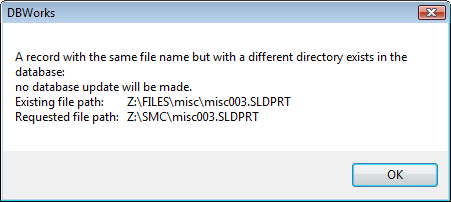
This option works also on children components of an assembly, showing a list of the components already present in the database with a different directory at the end of the assembly saving.
This functionality is used when you have to install MechworksPDM on pre-existing archives.
First you register all documents allowing same files in different folders, then throught MechworksPDM tools you can fix references.
Finally, the option has to be enabled to start working normally.
Never display warning messages for Local Files
The goal of this suboption is to allow the existence of read-only reference-only local copies of components that normally don't change frequently (e.g. Standard Parts)
Step-by-step procedure to set up this option
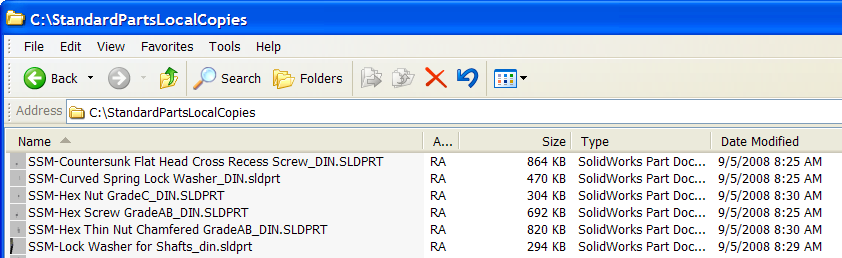
1.Create a folder on the local machine (e.g. C:\StandardPartsLocalCopies), and copy as read-only all the components that will not change frequently (standard parts or MAKE_BUY=BUY components):
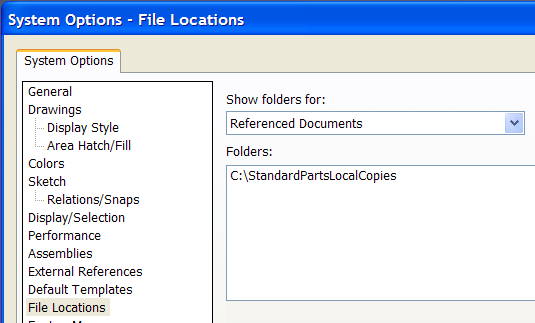
2.Add this folder to the search path of the CAD application:
3.Load and save an assembly referencing the above read-only components.
Since the reference-only components are loaded from the Workstation, the network overhead will be reduced consequently
If the option would not be checked, with the above sequence MechworksPDM would typically display the warning message:

1.the option General→ Only store records for documents within the following directories must include the local folder AND the shared folders (e.g. C:\MyLocalFolder, M:\ can be declared in the list)
2.In case the option Environment→Configurations→Save configurations of components with names like/not like:(*) Like was enabled, it must include the local folder (e.g. C:\MyLocalFolder must be declared in the list)
3.the options General→Use OnUpdateDatabaseForOpenedDocument.LST, Data input→Import custom properties as field values and Data input→Import also child components must be UNCHECKED
4.it is recommended to check the option Environment→Use MechworksPDM for Searching SolidWorks Components because, in case the reference was missing from the local drive, MechworksPDM will always replace it with that existing in the database
5.no updates are automatically done by MechworksPDM on the files in the local folder - the location of the components is simply ignored
6.if the local components are still not registered in the database, MechworksPDM will register them without any check
Very important:
•Without the above settings, you may destroy existing informations in the Database so please test it in a separate environment before putting in production.
•It is responsability of the MechworksPDM Admin to properly manage the reference documents contained in the local folder - possibly a Windows Login script will check in the morning for the correct synchronization of the local files with the original files in the shared folders
Save preview images as files
If checked, MechworksPDM creates a .jpg file at every save. You should assign a shared directory where all the .jpg files created.
This can be done setting the next parameter Preview files output directory to indicate the directory where all the preview files will be stored. An EMPTY string forces MechworksPDM to put the .jpg files in the same directory as the documents.
MechworksPDM can read and display configuration specific images without having to save jpg previews.
This option is grayed if the following option
Environment → Use the 'Quick SaveMode' when updating the assemblies structures
is checked.
Low resolution images
Enabling the low resolution images, MechworksPDM creates the .JPG preview files converting the thumbnails embedded in the CAD file.
Limitations:
•The files are created (and updated) only when using the PDM Save, because the CAD file needs to be saved in order to get the correct thumbnail from it; the CAD save functionality, instead, calls MechworksPDM before the file is saved, and so the thumbnail cannot be read and converted.
•The option for low resolution images is active only if the file is already existing. Because of this limitation, if the document is in state NEW, you need to save twice in order to have a preview. This limitation does not apply to a normal check in/check out revision process.
Specify image size [EMPTY=default size; max val allowed=1920x1080]
This string allows to specify the size of the preview image to save. Leaving the field EMPTY will cause the default size on each CAD system. Maximum accepted values are 1920 pixel for width and 1080 pixel for height (that's the FULL HD standard format).
Standalone client cannot use this option.
Preview files output directory [EMPTY=current document directory]
This options allows to choose a different folder to save preview files (.jpg) into.
Save drawing sheets preview images as files
This functionality requires the field DBW_DRAWING_SHEETS.SHEET_PREVIEW_IMAGE; run AdminTools for adding it if missing.
If the field is missing and the option is active, when the option page is opened, the user will be warned.
The dialog includes a "Do not show this message again" checkbox stop showing it.
When enabled, during the saving of a drawing, the PDM will store the preview image for each drawing sheet as .jpg file into the database table. Therefore, by clicking the drawing sheet record in the sheets grid, PDM will retrieve and preview the saved sheet image.
Show a warning if some feature errors are found
If checked, MechworksPDM displays a warning before saving an assembly if some features show an error icon. For the faulty features the error description is available with the SolidWorks function �What�s wrong ?�
By default this option is not active
Show a warning if a component is suppressed
If checked, when saving an assembly MechworksPDM looks for suppressed components, and if it finds at least one, it shows a confirmation dialog before proceeding with the save operation.
Mind that MechworksPDM only manages suppressed/unsuppressed components and doesn't manage differently hidden components.
Consider also hidden components
If enabled, this option extends the check also to any hidden component inserted into the current assembly.
The risk for the presence of hidden components in a saved assembly is that the BOM will still show the hidden components, so potentially causing wrong expected results, while the 'suppressed' components are not inserted into the BOM.
Show a warning if any no-database CAD document is saved
If checked, each time a document is saved into a directory that will be ignored by MechworksPDM (no record will be created for the document) a warning is displayed on screen.
Always update database structure on checked-out documents save
It causes the Data Input Form to be displayed (if the option User Interface, Input Control, No input when saving is unchecked) to update the document's database structure.
This option also affects the behavior of the MechworksPDM toolbar Refresh  command, always updating the database structure if pressed together with SHIFT key.
Unless Assembly has more than the following quantity fo components
It is possible to bypass assembly database structure update during save operation, if the assembly components number exceeds a maximum quantity specified in this option; a notification message will inform about such skip:
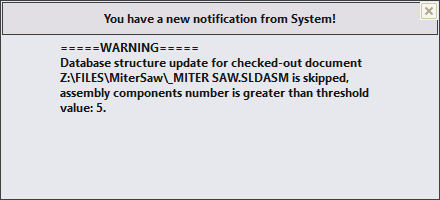
To preserve performances, the assembly sub-components counting is performed once after the first assembly save operation, after that the corresponding number is kept in memory. To refresh the count, close, open and save the assembly again. After a save, it is possible to update database structure by clicking the Refresh Button
Always save suppressed / hidden components
If checked, MechworksPDM always saves in the assembly structure all the components, both suppressed and not suppressed.
LIMITATION: for the suppressed components any part derivation will be reset.
MechworksPDM cannot keep track of relations of derived parts in an assembly context because it's not possible to load suppressed models and read their relations.
On the other hand, by enabling the option Environment→Derived Parts→Track only out-of-context 'base part→derived part' relations you will preserve part-part relations that are out of context
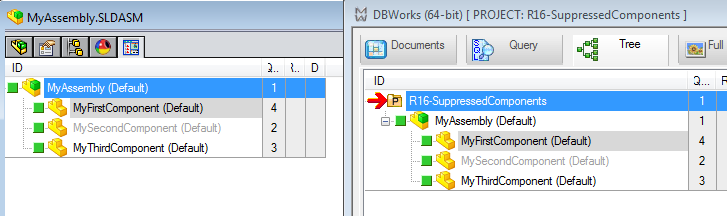
When this option is activated, and with databases updated for supporting the PARENT_CHILD_INSTANCE_ID field in the PARENT_CHILD table, it is possible to display the same color codes for the Suppressed Components, as it was in the MechworksPDM Feature Manager of the Assembly is opened in SolidWorks.
The PARENT_CHILD_INSTANCE_ID contains now, for each Suppressed Component, the character star "*" as suffix:
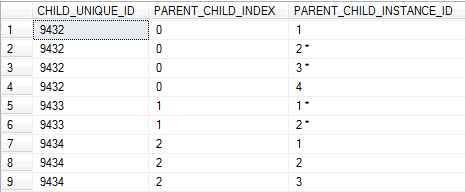
Of course, the PARENT_CHILD_INSTANCE_ID field will be updated only on next Save/Checkin action.
Example
For the following SolidWorks Assembly:
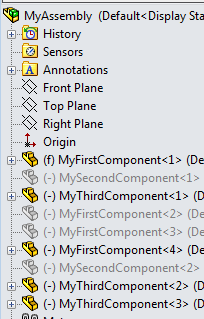
where the MyFirstComponent has some suppressed instances, the MySecondComponent has all its instances being suppressed, and the MyThirdComponent has no suppressed instance, its Tree is now displayed everywhere as:
Show as grayed in the Trees
When checked, it avoids the display of suppressed components as grayed in all the Trees - with some very large assemblies, the feature Suppressed Components color codes available in every Tree could cause important delays in the Tree Nodes expansion - in such environments, it is suggested to keep this options unchecked
Since in Solid Edge there's no suppressed component concept, the gray in this case is given to missing components.
At save time (only) a check about assembly children is performed and if the component file is missing, the gray color is applied and the field PARENT_CHILD_INSTANCE_ID is filled with " *" value for such component instance.
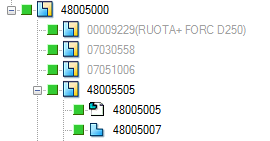
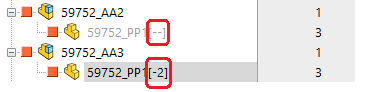
Please note the component ID text shows the number of suppressed components ([--] in case of all instances suppressed)
Always calculate mass properties on save
When this option is enabled, MechworksPDM calculates automatically the mass properties at each save.
This option slightly slows down the saving process, but allows to perform instant calculation of total weight for large assemblies.
Calculate mass properties only for parts
Self explanatory
Calculate only Lengths and Dimensions
When checked, only the lengths/dimensions/equations assigned in the list Data Input→More sketch/dimension/equation→field data input are automatically calculated at every save, so skipping any mass property calculation
The mass property can always be acquired with the manual process.
Never Calculate Mass Properites for already registred configurations
If checked it avoids the mass properties calculation for previously recorded configurations when the Environment→Configurations→Save all configurations automatically → Save only New Configurations option is checked.
Please note that when the option is enabled, the Save only New Configurations is enabled;
with the previous behavior, when the Always calculate mass properties on save was checked, the Save only New Configurations was grayed because the mass properties calculation was always applied to all the configurations.
Calculate mass properties only when ...
This option allows you to specifiy a criteria to enable the automatic calculation of mass properties
You can express more complex criteria with @EXPR keyword The rules are the same defined for standard parts.
Example
@EXPR = "ID=*890" AND "CATEGORY=ELECTRIC"
Exclude NO_BOM components from Mass Properties calculation
This option allows to compute a parent assembly's WEIGHT property excluding NO_BOM components.
Only the 1st level child components are considered.
Always do a Save As if the document does not exist in the database
When checked, the MechworksPDM Save function calls the MechworksPDM Save As & function (Save Wizard) when an existing SW file, not yet existing in the database, is loaded and saved.
You need to check this option if you like to call the SaveWizard when a document does not exist in the database.
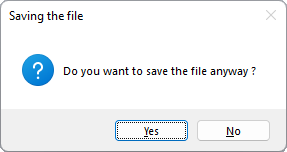
Always prompt for file save when pressing 'Cancel' in the Data Input Form
If checked, after pressing the CANCEL button in the standard MechworksPDM Save  and Save As
  functionalities the PDM asks for saving the current model without registering it in the database:
Always assign absolute BOM position numbers on save
When checked, the functionality Order BOM Position Numbers is automatically applied at each assembly save.
Force CAD order only if not absolute
The Force the current CAD native order function has now the option Force CAD order only if not absolute.
When checked, MechworksPDM applies the CAD native order only to the components for which the position number is not absolute, that is for which the PARENT_CHILD_BOM_POS field is NULL.
Never restore 3D CAD order for fake components
When checked, no fake component with an already assigned BOM position will be renumbered.
Further details in EditBOM help topic.
For further information on these issues please refer to help topic PARENT_CHILD_BOM_POS field in PARENT_CHILD table
Never create records for Solidworks Envelop Components
When checked, MechworksPDM will avoid to insert any Solidworks Envelope Component into the database
