Save as options
 Automatic check-in after a MechworksPDM 'Save as ...'
If checked, at the end of the 'Save as...' process, MechworksPDM automatically puts the just-saved CAD document in a checked in state to start a new life-cycle for the document.
Automatic check-out after the check-in
This option is intended to be a complement of the parent option Automatic checkin after a DBW/DBI/DBS 'Save as...'; when this last is checked, MechworksPDM puts the document in a CHECKED-IN state when a new document is saved for the first time. If the Automatic checkout after the checkin option is checked, MechworksPDM checks out the document and re-opens it.
 Apply Autocheckin/Autocheckout also to Generic Documents
Self explaining option
Use same PART/ASSEMBLY identifier for drawings on 'Save as...'
If checked, MechworksPDM proposes the same identifier of the part/assembly being drawn for the drawing itself.
This feature is available only when using the DBWorks 'Save As...' functionality.
Create a separate file copy on a DBW/DBI/DBS 'Save as ...'
If this option is checked you create a separate copy of the document being saved. It is equivalent to the option Save as copy of the standard file dialog of the CAD.
Example
suppose to have an assebly and to open it in the CAD
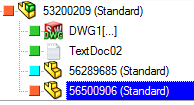
then suppose you open a component (56500906) and to perform a saveAs on it (so havign the assembly loaded in memory)
suppose to recode its name to newName.
If you have the option disabled, you'll se the assembly will be updated withe new component name, otherwise no modification to its sutructure will be set.
Please note the following limitation when enabled the Local Checkout Mode:
at the moment it's not possible to create a separate copy of the file if the option Environment→Local Checkout Mode→ Create new files as checked-out is enabled.
By pressing Ctrl +  saveAs button you will always create a separate copy of the saved-as file, no matter of the setting of this option.
Save all Referenced Documents on a DBWorks 'Save as ...'
Supports parts, assemblies, and drawings. In an assembly or drawing this saves all the components (sub-assemblies and parts). If a part has an external reference, it saves the external reference.
Avoid Rebuild on a DBWorks 'Save as ...'
Self explanatory.
Update Drawing's views on Inactive Sheets during a DBWorks 'Save as ...'
This option, if enabled (by default is enabled), updates the views on inactive sheets.
Always Create Detached Drawings on a DBWorks 'Save as ...'
Obsolete.
Since MWPDM R26 service supports SOLIDWORKS 2024 and later, and Detached Drawings were discontinued starting from SOLIDWORKS 2023, this feature is no longer functional and the option is no longer visible.
Always activate <As Machined> configuration when saving <As Welded> configuration
This option activates the <As Machined> configuration when saving the <As Welded> configuration of a SolidWorks structural item.
For backward compatibility it is possible to disable the option to create separate item numbers for the <As Machined> and <As Welded> configurations.