Revisions Options
[0] Max. Number of Revision Records to Keep (0=All)
It sets how many revision are maintained.
If set to 5, when creating revision #6, revision #1 is deleted (both the record and the file)
0 = keep all records (default)
-1 = discard all revision files
[0] Max num of Revision records to write as properties (0=None)
MechworksPDM allows you to save in the custom properties of the file also information related to the revision history of the document.
if this option contains a value greater than 0 MechworksPDM writes the values of the REVISIONS table record fields as file custom properties. The field names are prefixed with a “_R<row number>_”, where <row number> starts from 1 and may go to the max num defined in the option. _R01_ is always referring to the LAST revision ( pending or approved ), _R02_ is referring to the one before the last, and so on:
LAST REVISION → _R01_
LAST REVISION - 1 → _R02_
LAST REVISION - 2 → _R03_
...
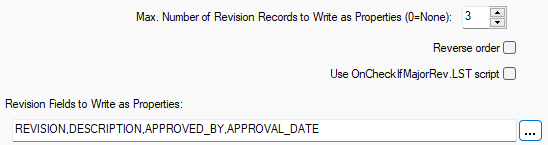
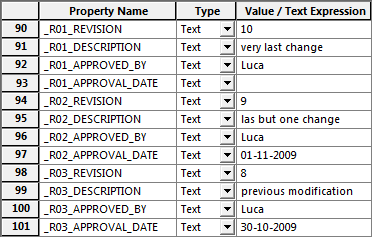
In the above sample the first revision (_R01_) is pending, because the APPROVAL_DATE is still empty.
Notes:
the custom properties of type _R01_... and DOCUMENT_R01_... need to be created the first time with the documents being fully opened; so, in particular for drawings, they must be opened and Shift-refreshed to have the custom properties being created the first time. Subsequent updates on both the drawing or document side will work as expected.
For ME10 users, the syntax to keep track of the revisions in properties is:
@DBWREV,2,REVISION,DESCRIPTION,APPROVAL_DATE
In such way the written properties will be:
DBW_REV_2_DESCRIPTION (LAST REVISION INFO)
DBW_REV_2_REVISION
DBW_REV_2_APPROVAL_DATE
DBW_REV_1_DESCRIPTION
DBW_REV_1_REVISION
DBW_REV_1_APPROVAL_DATE
Due to a Inventor limitation in managing properties whose name start with "_" (underscore character), when performing a SaveAs of an existing document (with _Rxx_ properties set) they won't be erased in the new document.
A workaround to this behavior (so to delete the _RXX_ properties in the just saved file) is to add such properties to the SCHEMA\BomTitle.txt mapping file like this:
_R01_<field name> "R01_<field name>"
_R02_<field name> "R02_<field name>"
_R03_<field name> "R03_<field name>"
Example
_R01_REVISION "R01_REVISION"
_R02_REVISION "R02_REVISION"
_R03_REVISION "R03_REVISION"
In this way the properties won't be erased but at least blanked.
Drawing templates have to be adapted consequently.
Last, since this management is not optimized, for a better performance it's strongly suggested to activate the option Data Input→ Write only properties defined in SCHEMA\BOMTITLE.TXT
 Reverse order
With this option enabled, the _R01_* will contain the first revision value instead of the last revision value
Example
default behavior:
|
reverse order:
|
Use OnCheckIfMajorRev.LST script
 Avoid database record editing if released
When checked, it is not possible to edit any data in the record of a released document or of a document that somebody else is editing
This options avoids the drag&drop of components on released assembly.
A blinking highlighting on the target shows that the drag&drop action is not allowed on slected document.
|
|
|---|---|
|
|
|
|
Open documents in 'view-only mode' if released
When checked, Mechworks PDM opens released documents always in view-only mode, avoiding by this way any automatic refresh of the geometry.
The RMB→Open in View-Only functionality, when applied to a Drawing, opens the Drawing with the Defer Updates mode, so avoiding any update of the geometry.
The RMB→Open in View-Only functionality, when applied to a Drawing, opens the Drawing with the InactiveDrawingView mode, so avoiding any update of the geometry.
This option, in a Solidworks environment, will be able to work properly only starting from the SW2013 version, where you've to DISABLE the following SW option:
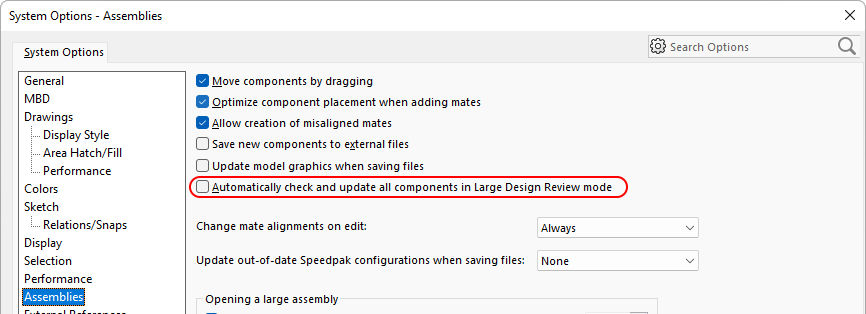
In case the above SWoption remains ENABLED, when you open the assembly in "large design mode" (e.g. view only mode), the CAD will try to update its components to the last versions, and this will make MechworksPDM not able to visualize the structure of released assemblies previous to the last one.
Open documents in 'view-only mode' if obsolete
As for Released document, this option force the CAD readonly opening for Obsolete records.
Only Drawings
This options is intented to work with both the above 2 options (Open document in 'view only mode' if released or obsolete) It allows the opening in view-only-mode only to Drawings. The option may be useful for cases where the correct configuration needs to be always loaded in memory.
Example
As a use case, consider the following:
1.Part1 has two configurations, cfg1 and cfg2; the last saved configuration is cfg2.
2.Part1 is approved.
3.The user selects the Part1/cfg1 in the Browser and opens it.
4.Part1 is opened view-only, so it can't be saved-as - for such reason, the user RMB->Edit in the SolidWorks part for loading the full model in memory before the save-as.
5.SolidWorks uses the last saved configuration for loading the full model, so the user, even if when selecting the part in the Browser, selected the cfg1, SolidWorks has loaded the cfg2, being the last saved configuration.
This issue may cause troubles if, for example, cfg1 has an associated drawing, while cfg2 has not.
When saving-as cfg2, no drawing will be created.
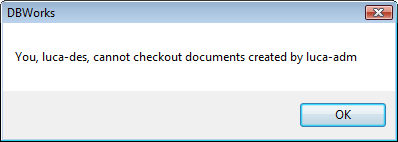
Only document creator can checkout
The checkout is exclusive action for the document creator
A message box will inform about unallowed action:
Automatic check-out after an 'increment revision state'
If active, Mechworks PDM always checks out the document after an 'Increment Revision State' from a NEW or RELEASED state; the menu item is also displayed as 'check-out' and not as 'increment revision state'.
Never update file properties on check-out
When enabled, this option avoids any file properties operation during the CHECK-OUT of a Document (in memory properties updates are always applied).
The need for such parameter is due for speeding up the CHECK-OUT operation, since the only property that would be changed is the STATE property - with the latest versions of the CAD (in particular SolidWorks), the access time for updating the file properties is slow, and so, being the CHECK-OUT operation typically followed by the OPENING of the assembly in memory, the STATE property update is not strictly needed in the most of times.
Never open documents on recursive check-in/approval operations
When checked, MechworksPDM never opens in memory any document being checked-in or approved in recursive operations.
On the other hand, if the options is unchecked, every child document will be opened together with its drawing and then updated.
Recursive operations are batch operations that starting from an assembly or a drawing include in a top down traversing all the children. A typical example is a check in or an approval of an assembly and all the contained sub-components. One command in MechworksPDM can perform the entire batch process.
Prerequisites for the correct functioning of the batch process, operative implications
All the documents must be READY for the approval at check-out time, so, in particular:
1.every drawing’s title block revisions list must be prepared and filled with proprietary "approved_by/approval_date" fields, since the MechworksPDM internal fields are updated at approval time only if the drawings are opened in memory
2.every drawing’s variant note, if any, must be refreshed at check-out time
3.mass properties must be pre-calculated, since they aren't dynamically calculated at check-in time
4.no derived part relations are managed
It is under the full responsibility of the designers to assure that the data in their drawings are correct at check-out time; the Shift+refresh functionality must be used for refreshing and checking all the data on the drawings before starting the recursive checkin/approval process.
|
|
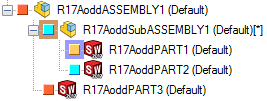
Never process NO_BOM documents on Recursive Checkout/Checkin/Approve Operations
When checked, MechworksPDM will automatically exclude any child document marked as NO_BOM either in the DOCUMENT or in the PARENT_CHILD tables.
Never ask next revision on Recursive Operations
When checked, MechworksPDM avoids to ask the value of the next revision (by incrementing automatically the current one) when executing a recursive checkout or increment revision state (checkin). 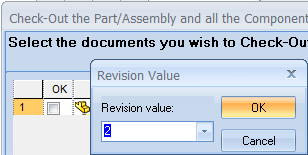
Never increment revision state when performing a recursive Checkin on approved documents
This option controls if the documents in RELEASED state can have their revision incremented or not when performing a recursive Checkin operation, that, since of the enhancement introduced with build 20060727, can act as an Increment Revision State operation for documents in state NEW or RELEASED.
Allow checkout
This suboption has been added to allow the behavior of the PDM as it was before the fix applied in sp1.6
20180503 - Recursive Checkout: the option "Revisions->[X] Never increment revision state
when performing a recursive Checkin on approved documents" was ignored,
so allowing a massive Checkin->Checkout in a recursive way even for documents in a Released State"
so allowing the Recursive Checkout (with a consequent revision state increment) from a set of documents in RELEASED state
Manage revisions only for documents within the following directories
Excludes all the folders except the listed ones.
 option not checked → all the enlisted folder contents will be excluded from the revision process. option checked → only the file contained in the enlisted folder will be submitted to the revision process.
Please note the Link Mode is priority, so its action could affect the settings of the revision management.
E.g. if a record is contained in a folder declared as no-rev but its linked record (e.g. drawing) is in a yes-rev location, the PDM will force it to be revisioned due to the Link Mode priority on revisions exclusion.
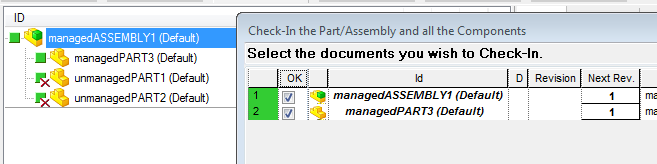
Documents with no revisions managed are graphically marked with a red cross, in both the grid and in the tree interface: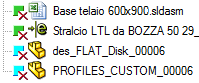
See also DBW_NO_LIFE_CYCLE field.
Documents marked as "unmanaged" are no displayed in the Document Selector dialog when processing life-cycle recursive operations, like Checkout/Checkin/Approve of a Tree: