More... options
 Use 'SCHEMA/DBWGTYPES.TXT' generic document's types definition file
If checked, enables the management of metacategories for non CAD documents
This option is enable if the file exists.
Add documents as BOM items
This option allows the creation of Generic Documents records as BOM Items. The Generic Documents extensions that will be managed as BOM Items can be defined in the sub-option File Extensions.
Example
 With the settings as in the picture, only files with extensions equal to TXT and TEK will be managed as BOM Items.
For documents that are in match with the File Extensions option, the default MAKE_BUY attribute is MAKE.
For drag&drop operations, the PARENT_CHILD_MAKE_BUY attribute will be assigned to MAKE as well.
|
In this example two generic files have been drag&dropped on the assembly: the DOCX file has been inserted as common generic document; •the MAKE value in DOCUMENT.MAKE_BUY field (middle column) •the MAKE value in PARENT_CHILD.PARENT_CHILD_MAKE_BUY field (column on the right) •the pink background for fake quantity •the square brackets beside the ID |
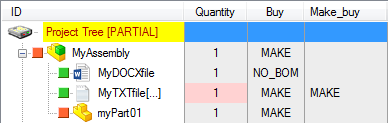
This option is enable if the following option  Add documents as BOM items if their MAKE_BUY value is different from NO_BOM is disabled;
Add documents as BOM items if their MAKE_BUY value is different from NO_BOM
When checked, any Generic document added as a child to a parent document will be created as BOM Item if:
•its MAKE_BUY value is different from "NO_BOM" in the DOCUMENT table
•its PARENT_CHILD_MAKE_BUY value is not NULL and different from "NO_BOM" in the parent→child relation from which the drag action starts from
Here after are 2 cases where the option takes effect:
1.The default make_buy value when adding a new document (word, excel, dwg, etc.) as a child of a part/assembly is NO_BOM - with the option activated, if the file extension matches one of the listed extensions, the default value of MAKE_BUY field is not changed (as it would be in NO_BOM for common generics), and the PARENT_CHILD_INDEX becomes a bom-numbered <=-10 index, instead of the default -1 value (used when considering the child document as an attachment, so with no bom order)
2.If the document already exists in the database with a make_buy=MAKE, then the action of drag&drop on a assembly/part creates a parent_child_index with a value 1..N, instead of the default -1 value (used when considering the child document as an attachment, so with no bom order)
Example
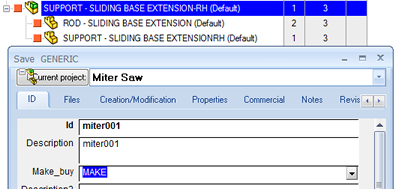
If the option is enabled, when adding a document and setting the MAKE_BUY value different from NO_BOM, you'll obtain the document is added as BOM item (please note the quantity has a pink background). 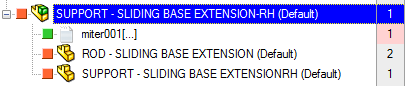
Remarks about the two previous options
When both enabled, the first one is grayed, because their application follows a bottom-up way:
if the second option is verified (document already registered in the db and MAKE_BUY field value different from NO_BOM) then the first one is not applied;
otherwise if the criteria of the second option is not verified, then the first one will be (record of specified extensions will be inserted as BOM items).
Use OnAddDocument script when adding a generic document
Use OnOpenG.LST when opening a generic document
Use OnPlotG.LST when plotting a generic document
Always use Dataentr.LST when creating a new BOM item
This option forces che creation of the ID of a new BOM item through the script DataEntr.LST
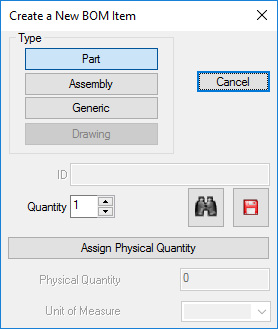
When enabled, this option makes the ID field not editable in the Create New BOM item dialog and removes the OK button:
OR through save wizard button |
|
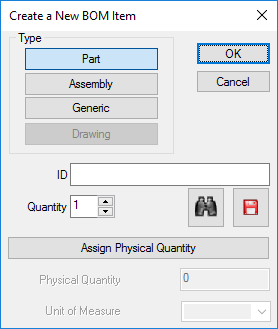
Leave ID empty when creating a new BOM item
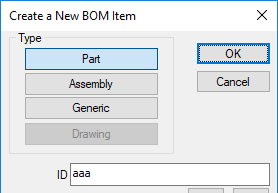
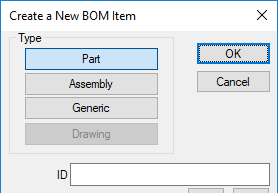
When creating a new BOM item through RMB→BOM→Create New BOM item, a dialog is shown.
If this option is enabled the dialog will not have the ID field pre-filled with the value of the previosly created BOM item
at dialog opening |
|
 Show DBWERP state in Trees and Grids
If this option is checked, the documents for which a MATERIAL or DOCUMENT record has been created in the ERP are visualized with the special icons  or
or  .
.
This option is enable only if DBWERP is installed. DBWERP is available as a separate module.
SW Document Manager File Locations Roots
This options allows you to set a Root folder in order to provide the necessary file locations parameters to the SolidWorks Document Manager that's called when registering whole structures through the Add Document functionality if run from a DBWorks Standalone system
Drawing → PDF/TIF: create full color PDF/TIF
If checked, a full color PDF/TIF of any drawing (CAD native or DWG) is created by the Revision→Outputs functions and MDConvert shell command.
Drawing → TIF: create in gray scale
If checked, a gray scale TIF is created by the Revision→Outputs functions and MDConvert shell command.
The settings of this option overrides the settings of the previous option about creating TIF in full color or back and white
cases |
TIFF |
|
|---|---|---|
|
black/white |
black/white |
|
full color |
full color |
|
full color |
gray scale |
|
black/white |
gray scale |

DWG → PDF: convert all DWG layouts
When checked, all the DWG/DXF layouts are exported in the PDF when created by the Revision→Outputs functions and MDConvert shell command.
Please note for options that converts from DWG to PDF, the conversion process always embeds the DWG fonts for a better PDF portability
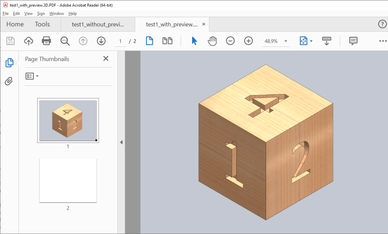
Embed static PDF in 3DPDF for preview purposes
The option allow to choose whether create a preview for a 3D PDF:
3Dpdf WITHOUT preview (option disabled)
you have a pdf with one sheet only: that sheet contains the 3d model
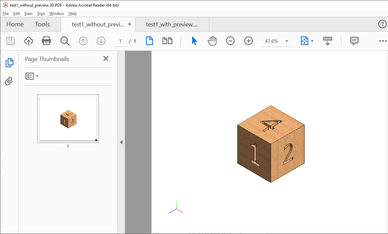
3Dpdf WITH preview (option enabled)
you have a pdf with two sheets: the first one contains a static preview of the model, the second one contains the 3d model
AutoCAD fonts path
This path contains the fonts required for DWG drawings.
Avoid DBSolidEdge Display Name override
When checked, DBSolidEdge avoids any override of the Display Name of SE models.
By doing this, it is possible to program the SE Options→Helpers→Document Name Formula with properties different from the File Name and have them be applied to the Model's new Views, using the SE command Solid Edge→View→New Window
Remarks: already existing model views are not automatically updated by SE and needs to be deleted