Revisions Outputs Options
 Show File outputs in external window
Maximum number of files to open at a time (0=All) [2]
Allow file outputs paths from custom script
Create ExcelBOM on Checkin  Approve
BOM type
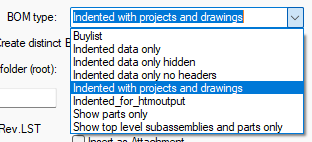
In this combobox you'll find BOM type defined for standard BOM operation.
Every file of the type <GlobalParametersPath>\PAR\DBWBOM_<label>.TXT will be enlisted here (reported only with <label> value).
Create distinct BOM for each revision
Self-explaining.
BOM files alternate folder (root)
With this option you can specify a different location for the creation of BOM. Usually the BOM is created in the same folder of the main document you're requesting the BOM of.
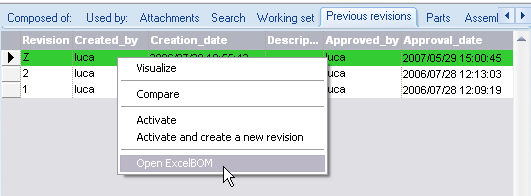
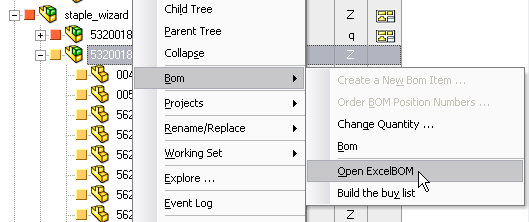
The created Excel_BOMs are accessable through new RMB menu entries.
From the Previous Revisions Grid:
From the Tree and Grigs interface:
SQL Filter:
A filter to specify for which documents creates BOM of.
Create all files in the root folder
If checked, the output will be created in the assigned alternate folder (no folder structure is created).
Insert as Child Generic Document
Self-explaining.
Insert as Attachment
Self-explaining.
Use OnCheckIfMajorRev.LST
Create Output file on Checkin Approve
Remarks on output files
Please note every output file created through this functionality is readonly, this also if the output file has been added to the PDM and its STATE is NEW or CHECKEDOUT.
In case you require the file to have read/write access it's possible to post-process such file through the script OnRevisionOutputFilesCreated.LST (see below in this page).
Remarks on PDF creation at checkin time
In this fase the created PDF file will contain the correct updated properties but the drawing display list will refer to the released/new properties since the drawing is not saved in this process.
Please note that if this option is checked, it disables the Solidworks option Performaces→No preview during open (faster).
Output file extension
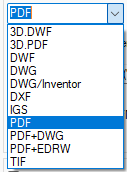
Creates a document output file in the specified format.
Currently supported file formats for conversion to PDF are:
.doc .docx .docm .xls .xlsx .xlsm .ppt .pptx .mpp .mpx .rtf .tif .tiff .mi .me .dwg .dxf .slddrw .idw .dft
The available Output File Extensions must be declared into the parameter file SCHEMA\DBWRevisionsOutputFileExtensions.TXT.
Here it's an example of such parameter file.
;--------------------------------------------------------------
; DBWRevisionsOutputFileExtensions.TXT
;
; DBWorks Revisions Output File Extensions File
;
;--------------------------------------------------------------
; EXTENSION <extension>
EXTENSION PDF
EXTENSION PDF+DWG
EXTENSION PDF+EDRW
EXTENSION TIF
EXTENSION DWG
EXTENSION DWG/Inventor
EXTENSION DXF
EXTENSION DWF
EXTENSION IGS
EXTENSION 3D.DWF
EXTENSION 3D.PDF
EXTENSION STEP
EXTENSION STEP.AP214
SCRIPT myFileOutputScript.LST
<empty line>
plase note default format for STEP is AP203
Rules for creating DWG/DXF outputs
DBWorks follows the Solidworks settings about creating DWG/DXF outputs.
For example, if you have a multiple sheet drawing you will obtain one or many DWG/DXF according to the Solidworks settings:
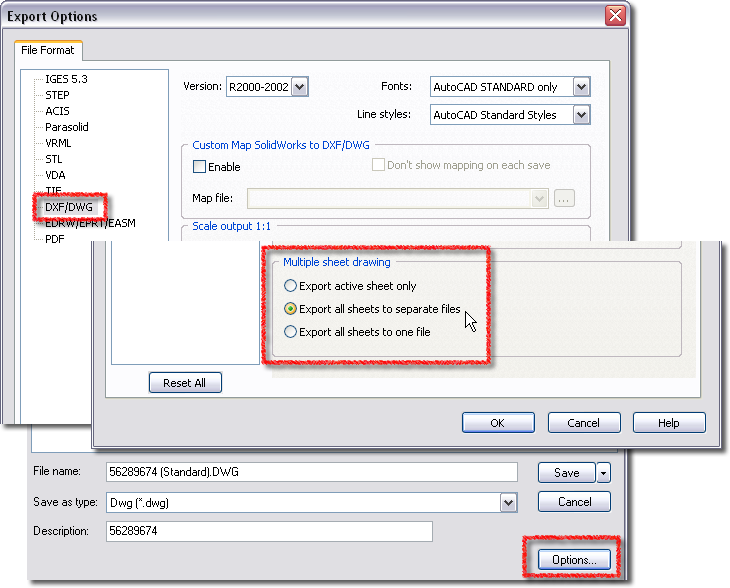
DBInventor looks for a file named <MECHWORKS_PDM_SERVER>\PAR\DBInventor_DWGExport.ini.
An example of *.ini file can be the Autodesk Inventor distributed DWGSettings.ini (usually located in %programfiles%<Inventor>\Bin\BIM Exchange Design Data\Support\DWGSettings.ini)
To obtain the same result of Inventor when creating DWG/DXF you can copy the whole content of such file and paste it in DBInventor_DWGExport.ini.
[EXPORT SELECT OPTIONS]
AUTOCAD VERSION=AutoCAD 2004
CREATE AUTOCAD MECHANICAL=No
USE TRANSMITTAL=No
USE CUSTOMIZE=No
CUSTOMIZE FILE=[INVENTOR_INSTALL_DIRECTORY]\COMPATIBILITY\Support\FlatPattern.xml
CREATE LAYER GROUP=No
PARTS ONLY=No
[EXPORT PROPERTIES]
SELECTED PROPERTIES=
[EXPORT DESTINATION]
SPACE=Model
SCALING=Geometry
MAPPING=MapsBest
MODEL GEOMETRY ONLY=No
EXPLODE DIMENSIONS=No
SYMBOLS ARE BLOCKED=Yes
AUTOCAD TEMPLATE=
DESTINATION DXF=No
[EXPORT LINE TYPE & LINE SCALE]
LINE TYPE FILE=[INVENTOR_INSTALL_DIRECTORY]\COMPATIBILITY\Support\invGB.lin
Continuous=Continuous;0.
Dashed=DASHED;0.
Dashed Space=DASHED_SPACE;0.
Long Dash Dotted=LONG_DASH_DOTTED;0.
Long Dash Double Dot=LONG_DASH_DOUBLE_DOT;0.
Long Dash Triple Dot=LONG_DASH_TRIPLE_DOT;0.
Dotted=DOTTED;0.
Chain=CHAIN;0.
Double Dash Chain=DOUBLE_DASH_CHAIN;0.
Dash Double Dot=DASH_DOUBLE_DOT;0.
Dash Dot=DASH_DOT;0.
Double Dash Dot=DOUBLE_DASH_DOT;0.
Double Dash Double Dot=DOUBLE_DASH_DOUBLE_DOT;0.
Dash Triple Dot=DASH_TRIPLE_DOT;0.
Double Dash Triple Dot=DOUBLE_DASH_TRIPLE_DOT;0.
Custom scripts for the Output functionality
It is possible to write custom output scripts for managing the Output functionality.
In order to activate a custom script as revision output, the parameter file must be added of one or more entries of the type
SCRIPT ...
(as already shown in the previous example)
The script name must not contain any blank or special character
The script is run only if the file exists. This means it will not be run for fake documents (entry for the BOM)
The CAD documents are opened before the script is launched, so any parameter/feature of the models/drawings can be accessed by using the proper modeler APIs
The script must then be selected in the output extensions combo:
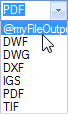
The @ character is automatically prefixed to the script file name, that' has to be placed in the LST folder.
The script inputs are the followings (self-explaning):
@DOCUMENT_UNIQUE_ID |
|---|
@DOCUMENT_REVISION |
@DOCUMENT_CONFIGURATION |
@DRAWING_SHEET |
@DOCUMENT_PATH_NAME |
Example
.VBSCRIPT
sub main
DBWInit(TRUE)
uniqueId = DBWInput("@DOCUMENT_UNIQUE_ID")
revision = DBWInput("@DOCUMENT_REVISION")
configuration = DBWInput("@DOCUMENT_CONFIGURATION")
drawingSheet = DBWInput("@DRAWING_SHEET")
pathName = DBWInput("@DOCUMENT_PATH_NAME")
DBWMsgBox "Hello, this is myFileOutputScript.LST!" & vbcrlf &_
"unique id = " & uniqueId & vbcrlf &_
"revision = " & revision & vbcrlf &_
"configuration = " & configuration & vbcrlf &_
"pathName = " & pathName & vbcrlf &_
"drawing sheet = " & drawingSheet
<create here the proper output file with your own methods>
end sub
because of the fix
20090316 - Revisions Output files: when the extension was of type @... ( so launching a script for creating the output file ), the "RMB→Output file" popup menu was not showing the correct revision output file name
the script are fired also when clicking RMB on a record (only once per session and both from trees and grids) that satisfies the filter criteria declared in the options. For this reason a new parameter has been introduced to differentiate the RMB call from the revision output call:
@QUERY_OUTPUT_FILE_EXTENSION if 1 it means the script is fired after a RMB click; it requires -as output parameter- the @OUTPUT_FILE_EXTENSION containing the extension of outputted file.
On the contrary when the script is fired as revision output the parameter is not passed at all.
Example
.VBSCRIPT
sub main()
DBWInit(TRUE)
fileOutputExtension = "PDF"
if DBWInput("@QUERY_OUTPUT_FILE_EXTENSION") = "1" then
DBWOutput "@OUTPUT_FILE_EXTENSION",fileOutputExtension,ForWriting
exit sub
end if
uniqueID = DBWInput("@DOCUMENT_UNIQUE_ID")
revision = DBWInput("@DOCUMENT_REVISION")
configuration = DBWInput("@DOCUMENT_CONFIGURATION")
drawingSheet = DBWInput("@DRAWING_SHEET")
pathname = DBWInput("@DOCUMENT_PATH_NAME")
PDF_filename = pathname & "." & revision & "." & fileOutputExtension
Call DBWShell("SWSaveAs " & PDF_filename)
end sub
Macro support in Revision Outputs functionality
It is possible to insert a MACRO definition (see the Help file for the syntax and the limitations of the Macros in the PDM) in the SCHEMA\DBWRevisionsOutputFileExtensions.TXT, for defining a rule for naming the Revision Output File that will be created. The MACRO must also define the extension for the Output File. Example:
;--------------------------------------------------------------
; DBWRevisionsOutputFileExtensions.TXT
;
; MechworksPDM Revisions Output File Extensions File
;
;--------------------------------------------------------------
; EXTENSION <extension>
MACRO $(ITEM_CODE).PDF
EXTENSION PDF
...
SCRIPT OUTPUT_ON_APPROVE.LST
With the above definition, you can now select the MACRO in the Revisions Outputs options:
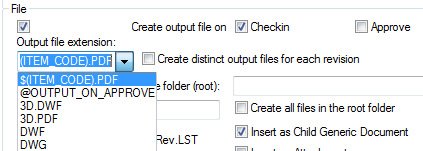
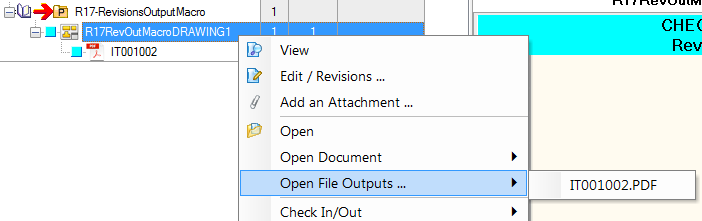
and obtain a PDF file, with the name and the extension you defined through the MACRO, to be created as Revision Output (in this example it is assumed that the value of ITEM_CODE is IT001002)
PDF 3D Support in Revision Outputs
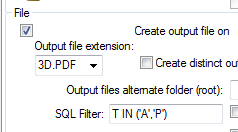
The extension .3D.PDF is available in the output file extension option with some requirements (see below):
Remarks
1.the SQL Filter must be set as in the picture above.
2.The particular PDF file created by MechWorks PDM (with extension .3D.PDF ) is composed by TWO pages: the upper page contains the static image (like a normal PDF) the lower page contains the PDF 3D model This particular page format allows MechWorks PDM to display the static preview of the PDF 3D file. 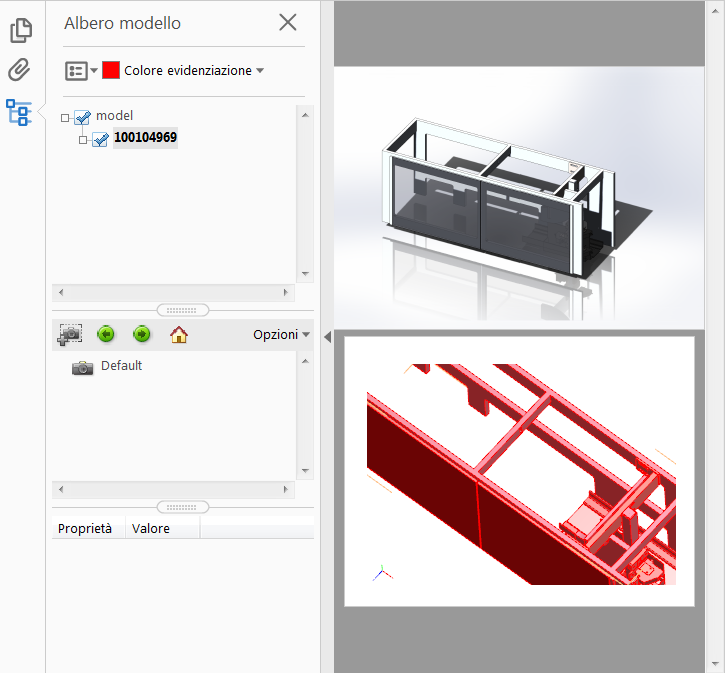 If the static preview is not needed, then the option General→More...→
 Embed static PDF in 3DPDF for preview purposes can be disabled
3.A template file named DBInventor3DPDFTemplate.pdf must be located in the shared PAR directory - if not found, the default Inventor 3D PDF template file ( %PUBLIC%\Documents\Autodesk\Inventor 20xx\Templates\Sample Part Template.pdf ) will be used
Supported format conversions
PDF → PDF and PDF → TIF conversions are supported.
Here below are some notes about:
•PDF → PDF
simply creates a copy of the original, but in the destination directory as assigned in the Revisions Output parameters;
it is strongly recommended to enable the  Create distinct output files for each revision option to avoid "same ID" errors on the creation of the Generic Document record
•PDF → TIF
the overall quality is a 'display level' quality - no resolution optimization is applied to the conversion
Multiple revision outputs for single class of documents
It is possible to assign more than one extension in the Revision Outputs definition file: DBWRevisionsOutputFileExtensions.txt with the format:
EXTENSION <extension>+<extension2>+...+<extensionN>
using the + character as separator.
When a multiple extension is found:
•the class of documents to which such extensions are associated ( example T='D' ) will create an output file for each defined extension.
•the parameter @REVISION_OUTPUT<1/2/3>_MULTIPLE_EXTENSIONS is available as input to the OnRevisionOutputFilesCreated.LST script.
the @REVISION_OUTPUT<1/2/3>_FILE_NAME parameter contains always the last created output file
Example
EXTENSION PDF+DWG
With the above definition, in the Options dialog you will see:
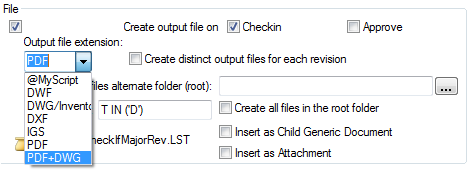
With such example, both the PDF and DWG output files will be created for the Drawings being checked-in.
Create distinct output files for each revision
A pdf will be created for every revision; the pdf filename will be in the following form:
<ID> (<config>).<revision>.PDF
Output files alternate folder (root)
With this option you can specify a different location root for the creation of output files.
A structure will be created reproducing the original component path.
SQL Filter:
A filter to specify for which documents creates output files of.
Create all files in the root folder
If checked, the output will be created in the assigned alternate folder (no folder structure is created).
Insert as Child Generic Document
Self explaining.
Insert as Attachment
Self-explaining. See topic about attachments
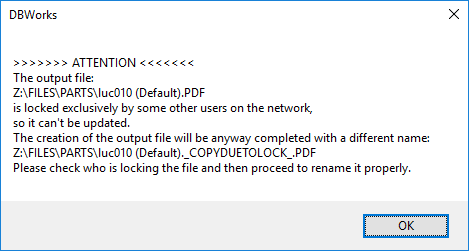
When the revision output file is existing but locked exclusively by another user (e.g. a pdf open on anther workstation), instead of interrupting the generation, the PDM generates a new file with a different name (filename._COPYDUETOLOCK_.ext); The user is also alerted with a specific message and an event is recorded in the EVENT_LOG:
Use OnCheckIfMajorRev.LST
Never create an output file on new revisions
If checked, the PDM will create the Revision File Output only for the state transition from Checkout to Checkin
Create an Output File on a Revision Freeze
When checked a Revision Output is created when Freezing a Document.
To see this checkbox enabled:
-at least one revision output on a Revision Approval time must be enabled.
-the option Revisions→Approval→Update drawings on revision freeze must be enabled.
Use customized script OnRevisionOutputFilesCreated.LST
To see this checkbox enabled, at least one revision output must be enabled.