Projects Options
Default Project [Project1]
It is the name of the Default Project used by Mechworks PDM; its default is Project1. The Default Project is the project that is automatically created by the PDM at start-up time.
Trash Project [TrashProject]
It is the name of the Trash Project used by Mechworks PDM; its default is TrashProject. The Trash Project is a project used by the Projects Documents assignment dialog as a trash can for documents not used in any other project.
 Avoid automatic parent document project assignment
If checked, when MechworksPDM update the database it doesn't associate the children documents (for example all the components of an assembly) to the parent document project (for example the project of the assembly).
Example
Suppose to have the following models
 A1 - belongs to project AsmPrj

 P1 - belongs to project PartPrj
P2 - belongs to project PartPrj
 Avoid automatic parent document project assignment After a save of A1:
A1 - belongs to project AsmPrj
P1 - belongs to project PartPrj and to project AsmPrj
P2 - belongs to project PartPrj and to project AsmPrj
 Avoid automatic parent document project assignment After a save of A1:
A1 - belongs to project AsmPrj
P1 - belongs to project PartPrj
P2 - belongs to project PartPrj
If A1, P1 and P2 are new in the database (A1 is being saved in the database for the first time), P1 and P2 are associated to the project of the parent assembly (ASMPRJ):
A1 - not yet registered in the database
P1 - not yet registered in the database
P2 - not yet registered in the database
Current project is AsmPrj, after the save of the assembly A1:
A1 - belongs to project AsmPrj
P1 - belongs to project AsmPrj
P2 - belongs to project AsmPrj
 Avoid Document without Projects
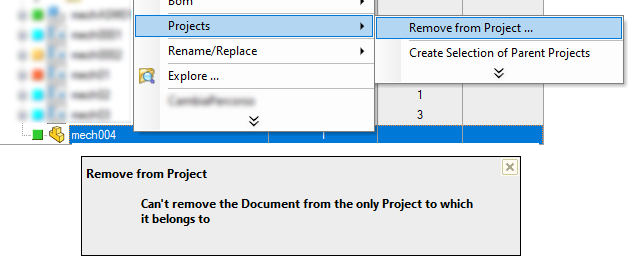
This option avoids the existence of Documents not belonging to any Project; this means that the remove from project action is not effective if this option is enabled:
Always allow Documents without Projects
With this option enabled it's possible to leave a document with no project assigned even when a save action is performed on the document
please note the save as action is a different management (since the savedAs document is not existing yet), so in that case a project must be assigned with no exception.
Add new parts to each project the parent assembly belongs to
This option has been added to allow, during the save process of an assembly having new parts, to add these new parts to all of the projects this assembly is contained on. During the save process, if the user set this option and requested to provide input, the dialog related to the new parts will show the project section grayed out, since there won’t be the choice to select the project: 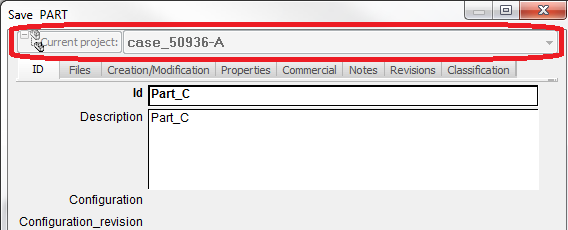
Example
Suppose to have an assembly that's contained in two projects:
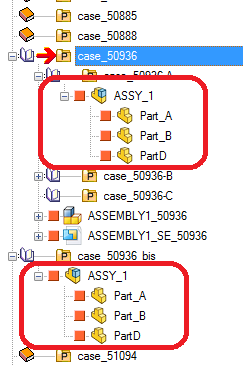
Adding a new part and then saving the assembly, with this option enabled and the traverse assembly enabled too, the new part will be added in both projects: 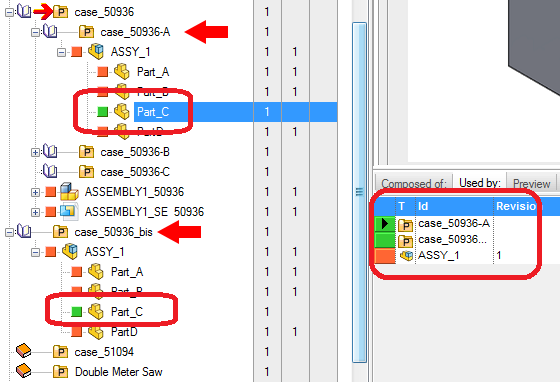
Avoid Passing Complete List of Projects to Scripts
When checked, MechworksPDM doesn't pass the entire list of projects to any script being called.
Normally the list is passed to every script, such as DataEntr.LST or similar, to allow the script to use the list of projects without accessing the database. Now, when the list of projects is huge ( more than 300-400 entries ), it can be slower to pass the list instead of directly accessing the database from the script, if any project list is required. It is suggested to check this option if you see a significative delay when starting scripts like the DATAENTR.LST.
Enable revisions for projects
Revisions for projects have not the same meaning and features as revisions for documents. Read more on the topic before activating.
This option is enable if the database view PROJECT includes the STATE field (both names are languange dependent).
Never display Released Projects in Trees
self explaining
Always create Shared Projects
Enabled only when the Remote Access is activated, if checked it forces the new projects to have the suffix _SHARED appended to the COMPANY_ID, so making them SHARED.
This option is enable if Environment→Remote Access→Enable the Remote Access mode is enabled too.
Always consider the Current Project as Shared
If checked (by default it is checked), the Current Project, also if Foreign and not _SHARED, appears in the Projects List of the Data Input form at the save of a new Document.
This option is enable if Environment→Remote Access→Enable the Remote Access mode is enabled too.
In Remote Access context, this option is considered also when adding new documents/attachments to the Project
Please note in this case the Project icon changes from Foreign to Local when the Project becomes Current - when the Current Project is changed, the Project icon returns to be Foreign
Avoid adding current project to the existing projects selection
Working with partial project tree, this option avoids to add the current project in the selection list automatically.
The new option is suggested in case of tree performance issue: making a project as current, no changes to the project tree list is done when the option is activated.
Save drawings on a separate project
If checked, when MechworksPDM saves a drawing, it first looks for a special field in the database, indicated by the value in the Name of the field with the project ID edit box. If this field exists and the content is not null, MechworksPDM assigns the drawing being saved to the project specified in the special field.
Example
Suppose you have customized the drawing table and have added a new custom field named MACHINE and you have created a project named T-100.
If you fill the Name of the field with the project ID edit box with the value MACHINE, when you save a drawing, MechworksPDM pops up the input data entry mask.
If you enter in the field MACHINE the value T-100, MechworksPDM puts the drawing under the project T-100, regardless of what is the current active project or what is the actual Project↔Users assignment done through the DBWArm system ( if installed ).
Save drawing on the Part/Assembly's project
If checked, MechworksPDM will assign it to the project of the first referenced model in the drawing.
Available Projects List in the Save Dialog matches Projects shown in the Tree
When checked, the Save Input Form will show only the Projects that are currently displayed in the Browser's Tree (projects selection rather than the whole list):
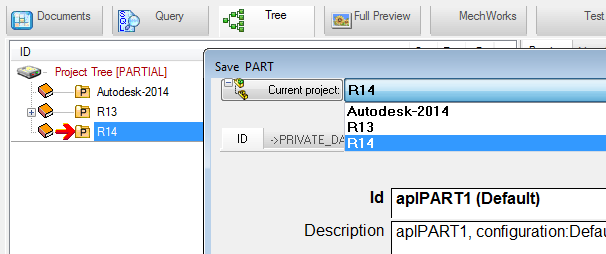
This option is available if the following one List only Current Project in the save dialog is unchecked
List only Current Project in the save dialog
This options allows to list just the current project in the Save Dialog;
This option is available if the previous one Available Projects List in the Save Dialog matches Projects shown in the Tree is unchecked
Assign project by component prefix or directory
If checked, when MechworksPDM saves a part or an assembly, it first checks whether the beginning of the ID of the part/assembly matches any of the entries in the Prefix↔Project link list, and if so, it assigns the current part/assembly to the project specified in the list.
MechworksPDM stores the part/assemblies under the project matching the component name, regardless of the current active project or the actual Project↔Users assignment done through the DBWArm system (if installed).
Example
Suppose to have two projects named:
StandardParts
StandardAssemblies
Suppose now to have the Prefix↔Project link list filled with the following entries:
00*->StandardParts
01*->StandardParts
??AA*->StandardAssemblies
Now, whenever you save a part/assembly whose ID begins with 00..., the part/assembly is assigned to the project StandardParts. The same applies for parts/assemblies with names beginning with 01....
Equally, when you save parts/assemblies with names like 01AA789-10, BDAA178982-2, so that the third and fourth characters are two A, these parts/assemblies are assigned to the project StandardAssemblies.
Please note that the syntax for the prefix expression is very similar to that used for files ( * means any character, ? means exactly one character in that position, and so on ).
The assignment of the Prefix↔Project pair is assisted by a dialog that will popup double-clicking on the field and clicking the button on the right of the list entry:
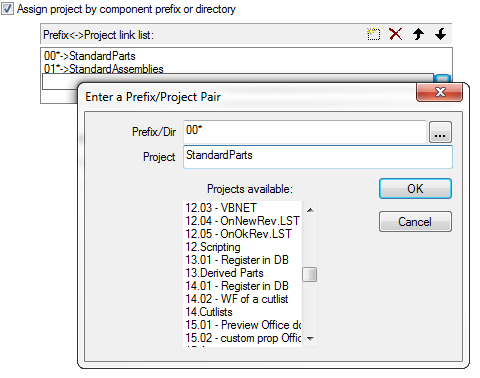
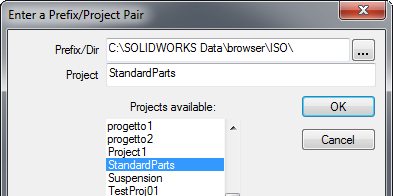
To assign a directory, write it in the prefix text box. Assigning a directory could be handy to handle Standard Parts separately in a dedicated project.
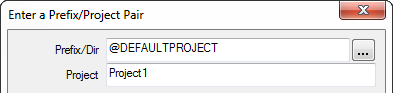
@DEFAULTPROJECT
It's possible to declare a "default project" to assign records that don't match any rule; the keyword @DEFAULTPROJECT can be declared as pattern and a project can be associated to it:
Generally, the decision flow for assigning the project is (top down):
1.If ID value matches with rule prefix → choose the specified project
2.if the FILE_DIRECTORY value matches with rule prefix → choose the specified project
3.if no rule matches at all and @DEFAULTPROJECT is defined → choose the specified project
4.if no rule matches at all and no @DEFAULTPROJECT is defined → choose the current project