Project Documents assignment
This tool allows to move or copy batch of documents across projects.
Note that the files on the drives are not moved, but the documents in DBWorks at the end of the process are assigned to other projects.
How to open this dialog
The dialog can be opened from the DBWorks Manager:
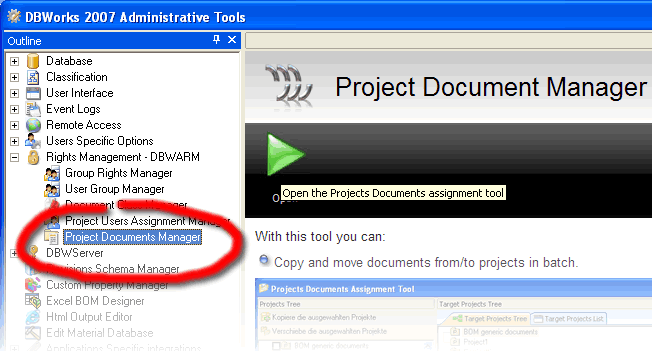
How to copy or move documents across projects
The interface displays two main trees, the 'from' tree on the left and the 'to' tree on the right, plus one small grid on the bottom on which we will return later on
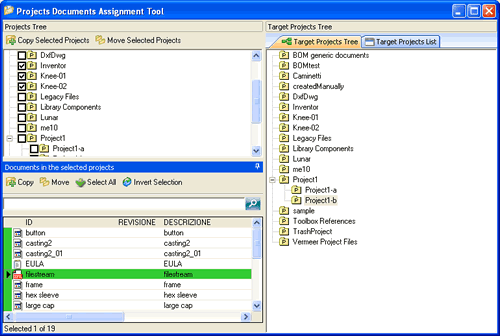
First you need to select one or more source projects in the projects tree on the left. Then you must select one destination project on the right.
As soon as the selections are made the 'Copy Selected Projects' and 'Move Selected Projects' buttons are activated.
If you want to copy or move all the files from the source projects to the destination projects you can proceed with one click on one of the two buttons, a confirmation dialog will follow.
If, on the other hand, you want to filter or select the documents to be copied or moved, you can use the grid at the bottom-left corner.
Filtering the documents
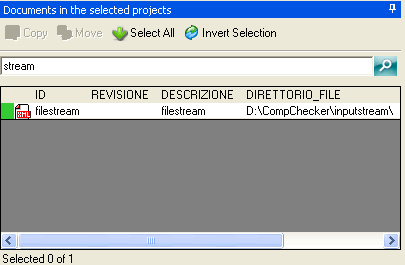
Here you see all the document belonging to the source projects. You can either select the documents to be copied/moved manually or apply a textual filter on any of the textual fields of the documents.
To apply a filter type part of the content in the edit box above the grid and click the search button on the right.
The selection buttons help you to select the documents efficiently.
For instance if you want to exclude only a few documents you can select them and invert the selection.
If you want to move only the pdf files you can type in the filter .pdf and refresh the results. In this case it still is a good idea to check the results before moving the documents, as some fields of non-pdf documents like for instance the field NOTES could contain a reference to 'whatever.pdf'.
After selecting the records, you can hit the Copy or Move buttons above the filter to operate on the selected records only.
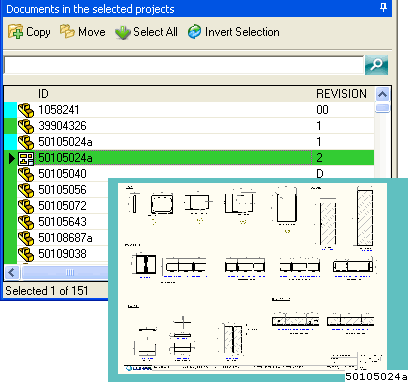
How to preview the documents during a record-by-record selection
If you want to select the models or the drawings one by one, keep the Ctrl button pressed on your keyboard and move your mouse over the grid: an unobtrusive preview pops up. Clicking the record they adds it to the current selection.
The confirmation dialog
In the confirmation dialog you are presented once more with the list of documents that are to be copied or moved to the destination project.
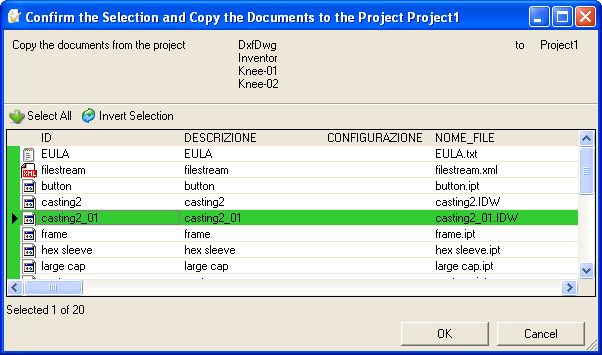
Here again you can operate a further selection before you confirm the operation.
Clicking OK updates the database.