Project Users Assignment Manager
The Projects Users Assignment interface has been redesigned for DBWorks 2006 to simplify the views and the interactions. This interface does not display the users belonging to the DBWorks Admin special group as they have by design access to all the projects.
There are two ways to browse the assignment: by projects and by users.
Browsing by project you have an interface similar to the Tree View of DBWorks, with Project on the left displayed in a tree
When you select a project in the left panel the check boxes are populated accordingly on the right to display the users who have been assigned to it.
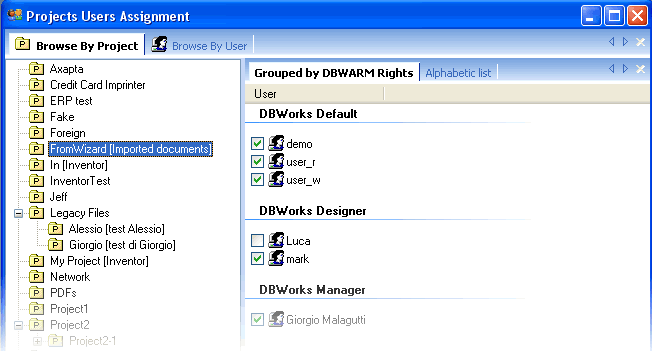
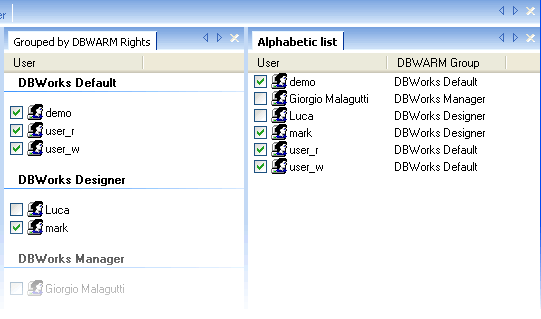
The users in the right panel can be displayed either in alphabetic order or grouped by DBWARM rights to easily find them
The second view is the view by user where you can see for each user what projects he's been assigned to
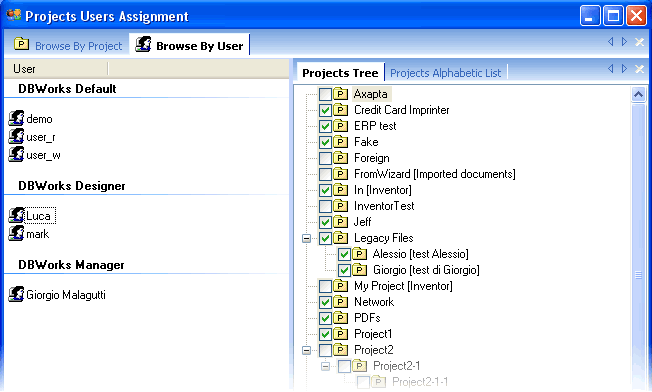
Switch view
To switch view click the tab above.
It is also possible to switch to the the other view by double clicking a project/user in the right panel. In this case the user/project becomes the current selection in the left panel or select the command from the popup menu of any item in the right panel
Assign a project to a user
In both views, select a project/user in the left panel, check the corresponding item in the right panel. The assignment in the database takes place only after clicking OK or Apply
Assign all the users to a project
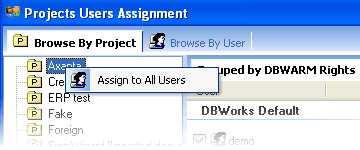
You need to be in 'Browse By Project' view
Right click the project and select the menu entry
Assign/remove all the users of a DBWARM group to a project
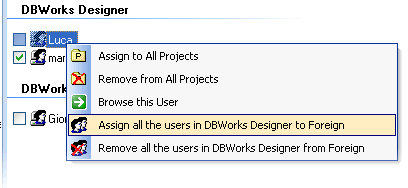
You need to be in 'Browse By Project' view
In the right panel select a user belonging to the group, then right click it and select the menu entry
Assign to a user one project and all its sub-projects of any level
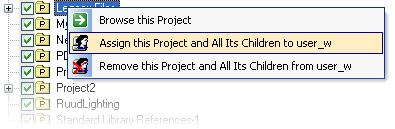
You need to be in 'Browse By User' view
Right click the project in the right panel and select the menu entry
Assign/remove a selection of projects to/from a user
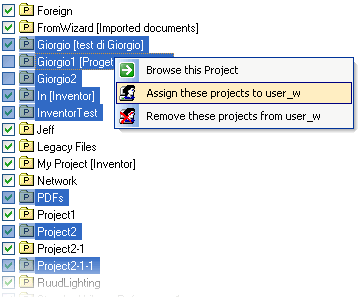
You need to be in 'Browse By User' view and display the alphabetic list of projects on the right, multiple selections are not available in the tree.
Use Ctrl and/or Shift to obtain a multiple selection. Right click on of the selected projects and select the menu entry
Assign/remove all the projects to/from a user
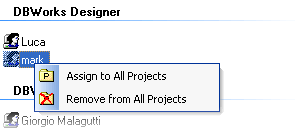
You need to be in 'Browse By User' view.
Right click the user in the left panel and select the menu entry
Since being assigned no projects doesn't really make sense, DBWorks behaves as if no projects = all projects, so if you remove all the projects from a user, then close and restart the application you will find to your surprise that the user has free access to all the projects!
This command makes therefore sense only if you want to assign 2 or 3 projects to the user, in which case you remove all the projects from the user, then assign him the set of projects he should have access to.
Assign/remove a tree branch of projects to/from a group
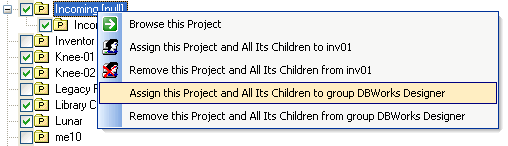
You need to be in 'Browse By User' view.
Select a user on the left, then a project on the right that has children
Right click the project and select the menu entry to add or remove the projects from the group.
Display printable htm overview pages
Right click an item in the left panel, can be a project or a user. In the popup menu, select Export to html.
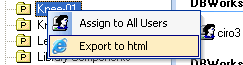
A web page is created and added as a new tab in the right panel
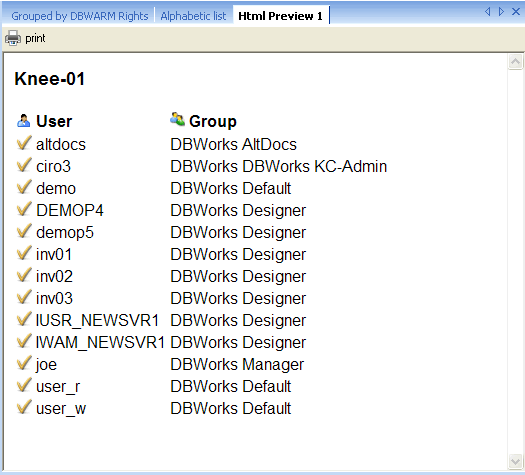
To print this page directly to the default printer, click the print button
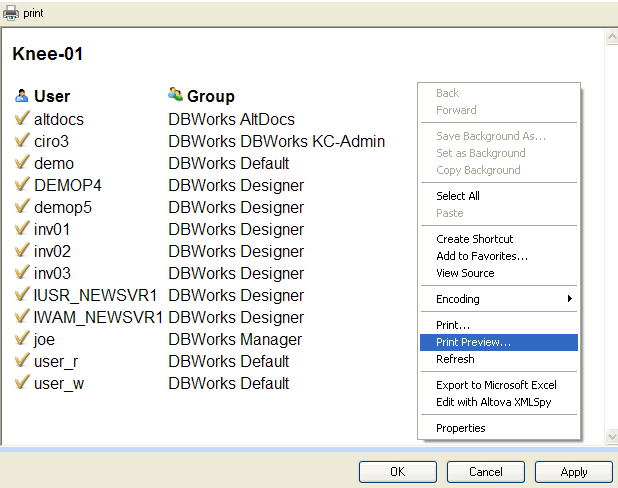
to preview before you print or to select the printer right click the page and select Print Prrview...
After printing you can remove the htm pages clicking the x button on the right.
Apply changes
The changes are saved to the database only when you click Apply or OK. Until then all the changes are kept in memory and will be lost if you click Cancel.
The lists are also not refreshed so if, while you're assigning the rights, somebody added a new project or a new user you won't be able to see it until you restart this application.
By default if a new user is added he will be assigned to all projects.