Revisions Files Options
[0] Max. Number of Revision Files to Keep(0=All, -1=No files)
It sets how many revision files are maintained.
If set to 5, when creating revision #6, the file of revision #1 is deleted
0 = keep all files (default)
-1 = discard all revision files
Restore revision root
It's the name of a root directory, under which the subdirectories specific to the revision are eventually created.
 Restore revisions in a different directory
when selected, when retrieving revision files with the Activate Revision function in the Revision data input form or with the Restore a previous revision function available in the Tree Page, MechworksPDM creates copies of the revisioned files in a directory different from the original one, automatically replacing all the references so as to have a perfect copy of the revision of the document that can be saved again in the database if necessary.
The directory created contains all the documents needed to reload the revision assigned for the document chosen. In this operation all the related documents (like drawings or derived parts) are involved.
When this option is checked, MechworksPDM allows to restore and open more than one revision at a time.
 Overwrite the current working file
If the selection of the radio button is on this option, MechworksPDM overwrites the current working files with the revision files, and sets the ACTIVE_REVISION field for the records affected by the operation.
Example
Suppose you have an assembly A1 with parts P1, P2 and P3. Save the assembly and a record in MechworksPDM. Suppose the unique id of A1 is 100.
Create three revisions of all the documents, named R1, R2 and R3.
Suppose now that the Restore Revision Root parameter has been assigned to E:\OldRevisions\ ( remember to add the last \ character ).
Open now the browser, select A1 and build the child tree: the Tree Page will appear with the structure:
A1
+ P1
+ P2
+ P3
Select now A1, and click the button (at the bottom of the page) Restore a previous revision: a dialog with the list of the revisions of A1 is displayed (R1, R2 and R3); select the revision R2 and click OK.
MechworksPDM creates a directory named
E:\OldRevisions\A_A1_(Default)@REV_R2
The name convention used is:
<doc type>_<doc ID>_(<doc config>)@REV_<doc revision>
Under this directory, MechworksPDM copies the revision files of A1, P1, P2 and P3, giving them a new name as follows:
A1_(UID_100-REV_R2).SLDASM
P1_(UID_100-REV_R2).SLDPRT
P2_(UID_100-REV_R2).SLDPRT
P3_(UID_100-REV_R2).SLDPRT
The name convention used for the file names is:
<original file name>_(UID_<doc unique id>-REV_<doc revision>).<original file extension>
The UID/REV pair in the filename ensures that every restore operation creates unique documents that can be eventually safely added to the MechworksPDM database.
MechworksPDM then adapts the references in A1 so as to match the new names of it's components.
The newly created assembly E:\OldRevisions\A_A1_(Default)@REV_R2\A1_(UID_100-REV_R2).SLDASM can be now safely loaded in the 3D CAD, and if necessary saved in a sub-project A1-REV2 so as to display it in the database.
From this point forward, the newly created assembly can also start a new life-cycle if necessary.
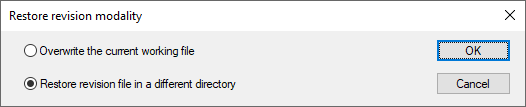
 Always ask the modality on the ACTIVATE of an older revision
If checked, when you perform a RMB→Activate on a record in the Previous Revision grid a message box asks for overwriting the current working file or creating the new revision in a separate directory
Select components to restore
When restoring a revision of an assembly, it is possible to restore single components of that revision. The process will read the .TREE file associated to the selected revision and will show in a Dialog all the relative components.
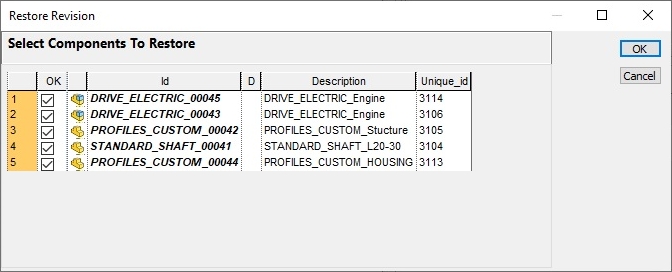
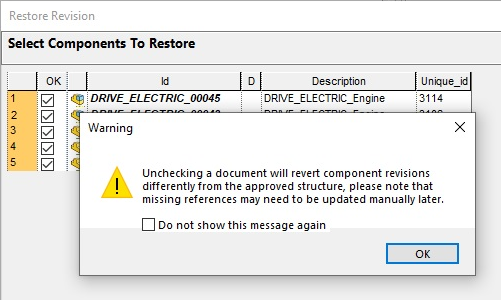
The Dialog will show all the documents that are going to be restored: when de-selecting a file, it is reminded (once deselecting the first component) that the operation could create possible references breaks that have to be fixed manually.
 Avoid to restore Standard Parts
Do not restore revisions for documents defined as standard part. See more about Standard Parts.
Avoid to restore Documents with still no approved revision
Do not restore revisions for document in NEW and CHECKEDIN state.
Avoid to restore Foreign Documents
Do not restore revision for documents belonging to other companies. See more about Remote Access
Use alternative path list for revision files
If checked, MechworksPDM looks for the revision file ( *.gz) first in the same directory of the original CAD document, and, if not found, in each directory assigned in the list Path list for revision files.
The same rule applies also to the assembly structure files ( *.TREE ).
If a revision file directory matches the last directory in path of one of the entries of this list, the revision file is created in the path given by the parameter.
Thanks to this feature, you can move all the *.gz and *.TREE files of a directory to any mirror directory in a read-only media ( like a CD-ROM or anything similar ), recovering useful disk space.
Adding a new path
To add a directory in the path list, double click on a empty row and press the rightmost button .
Example
Suppose the revision path list contains the following entries:
Z:\archive1\s1\
Z:\archive1\s2\
Z:\archive2\s1\
When releasing the file M:\archive1\s1\P1.SLDPRT, the .GZ file is created in the directory Z:\archive1\s1. When releasing the file M:\archive3\s4\P2.SLDPRT, the .GZ file is created in the same directory of the document ( M:\archive3\s4 ) as it hasn't been found in the path list a directory with the same name.
Assign only revision files path root
If checked, MechworksPDM, when archiving a revision file (.GZ) automatically rebuilds the folder structure under the assigned root.
With this option checked, only one entry is allowed in the list. With the option unchecked (default), the system is backward compatible with the behavior of the previous versions of MechworksPDM which is the behavior described in the body of the parent option above.